
Creating a New Organization
A Zibit organization is a shared workspace for your museum, studio, or production team. This tutorial starts on the Organizations page and walks through creating a new organization: name and URL, a paid plan, then checkout. By the end you will know how the create flow works and when the 14-day free trial applies.
14-day free trial for your first organization
Your first organization includes a 14-day free trial—no card required—offered when you sign up. You can invite teammates and build projects during that window, then choose a plan from organization settings if you keep going.
Creating another organization from the Organizations page is a paid path. You pick Basic, Professional, or Organization and complete checkout. The workspace is not created until payment is confirmed. Current rates are on the pricing page.
Open the Organizations page
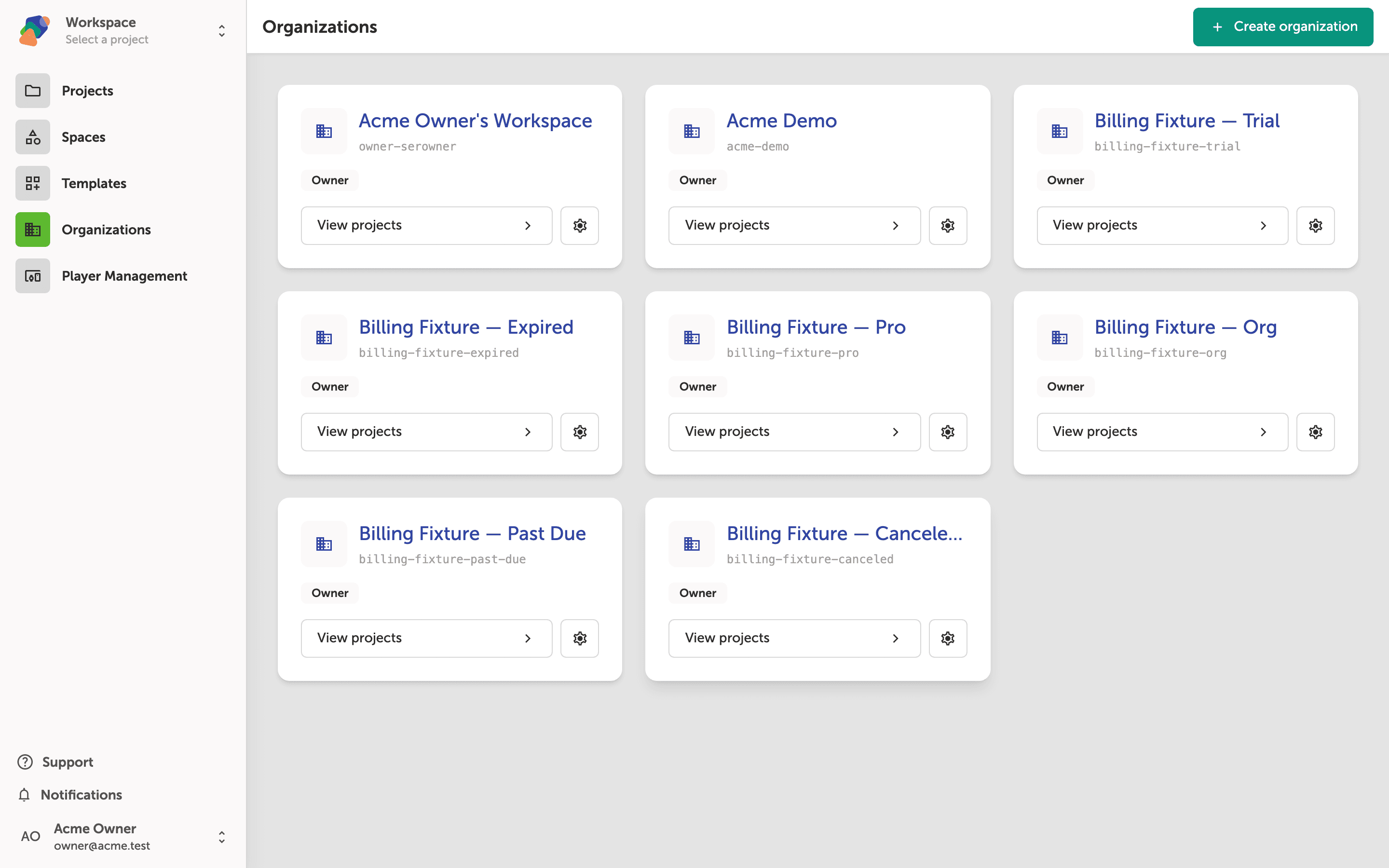
Go to Organizations in the left sidebar. This page lists every organization your account belongs to. Each card shows the name, URL slug, your role, View projects, and a settings icon.
The Create organization button is in the top-right header. Click it to start the create flow. Nothing is billed yet, and no organization is created until checkout completes.
Name the organization and set its URL
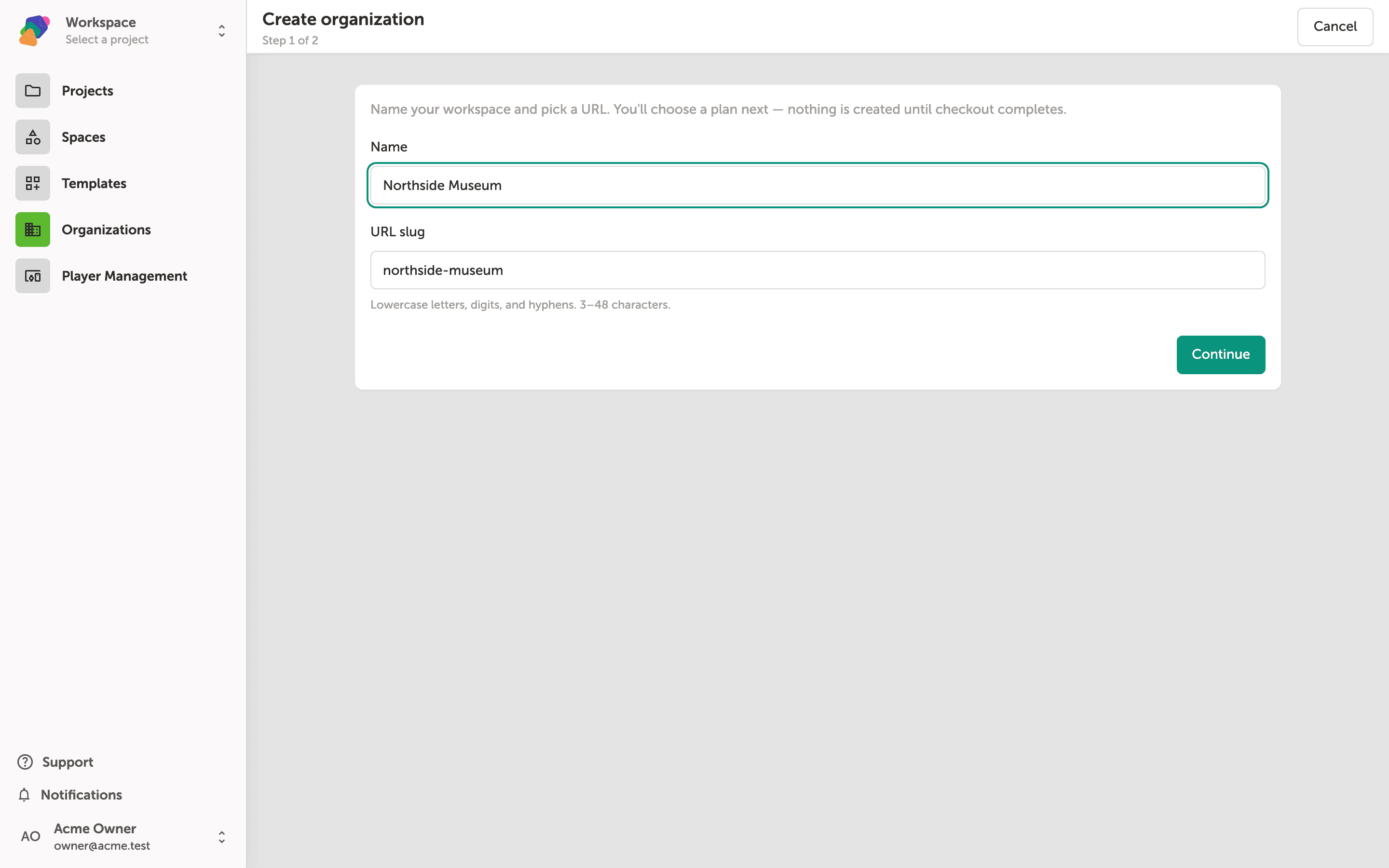
On Organization details, enter a Name—for example, your museum or studio. The URL slug fills in automatically from the name. You can edit the slug; it must be 3–48 characters of lowercase letters, digits, and hyphens.
You can change the name, slug, and logo later in organization settings. Click "Continue" when the name and slug look right.
Choose a plan
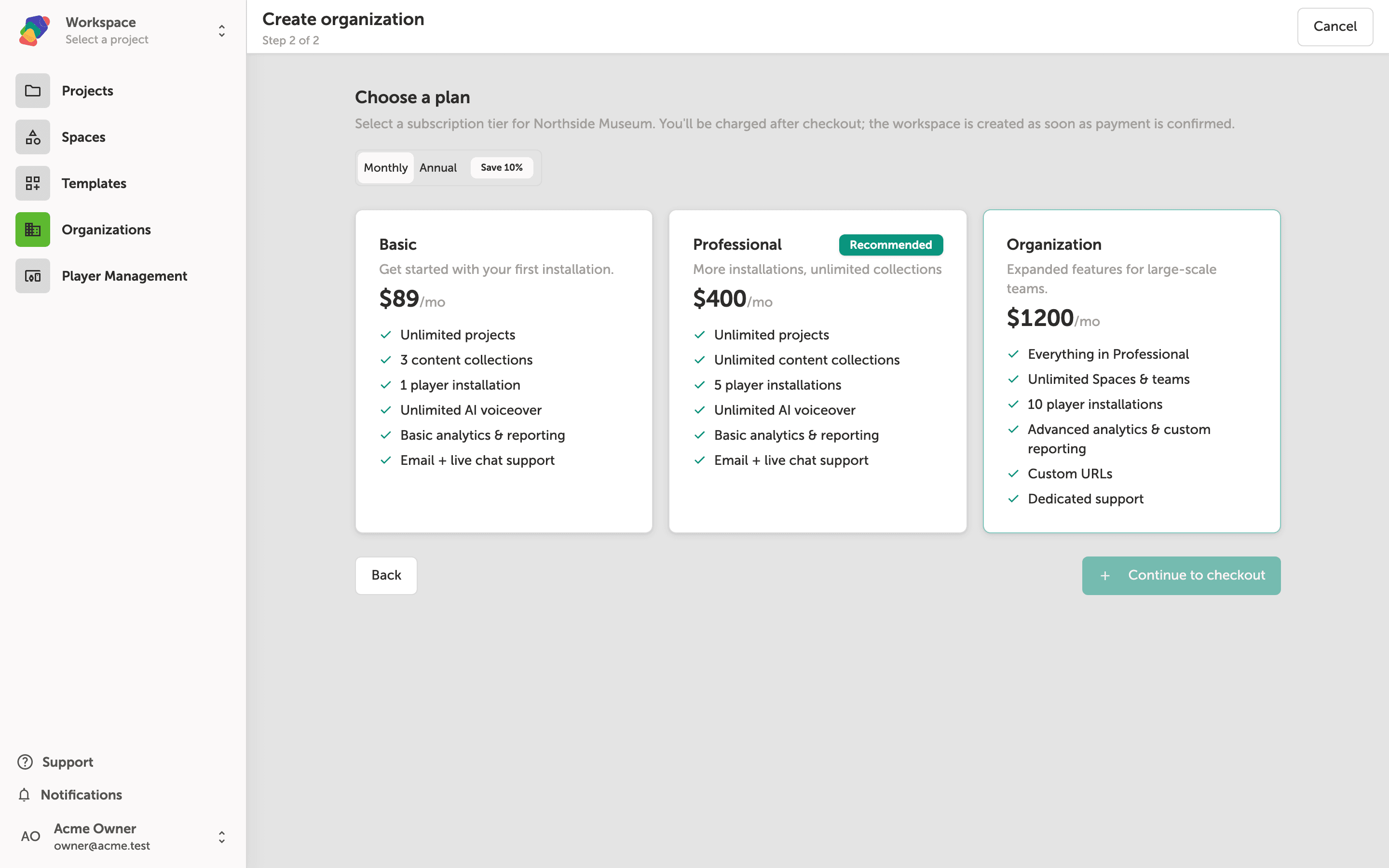
Choose a plan shows Basic, Professional, and Organization. Professional is marked Recommended. Use Monthly or Annual (annual saves 10%) to compare billing, then click a card to select it.
These are the same plans as on the pricing page.
Select a plan and continue to checkout
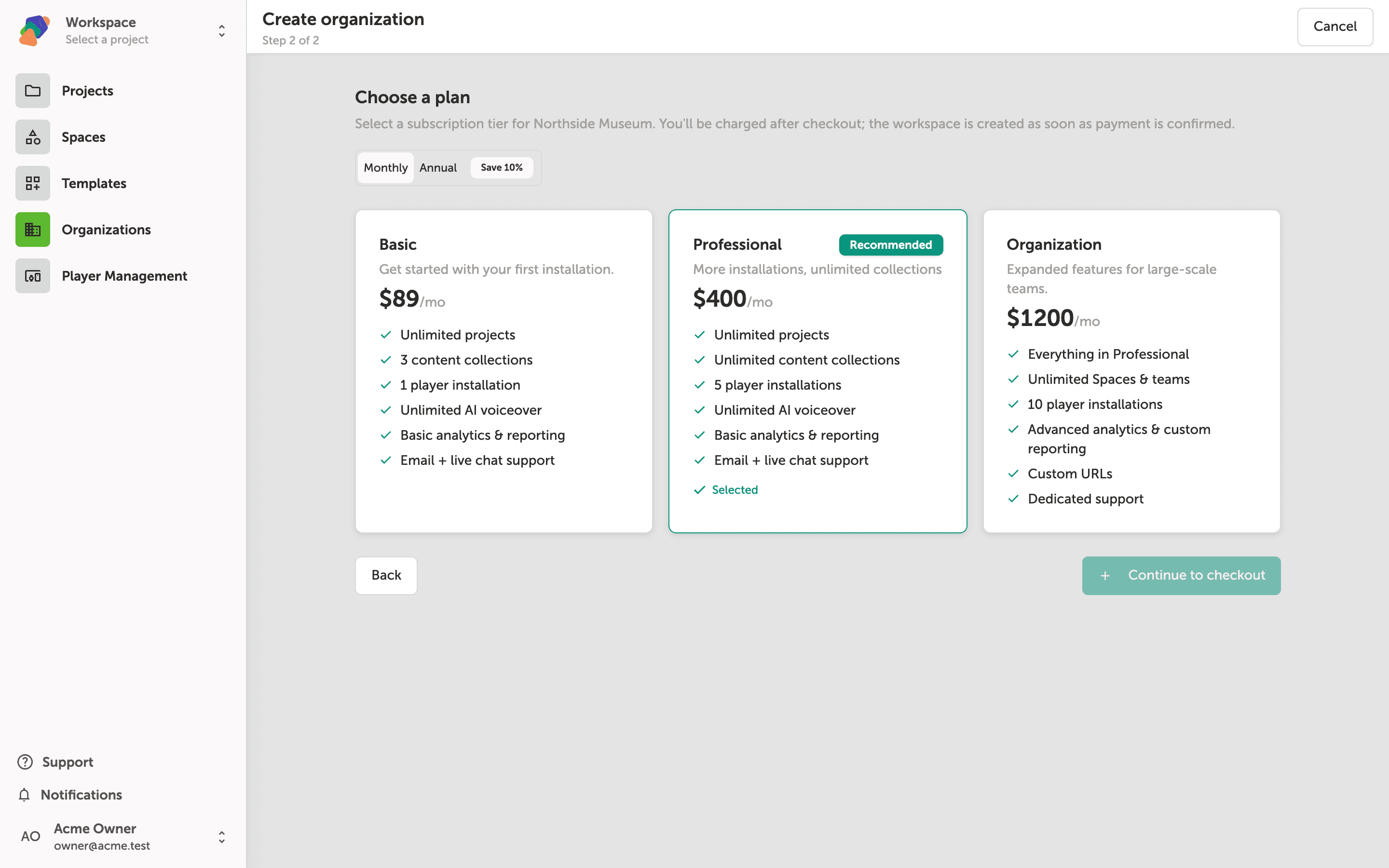
Click the plan that fits your team. The selected card gets a highlight and a Selected state. Then click "Continue to checkout" to enter billing details.
Complete checkout to create the organization. After payment is confirmed, you can invite teammates from organization settings—see Managing Organization Members.
Your new organization is created once checkout succeeds. From there you can invite the team and start a project in that workspace.
- Invite teammates—add members and assign roles.
- Create a project—start work inside the new organization.
- Organization settings—name, slug, logo, and ownership.
- Pricing—compare Basic, Professional, and Organization.