
Managing Player Devices
This tutorial walks you through the My Players page, where you can monitor every physical device in your organization and manage what runs on each one. By the end, you'll know how to read device status at a glance, use the actions menu, and remotely deploy a specific version of a project to any registered device—useful any time you need to update a museum kiosk or gallery station without being on-site.
The My Players page and your registered devices
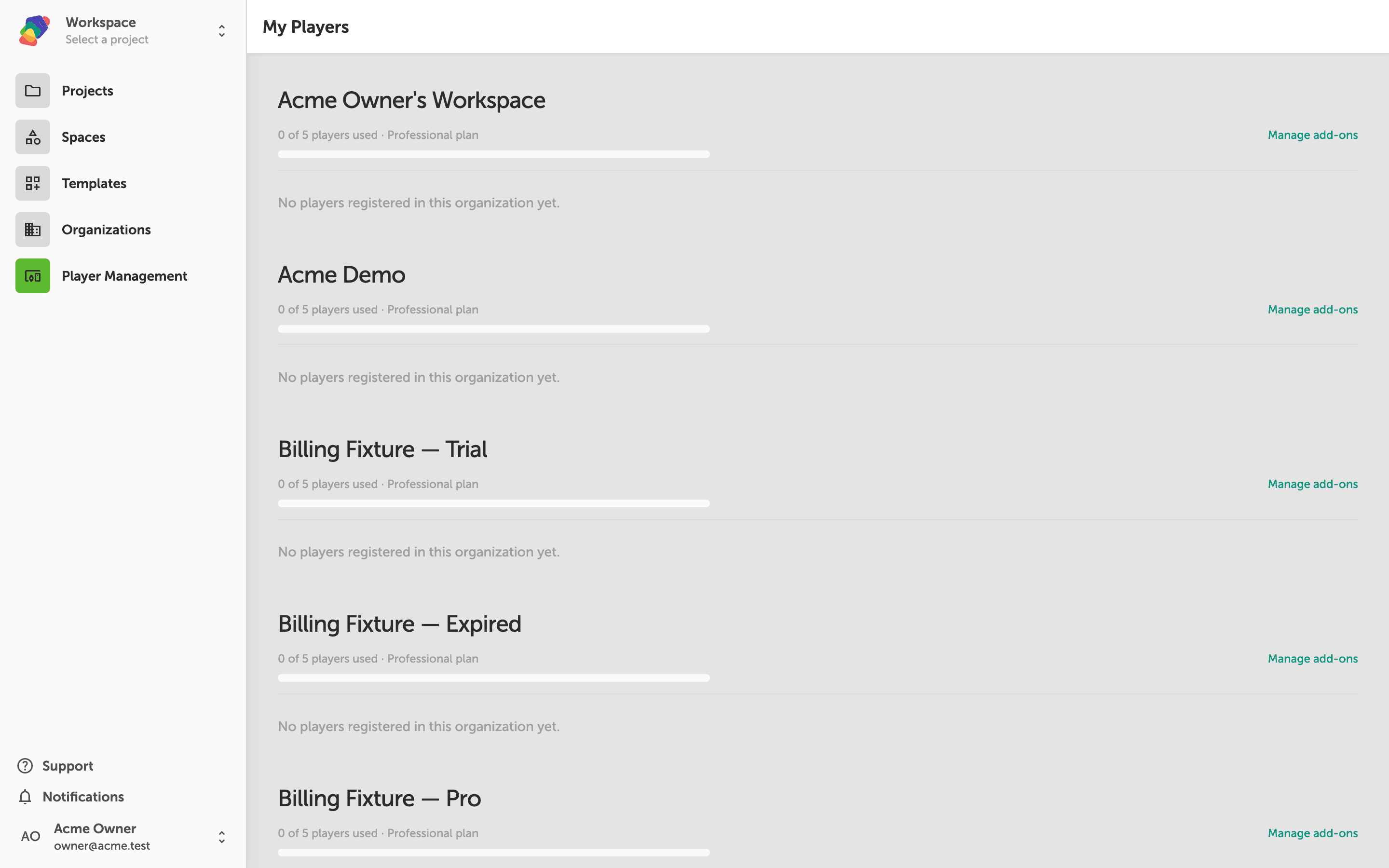
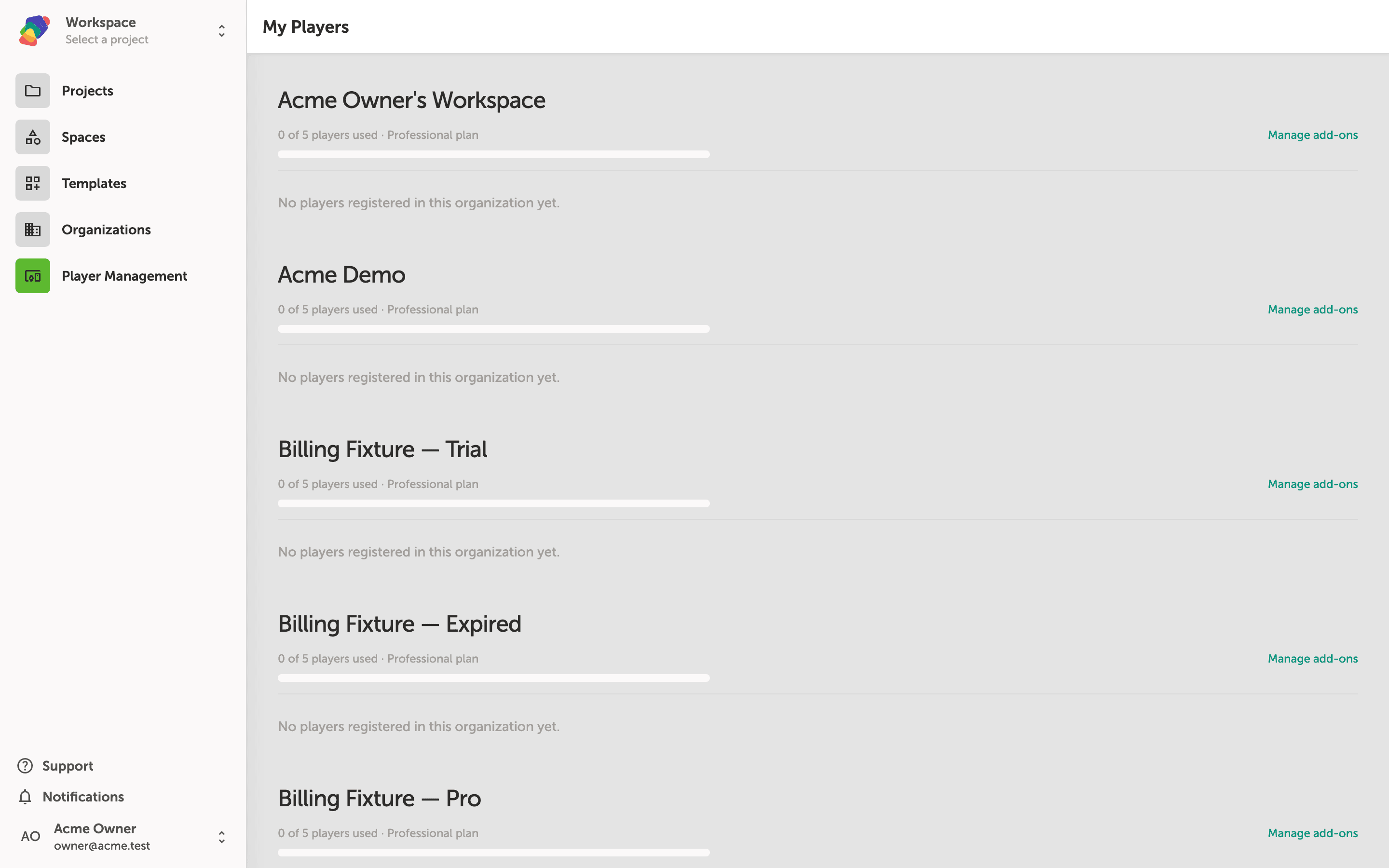
My Players is your central view of every physical device registered to your organizations. Each device appears as a card showing its name, the project currently deployed to it, and when it was last updated.
Devices are grouped by organization, so if you manage multiple spaces—such as a main workspace and a demo environment—each group shows how many player seats are in use against your plan's limit. A card with no project assigned, like Lobby Display here, prompts you to deploy one.
Reading the information on each device card
Each device card shows you the key details you need at a glance. The card title is the device name (for example, Lobby Display or Gallery Kiosk), followed by the deployed project and snapshot, the number of displays configured, and the player app version running on that device.
The status indicator in the lower-left corner tells you whether the device is currently online. A green dot means the device is connected and active; a grey dot means it has not checked in recently. Cards are grouped by organization, and each group shows a player seat usage bar so you can see how many of your plan's allowed devices are in use.
The device actions menu and what each option does
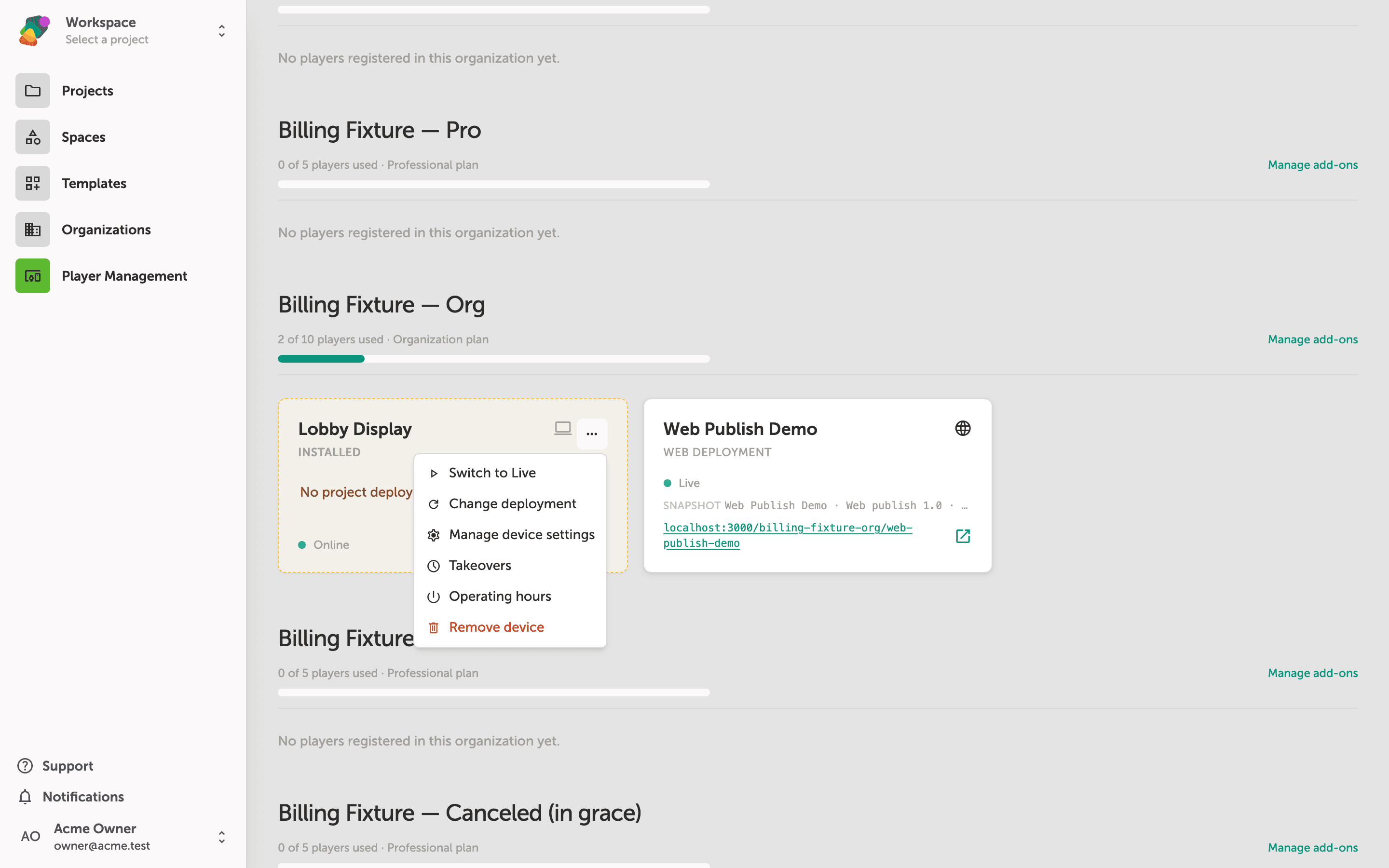
Click the ... button on any device card to open its actions menu. You'll see four options: Change deployment swaps which project and snapshot the device is running, Manage device settings lets you update the device's name and configuration, Scheduled deploys controls when deployments go live automatically, and Operating hours sets the times the player is active.
Remove device appears at the bottom of the menu in red. Selecting it unregisters the device from your workspace, so use it only when you intend to permanently detach that display.
Assigning a project and snapshot in the Change deployment dialog
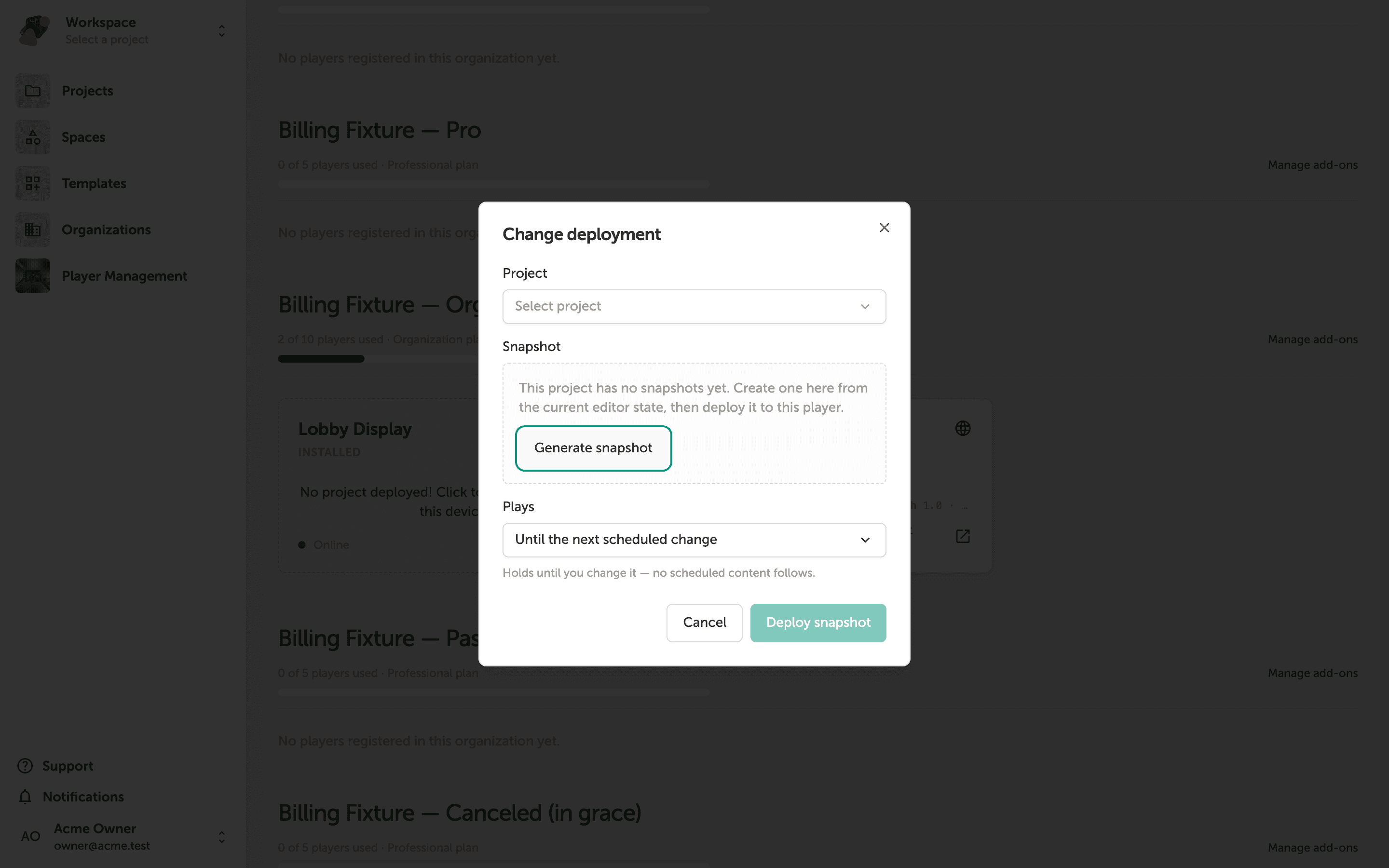
The Change deployment dialog lets you push a specific version of a project to this player device. Start by choosing a project from the Project dropdown—it is currently loading your available projects. Once a project is selected, the Snapshot section will let you pick a saved version to deploy. If the chosen project has no snapshots yet, click Generate snapshot to create one from the project's current editor state.
When you have a snapshot ready, click Deploy snapshot to send it to the device. If you want to leave the current deployment unchanged, click Cancel to close the dialog.
With your devices registered and deployments in place, you're ready to build more sophisticated publishing workflows in Zibit. Here are some related skills to explore next:
- Creating and naming snapshots—learn how to capture a point-in-time version of a project so you always have a stable build ready to push.
- Setting up displays—configure the correct resolution and orientation for each target device before deployment.
- Organizing projects into spaces—group related projects so your team can find and manage them efficiently.
- Scheduling content updates—plan deployment changes in advance to minimize disruption during open hours.
- Using collections with deployed projects—update dynamic content in a live deployment without pushing a new snapshot.