
Managing Your Account Profile
This tutorial walks you through the Account page in Zibit, where you can update your display name and review your security options. By the end, you'll know how to keep your profile information current and where to go when you need to change your password.
The Account page and your Profile tab
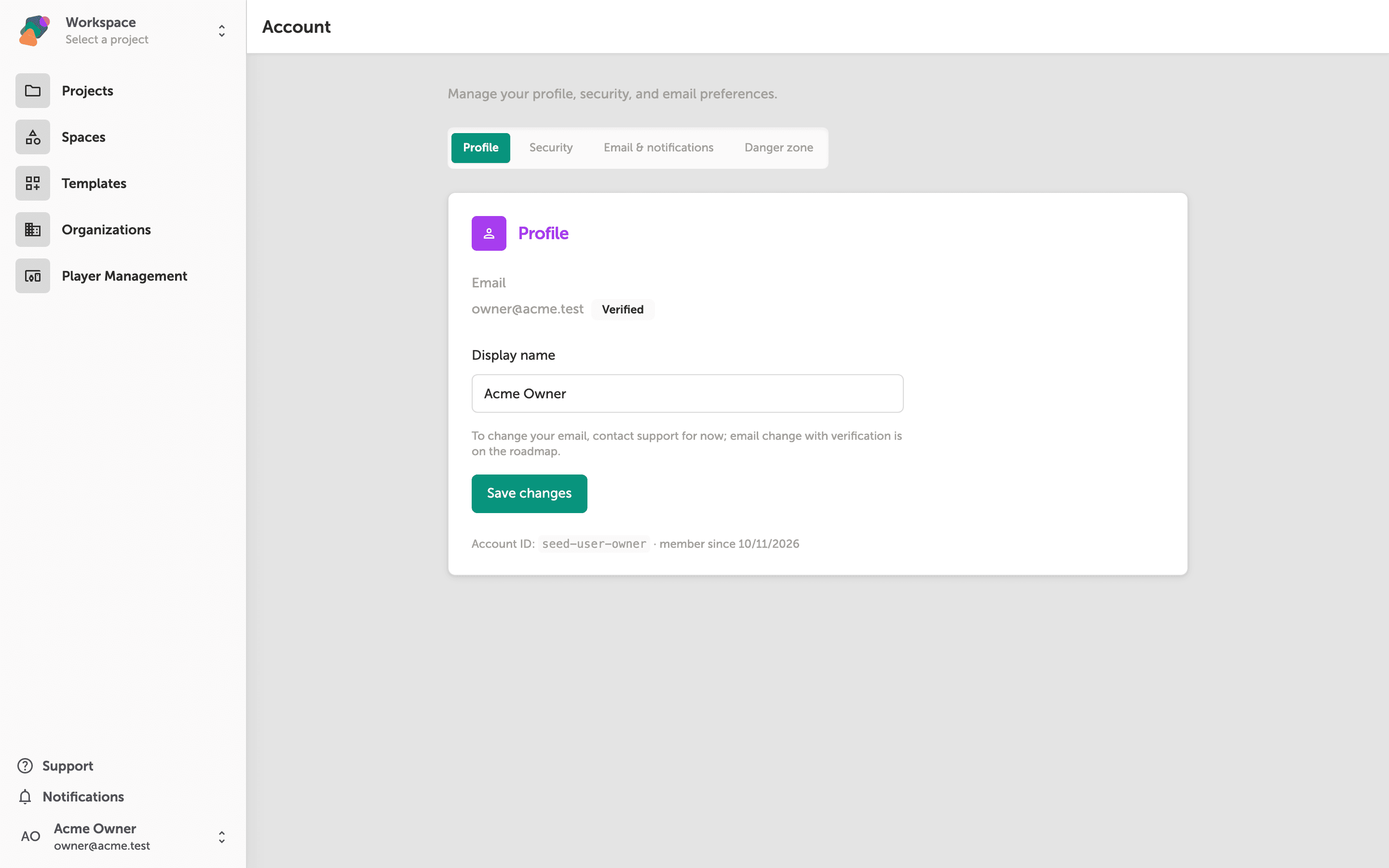
The Account page is where you manage your personal profile and preferences. It opens on the Profile tab by default, showing your verified email address and a Display name field you can edit freely.
Update the Display name field with the name you want shown across Zibit, then click Save changes to apply it. Your email address can only be changed by contacting support—the page notes that self-serve email change is on the roadmap.
Updating your display name on the Profile tab
The Profile tab shows your verified email address and a Display name field. Your email is read-only for now—if you need to change it, the page notes that you should contact support directly.
To update how your name appears across Zibit, click into the Display name field, type your preferred name, and click Save changes. Your Account ID and member-since date appear at the bottom of the card for reference.
Saving your updated display name
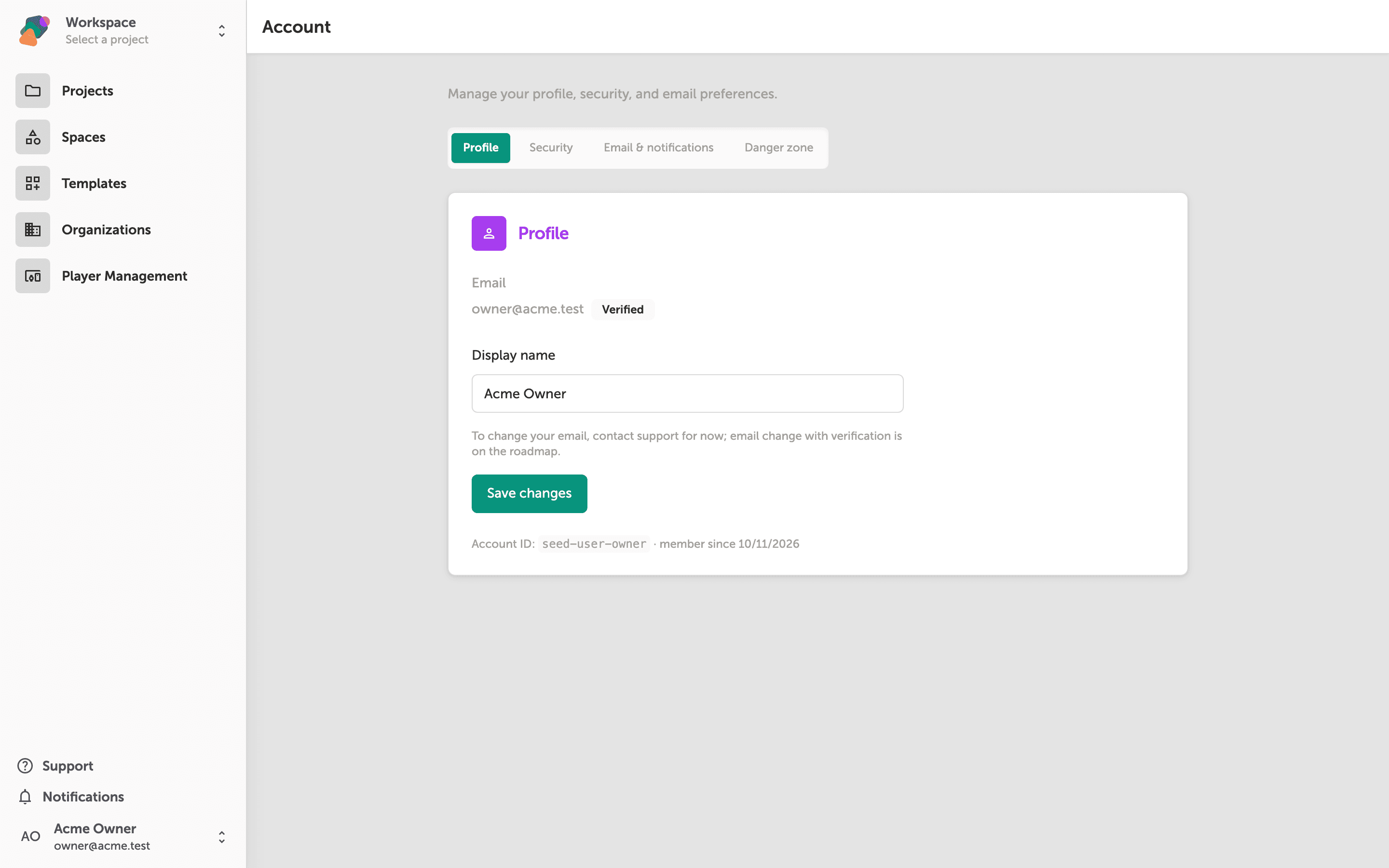
Once you've typed the name you want in the Display name field, click Save changes to apply it. This is the name collaborators see when you share or edit projects together in Zibit.
Your verified email address is shown above the field for reference. To change your email, you'll need to contact support—the page notes that self-serve email changes are on the roadmap.
Reviewing the Security tab options
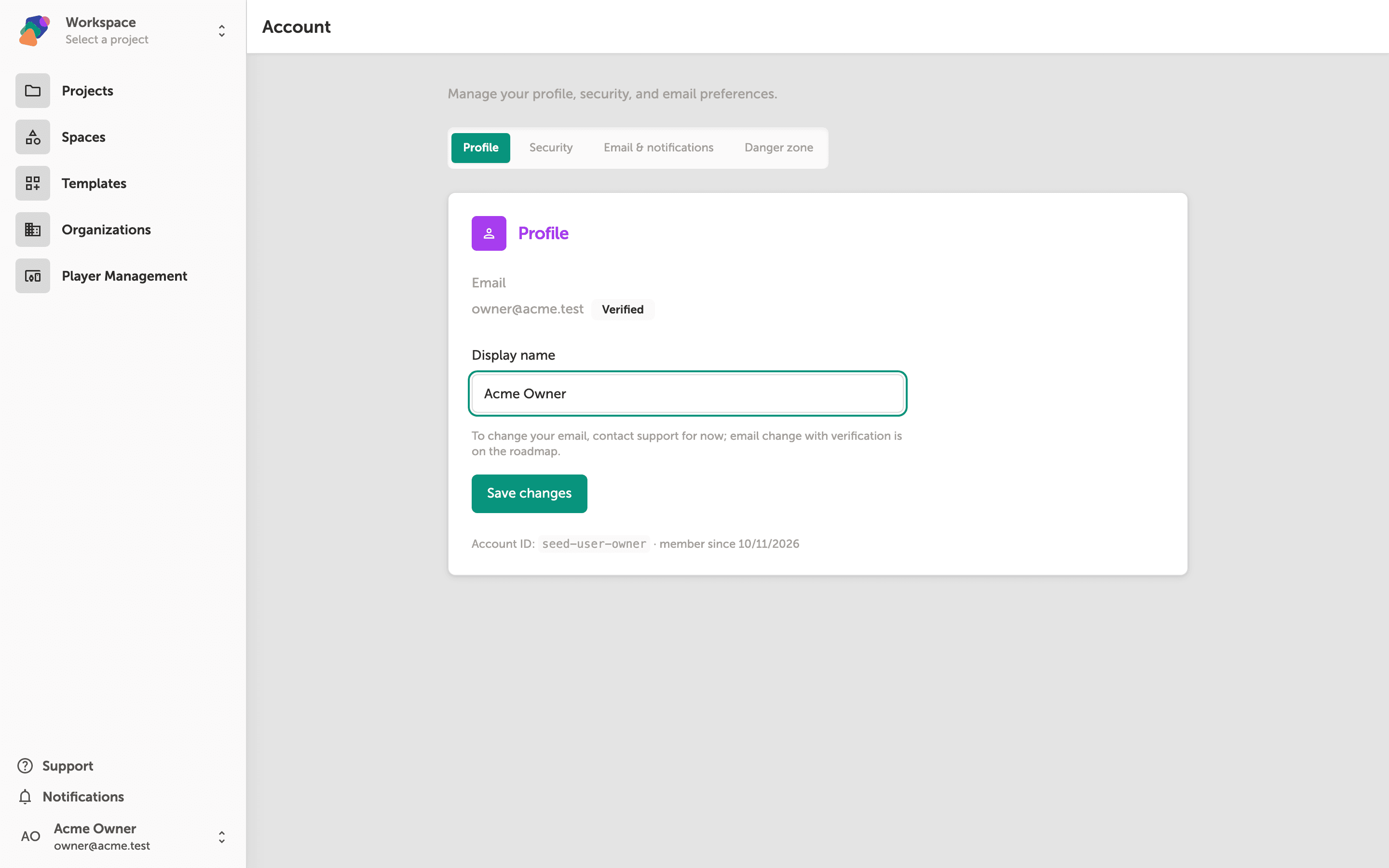
The Security tab gives you two ways to update your password. In the Change password section, enter your Current password, then type and confirm your new password in the New password and Confirm new password fields. When you're ready, click Update password to apply the change.
The Sign out of other devices toggle is on by default—when enabled, changing your password automatically invalidates any active sessions on other browsers or devices, keeping only your current session active. If you signed up with Google and have not set a password yet, use the Reset via email section below to receive a secure link instead.
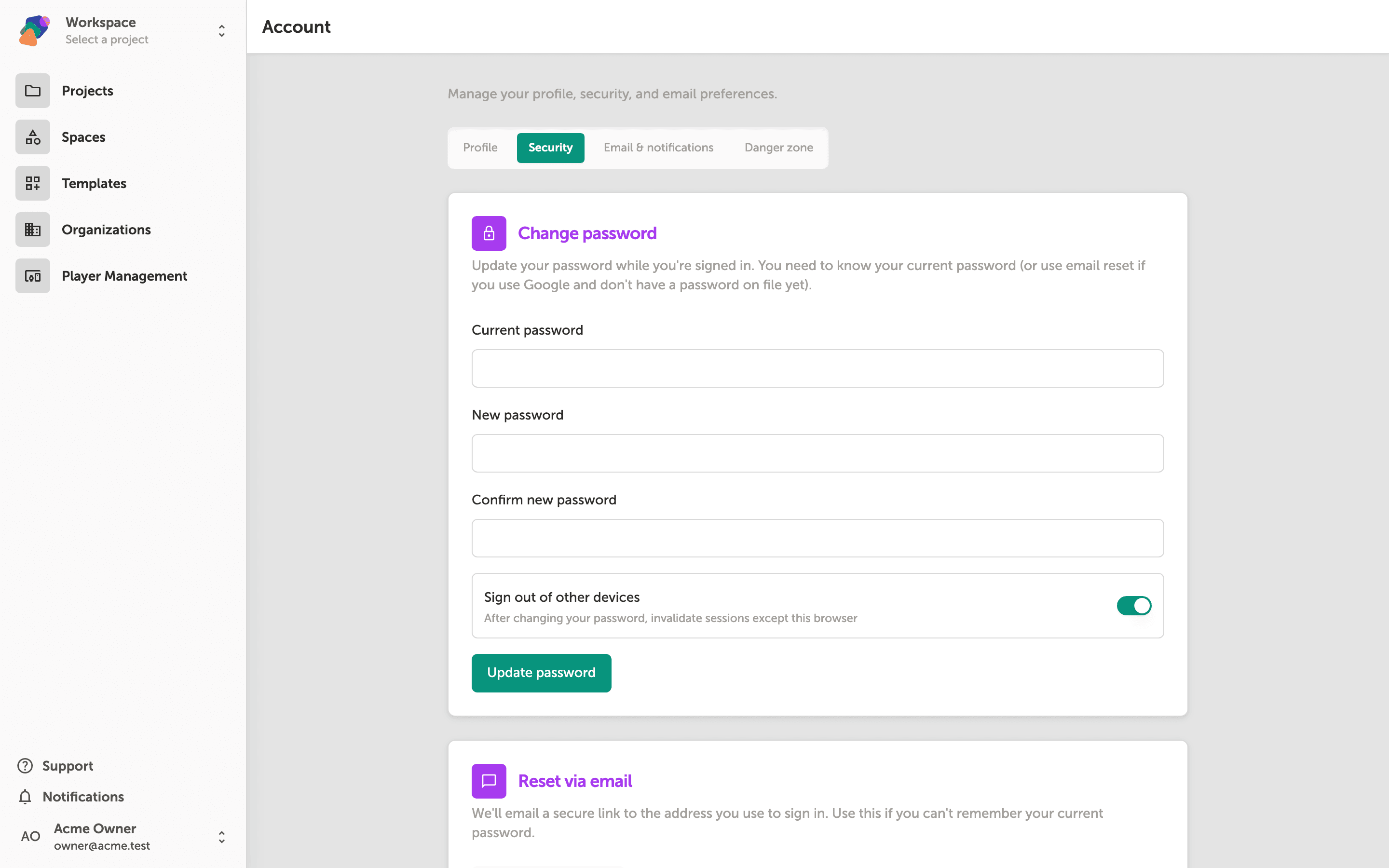
Your account profile is now up to date. From here, you can explore other settings that shape how you and your team work in Zibit.
- Set up your space: Customize your shared workspace name and details to keep projects organized across your team.
- Manage notifications: Control which activity alerts Zibit sends to your email.
- Invite collaborators: Add teammates to your space so they can contribute to projects.
- Explore style sets: Define typography and color settings you can apply consistently across projects.
- Connect a collection: Link reusable data to a project to power dynamic content in your moments.