
Setting Up the Player App
This tutorial walks you through setting up the Zibit Player App on a physical display device—such as a museum kiosk or gallery touchscreen—and connecting it to your Zibit account so it can run your published projects. By the end, you'll have a registered, configured device ready to display your content.
The My Players page and how devices appear here
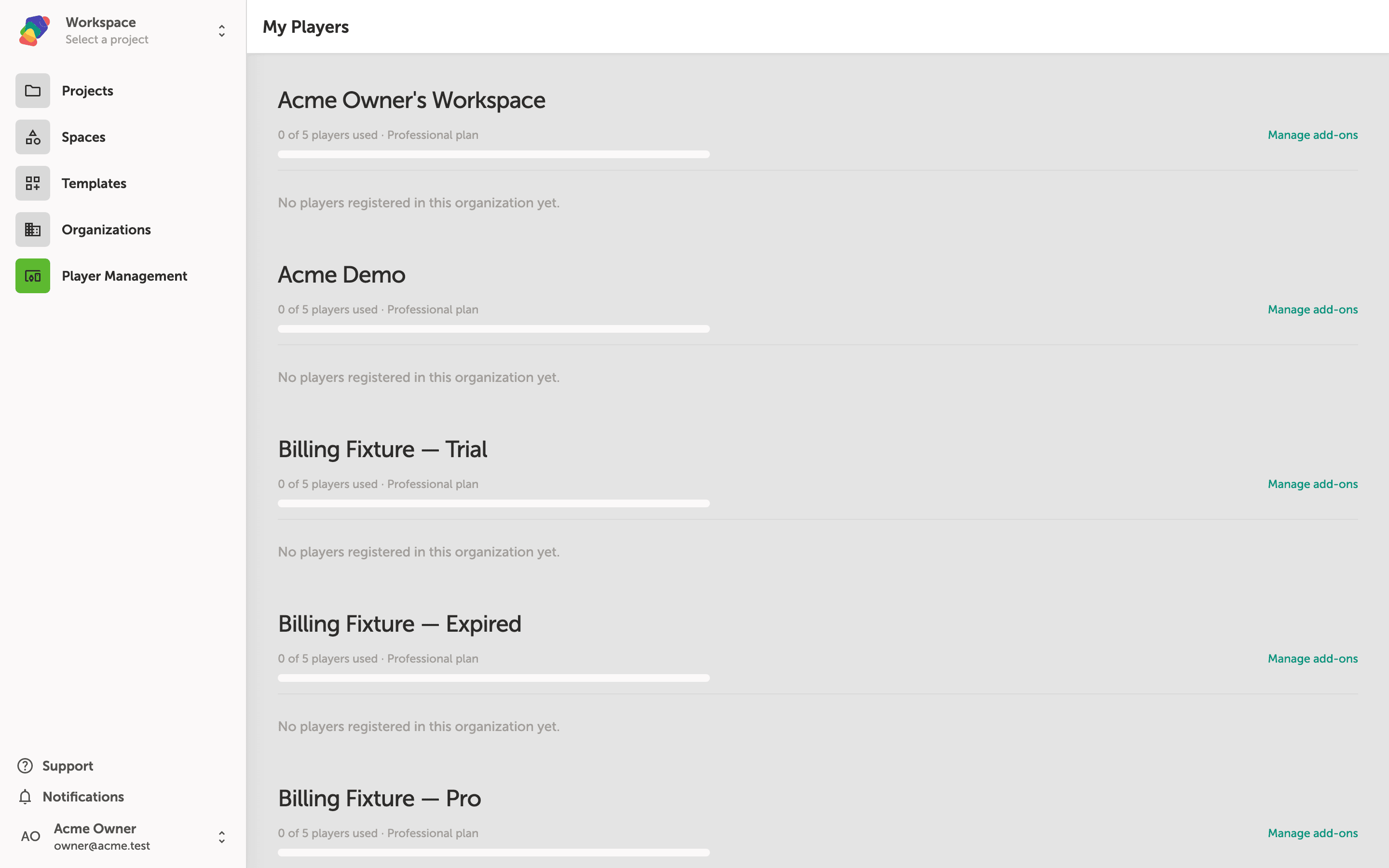
My Players is where you see every device that has been registered to your organizations. Each registered device appears as a card showing its name, the project deployed to it, the snapshot in use, and the number of displays and controllers connected. The progress bar at the top of each organization section shows how many player seats your plan is using.
Devices are grouped by organization. A card outlined in yellow—like Lobby Display—means no project has been deployed to that device yet. Once you install and launch the Zibit Player app on a physical screen, it will register itself and appear here automatically.
Reading your registered device cards
The My Players page groups registered devices by organization. Each card shows the device name, the project currently deployed to it, the snapshot in use, and how many displays and controllers are connected. A green dot next to Updated just now confirms the device is online and communicating.
A card outlined in yellow, like Lobby Display, means no project has been deployed to that device yet. Click the card to assign a project and get it running. The player seat count at the top of each organization section shows how many of your plan's allowed devices are in use.
With your player device set up and registered, you're ready to push content to your display and go live. From here, you can expand how you manage and publish across your organization.
- Publish a project to a player: Learn how to target a specific registered device when you publish.
- Manage multiple displays: Organize devices across spaces and keep track of what's running where.
- Set up display resolutions: Configure your project's display settings to match your device's screen dimensions.
- Schedule content: Control when specific projects appear on a player throughout the day.
- Monitor player status: Check device connectivity and last-seen activity from the My Players page.