
Switching Between Organizations
If you belong to more than one organization in Zibit—for example, a personal workspace and a shared team space—you can switch between them at any time from the My Projects dashboard. By the end of this tutorial, you'll know how to use the workspace switcher to jump between spaces and confirm you're viewing the correct context before creating or editing projects.
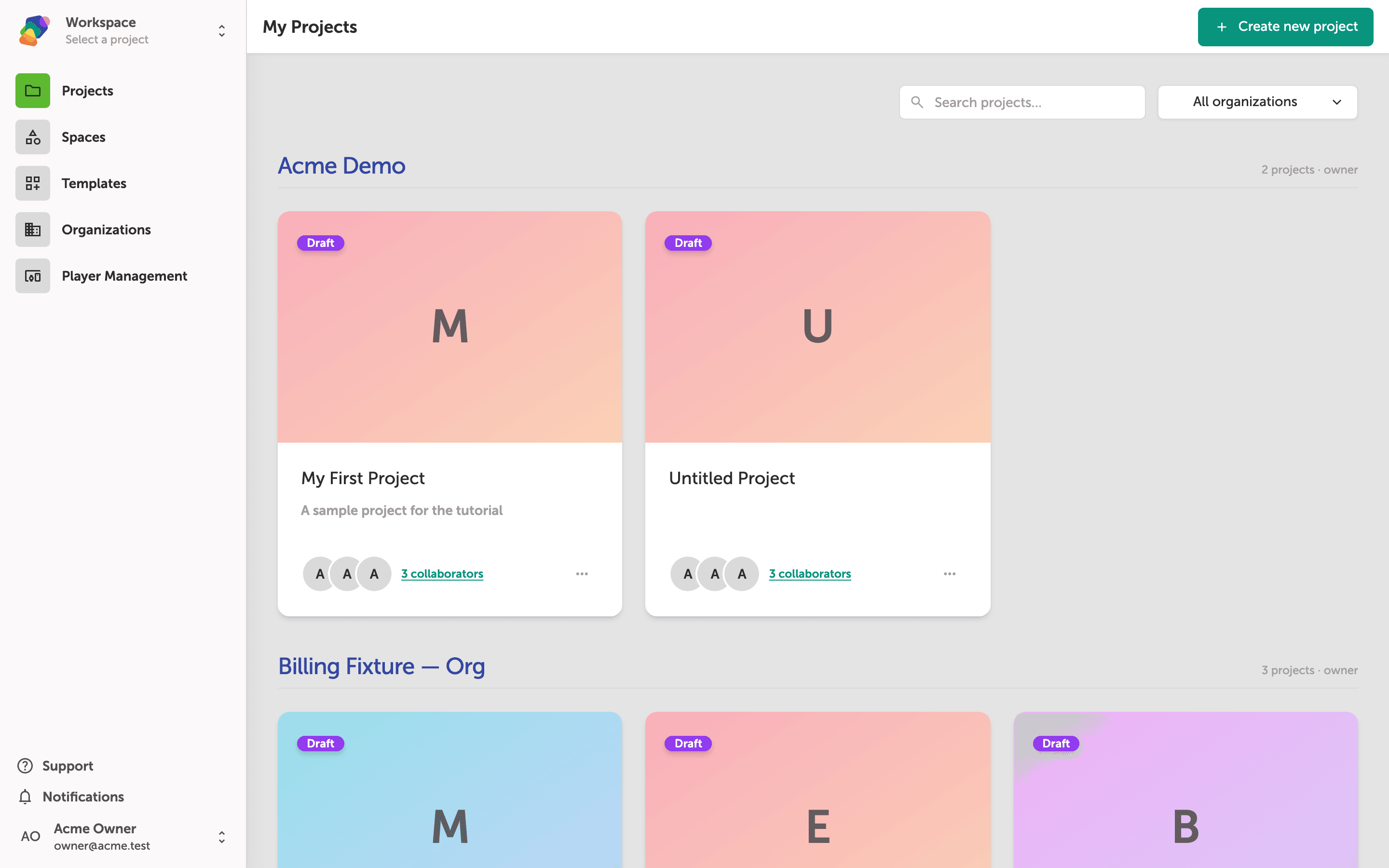
The My Projects dashboard groups your work by space
When you open Zibit, the My Projects page is your starting point. Your projects are organized into sections—each section represents a space you belong to, such as Acme Demo or Acme Owner's Workspace. The space name and your role appear at the top of each section.
To switch between organizations, you'll use the account controls in the sidebar—but first, take a moment to get familiar with this view. Each project card shows its current status (Draft), its name, and the collaborators who have access.
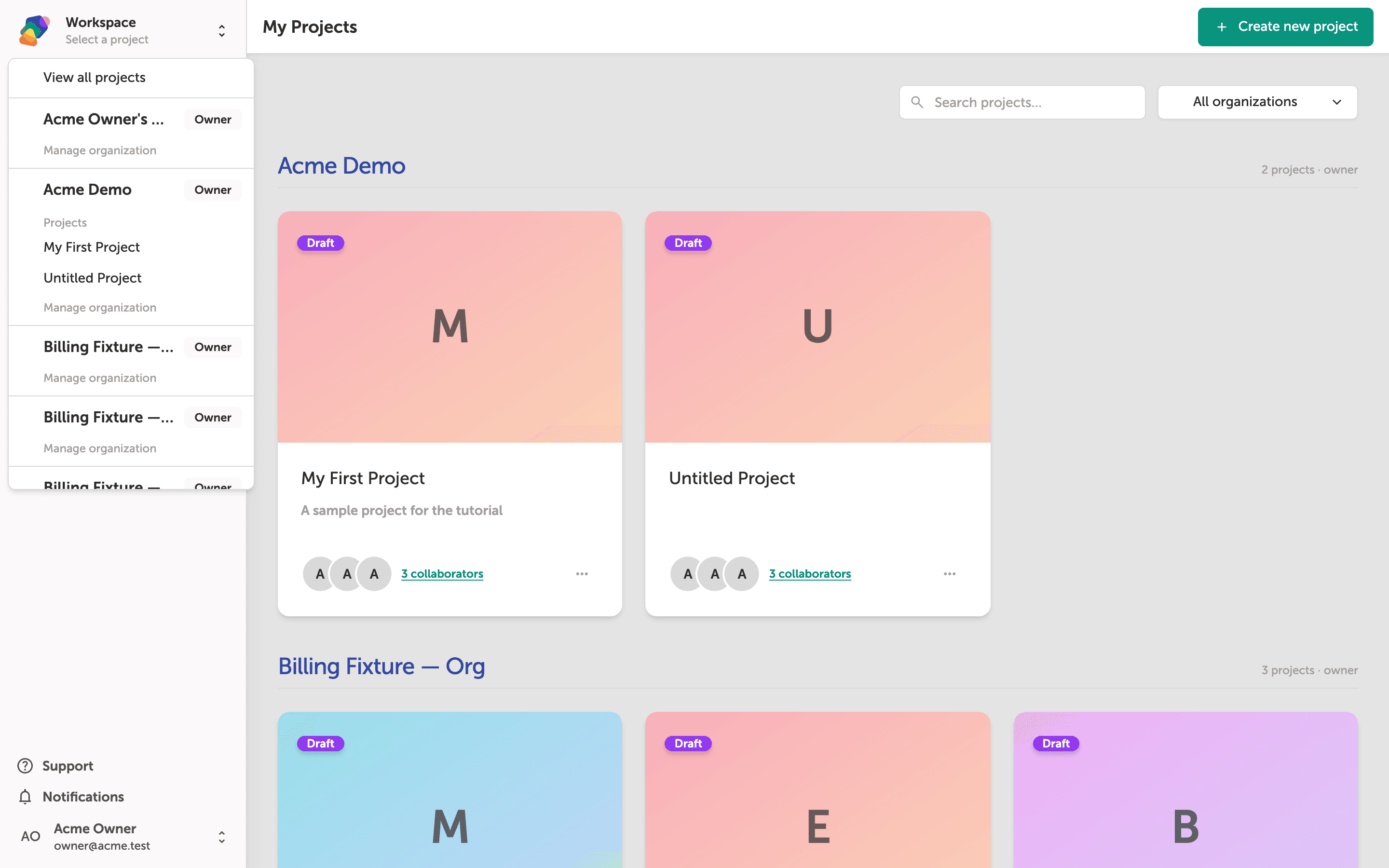
The workspace switcher lists your spaces and their projects
Click the Workspace button in the top-left corner to open the switcher dropdown. You'll see each space you belong to—such as Acme Owner's ...—listed with all its projects beneath it. Selecting any project name takes you directly into that project.
The dropdown also includes View all projects at the top, which returns you to the full My Projects dashboard. This is the fastest way to jump between spaces without navigating back through multiple screens.
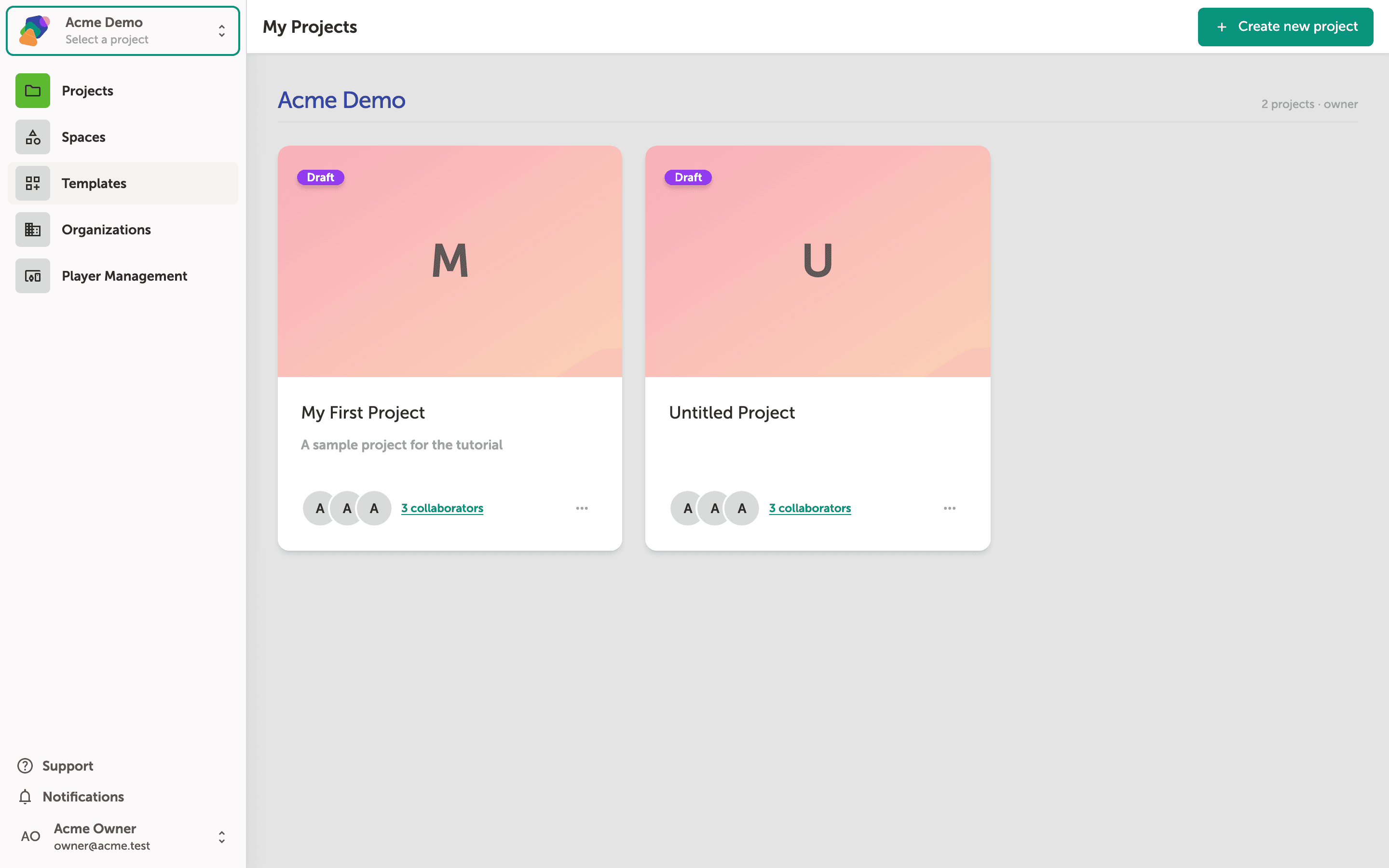
My Projects now shows the Acme Demo context
After selecting a different organization in the workspace switcher, the My Projects page reloads scoped to that organization. You can confirm which context is active by checking the top of the left sidebar—it now reads Acme Demo with a Select a project prompt beneath it.
From here you can open any existing project in this organization or click Create new project in the top-right corner to start something new. The sidebar links—Projects, Spaces, Templates, Organizations, and Player Management—all operate within the Acme Demo context.
Once you're comfortable navigating between organizations, you're ready to start collaborating and building more sophisticated projects in Zibit. Here are some good next steps to explore:
- Invite team members to your organization—add colleagues so they can access and contribute to shared projects.
- Create a project in a team space—set up a new project that your whole organization can see and edit.
- Set up a style set—define shared typography and colors that keep every project in your space visually consistent.
- Explore collections—learn how to build reusable data sets that can be linked across multiple projects in your organization.
- Manage display settings—configure target screen resolutions so your projects look right on the devices your space uses.