
Creating a Space
A Space is a shared container that groups related projects together and lets your team reuse style sets, collections, and uploaded files across all of them—so a natural history museum running a seasonal gallery installation, for example, can keep every kiosk project in one place with consistent branding. By the end of this tutorial, you'll have a new Space set up and ready for projects.
Organization plans
Spaces are available on the Organization plan.
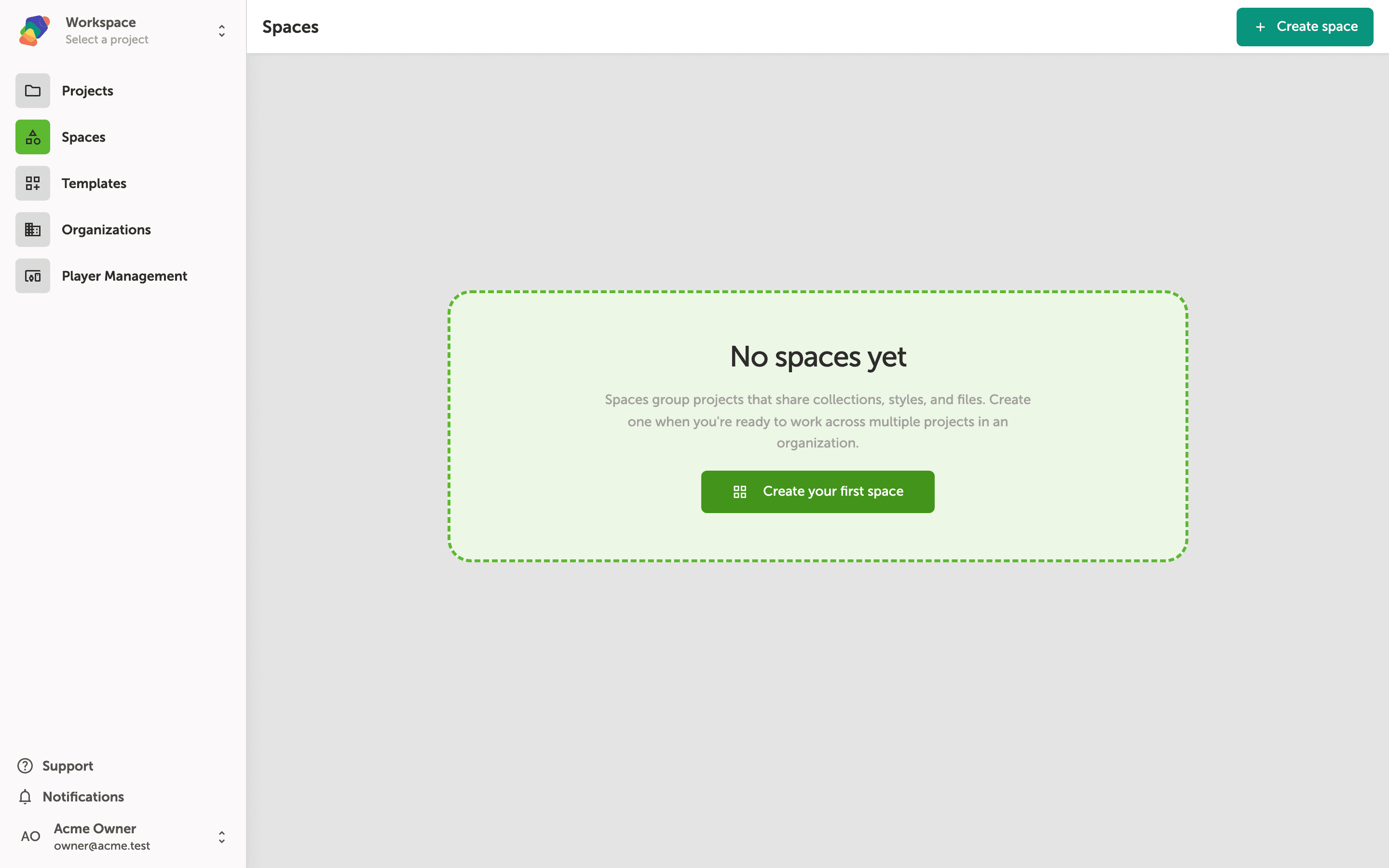
The Spaces page, where all your Spaces live
The Spaces page is your starting point for organizing projects across your workspace. Each card represents a Space—what Zibit calls a shared workspace that groups related projects together. Your existing Spaces appear grouped under your workspace name, as shown here under Acme Owner's Workspace.
To create a new Space, click "Create space" in the top-right corner. That button is your entry point for the next step.
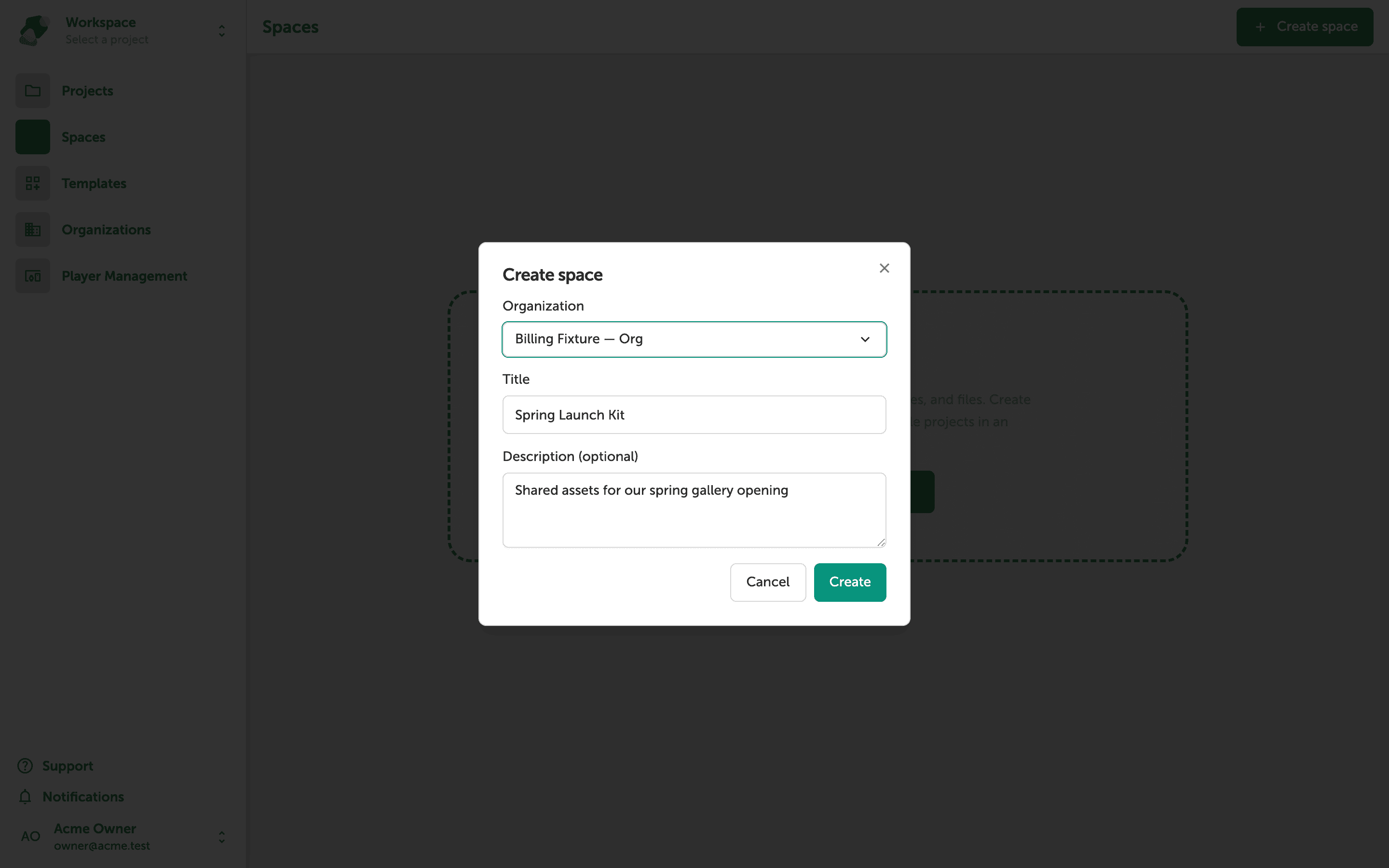
Filling in the Create space dialog
The "Create space" dialog has three fields. The Organization dropdown must be an Organization-plan workspace—Spaces are not available on trial, Basic, or Pro. Enter a name in the Title field, then add an optional note in the Description (optional) field to help teammates understand what the Space is for.
When you're ready, click "Create" to create the Space. The dialog's internal field names reference "exhibit" in the underlying form, which is what Zibit currently calls a Space—the two terms refer to the same thing.
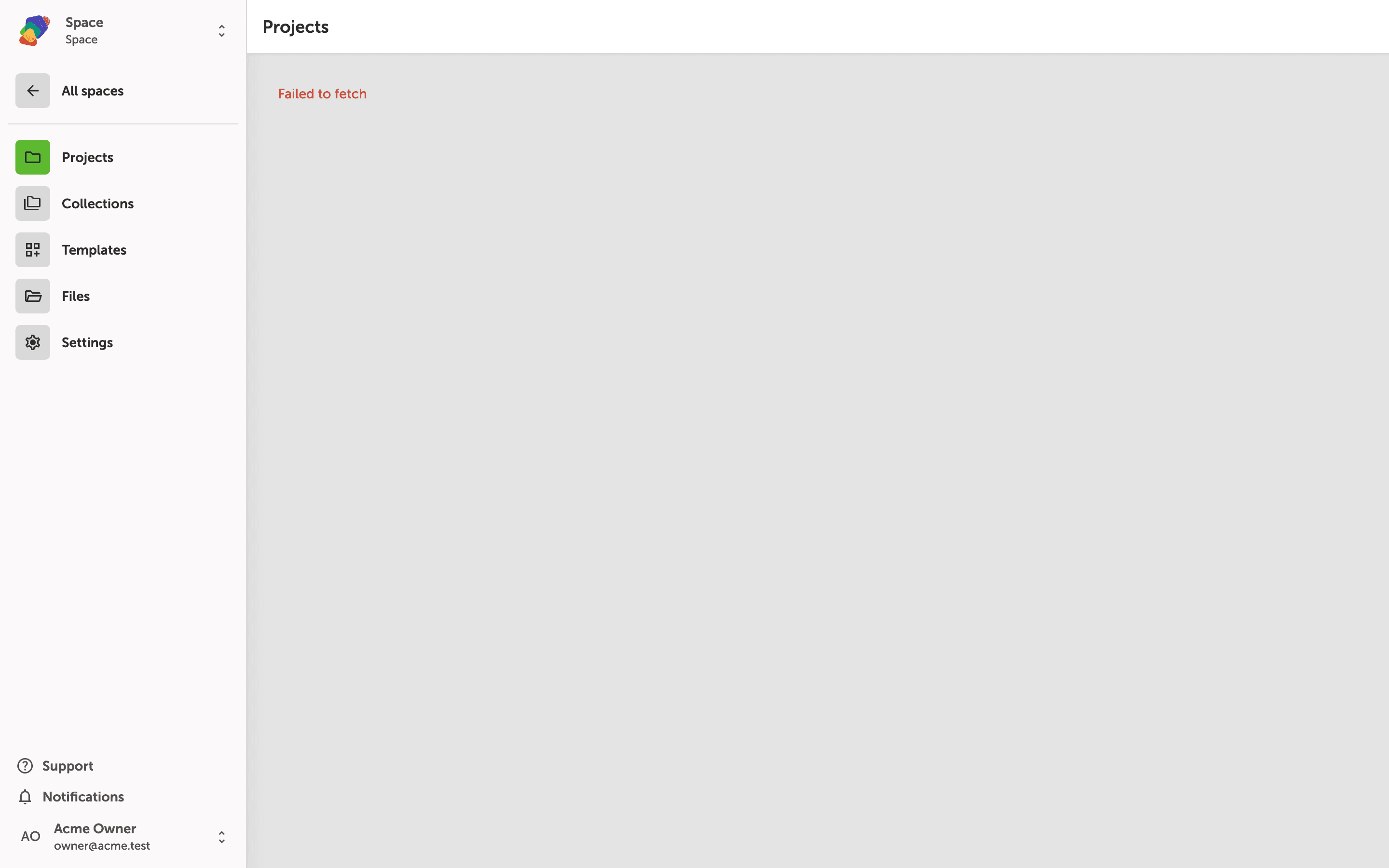
Your new Space is ready—now add projects to it
Your Space, "Spring Launch Kit," opens directly on the Projects tab. From here you can click "Create new project" to start a brand-new project inside this Space, or click "Add existing project" to link a project you've already built. Any collections, styles, and files you add to the Space will be available across every project you connect to it.
The sidebar gives you quick access to Collections, Styles, Templates, Files, and Settings—all shared resources for this Space. You can add or link projects at any time, so there is no requirement to do so right now.
With your Space created, you're ready to build out the projects inside it and take advantage of shared resources across your team.
- Add your first project: Create a project inside your new Space and start building moments and flows.
- Set up a style set: Define typography and colors once at the Space level so every project stays visually consistent.
- Create a collection: Build a reusable data set that any project in the Space can link to.
- Invite collaborators: Add team members to your Space so they can access and contribute to shared projects.
- Manage displays: Configure target screen resolutions so every project in the Space targets the right device from the start.