Duplicating a Project
Duplicating a project lets you create an independent copy of all its moments, flows, components, and settings—ideal when you want to build a new experience on top of work you have already done, such as spinning up a seasonal version of an existing gallery kiosk without touching the live original. By the end of this tutorial, you will have a fully editable duplicate ready to rename and customize.
The My Projects dashboard and your project cards
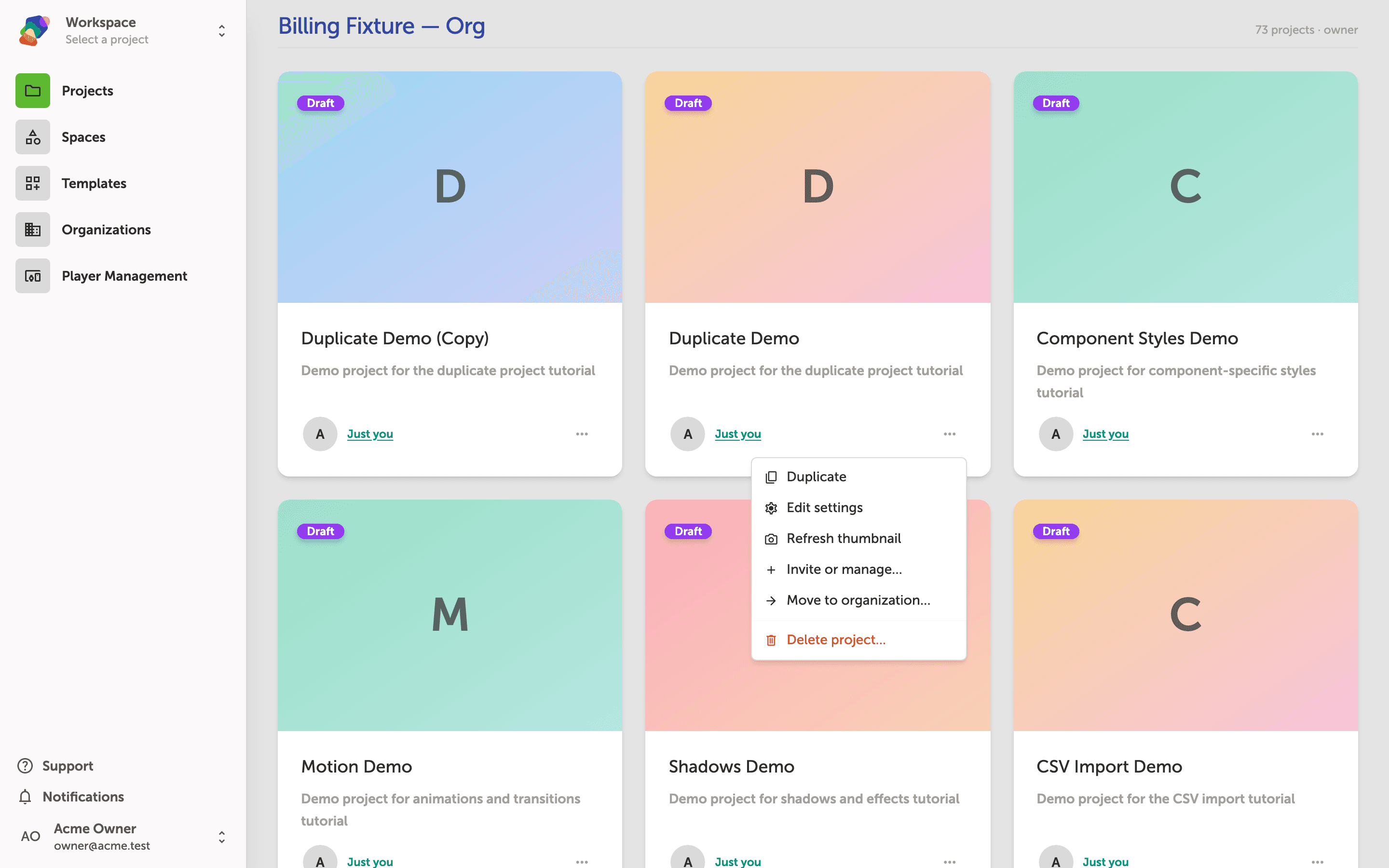
The My Projects dashboard shows all the projects you own or collaborate on, grouped by space. Each project card displays its name, status badge, and collaborators.
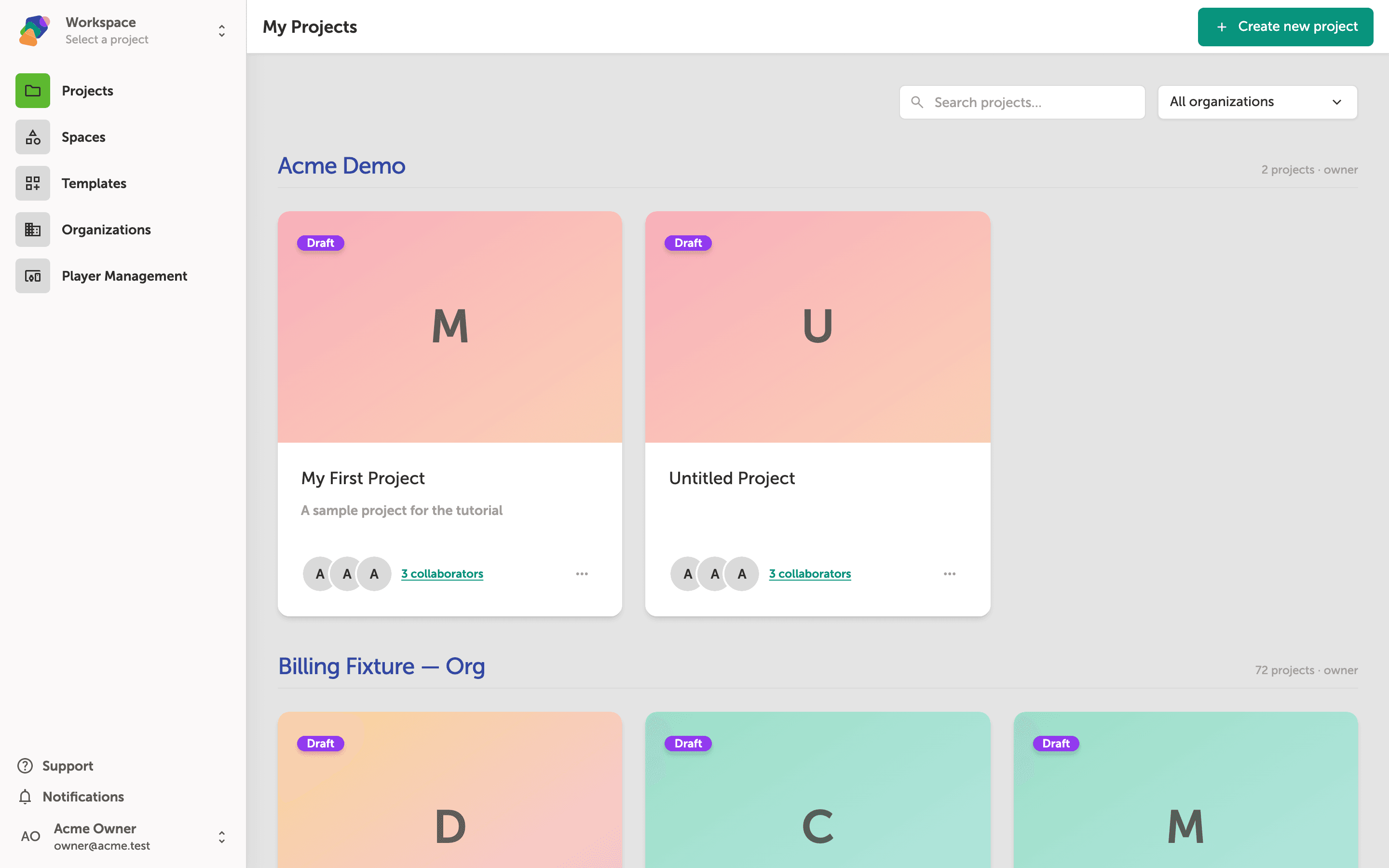
To duplicate a project, find the card you want to copy and click the three-dot button in its bottom-right corner. This opens the project actions menu where the duplicate option lives.
The project card menu and the Duplicate option
Click the ··· (more actions) button on any project card to open its action menu. You'll see options including Duplicate, Edit settings, Refresh thumbnail, Invite or manage..., Move to organization..., and Delete project....
Select Duplicate to create an independent copy of the project—including all its moments, flows, views, and styles. The copy appears as a new card in your workspace and has no connection to the original.
The duplicated project card and success confirmation
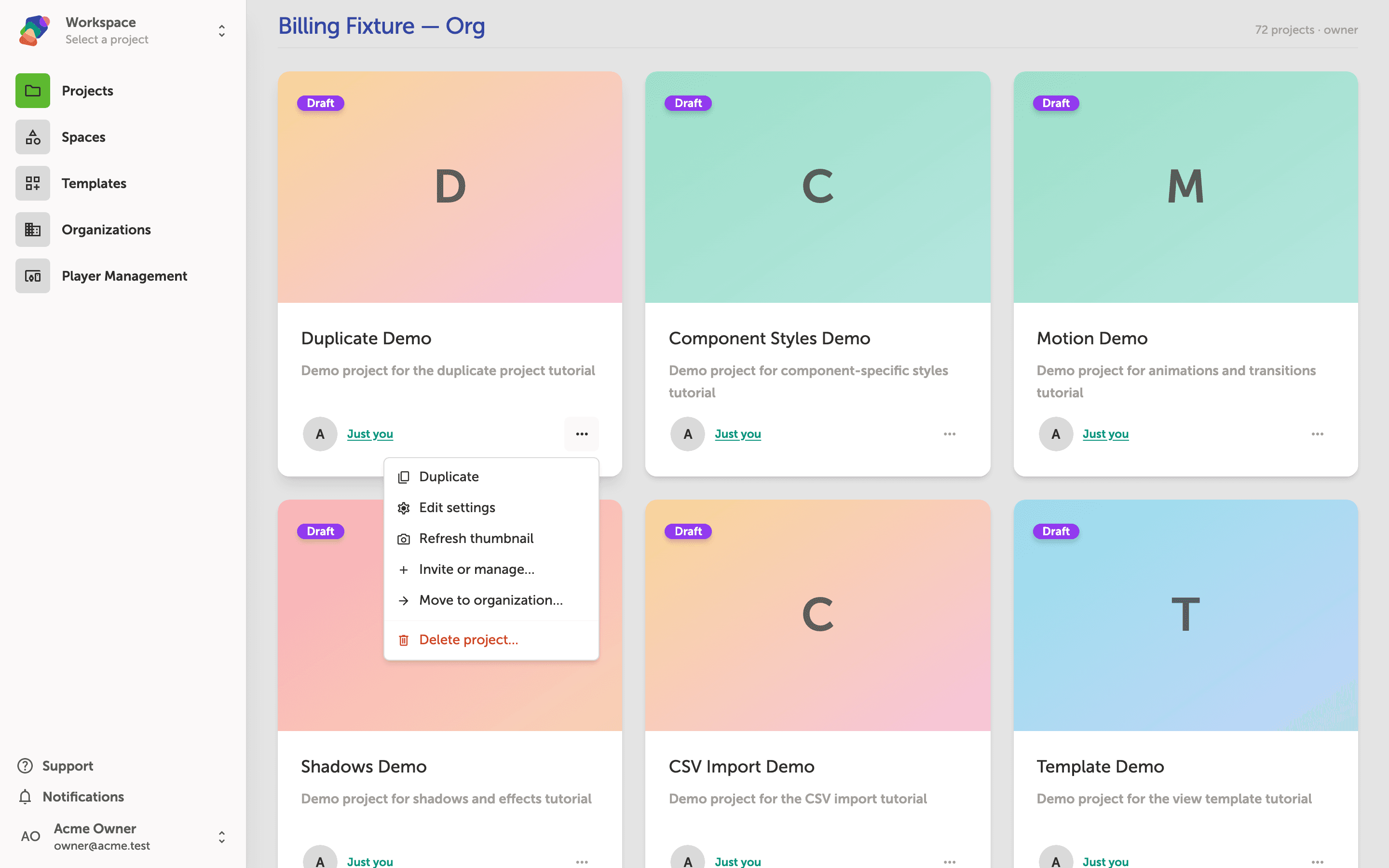
The "Project copied successfully" banner at the bottom of the screen confirms the duplication is complete. You'll see "Duplicate Demo (Copy)" now appears as its own project card at the top of your workspace—fully independent from the original "Duplicate Demo".
From here you can open the copy and customize it however you like: renaming it, editing its moments, or adjusting its settings. The original project remains unchanged.
Your duplicated project is now an independent copy, ready to shape into something new. From here, you can start customizing it in a number of directions:
- Rename and reorganize—update the project name and move it to the right space to keep your dashboard tidy.
- Edit your style set—swap out colors and typography to give the duplicate its own visual identity.
- Update your moments—revise content, reorder flows, and add or remove components to fit the new experience.
- Connect a new collection—link a different data set to drive dynamic content across your moments.
- Preview on a different display—configure a new target resolution if this version will run on a different screen than the original.