
Managing Email Preferences
This tutorial walks you through the Email & notifications settings in your Zibit account. By the end, you'll know exactly which notification types you can turn on or off, how individual toggles work, and where your consent preferences are stored.
The Account page and its settings tabs
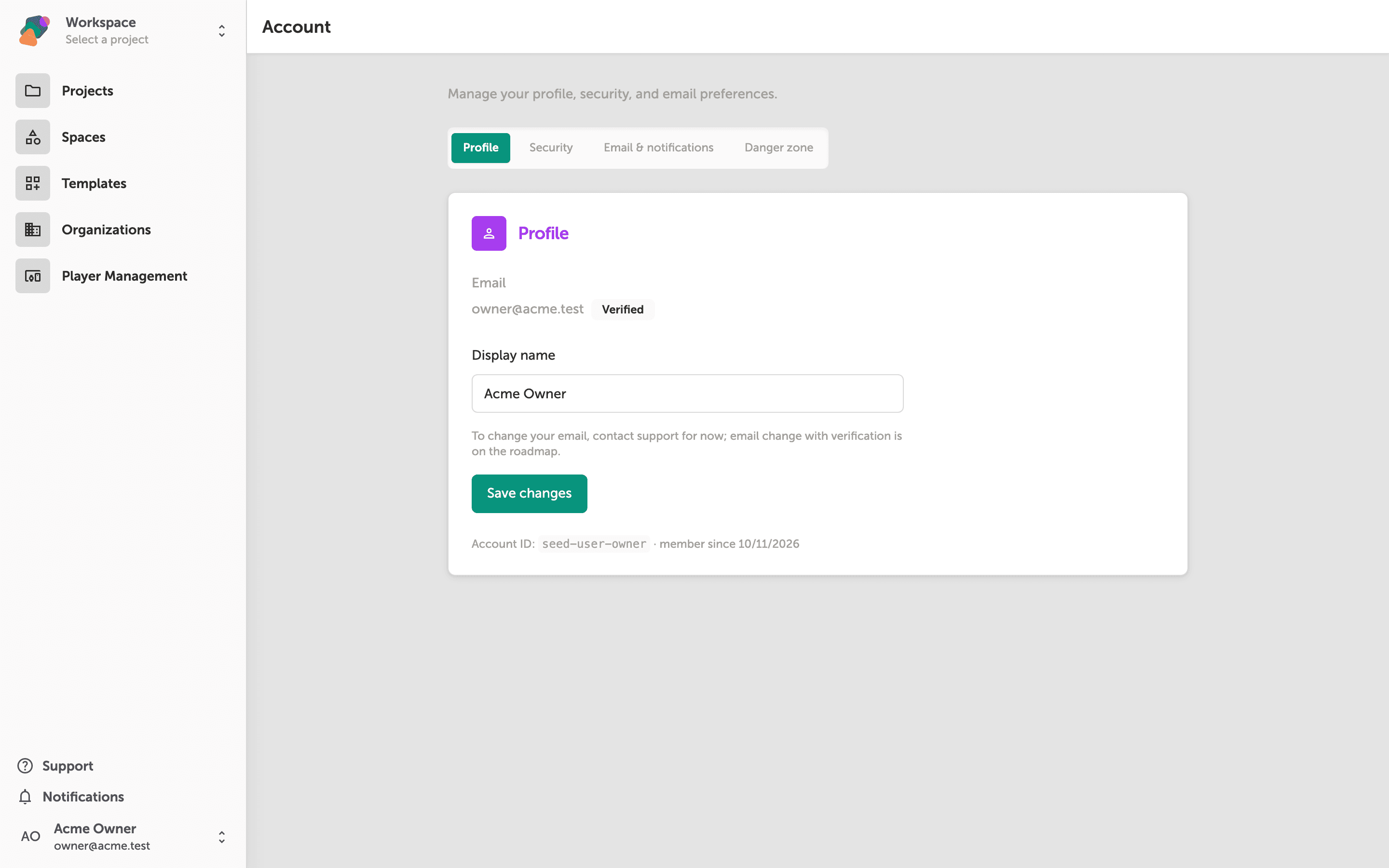
When you open Account settings, you land on the Profile tab by default. Here you can see your verified email address and update your Display name.
To manage what Zibit sends you, select the Email & notifications tab at the top of the page. That is where the next step picks up.
Reviewing notification preferences on the Email & notifications tab
The Email & notifications tab is divided into three sections. Under Required account & security, the toggles for Email verification, Password reset, Security alerts, Account ownership changes, and Critical billing notices are always on—these cannot be turned off while your account is active.
Below that, the Account activity section lets you control useful updates about your projects, teammates, and deploys. Each item has separate Email and In-app toggles, so you can choose where each notification reaches you.
Saving your preferences with individual toggles
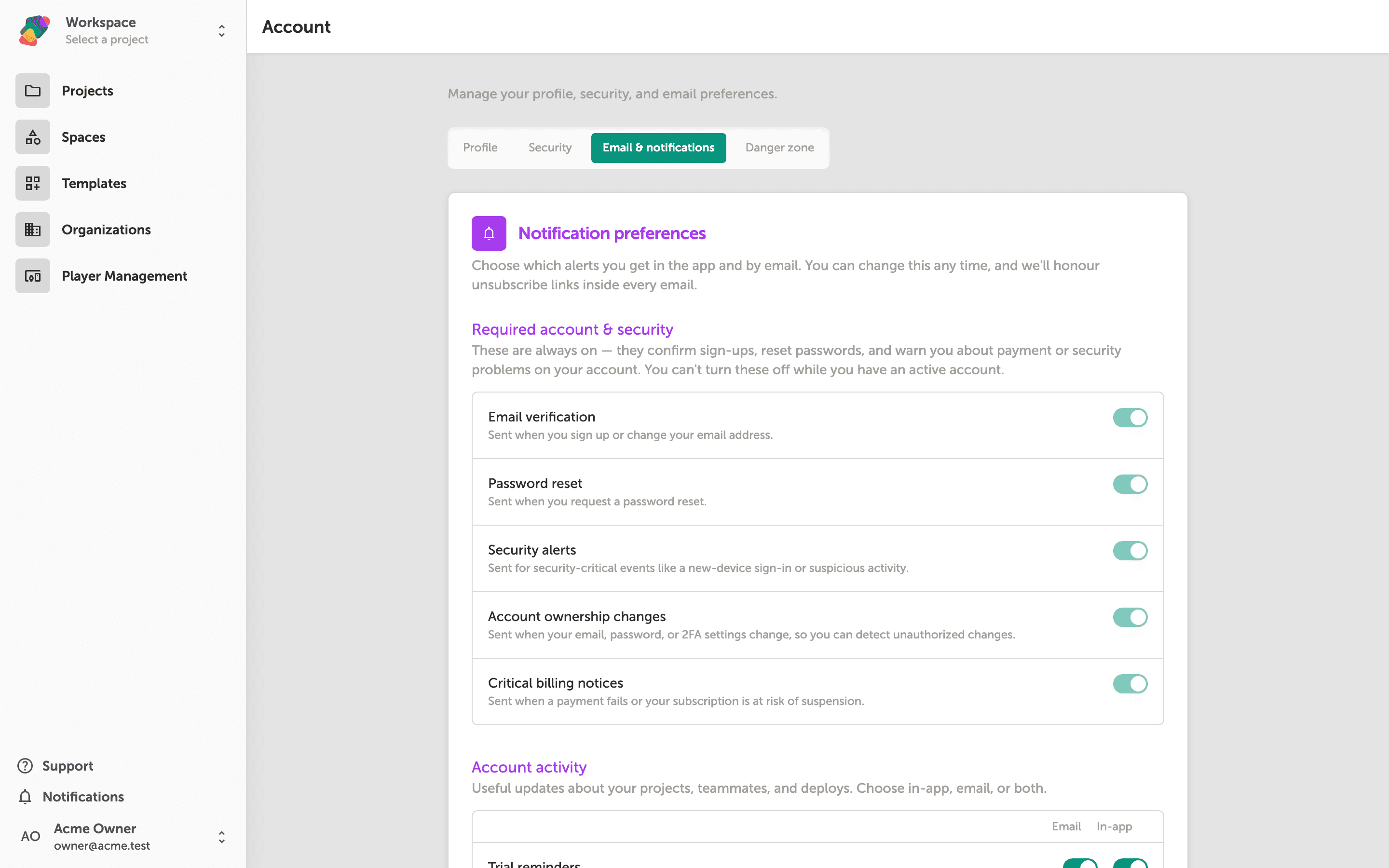
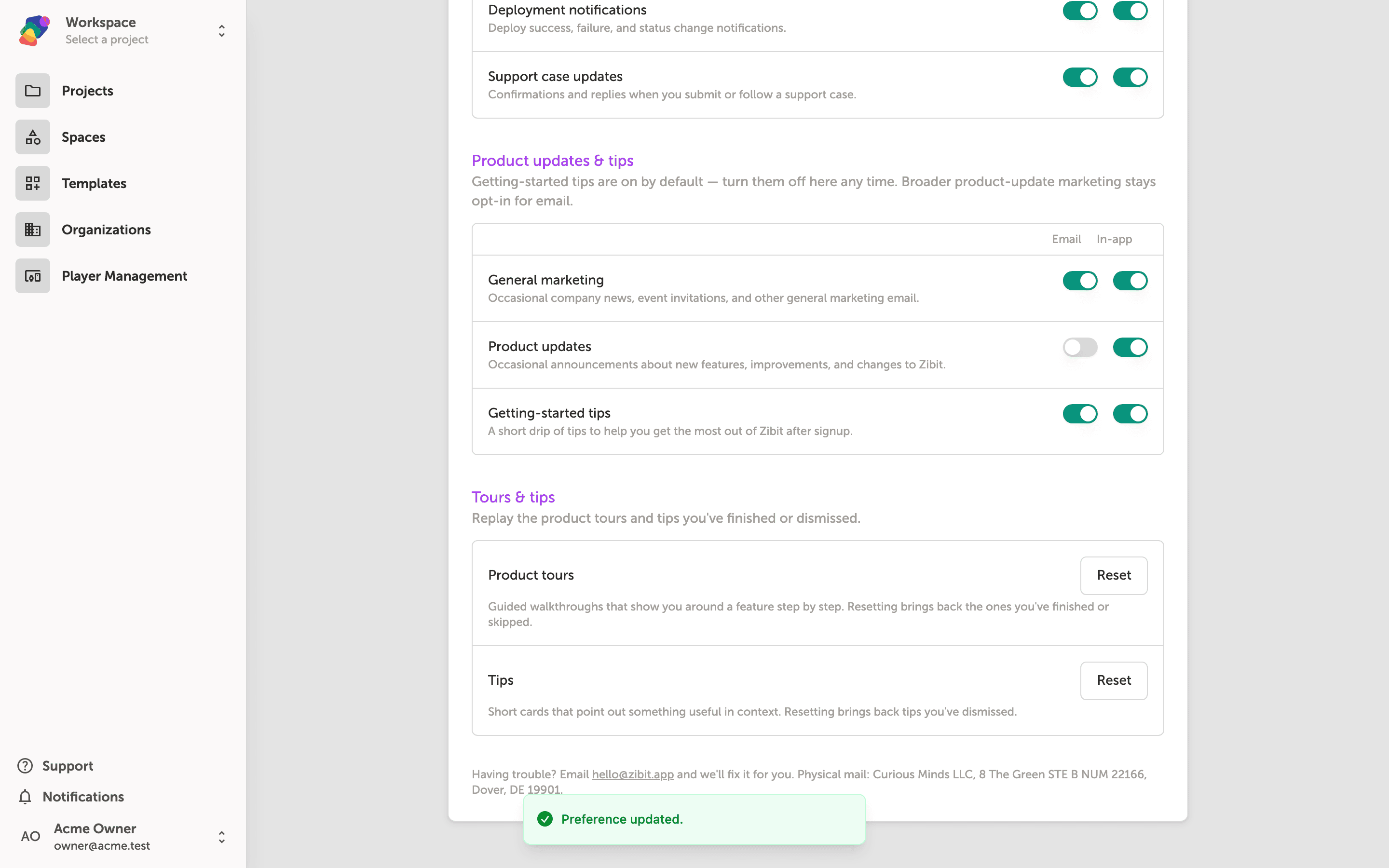
Each row in the Email & notifications page has two toggles—one for Email and one for In-app. Clicking either toggle saves your choice immediately; the green "Preference updated." confirmation at the bottom of the screen confirms the change was applied.
The Product updates & tips section works the same way, but note that email delivery for Product updates and Getting-started tips is off by default unless you opt in. Toggle any switch at any time to adjust what you receive.
With your notification preferences set, you're in full control of how Zibit communicates with you. From here, you might want to explore other ways to customize your account experience.
- Update your profile details—Keep your display name, avatar, and contact information current in the Profile tab.
- Manage workspace access—Review which spaces you belong to and adjust your role settings.
- Set up two-factor authentication—Add an extra layer of security to your account from the Security tab.
- Invite collaborators to a space—Bring team members into a shared workspace so you can build projects together.
- Explore style sets—Define consistent typography and color schemes that apply across all your projects.