
Managing Space Collaborators
This tutorial walks you through adding collaborators to a Space—Zibit's shared workspace for grouping projects. By the end, you'll have invited individual organization members, assigned roles, and optionally granted access to entire teams, so the right people can contribute without stepping on each other's work.
Organization plans
Spaces are available on the Organization plan.
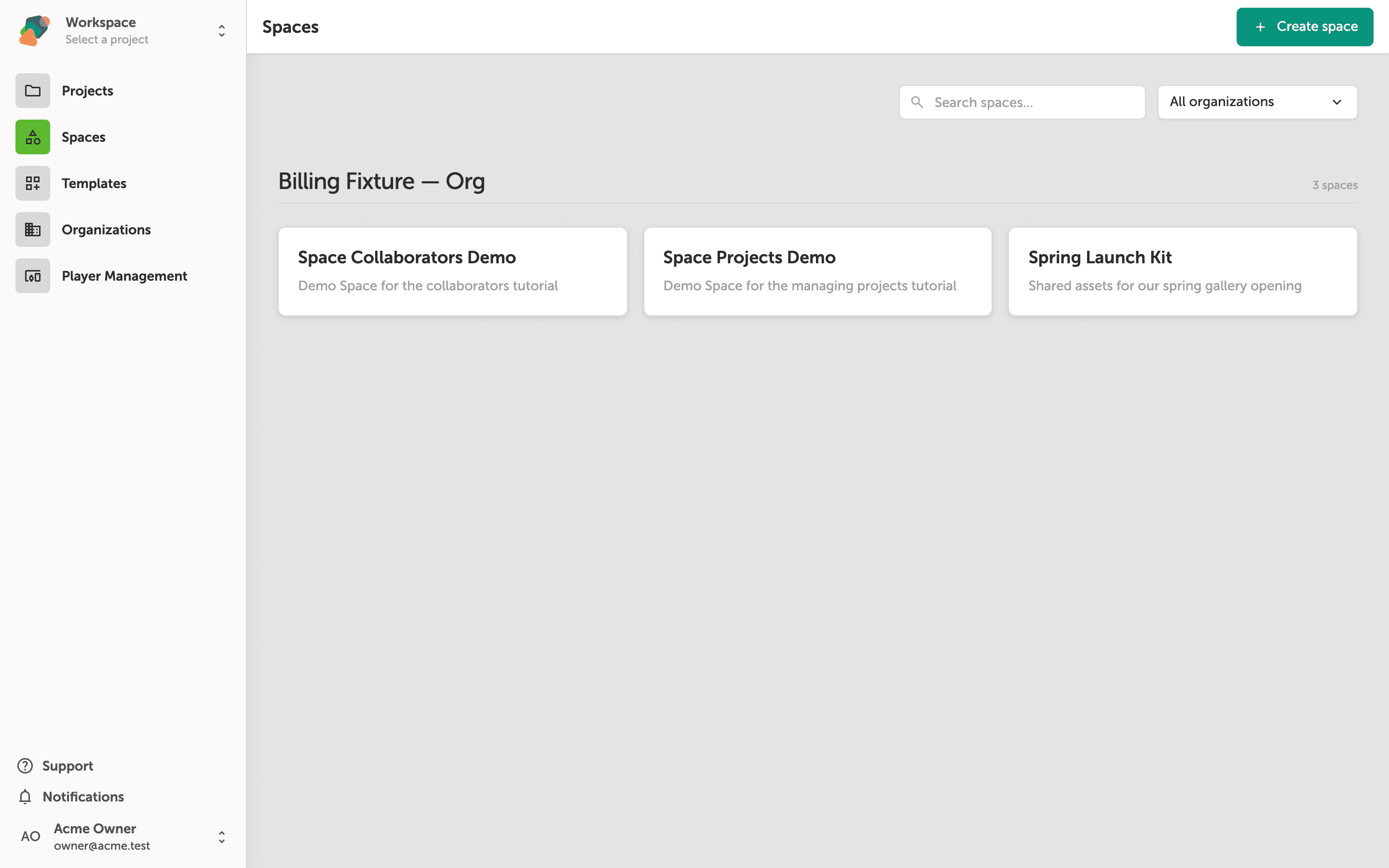
The Spaces page, where your shared workspaces live
When you open Zibit, the Spaces section (shown in the left sidebar) lists every Space available to your account. Each card shows the Space name and a short description. Your workspace currently contains three Spaces.
To manage who can collaborate on a Space, you first need to open it. Click the card for the Space you want to work with—in this tutorial, click Space Collaborators Demo.
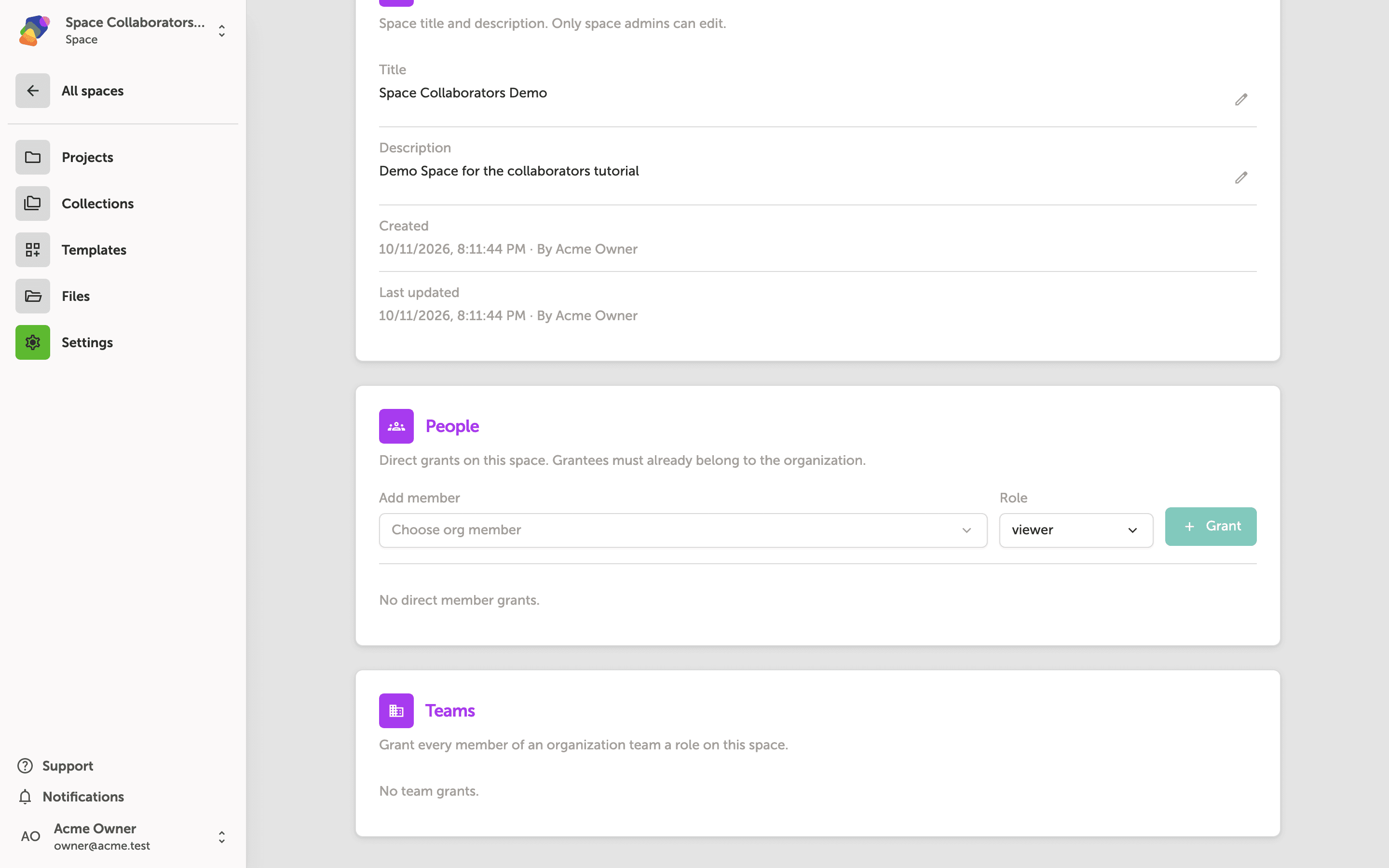
The Space settings page, where you grant members access
The Space settings page has a People section that controls who can work inside this Space. To add someone, select their name from the "Choose org member" dropdown—this list is limited to people who already belong to your organization. Then use the "viewer" dropdown to set their role, and click "+ Grant" to save the access grant.
Once a grant is saved, it appears in the list below the form where it can be updated or removed. The Teams section further down the page lets you grant access to an entire organization team at once, rather than adding people one by one.
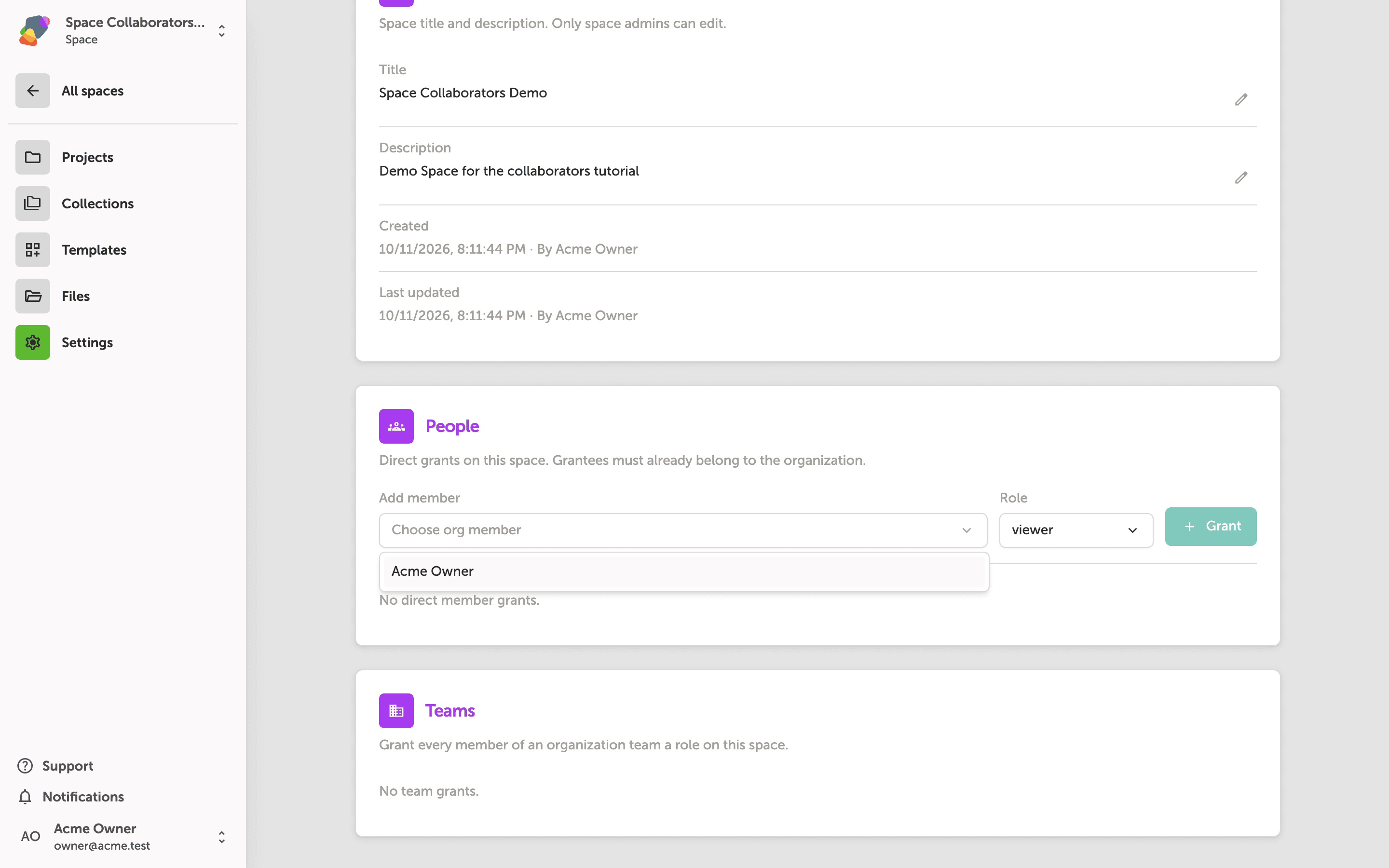
Choosing an organization member to add to your Space
Under the People section, use the "Choose org member" dropdown to select the person you want to add. The dropdown lists everyone who already belongs to your organization—only existing organization members can be granted access to a Space.
Once you select a member, set their level of access using the Role dropdown (currently set to viewer), then click "+ Grant" to confirm. The note "No direct member grants" confirms that no individual grants have been added yet.
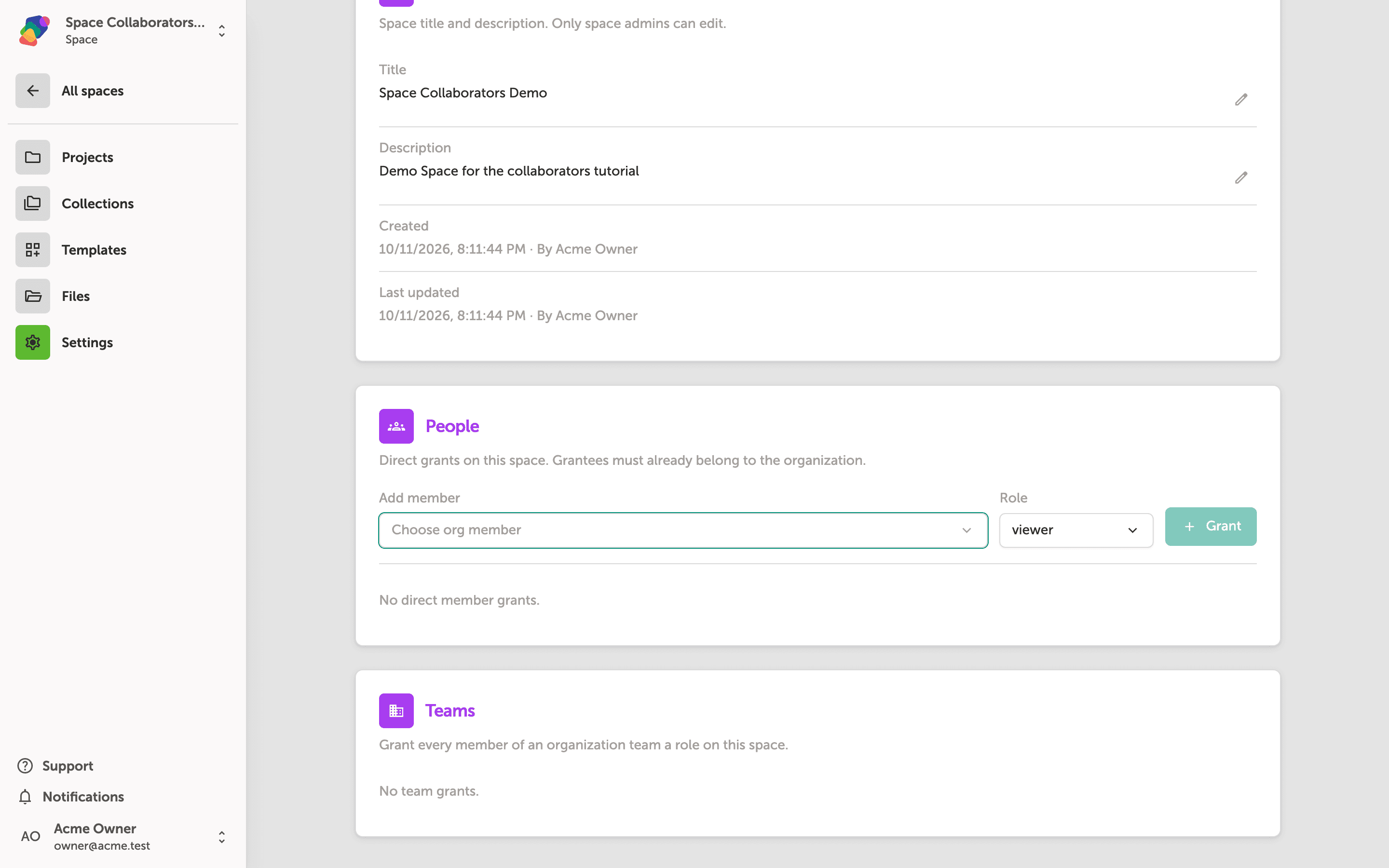
Granting access to whole teams from the Space settings page
Below the People section, the Teams card lets you give every member of an organization team a role on this Space in one step—useful when a large group, such as an education department, all need the same level of access.
This Space currently shows "No team grants." If your organization has teams configured, you'll see a dropdown here to select one and a Grant button to confirm. Team grants work alongside any individual member grants you've already added in the People section above.
With collaborators in place, your Space is ready for coordinated work across projects. Here are some related skills to explore next:
- Managing roles across projects—learn how project-level permissions interact with the Space-level roles you've set here.
- Creating and organizing teams—structure your organization's teams so future Space access grants are faster to apply.
- Sharing style sets—make typography and color choices available to every collaborator working inside the Space.
- Setting up collections—connect reusable data sets to projects so collaborators always work from a single source of truth.
- Archiving or transferring a Space—understand your options when a Space's ownership or status needs to change.