
Managing Space Projects
This tutorial walks you through managing projects inside a Zibit Space—the shared workspace that groups related projects together. By the end, you'll know how to bring existing projects into a Space and start new ones from within it, so your team always finds the right content in the right place.
Organization plans
Spaces are available on the Organization plan.
The Spaces page, where your shared workspaces live
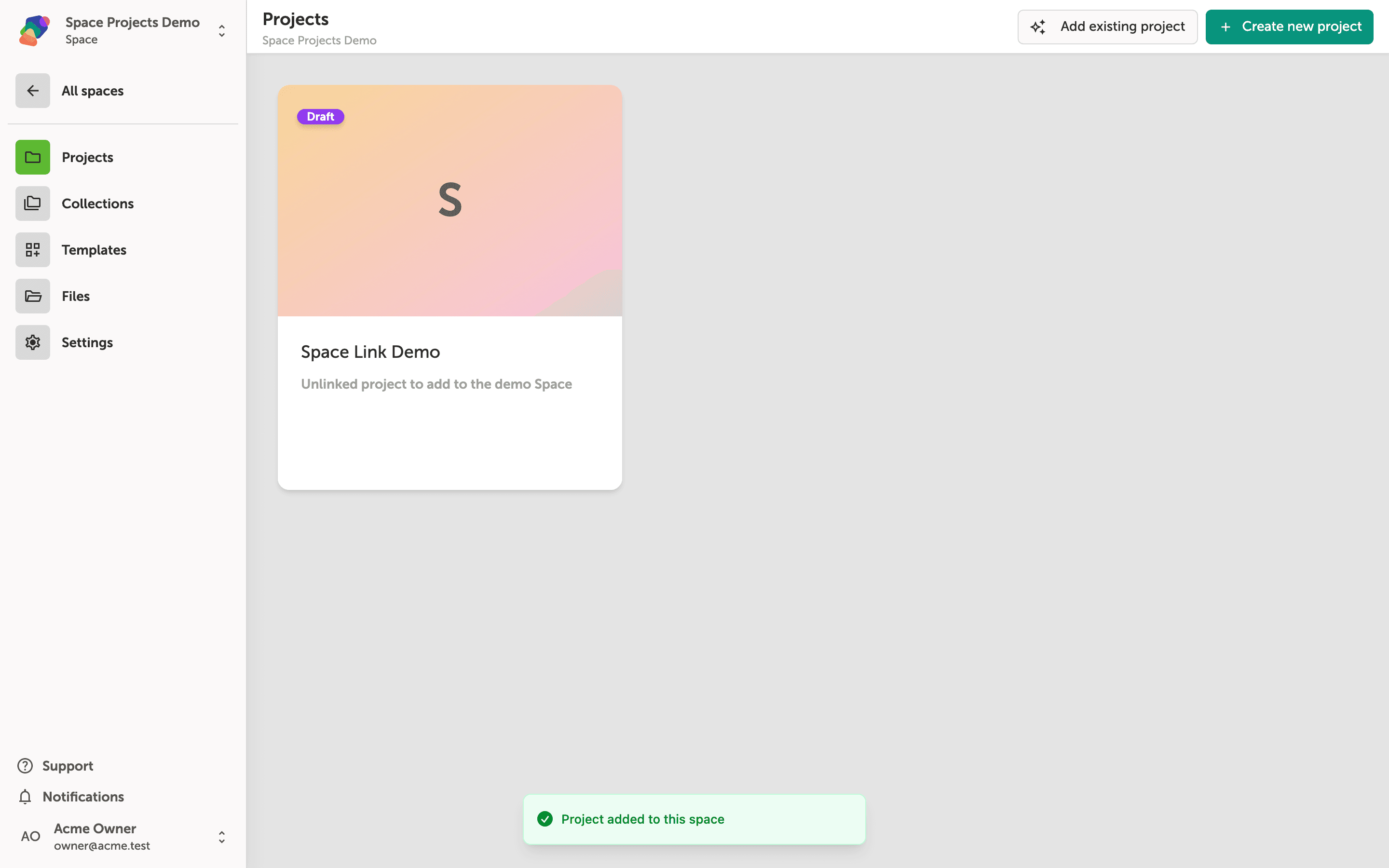
When you click Spaces in the left sidebar, Zibit shows all the Spaces available in your workspace. Each card displays the Space name and a short description. Your workspace currently has three Spaces—Space Collaborators Demo, Space Projects Demo, and Spring Launch Kit.
To manage the projects linked to a Space, click its card. In this tutorial, you'll open Space Projects Demo to see how projects are organized inside a Space.
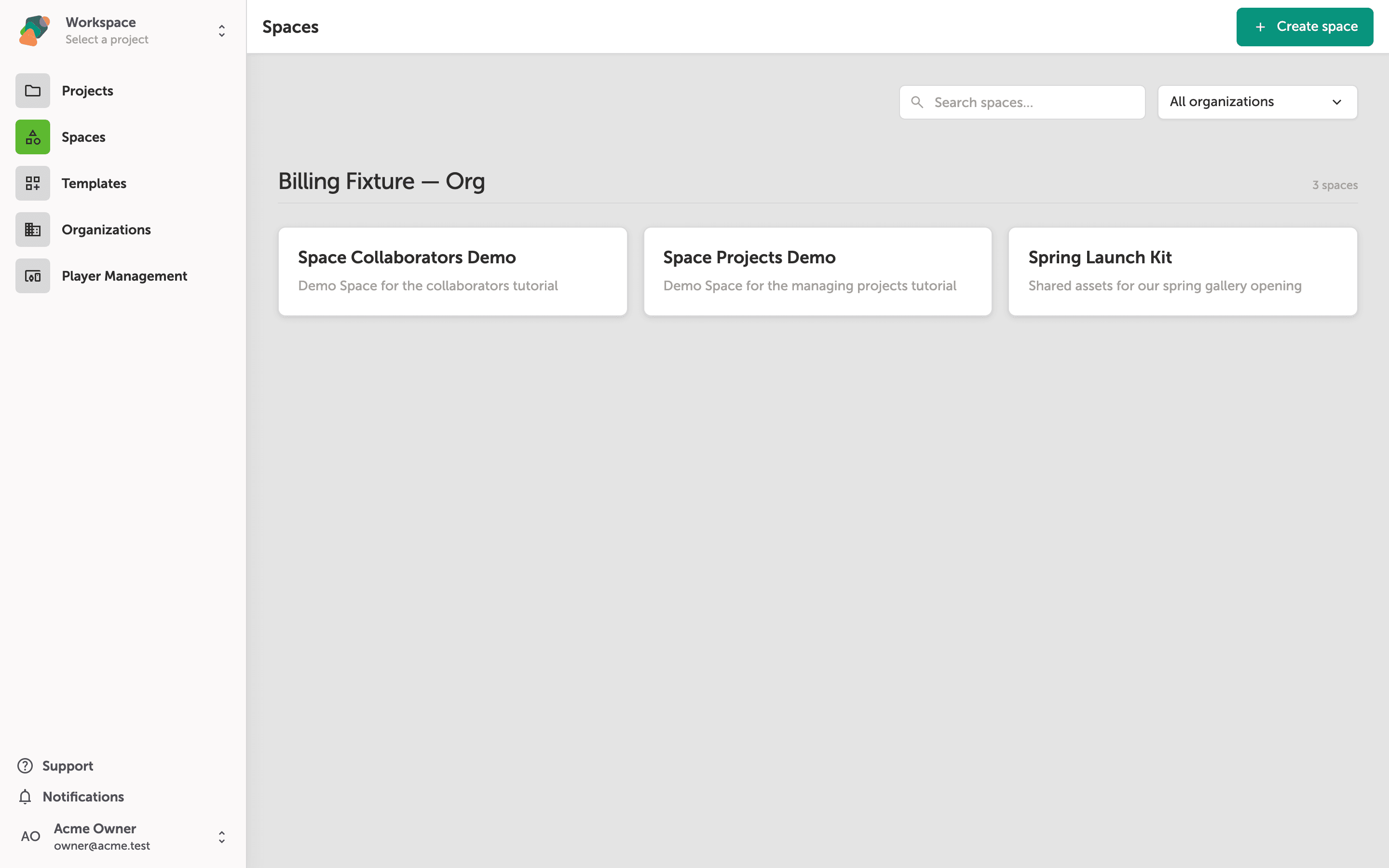
The Projects tab of an empty Space
You're now inside the Space (the UI labels this area "Space") under the Projects tab. Because no projects have been linked yet, Zibit shows a prompt in the center of the screen with two options: Create new project starts a brand-new project from scratch and adds it to this Space, while Add existing project lets you link a project you've already built elsewhere. The same buttons appear in the top-right corner of the page.
Projects you add here share the Space's collections, styles, and files automatically—so any assets you set up at the Space level are available across every linked project. Click Create new project to continue.
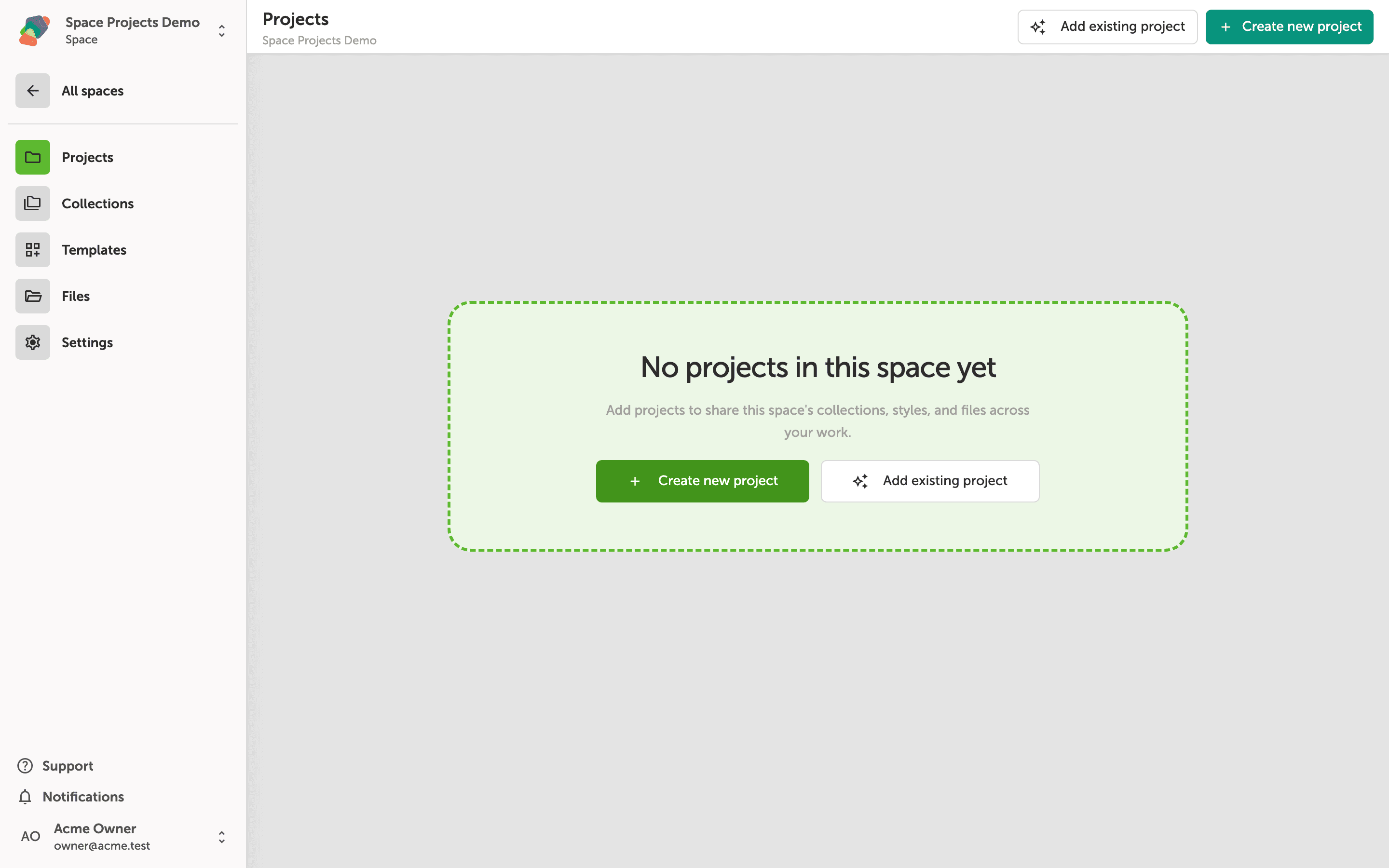
The 'Add project to space' dialog loads your organization's projects
When you click "Add existing project", Zibit opens the "Add project to space" dialog. It fetches every project in your organization that can be linked to this Space—the list appears once loading is complete. Projects already assigned to another Space can be moved here, but they will leave that previous Space when you do.
Select a project row to link it to this Space. If you do not want to add an existing project right now, click "Close" to dismiss the dialog without making any changes.
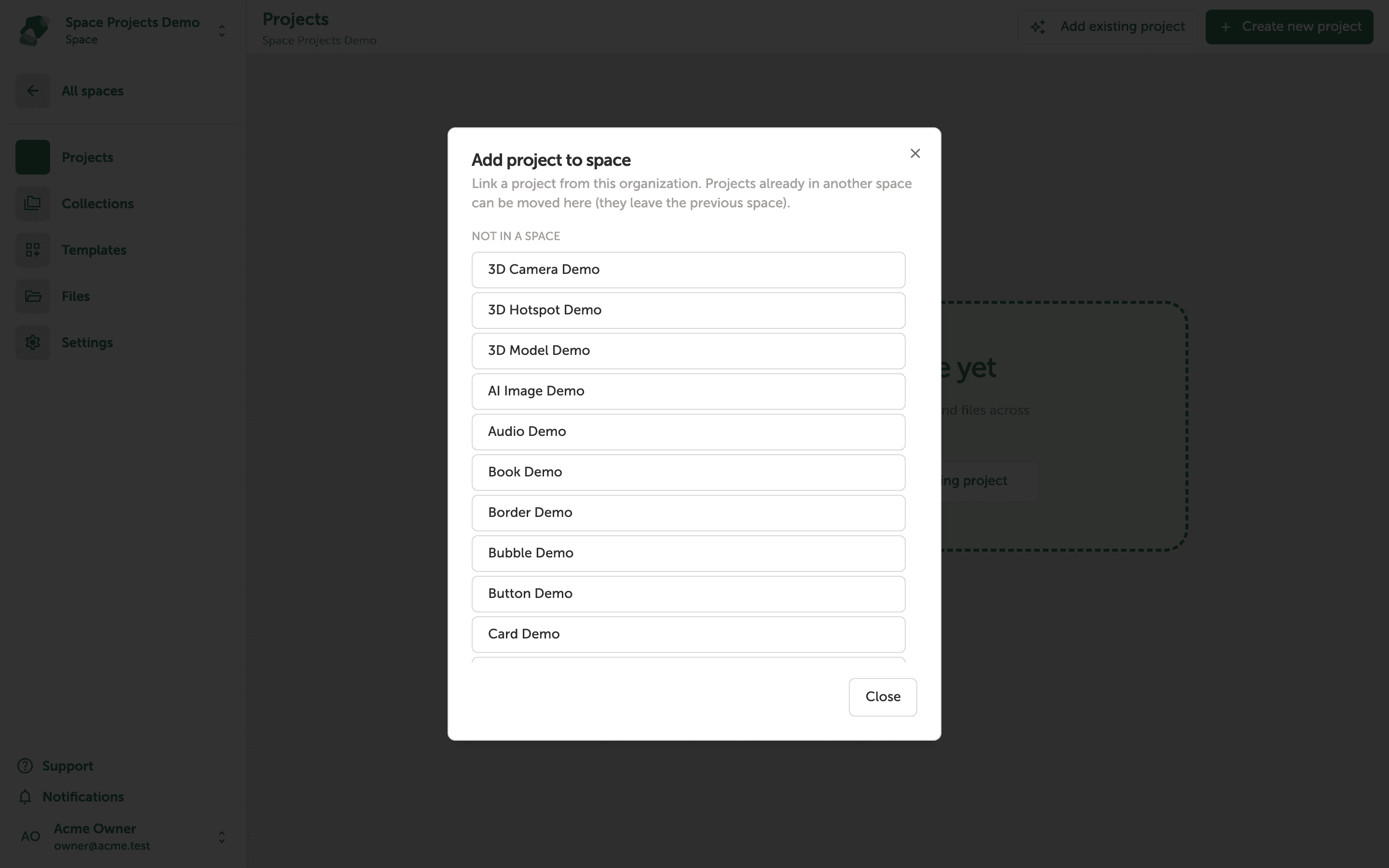
The project now appears in your Space's Projects list
The confirmation banner at the bottom of the screen—"Project added to this space"—confirms the link was successful. The project card for Space Link Demo is now visible in the Projects panel of your Space (what the UI calls "Space"), marked as Draft until it is published.
From here you can open the project editor by clicking its card, add more projects using "Add existing project", or start a brand-new project with "Create new project". Any style sets and shared assets configured at the Space level will apply across every project linked here.
With projects connected to a Space, your team has a shared, organized home for every experience you build. From here, you can go further with how projects are structured and maintained.
- Set up a style set—apply consistent typography and colors across all projects in a Space.
- Configure displays—define the screen resolutions your moments are designed for.
- Invite collaborators—give teammates access to the Space so they can contribute to shared projects.
- Organize with collections—link reusable data sets to your projects to power dynamic content.
- Build your first moment—start laying out components and defining the flow of your experience.