
Viewing Your Subscription Status
This tutorial walks you through checking your organization's subscription status in Zibit—including your active plan, any trial countdown, and what to look for if your access has lapsed. By the end, you'll know exactly where to find your billing information and how to read what it's telling you.
The Organizations page and your organization cards
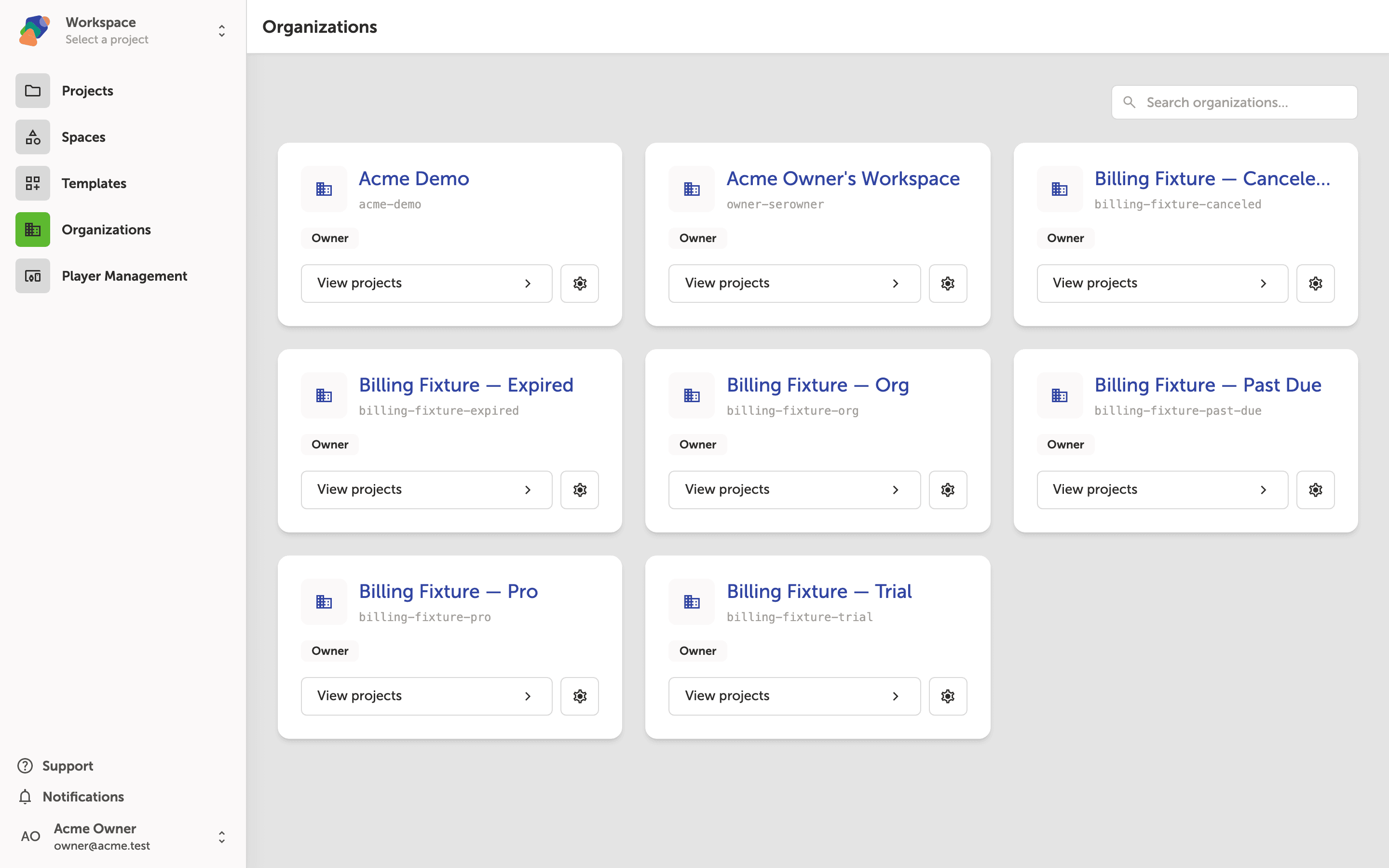
The Organizations page is your starting point for checking subscription details. Each card represents one organization you belong to, showing its name, slug, and your role.
Subscription and billing information lives inside each organization's settings—not in your account profile. To get there, click the settings icon on the organization card you want to inspect.
Checking your plan status on the Billing tab
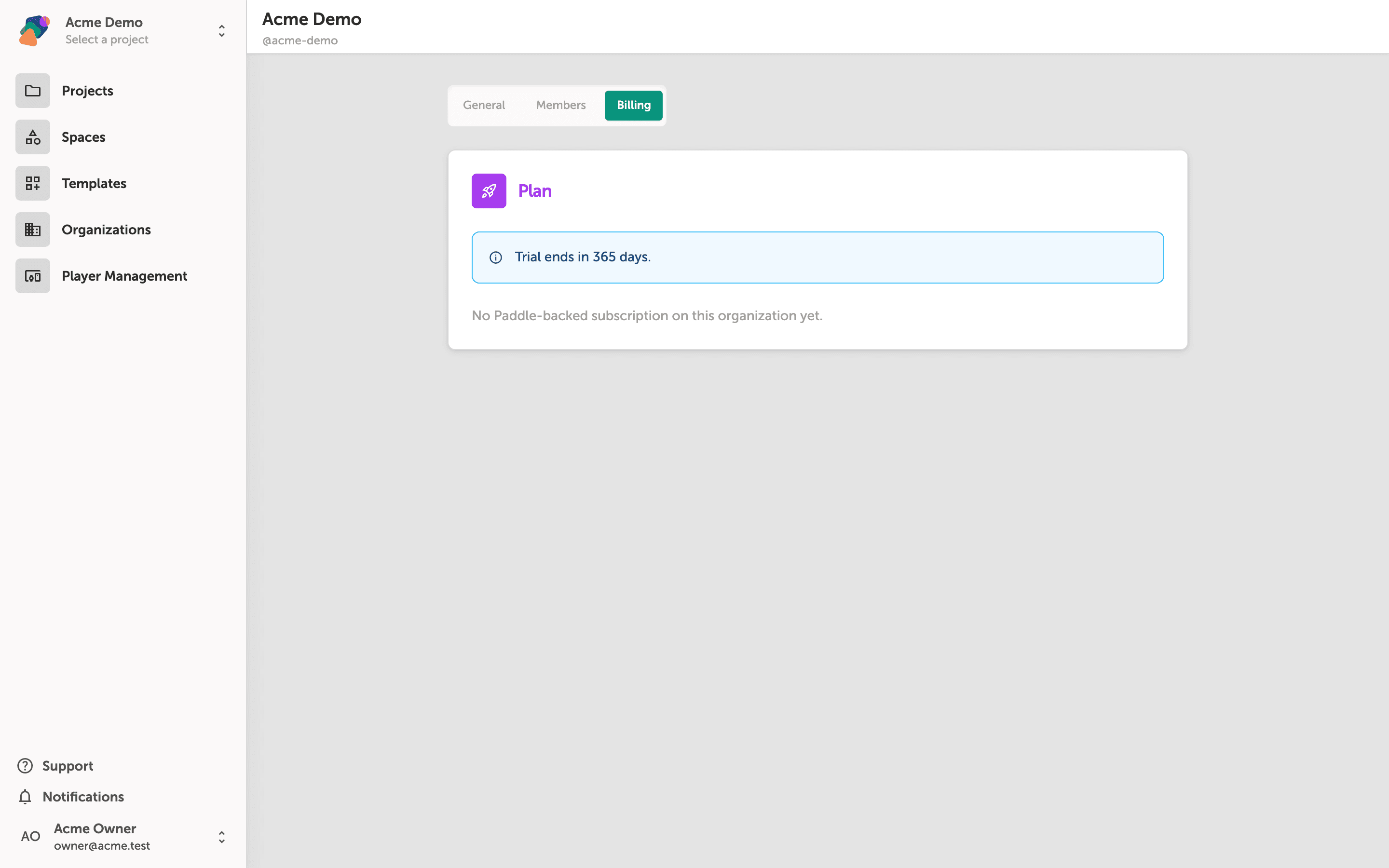
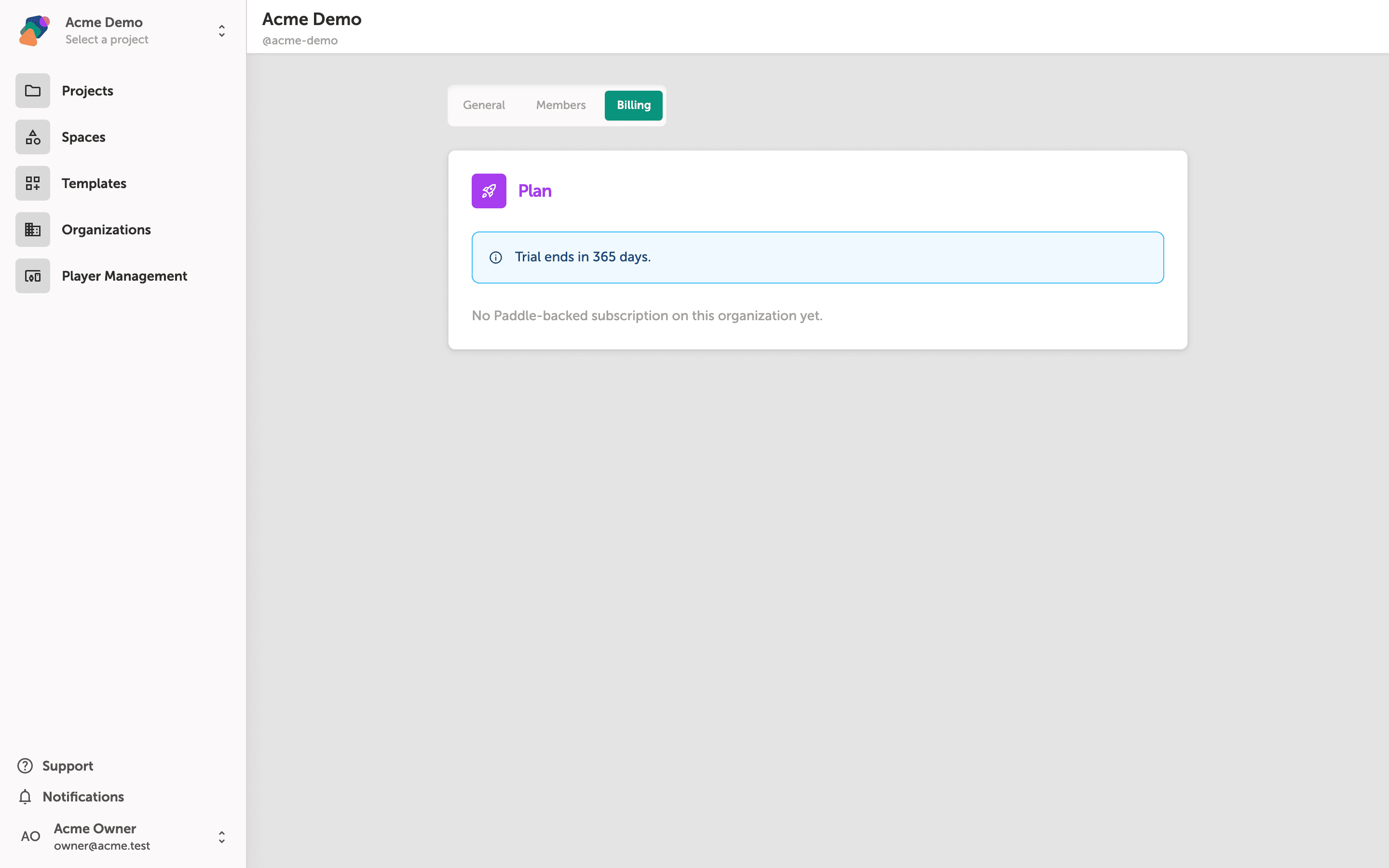
After opening your organization's settings, click "Billing" in the tab row at the top of the page. This tab shows your current plan under the "Plan" section.
If your subscription has lapsed, you'll see a red alert reading "Your subscription for this organization has expired." alongside a note that no active subscription is on file. Contact your Zibit account manager to restore access.
What an expired subscription looks like in the Billing tab
When your organization's subscription has lapsed, the Billing tab displays a red warning banner reading "Your subscription for this organization has expired." The Plan section also notes that no active subscription is on file. This is the signal that action is needed before your team can publish or manage projects.
To resolve this, contact your Zibit account representative or visit your payment provider's portal directly. You can also switch to the General or Members tabs at the top of the page to review other organization settings while you arrange billing.
Once you're familiar with your subscription status, you're ready to take action on your account. Here are some related topics to explore next:
- Updating your plan: Upgrade or change your subscription tier directly from the Billing tab.
- Managing billing contacts: Add or update the email address that receives invoices and renewal notices.
- Inviting team members: Control who has access to your organization and its projects.
- Setting up a new space: Organize your projects across multiple spaces within your organization.
- Transferring project ownership: Move a project to a different organization if your team structure changes.