
Use AI Image Tools
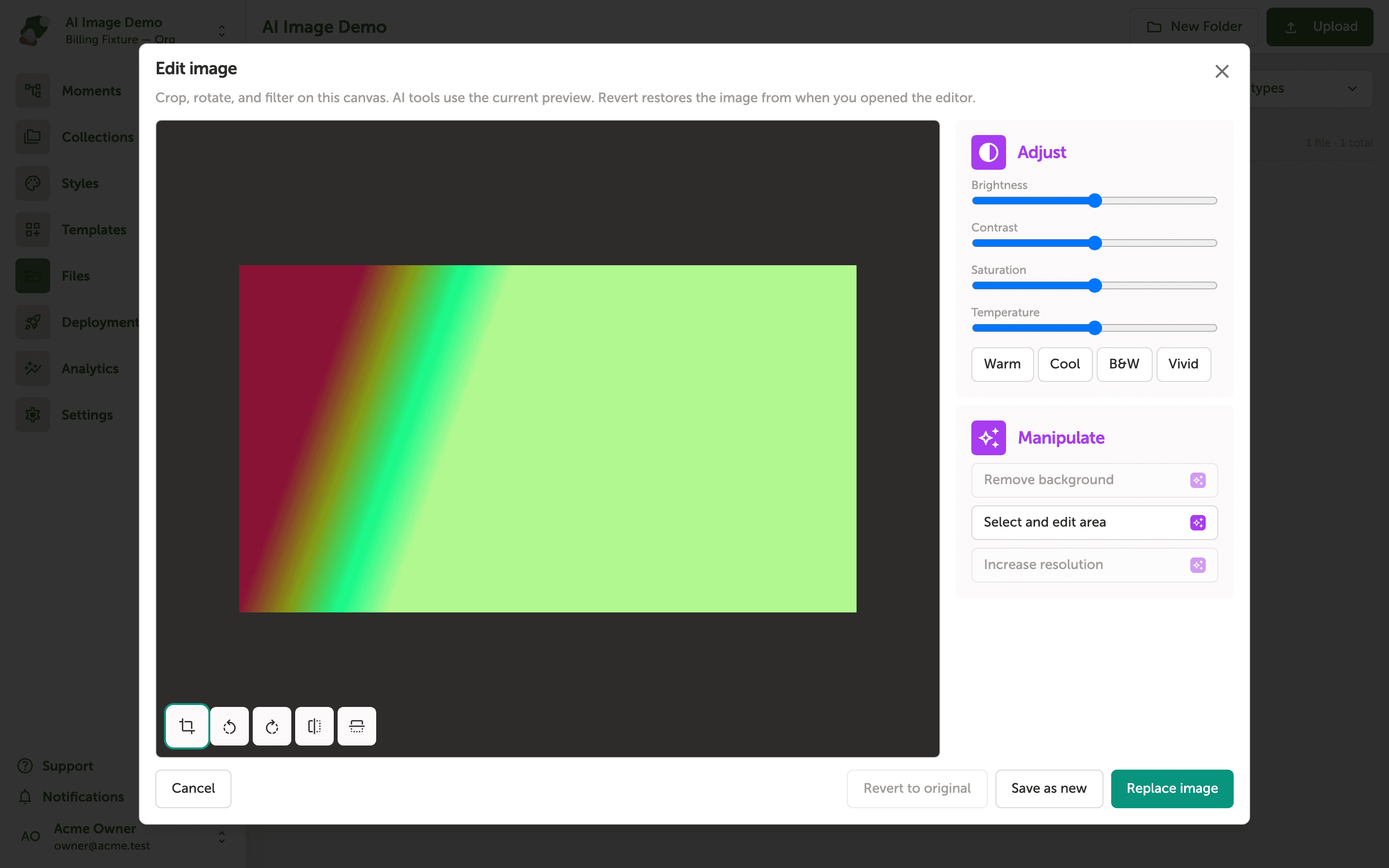
The image editor's Manipulate section runs three AI tools on the picture you already have open: Remove background, Select and edit area, and Increase resolution. They use the current preview, including a crop you have already applied. A locked tool means the organization's plan does not include it.
Crop and color are covered in the image editor article. Open Edit image on a project file before you start here.
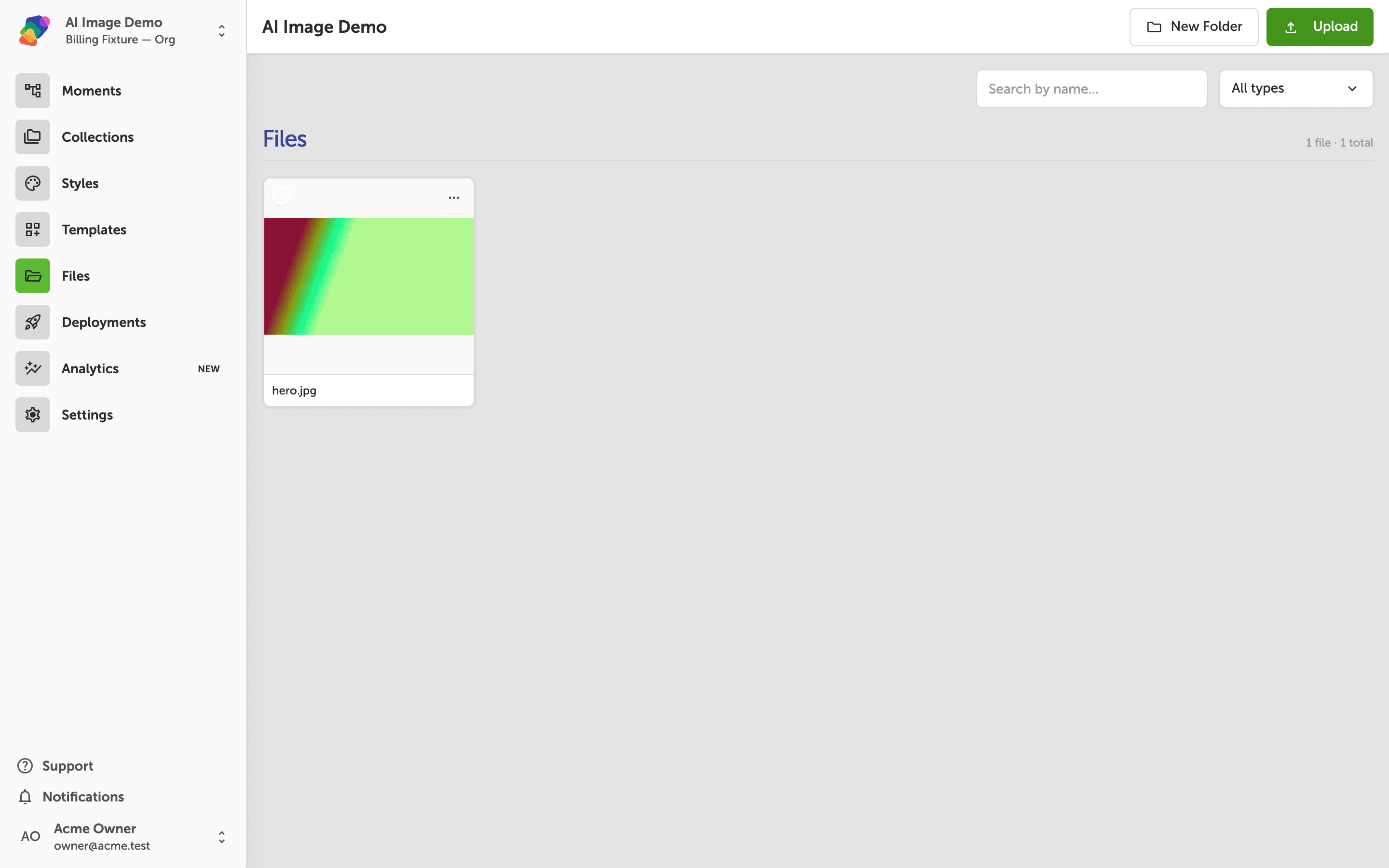
Open the editor
From Files, open Edit image on the picture you want to change.
The Manipulate tools
Remove background cuts the subject out and leaves the rest transparent. Select and edit area turns on a brush: paint the region you want gone, then click Remove. Increase resolution enlarges the picture and can take a while; the editor shows that it is working. When a result looks right, Save as new or Replace image. Revert to original puts back the picture from when you opened the editor.
Remove the background
Click Remove background and wait for the preview. If the edge is wrong, revert and try a tighter crop first. Save when the cutout is the one you want in the project.
Plan
AI tools can be unavailable on a free plan. The button stays visible and explains why it is disabled.