
Edit Images in Zibit
You can crop, rotate, and recolor a project image without leaving Zibit. Edit image opens a full editor. Save as new keeps the original file and adds the edited one. Replace image updates the file everywhere that file is used. Library images can only be saved as new.
Open project files
Open the project's Files page. The walkthrough uses an image already in the project.
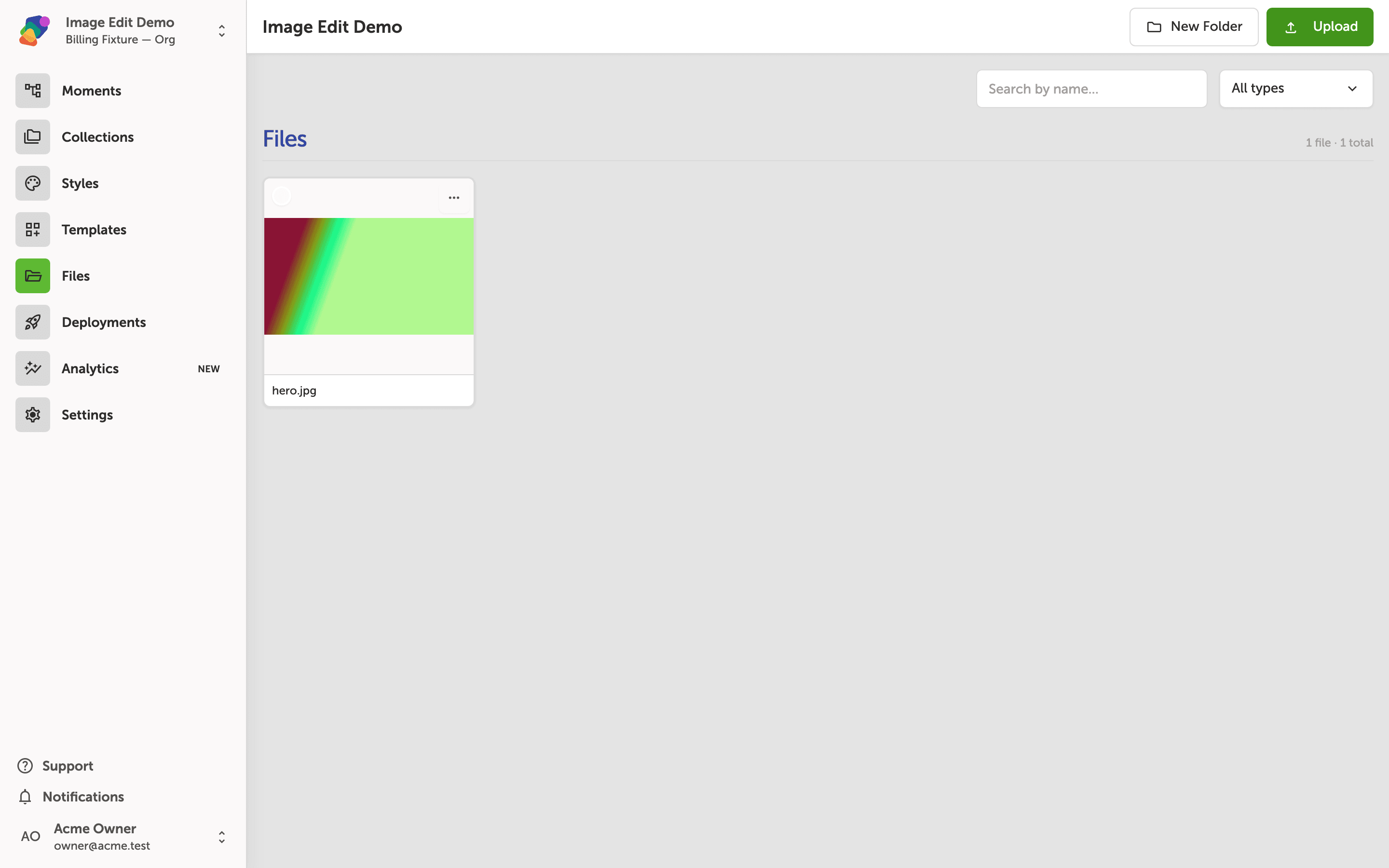
Open Edit image
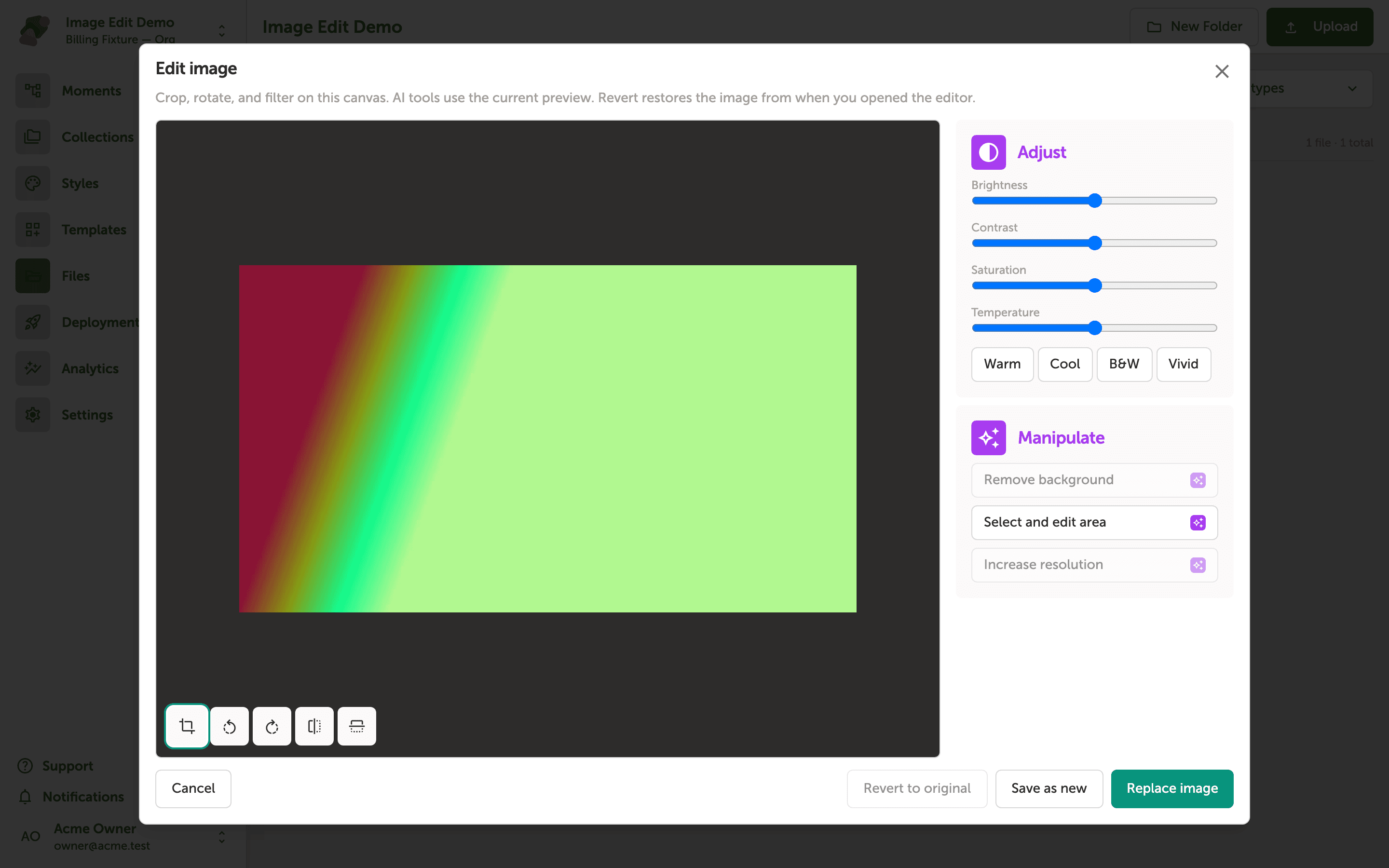
On the image's menu, click Edit image. The dialog is titled Edit image. The canvas shows the current picture. Along the bottom are Crop, Rotate left, Rotate right, Flip horizontal, and Flip vertical. Adjust holds brightness, contrast, saturation, and temperature, plus preset buttons.
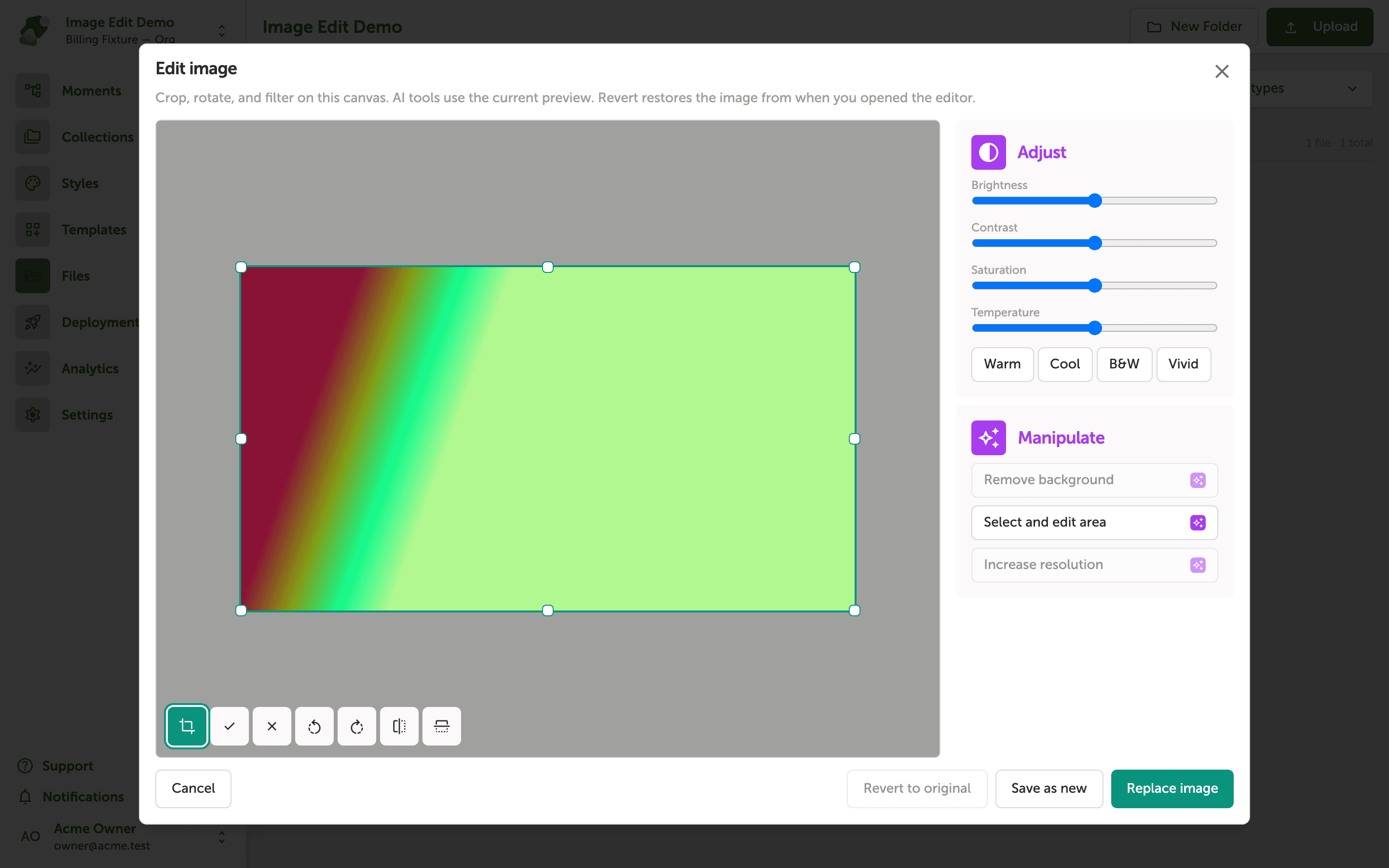
Crop
Click Crop. Drag the frame to the region you want to keep, then click Apply crop. Cancel crop leaves the picture as it was. You can rotate first and crop the rotated picture.
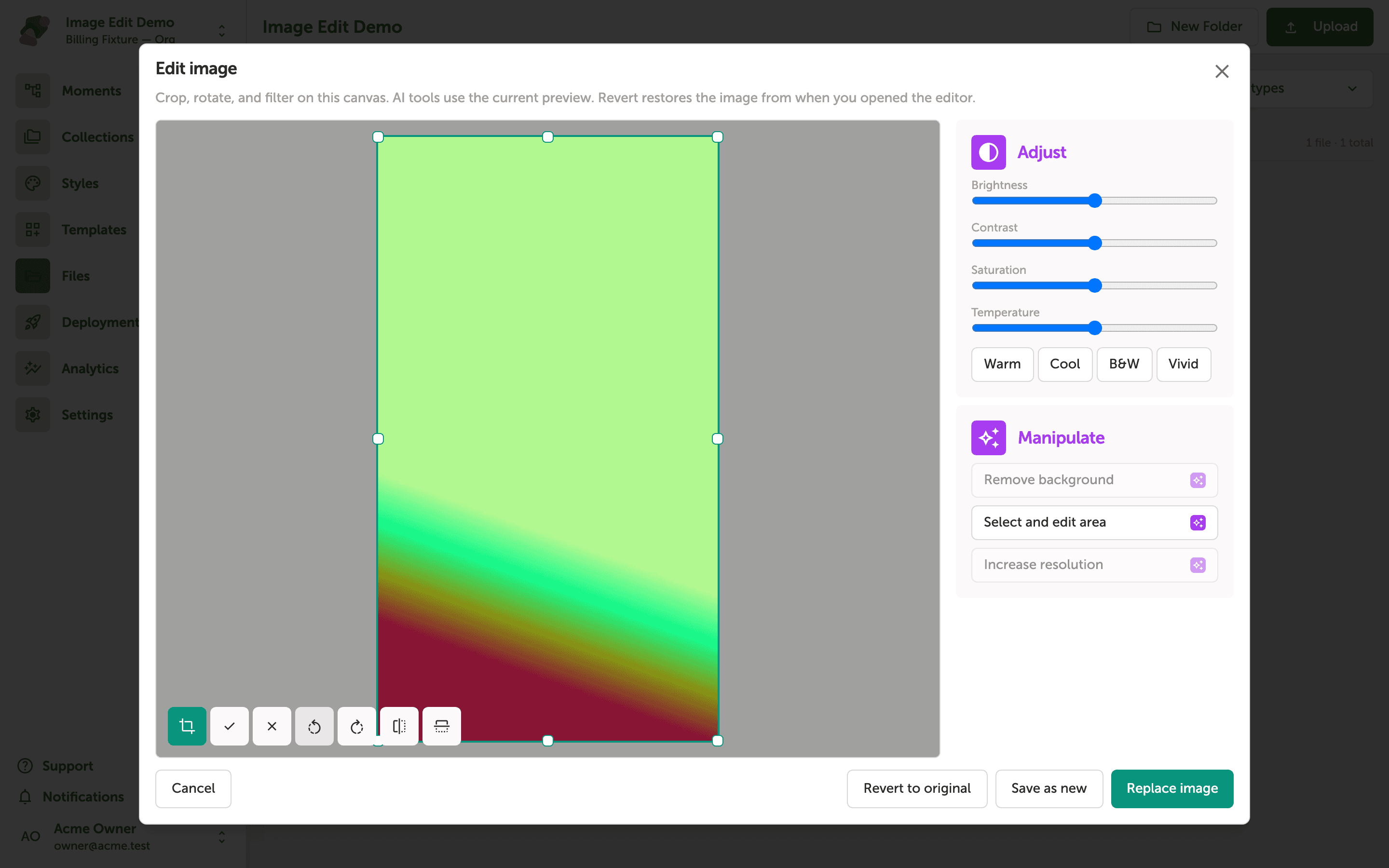
Rotate, then save
Rotate left turns the picture 90 degrees. Rotate right turns the other way. When the result is what you want, click Save as new to add a file, or Replace image to update this file in the project. Revert to original throws away the edits from this session and is available only after you have changed something. Cancel closes without saving.
Library images
An image from the Zibit library opens with Replace image unavailable. Save it as a new file in your project instead.
The updated picture shows anywhere that file is used, if you replaced it, or as a separate file if you saved a new one.