
Adding a Countdown or Count-Up Timer
A Timer counts down to zero or up from zero. When it reaches a time you choose, it can run an action — jump to a “time's up” moment, show a panel, submit a form. You will add a five-minute countdown.
Open the view
Open the view where the clock should be visible. If the timer should send visitors somewhere at zero, that destination has to be another moment in the project.
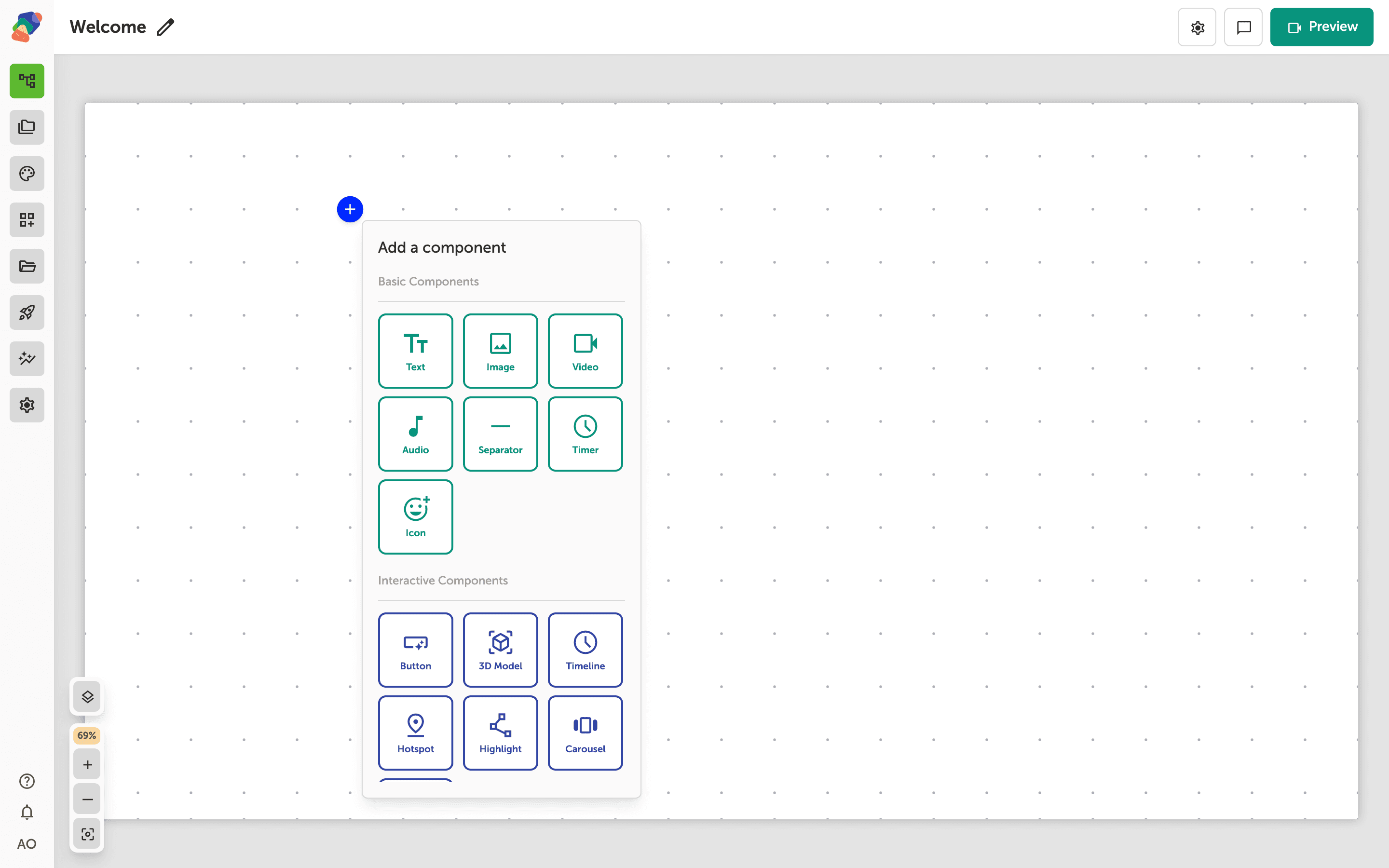
Add a Timer
Under Basic Components, click Timer.
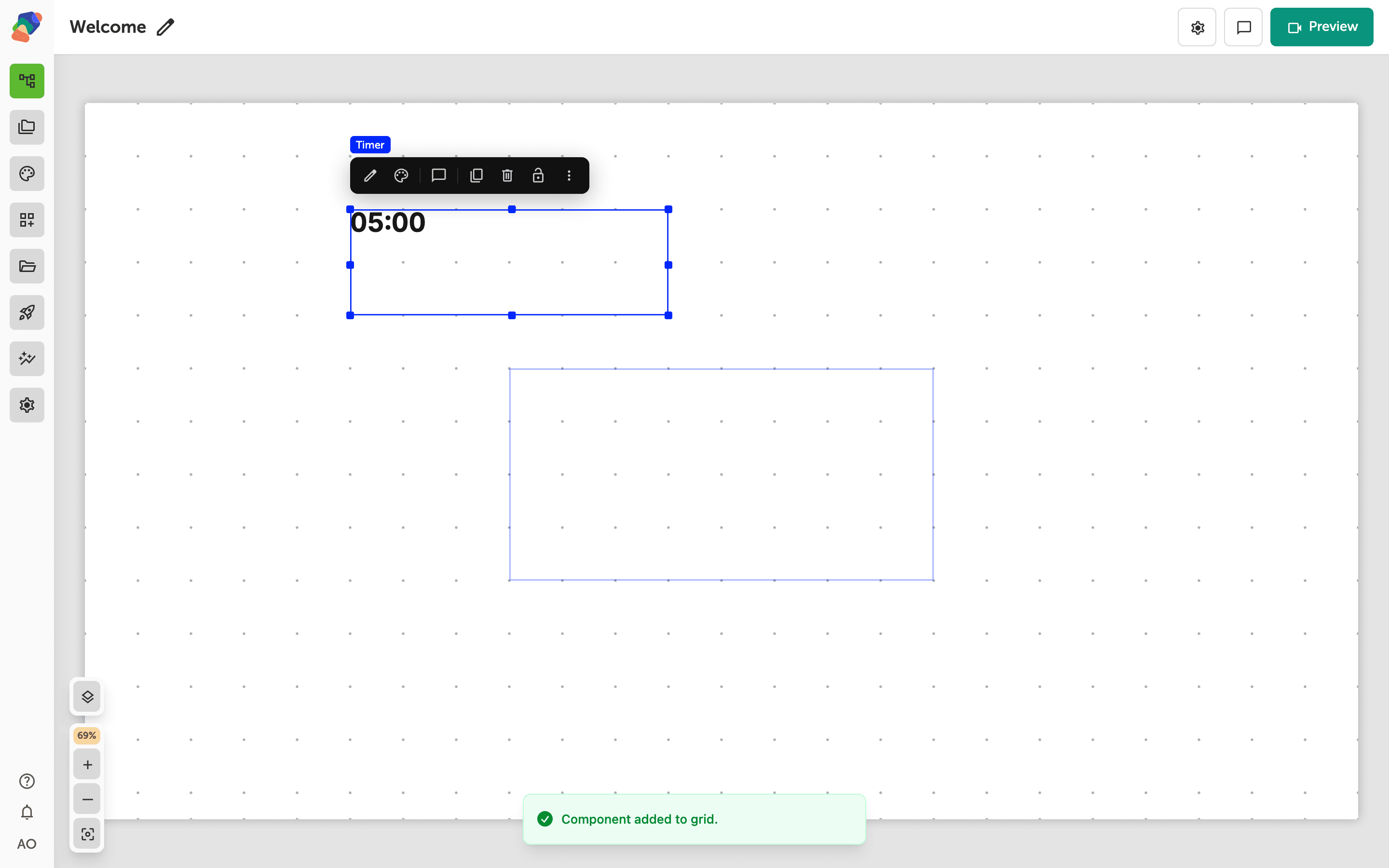
The clock is on the grid
The timer shows its starting value. Resize it so the digits are readable from the distance visitors stand at.
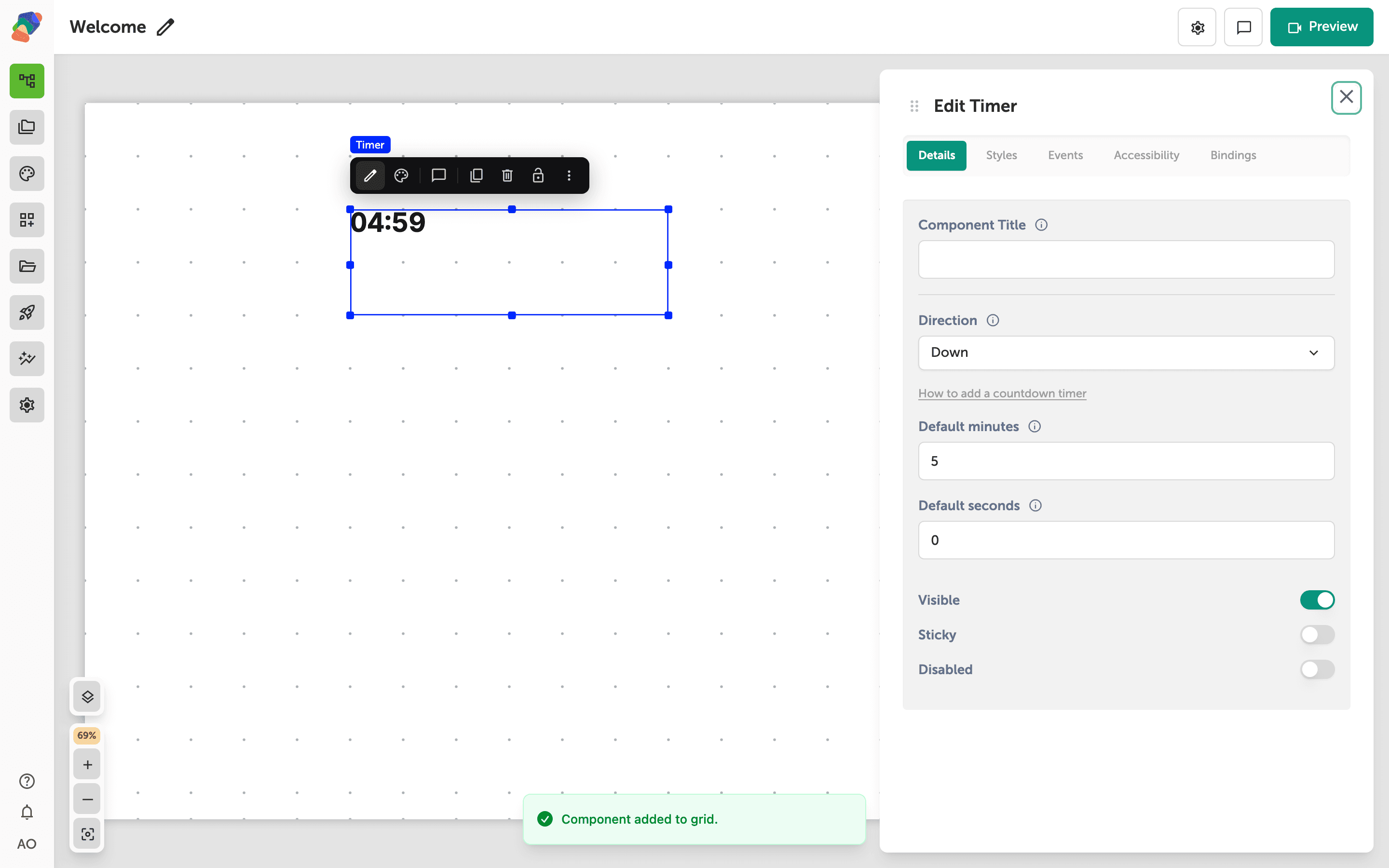
Set the direction and the start
In Details:
- Direction — Down counts to zero and stops. Up counts from zero.
- Default minutes and Default seconds are the start. For a five-minute countdown, use 5 and 0.
To do something at zero, add an event on the timer. Set the trigger to On timer, set When timer reaches to 0 minutes and 0 seconds, and set the action to Go to a moment. A Button on the same view can reset the clock: its action targets this timer.
Preview the view and let the timer run, or set a short start such as 10 seconds while you are testing. You can change the real duration afterward.