
Adding a Progress Bar
A Progress Bar shows how far a visitor is through a sequence — a multi-step label, a form, a short quiz on one screen. You can set the step yourself, or let the bar follow a form. You will add the bar and choose that mode.
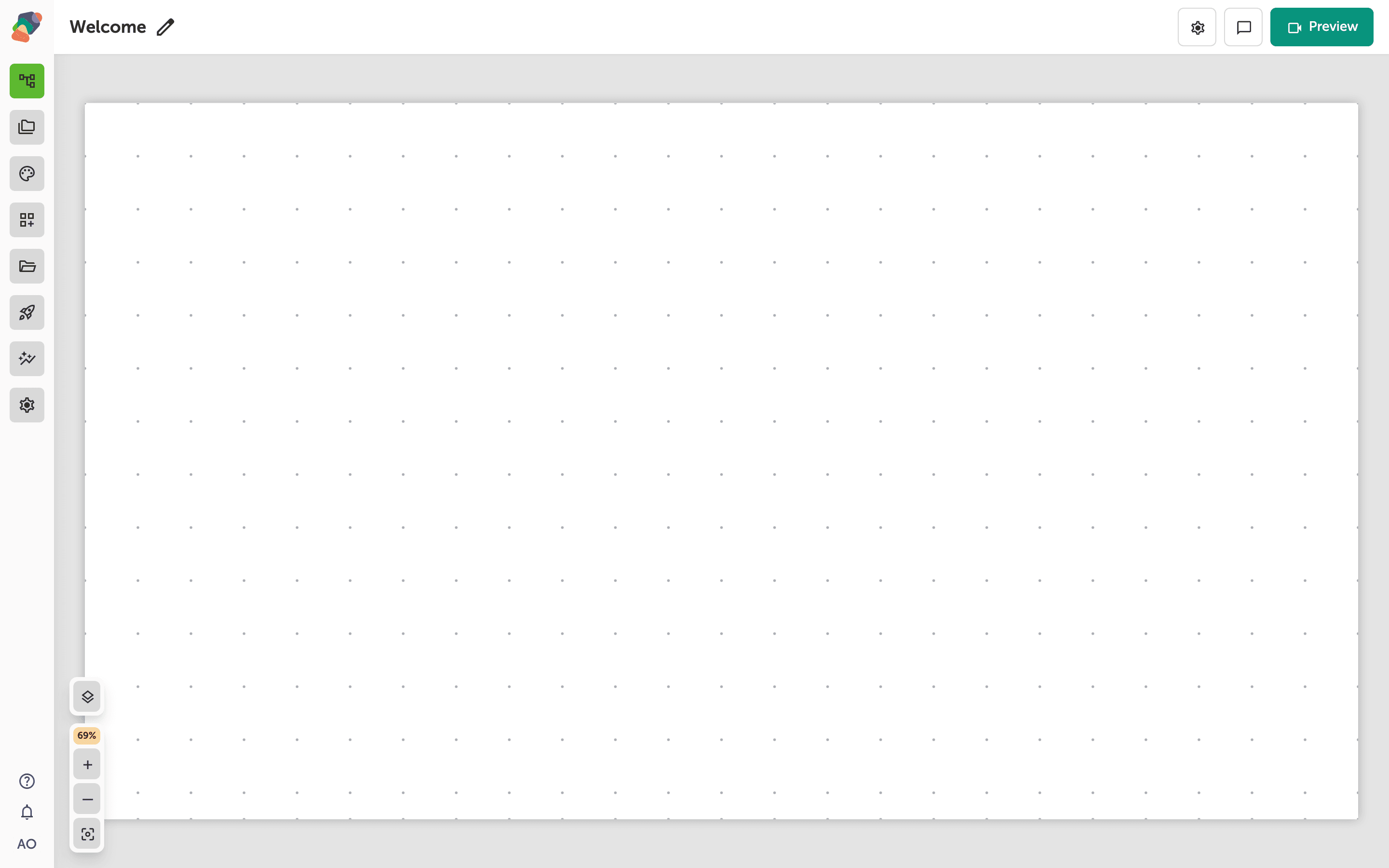
Open the view
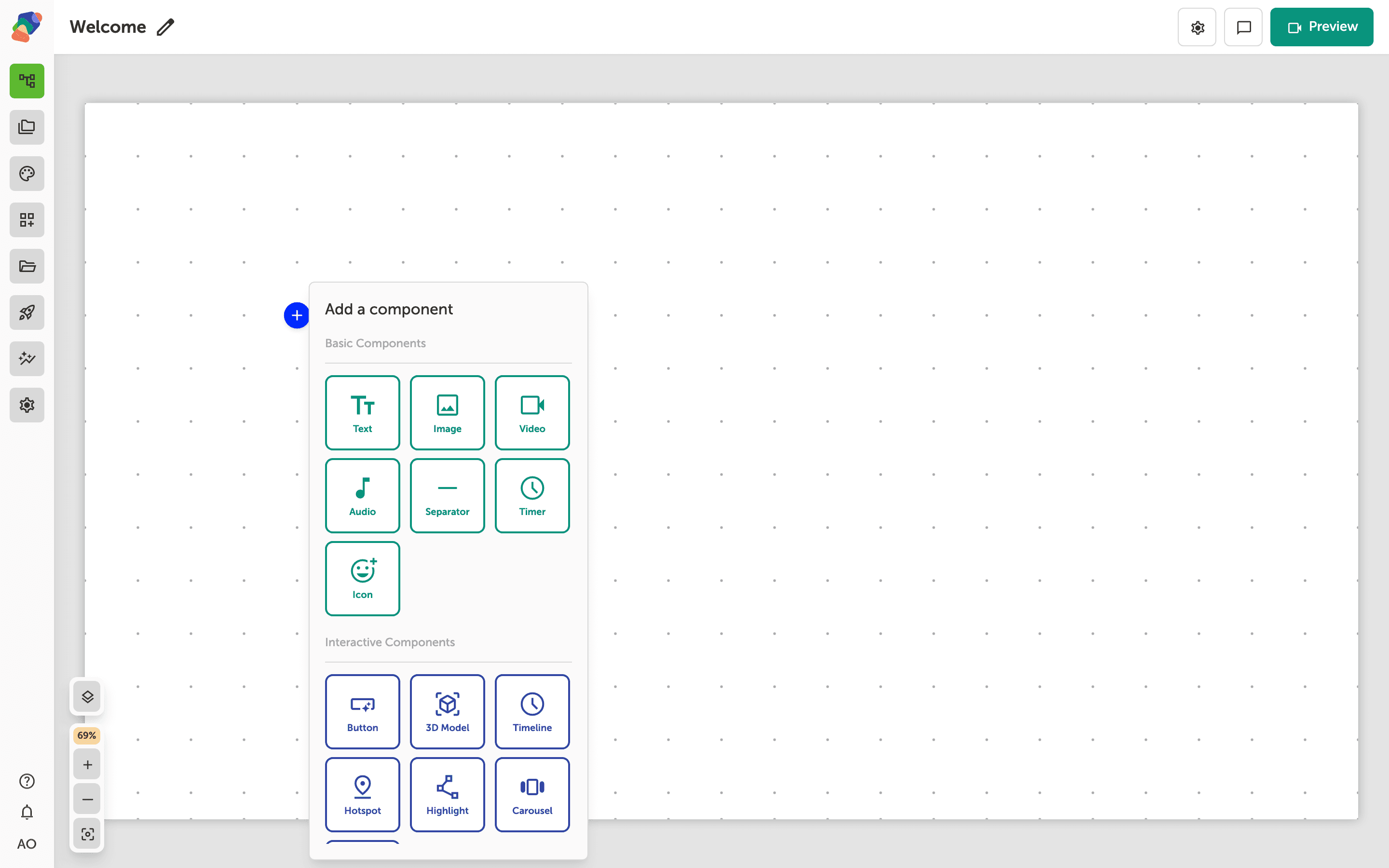
You are in the View Editor. The grid is the screen visitors will see. Click a cell's Add component control to open the menu. Nothing you place is permanent — you can move it, restyle it, or delete it later.
Choose Progress Bar
In the add menu, Progress Bar is under Form Components. Click it to place the component on the cell you opened.
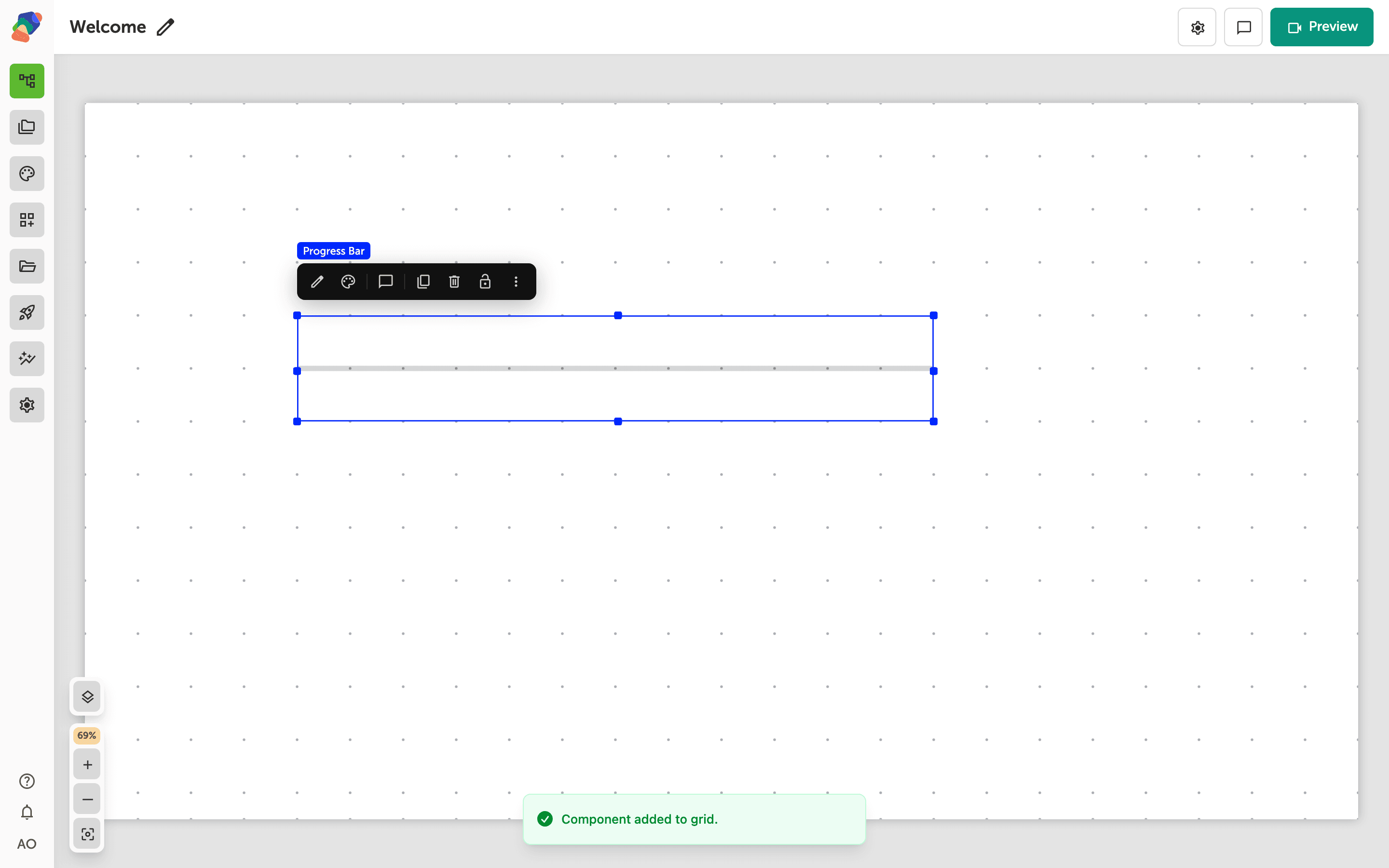
The component is on the grid
The bar appears on the grid. Place it where visitors look before they start, usually above the fields. It does not collect an answer. It only reports progress.
Choose manual or automatic
Select the component and open Edit content from the toolbar. Mode is Manual or Automatic. Manual uses Current step and Total steps on this component — set total to the number of stops, and current to where this view sits. Automatic follows a form: choose that form in Form to track, and the bar fills as required fields are completed. Label format can show nothing, a percentage, or the step count.
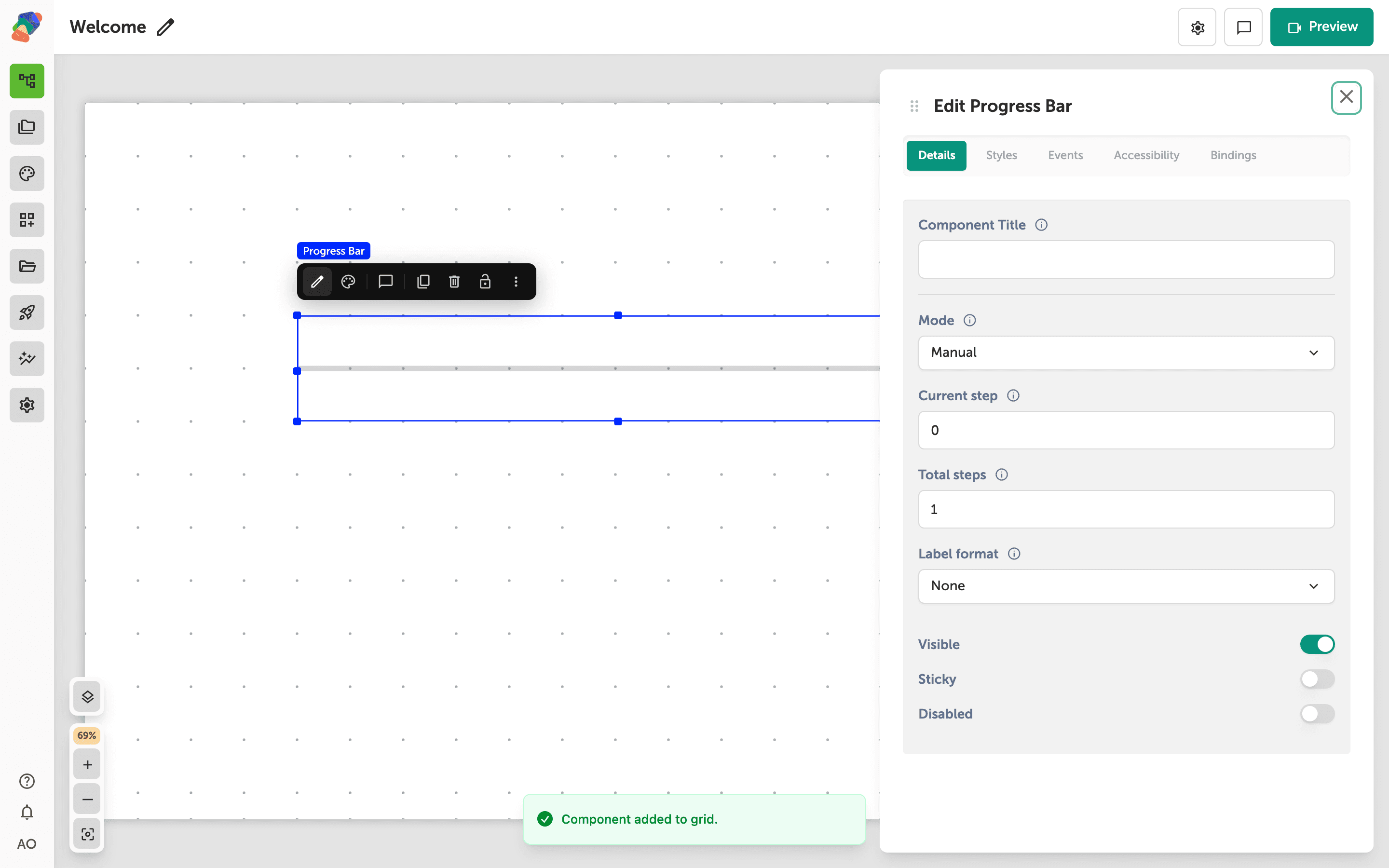
The bar is configured. Automatic mode needs a form on the same view to track.