
Building a Form to Collect Visitor Input
A form on a kiosk is a Form container, the fields inside it, and a Button whose action is Submit form. Answers land in a collection only when that collection has Accept user submissions turned on and each field is bound to a collection field. You will build a short contact form: a name, an email, a message, and a submit button.
Open the view
Start from the view where visitors should fill the form. The grid is empty until you add the form.
Add a Form
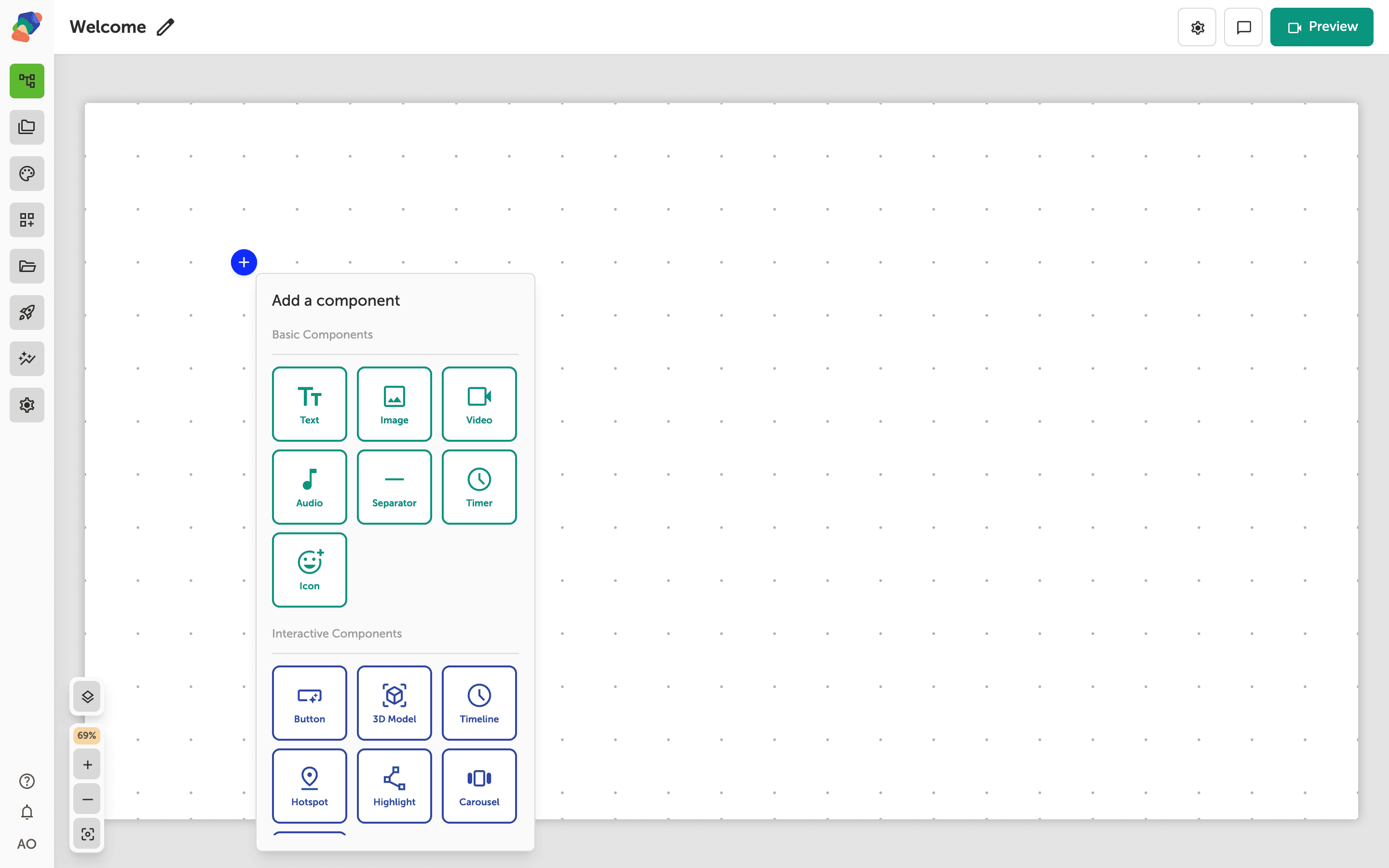
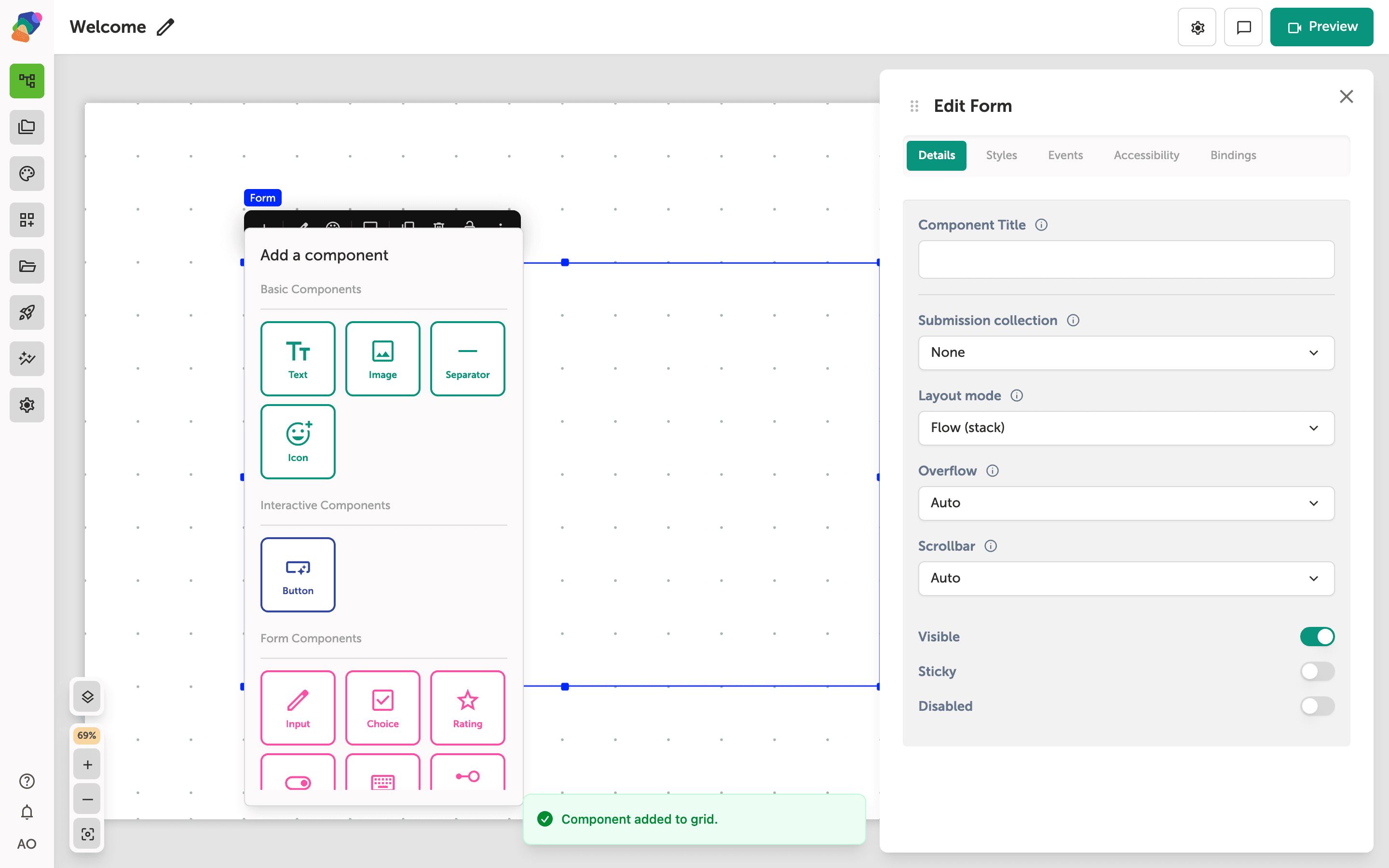
Open Add component. Under Form Components, click Form. The same group lists Input, Choice, Rating, Toggle, Keyboard, and Progress Bar. Put the fields inside the form. A form does not accept a nested container, so each field stays a direct child.
The form is on the grid
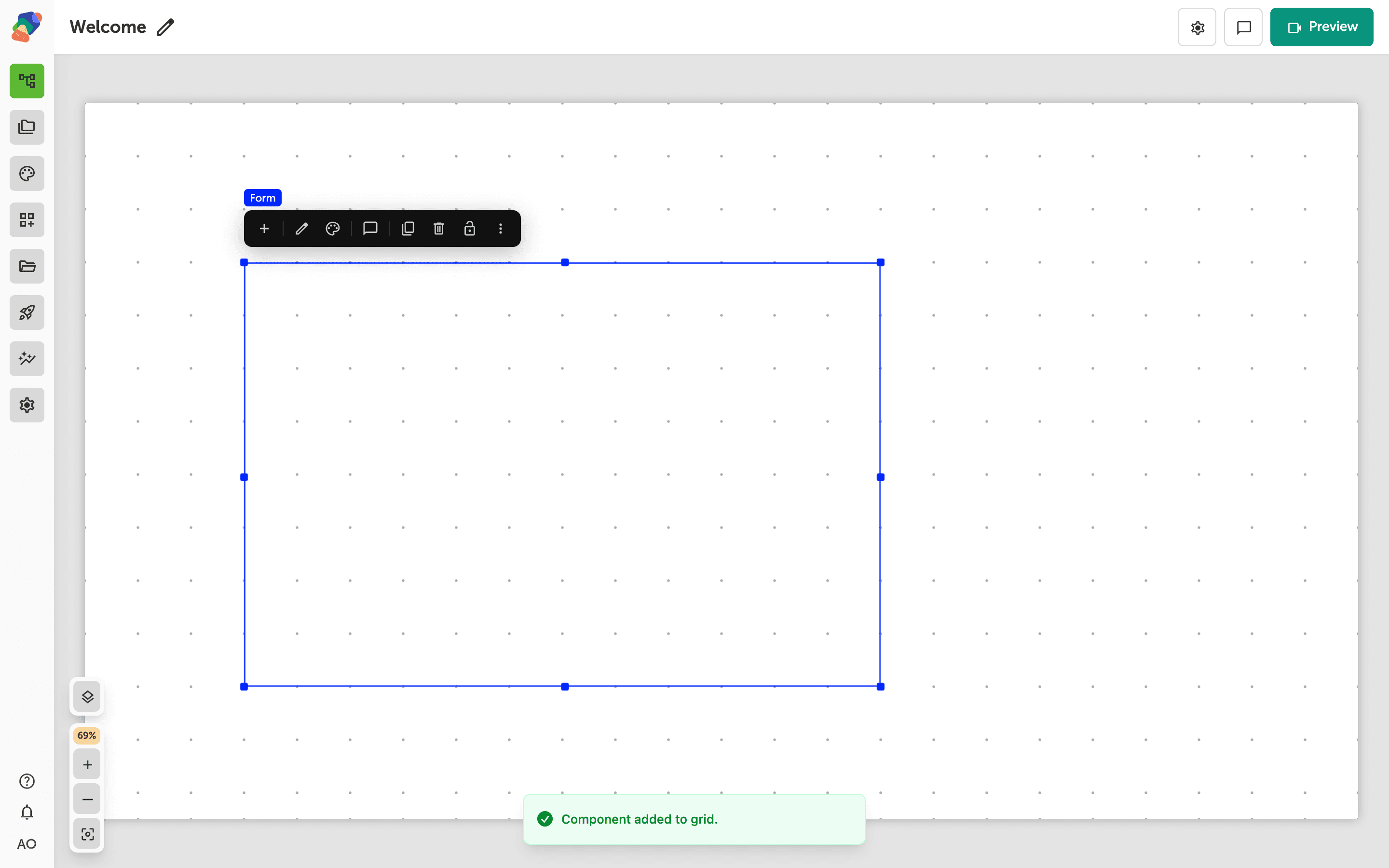
The form is an empty stack. Resize it so the fields you add will fit. Layout mode in the inspector can stay on Flow (stack), which places children in order.
Point the form at a collection
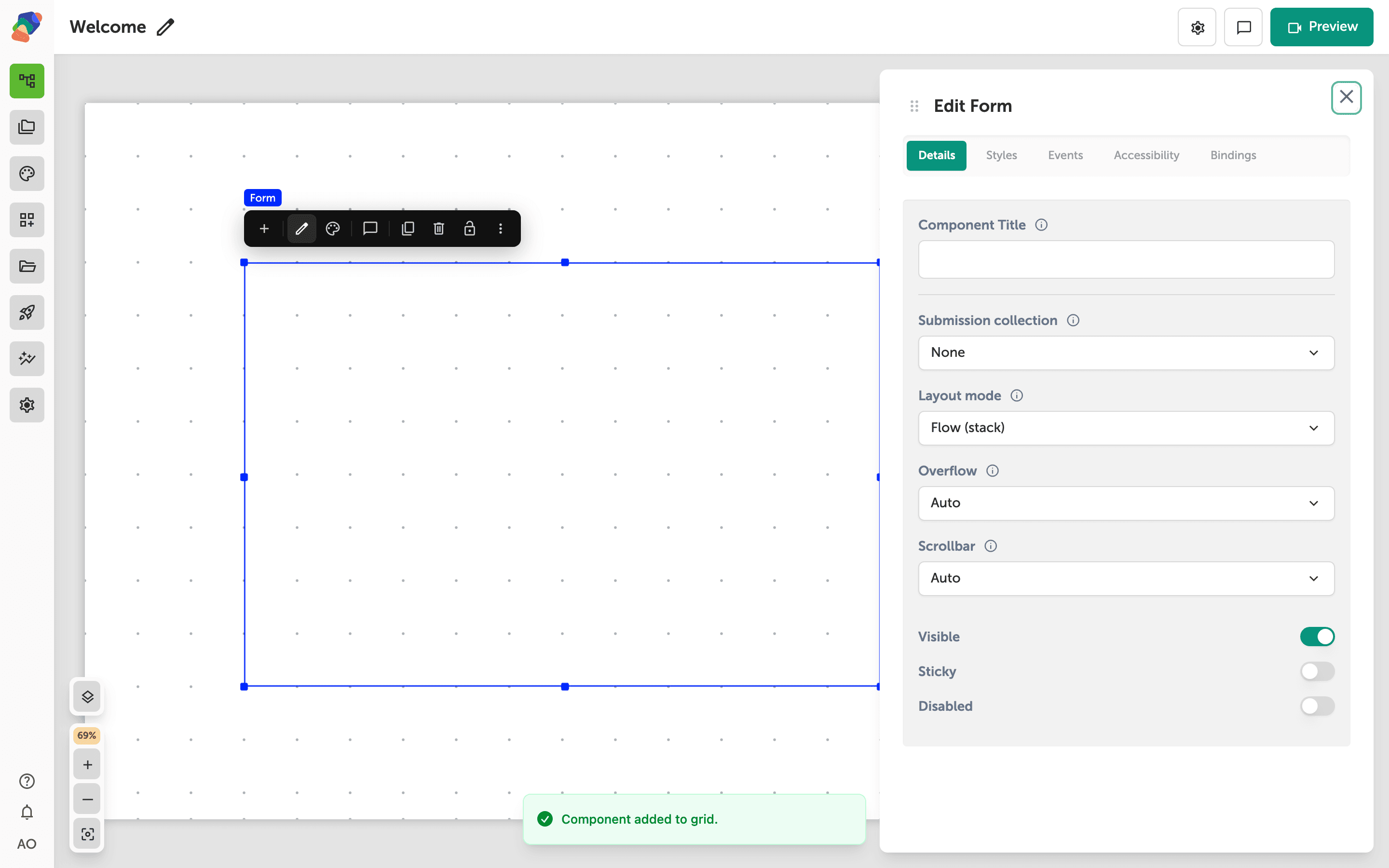
Select the form and open Edit content. Submission collection is where the answers are stored. Pick the collection you prepared. That collection has to have Accept user submissions turned on in its settings, or the submit is rejected. Without a collection, the form can still validate and fire On submit, but nothing is saved.
Add an Input
With the form selected, click Add child component and choose Input. Repeat for each field.
On each input, set Field type and Default label:
- Name — Text, label Name
- Email — Email, label Email
- Message — Textarea, label Message
Then open the Bindings tab on each input and bind submission value to the matching field on the form's collection. The field list is limited to that collection, and the type has to match. A choice or rating works the same way when the answer is not free text.
Add a Button inside the form the same way. Set its label to Send. On the button's events, add an action and choose Submit form. That action validates the fields and, when they pass and the collection is set, posts the answers. On submit on the form runs only after that post succeeds.
Touch screens
If the kiosk has no physical keyboard, add a Keyboard inside the form. Text fields then use that keyboard instead of the operating system's.
The form can collect a name, an email, and a message. Turn on submissions for the collection, then review what visitors send.