
Review and Approve Visitor Submissions
Visitor answers stay out of your collection items until you decide they belong there. Each collection has its own switch and its own moderation mode. You will turn submissions on, hold back anything that matches a blocklist, and open the queue where the rest are reviewed.
A form has to be bound to this collection before anything arrives. If you have not built that form yet, do that first, then come back here.
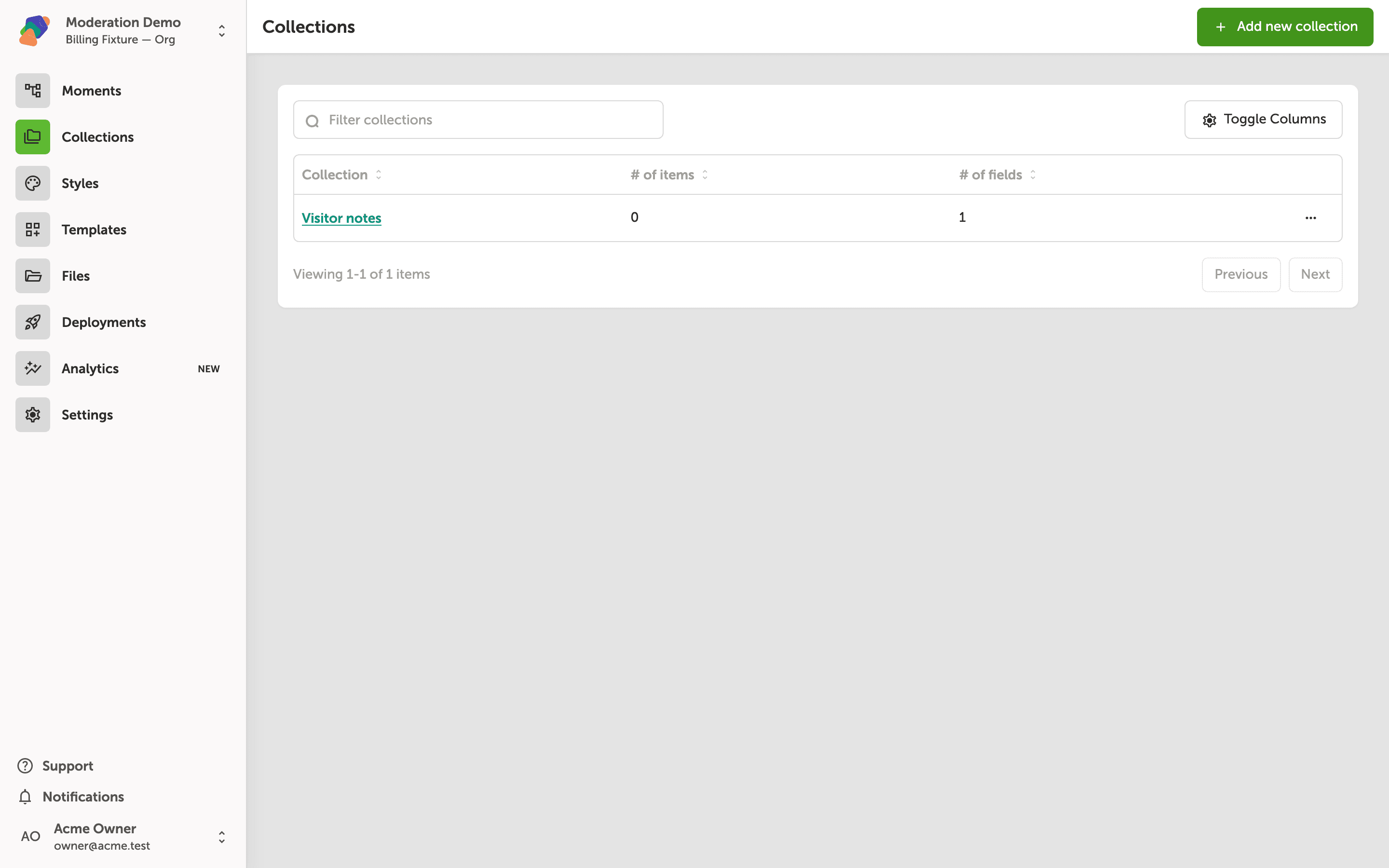
Open the collection
From the project, open Collections and choose the collection the form writes to.
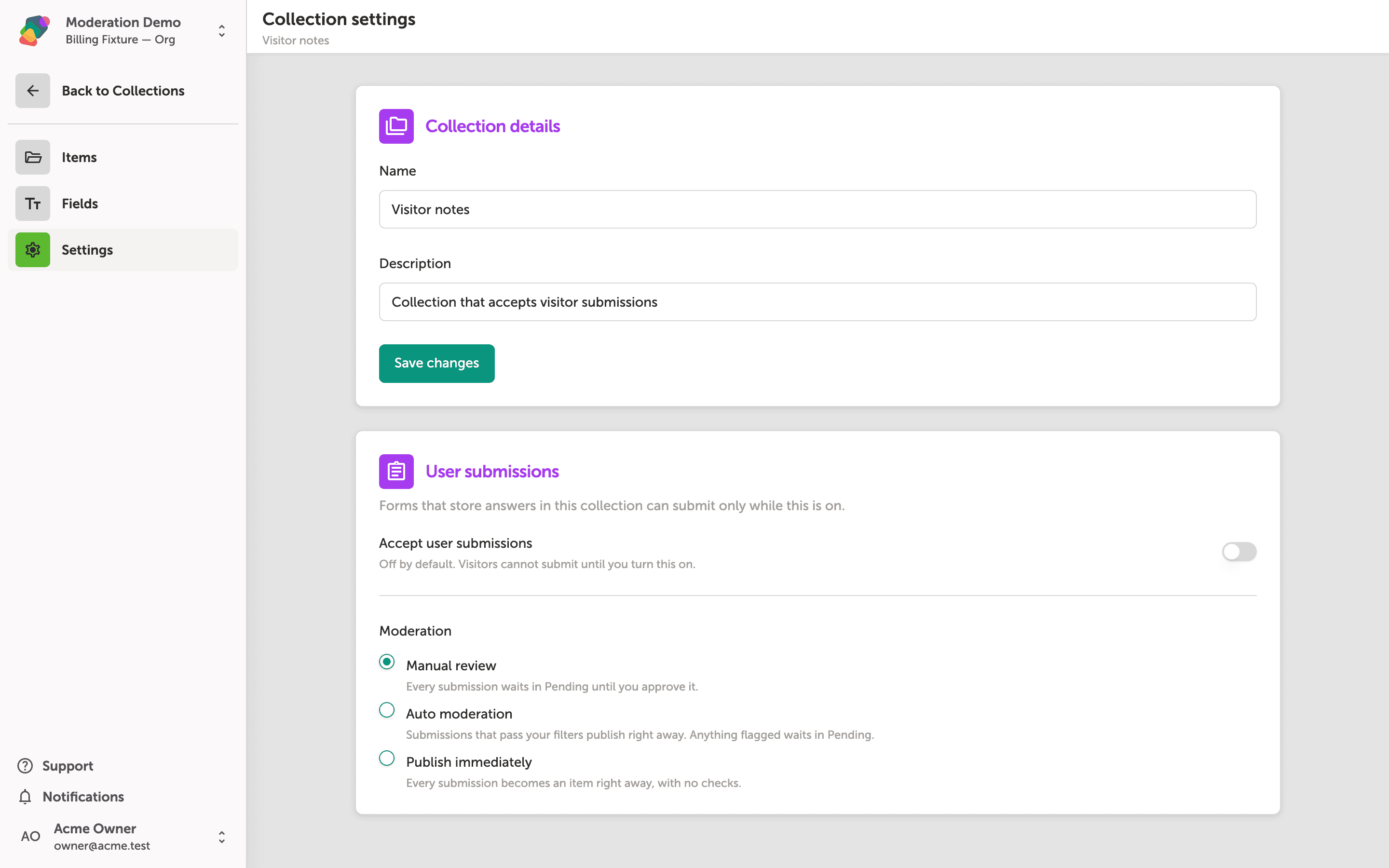
Turn on Accept user submissions
Open Settings. Under User submissions, turn on Accept user submissions. Until this is on, visitors cannot submit, and the form's post is rejected.
Choose auto moderation
Moderation has three modes:
- Manual review — every submission waits in Pending until you approve it.
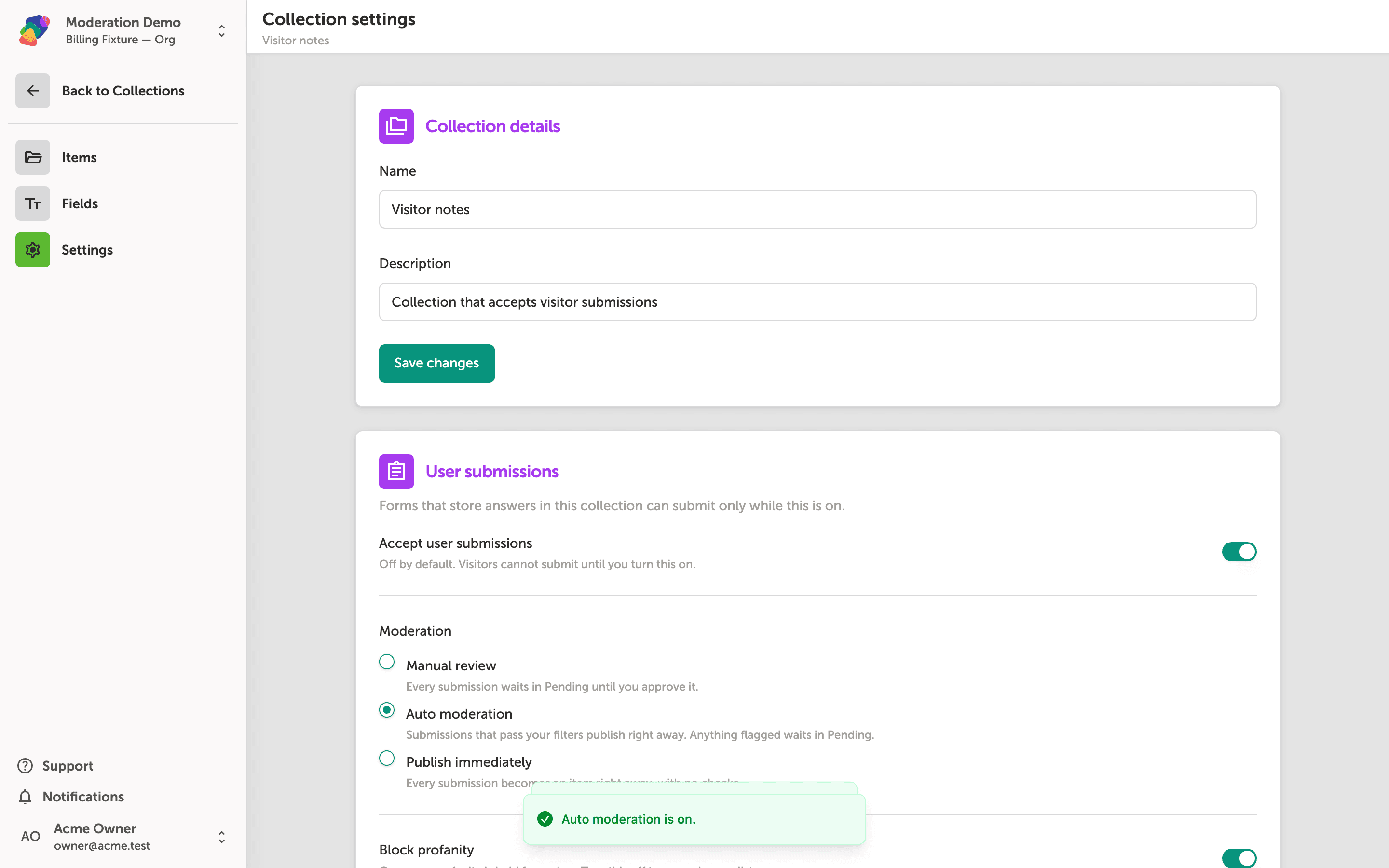
- Auto moderation — submissions that pass your filters publish right away. Anything flagged waits in Pending.
- Publish immediately — every submission becomes an item, with no checks.
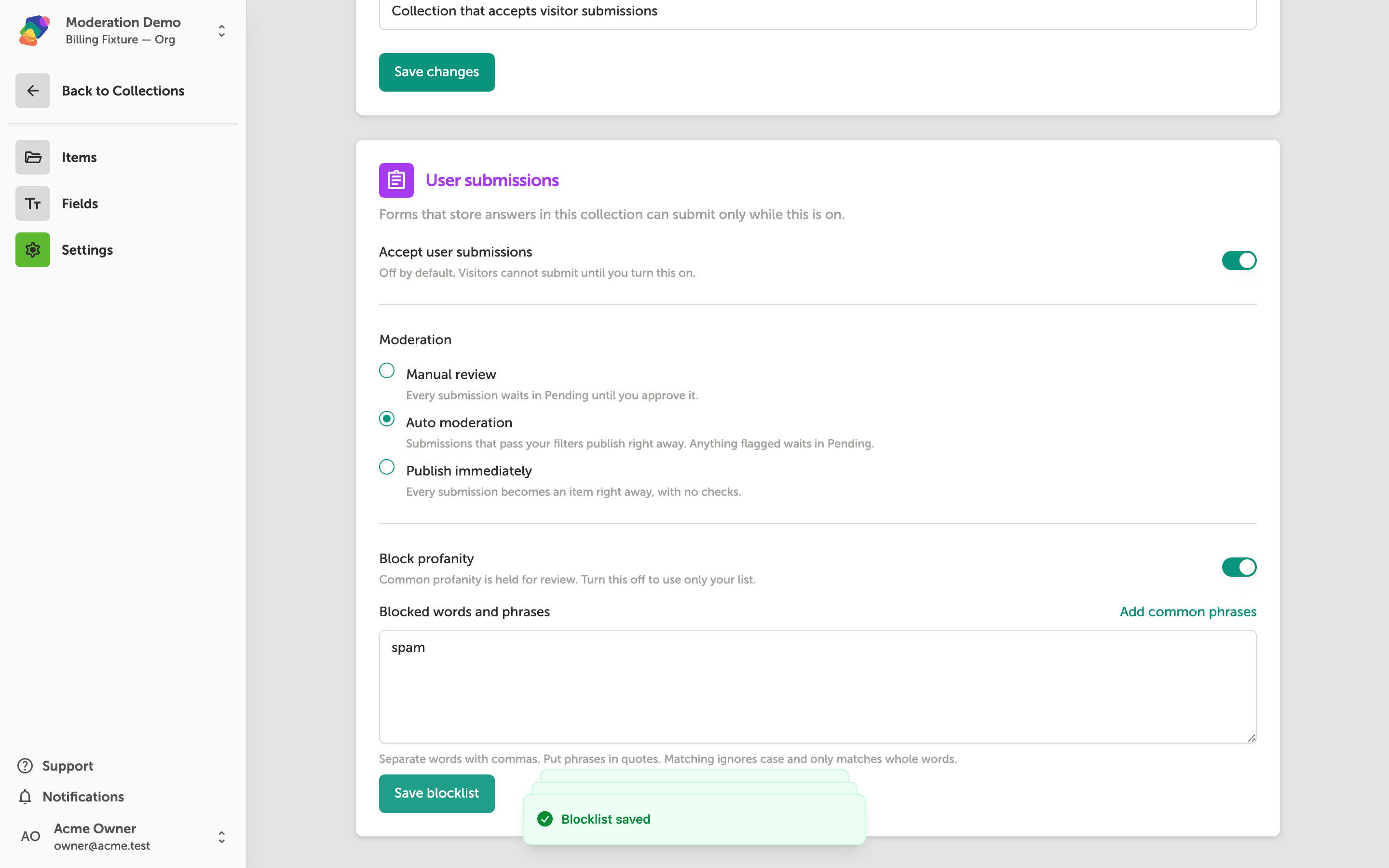
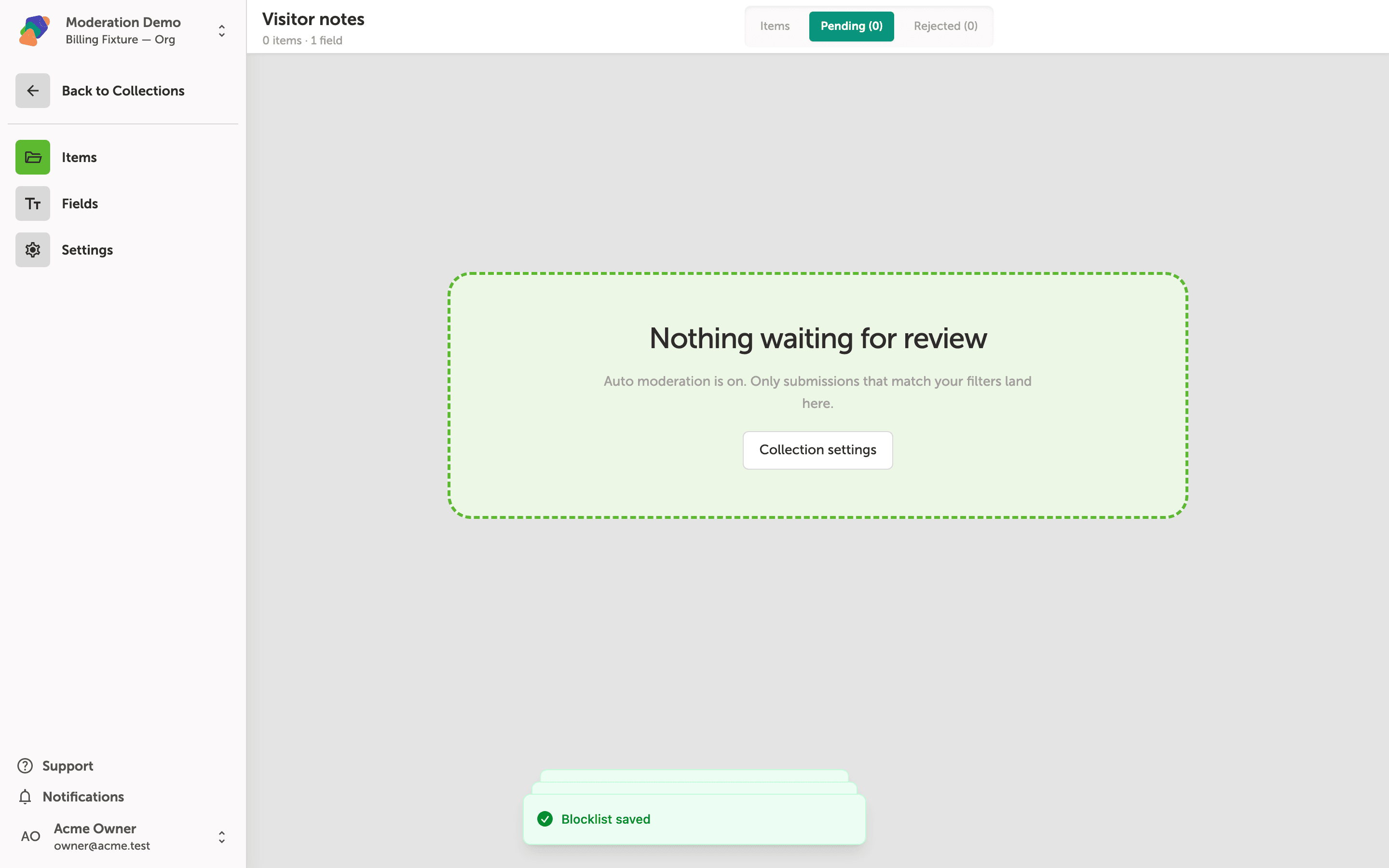
Choose Auto moderation. Block profanity holds common profanity for review. Blocked words and phrases is your own list: separate words with commas, and put phrases in quotes. Matching ignores case and only matches whole words, so a short word does not flag a longer one that merely contains those letters. Click Save blocklist.
Open Pending
The Items page gains Pending and Rejected tabs when submissions are on and the mode is manual review or auto moderation. Pending starts empty: “Nothing waiting for review.” The line under that tells you which mode is on.
When a row arrives, open it to read the answers and the flag reasons, then click Approve or Reject. On the list, tick several rows and click Approve with the count, or the matching reject action. Rejected keeps what you turned down. Approving a row there moves it back into the collection items, which is how you recover a mistake.
Publish immediately
Publish immediately has no review queue. New submissions skip Pending and show up as items. Switch back to Manual review or Auto moderation if you want a queue again.
Approved rows show up under Items. The form that feeds this queue is covered in the form article.