
Forms2 min read
Using the On-Screen Keyboard
Who this is for:ProOrganization
A touch kiosk should not pop the operating-system keyboard over your layout. Add a Keyboard on the same view as the inputs. While that keyboard is on the view, text fields take their keystrokes from it.
Open the view
Use the view that already has the form, or add the keyboard first and the fields after. Leave a band of the grid free along the bottom.
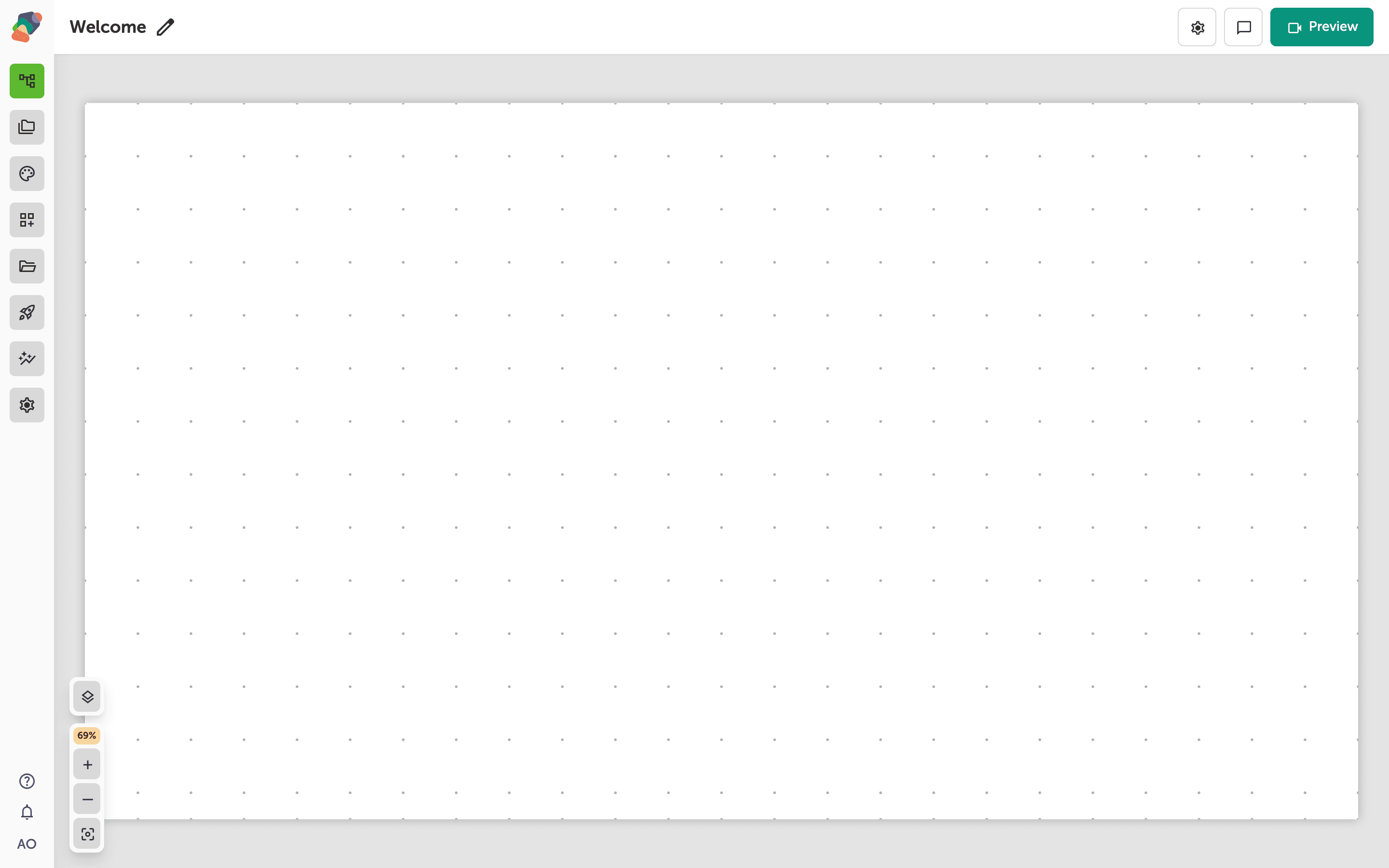
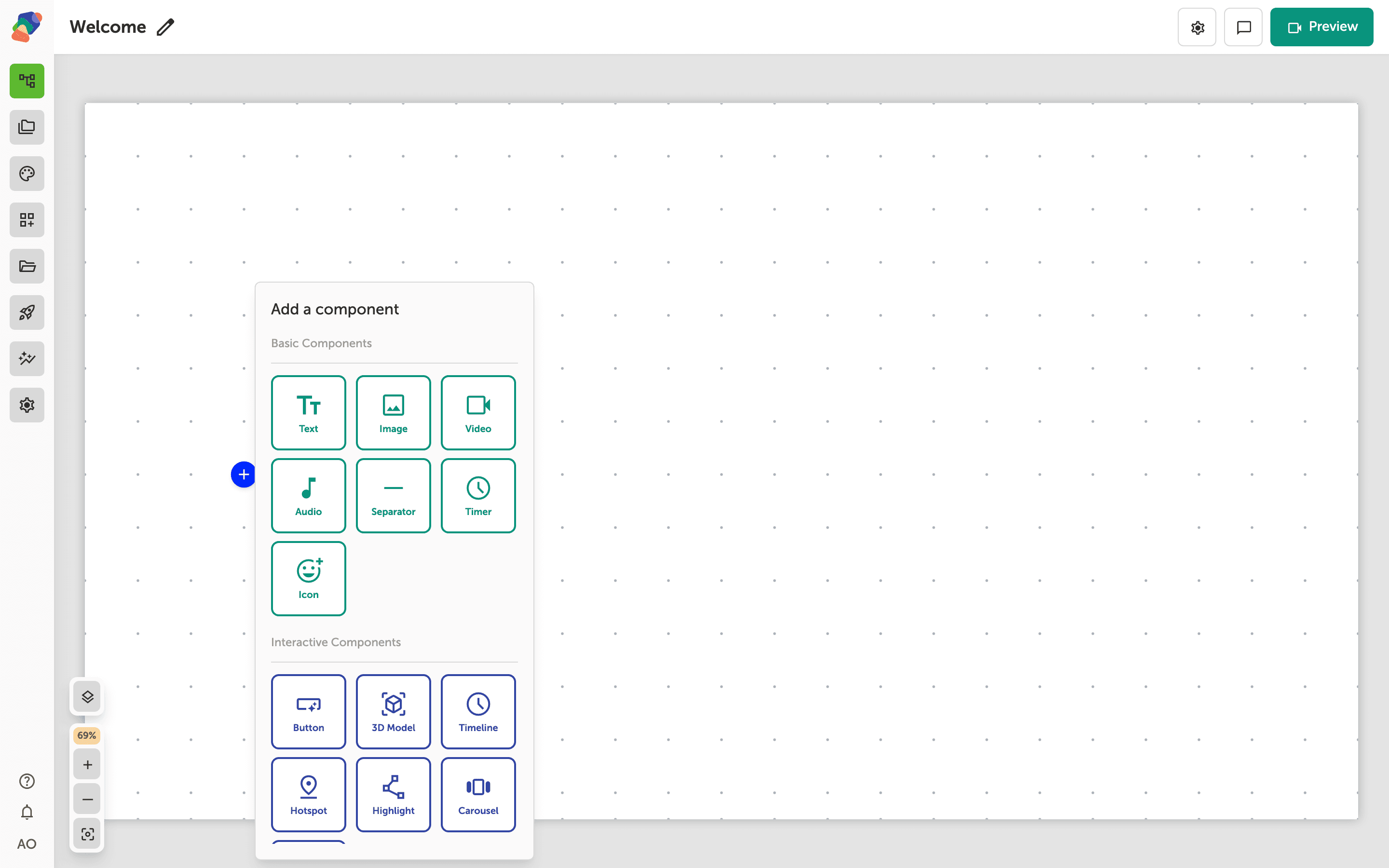
Add a Keyboard
Under Form Components, click Keyboard.
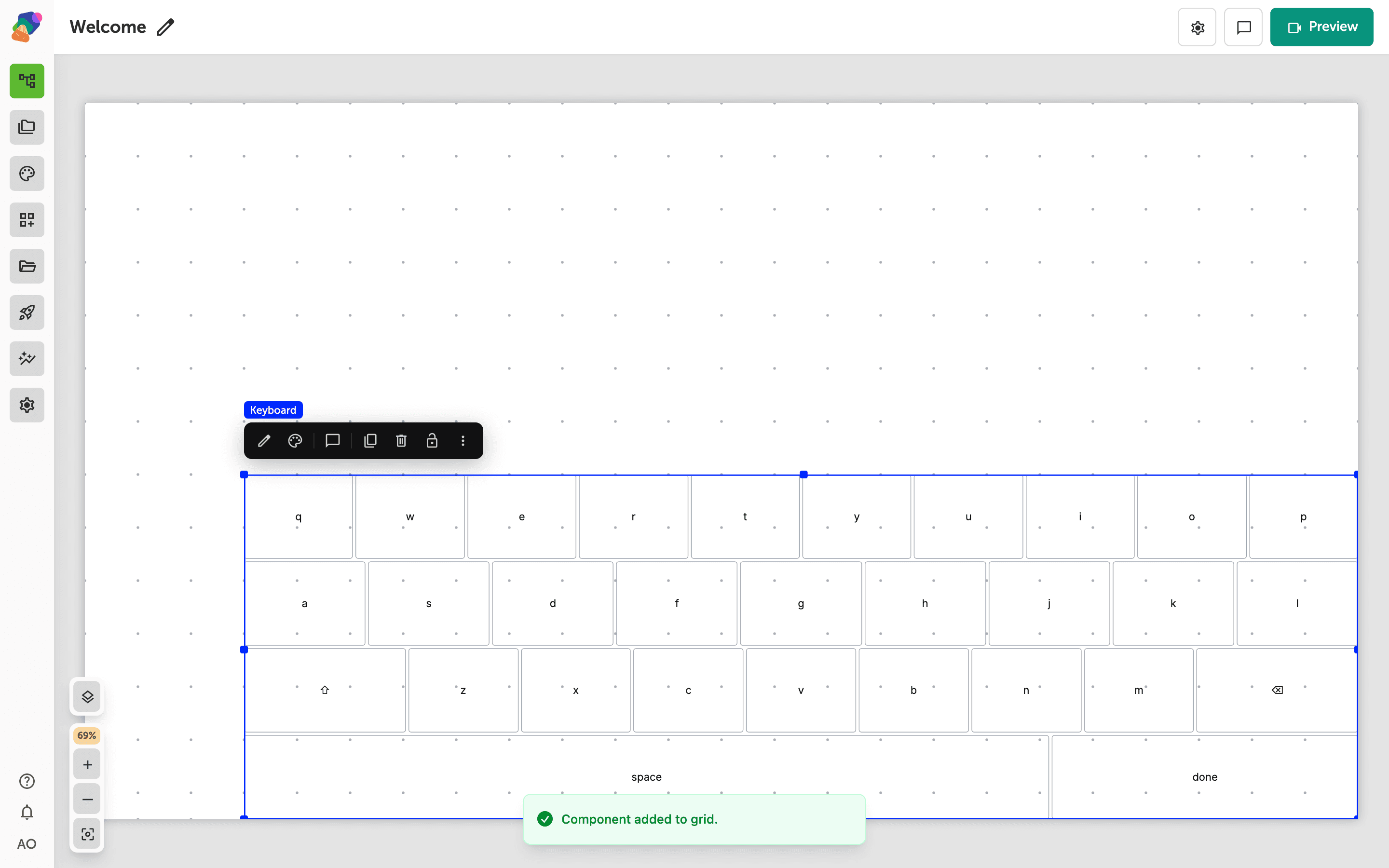
Place it where a thumb can reach it
The keyboard appears on the grid. Move it to the lower part of the screen and make it wide enough that the keys are tappable. Don't worry about the exact key art — the layout setting changes which keys appear.
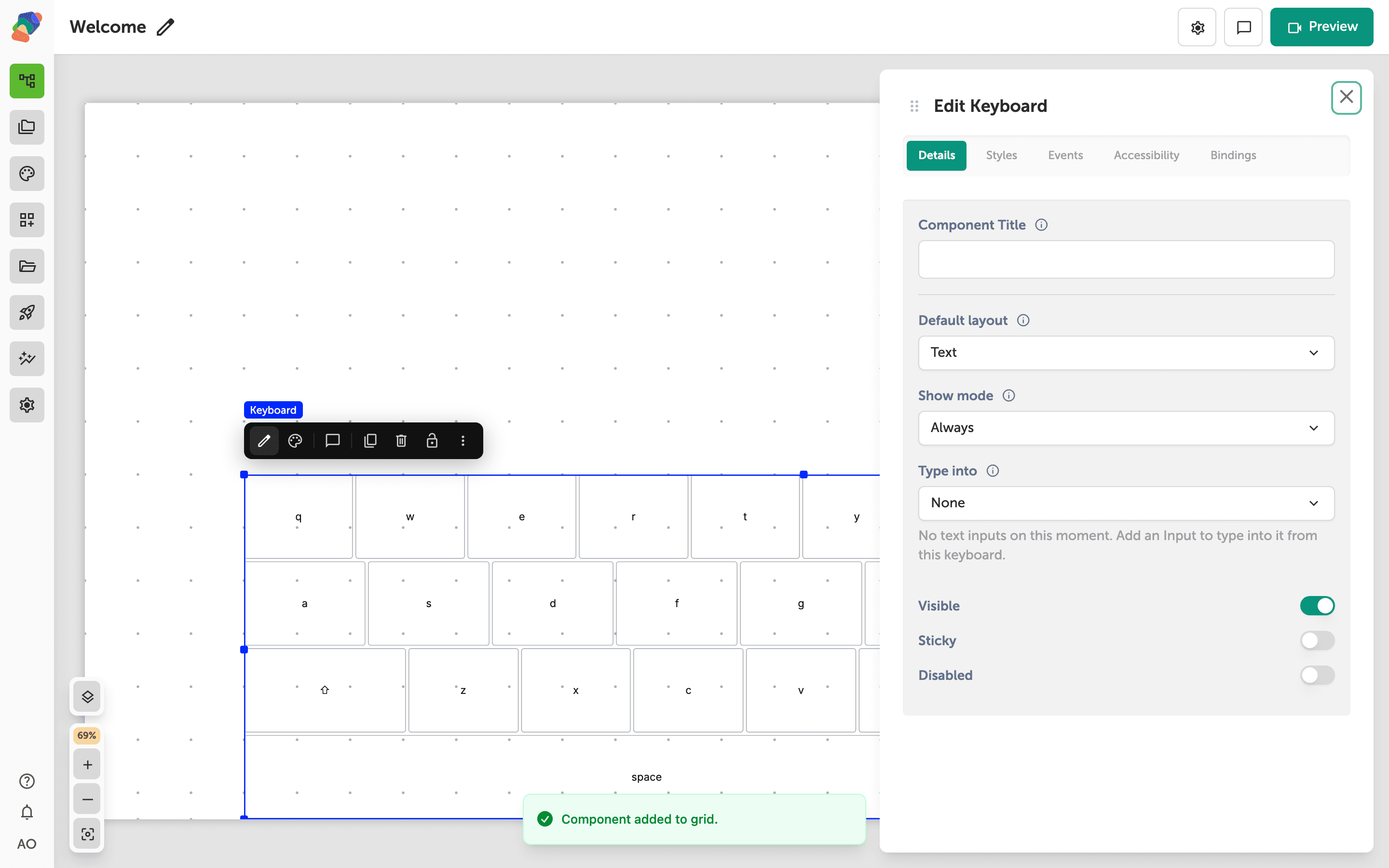
Choose the layout and when it shows
In Details:
- Default layout is Text, Full, Number, or Email. Text is the usual default. Full adds a number row and symbols. Focusing a number or email input still switches the layout to match that field.
- Show mode is Always or On focus. Always keeps the keyboard on screen, which is what you want on a dedicated kiosk. On focus shows it only while an input is focused.
- Type into optionally locks the keys to one input. Leave it empty to type into whichever input is focused.
Preview the view, tap an input, and type. The characters should land in that field.