
Adding Validation Rules to a Form
Validation is what stops an empty email from becoming a submission. You set it on each Input, not on the form as a whole. Submit form checks these rules before it posts. You will mark a field required and add a length limit.
This tutorial assumes you already have a form, or you are about to add the fields for one. The rules below are the ones on an Input. A Choice, Rating, or Toggle has the same Required switch.
Open the view
Open the view that holds the form, or the view where you will add the field.
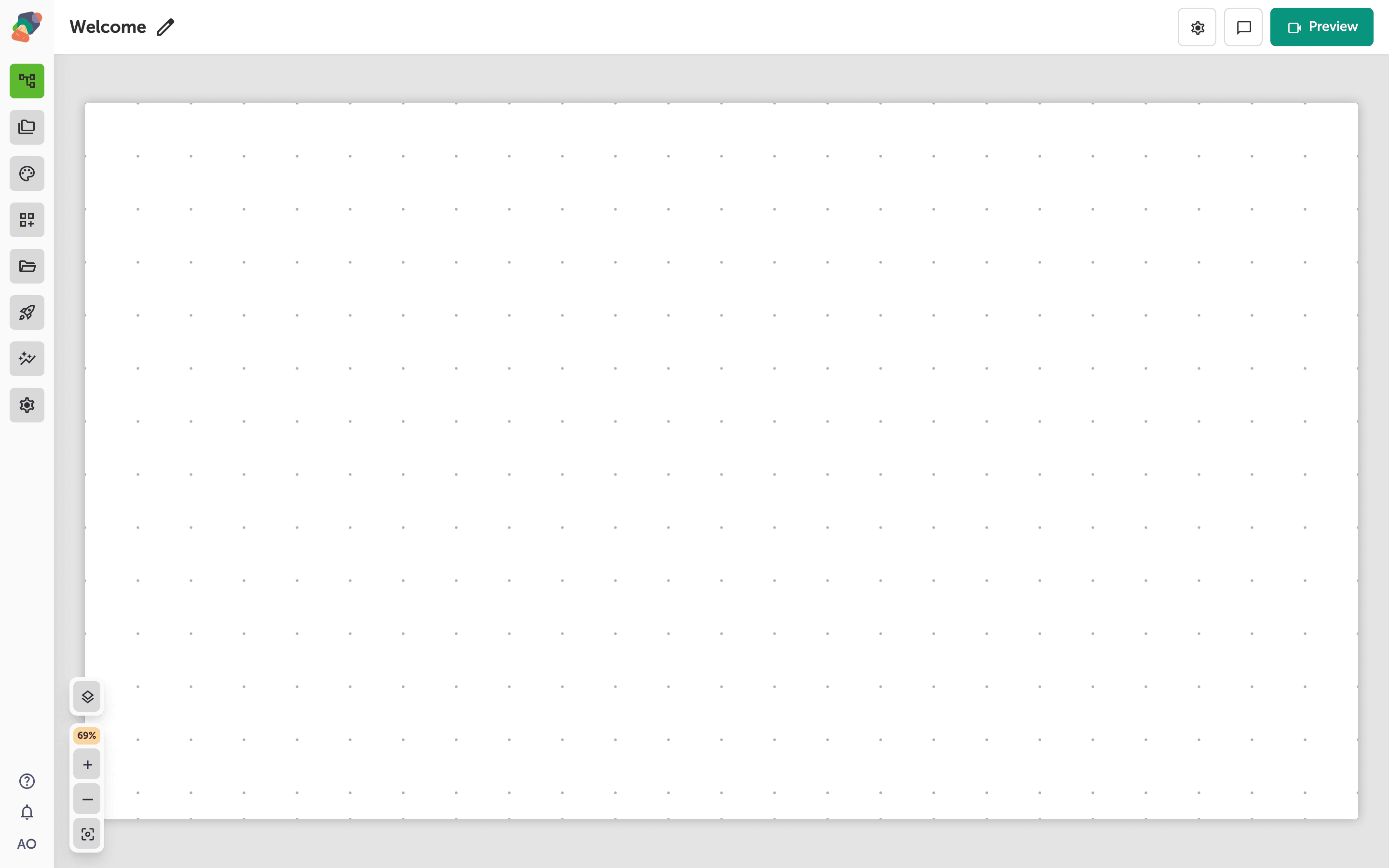
Select the input
Add an Input if the view does not have one yet, then select it. Email is the field most people get wrong, so this walkthrough uses that one. Set Field type to Email and Default label to Email.
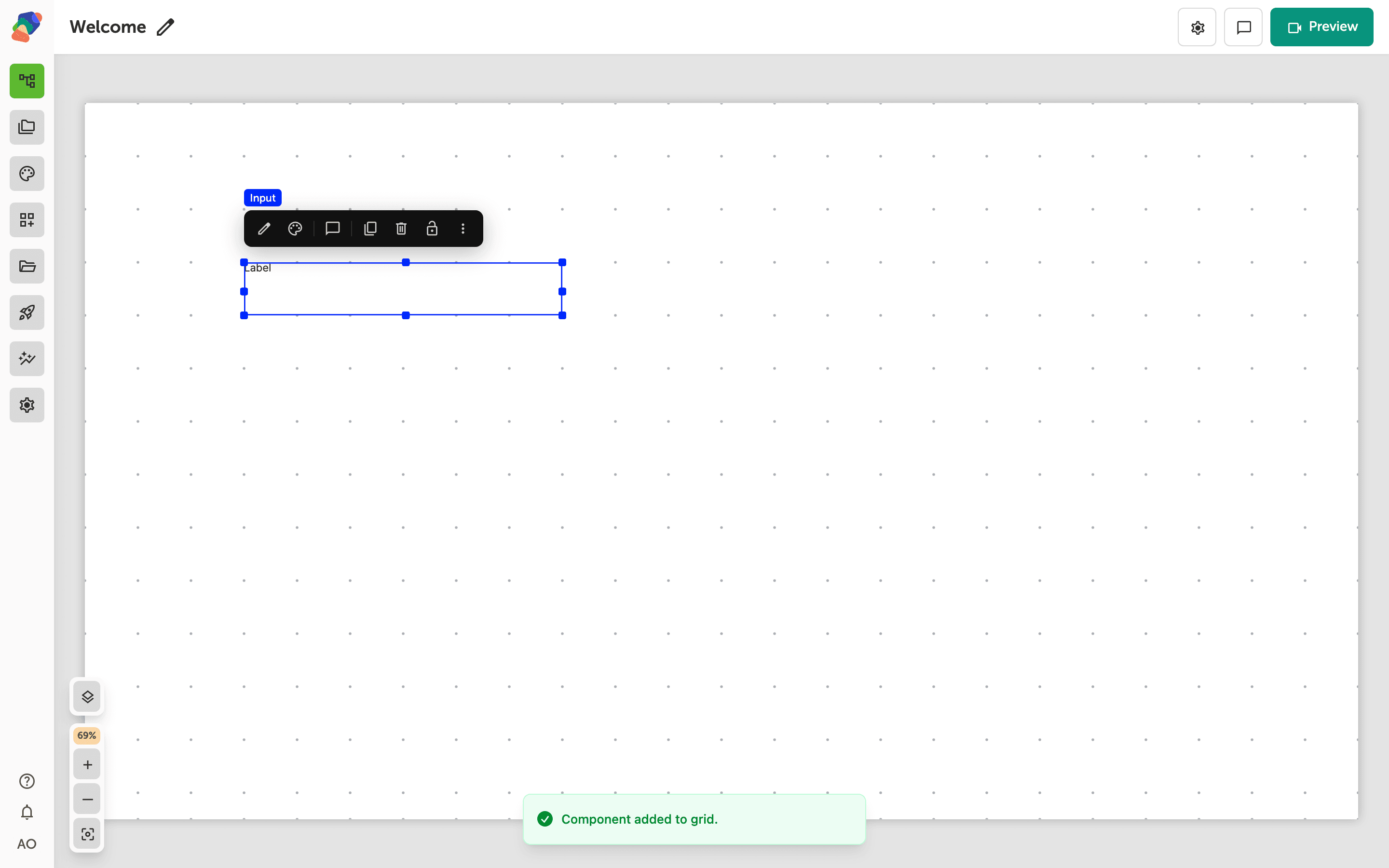
Turn on Required
In Details, turn Required on. A visitor who leaves the field empty will not get a successful submit. The field type already checks the shape of an email. Required checks that they typed something.
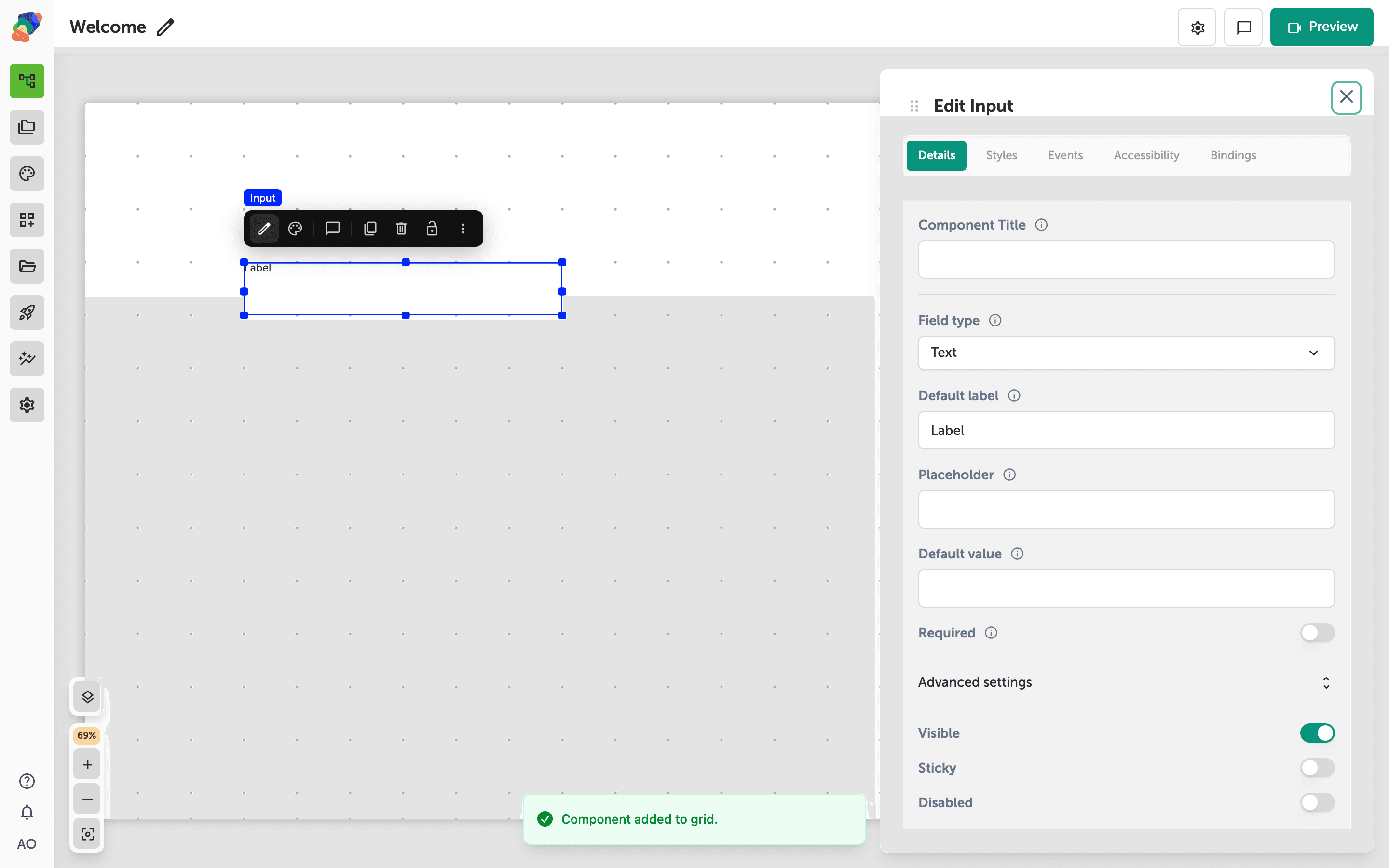
Add a length or a pattern
Open Advanced settings. For text, textarea, and email fields you get Min length and Max length. A number field gets Min value and Max value instead. Pattern is an optional regular expression the value must match — use it for a member number or a postal code, and keep it simple enough that you can explain the failure in the label.
Don't worry about writing a perfect pattern on the first pass. Required plus the field type covers most contact forms.
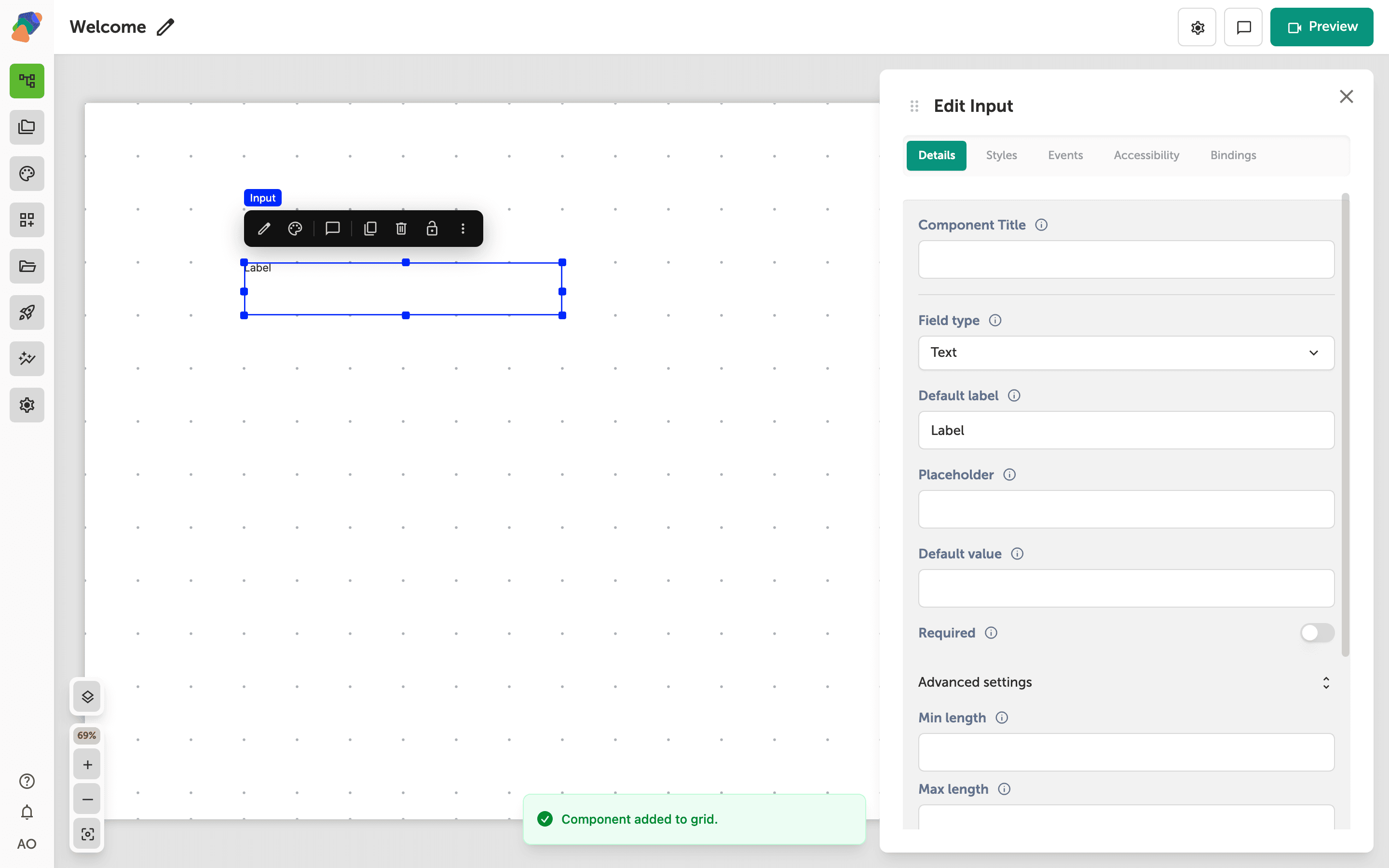
Two email fields
A second input labeled Confirm email is a separate field. Match them by giving both the same rules, and by reading both values after submit. The input inspector does not have a “must equal another field” control.
Preview the view and try to submit with the email empty. The form should hold the answers until the required fields pass.