
Add a Patterned Border
A patterned edge is a Border style, not a new component. The styles are Zig-zag, Scooped, Scalloped, Wavy, and Hand-drawn. You can size each edge, and a size of zero turns that edge off. You will put a zig-zag on a card.
Add something to frame
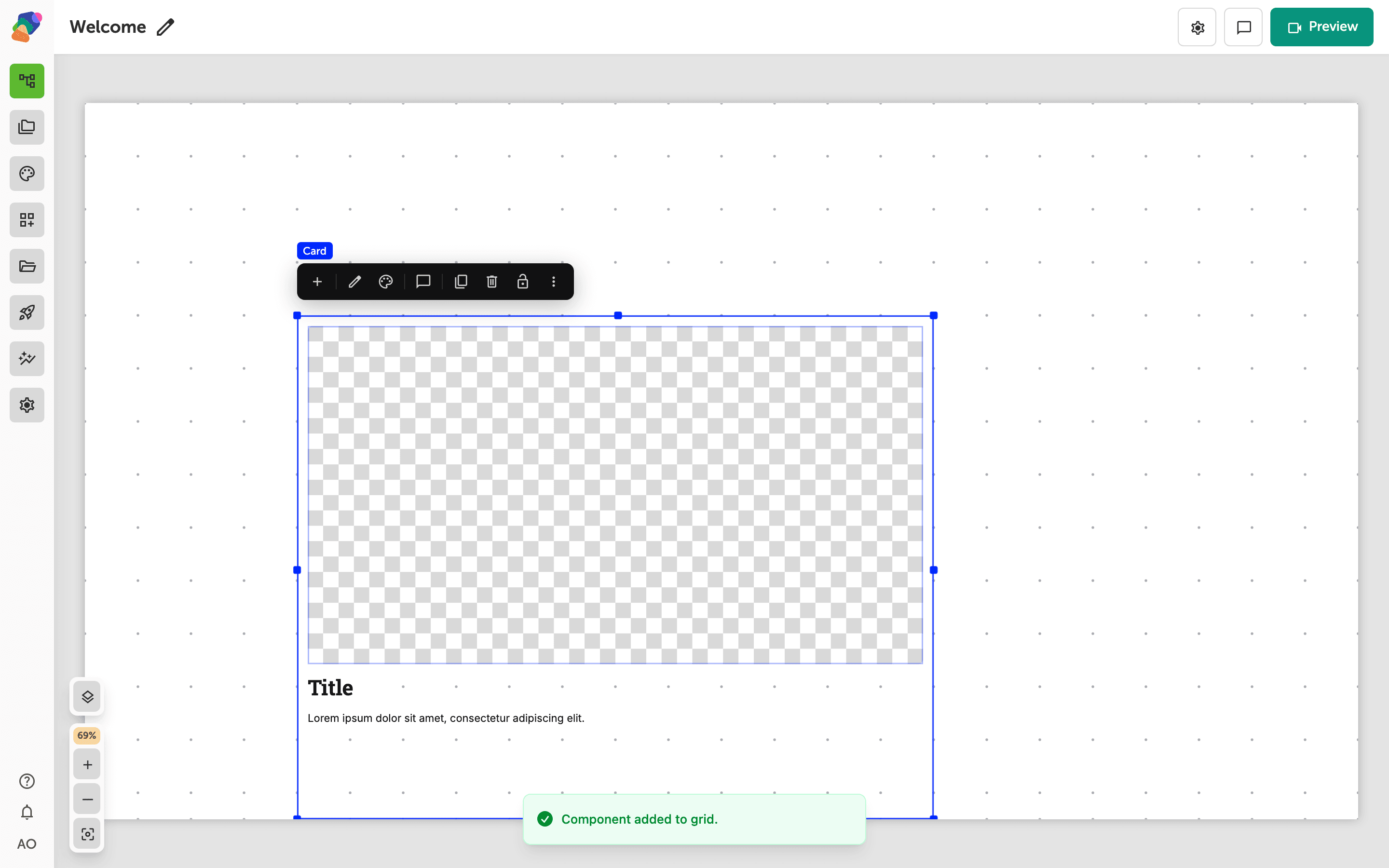
A card, a container, or an image all take the same border control. This walkthrough uses a Card.
Choose the pattern
Select the component and open its style settings. Under Border, open Border style and choose Zig-zag. Set Border size on each edge. Set one side to 0 if that side should be plain. A corner radius still clips the pattern to the corner.
The same list includes Scooped, Scalloped, Wavy, and Hand-drawn. Solid and dashed rules are still in that list when you want a plain edge again.
Preview the view. The edge should follow the pattern you chose, including the side you set to zero.