
Adding a 3D Model
A 3D Model lets visitors turn an object instead of looking at a single photograph. Zibit plays self-contained GLB files — a .gltf that still points at separate texture files will not package. You will add the component and open the settings where the model file is chosen.
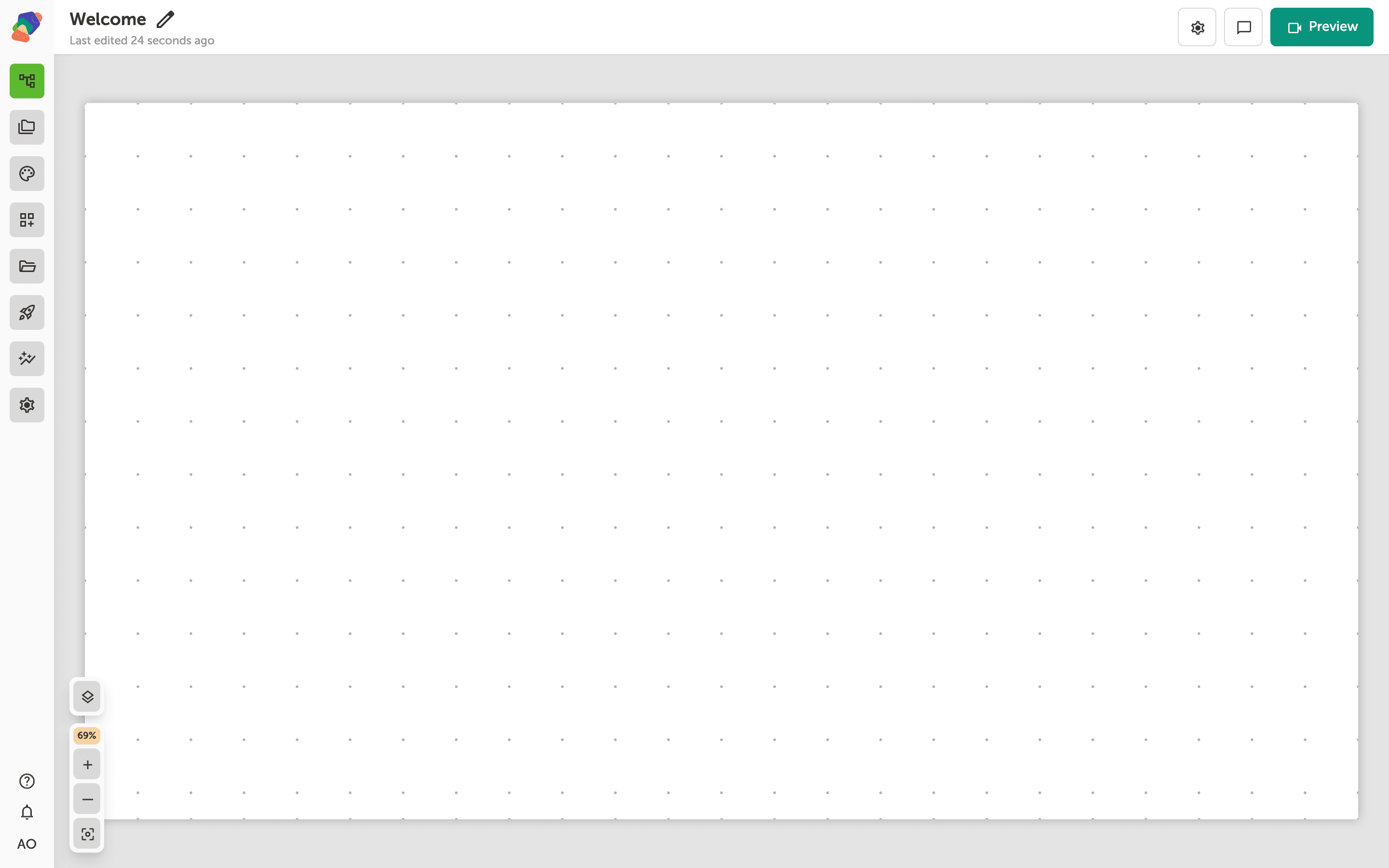
Open the view
You are in the View Editor. The grid is the screen visitors will see. Click a cell's Add component control to open the menu. Nothing you place is permanent — you can move it, restyle it, or delete it later.
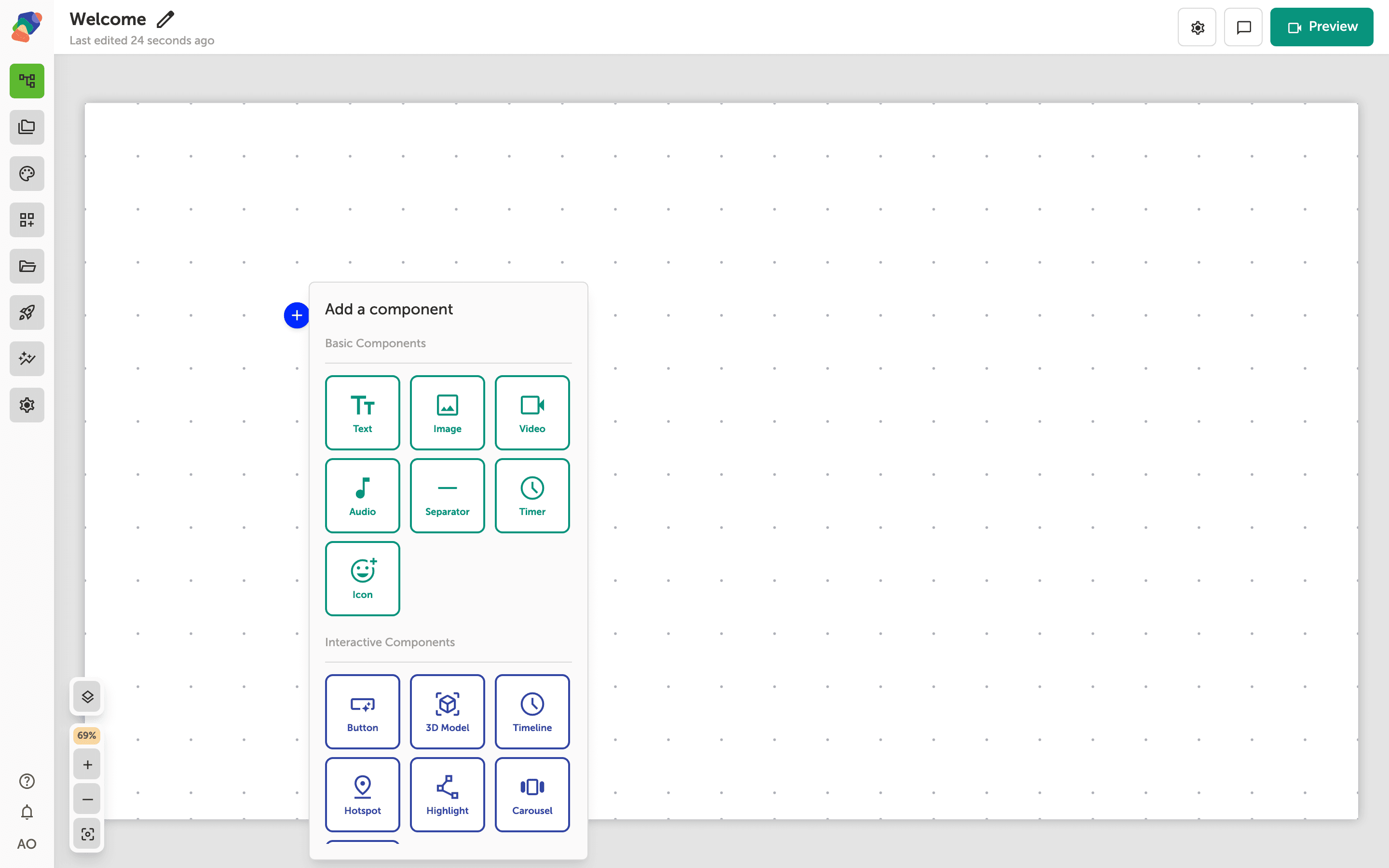
Choose 3D Model
In the add menu, 3D Model is under Interactive Components. Click it to place the component on the cell you opened.
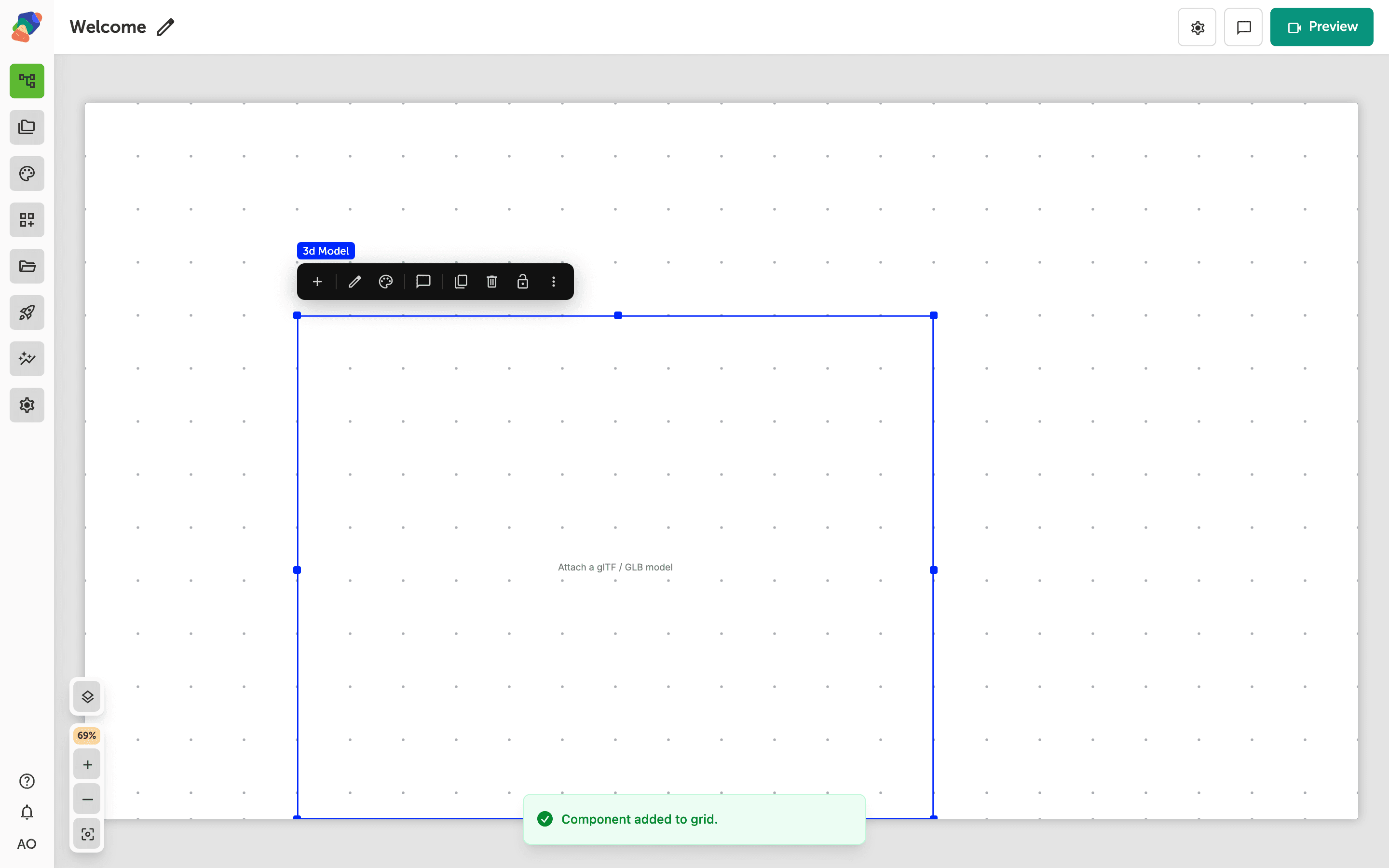
The component is on the grid
The model viewer appears on the grid. Give it a large cell: orbiting is hard to use when the frame is a postage stamp. The placeholder stays until you attach a GLB.
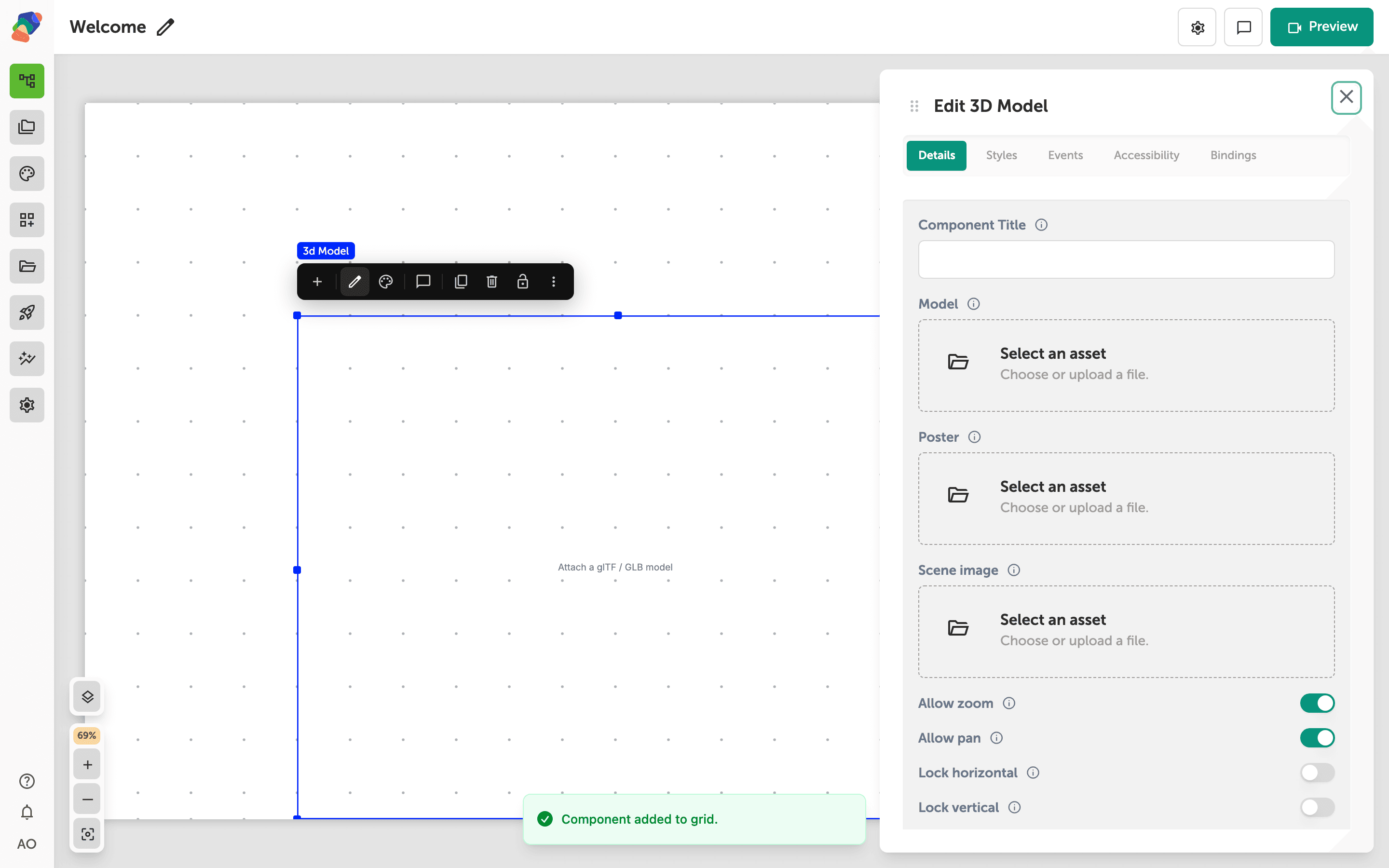
Attach a GLB
Select the component and open Edit content from the toolbar. In Details, the Model field accepts a GLB. The description on that field is the rule: the file has to be self-contained. An optional Poster shows before the model finishes loading. Show full screen button lets a visitor expand the same model. Camera limits, auto-rotate, and a scene image live in this same panel once the file is set.
The model is on the view. The next articles set how far visitors can orbit it, and how to pin a hotspot to the surface.