
Add Hotspots to a 3D Model
A hotspot on a photograph is a point on a flat picture. A hotspot on a 3D Model has to stay on the surface while the camera moves. Add it as a child of the model, not as a loose marker on the grid. You will add the pin and point its tap at a panel or another moment.
Place the model
Add a 3D Model and attach the GLB. Frame the camera before you place pins, so you are marking the view visitors actually get.
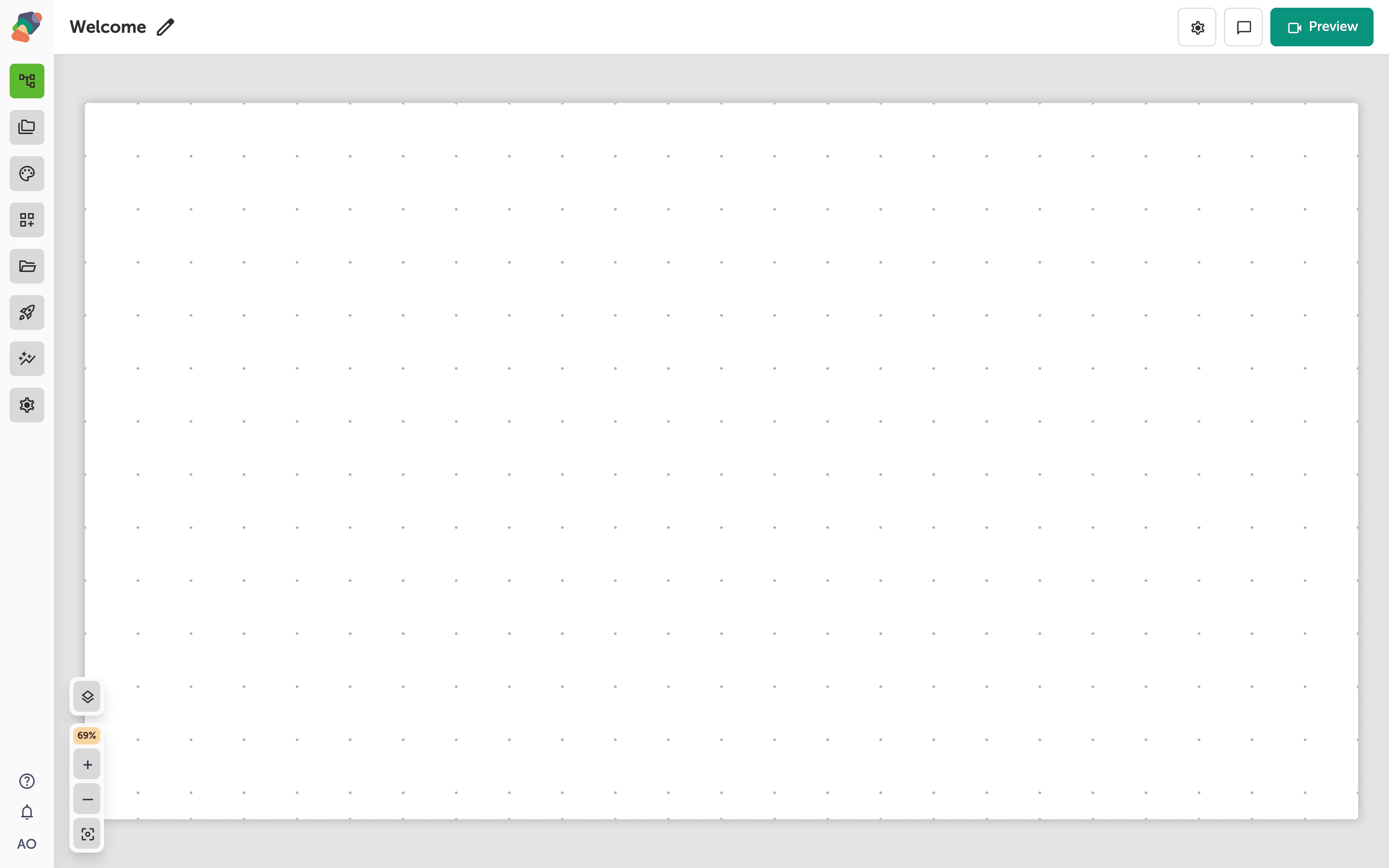
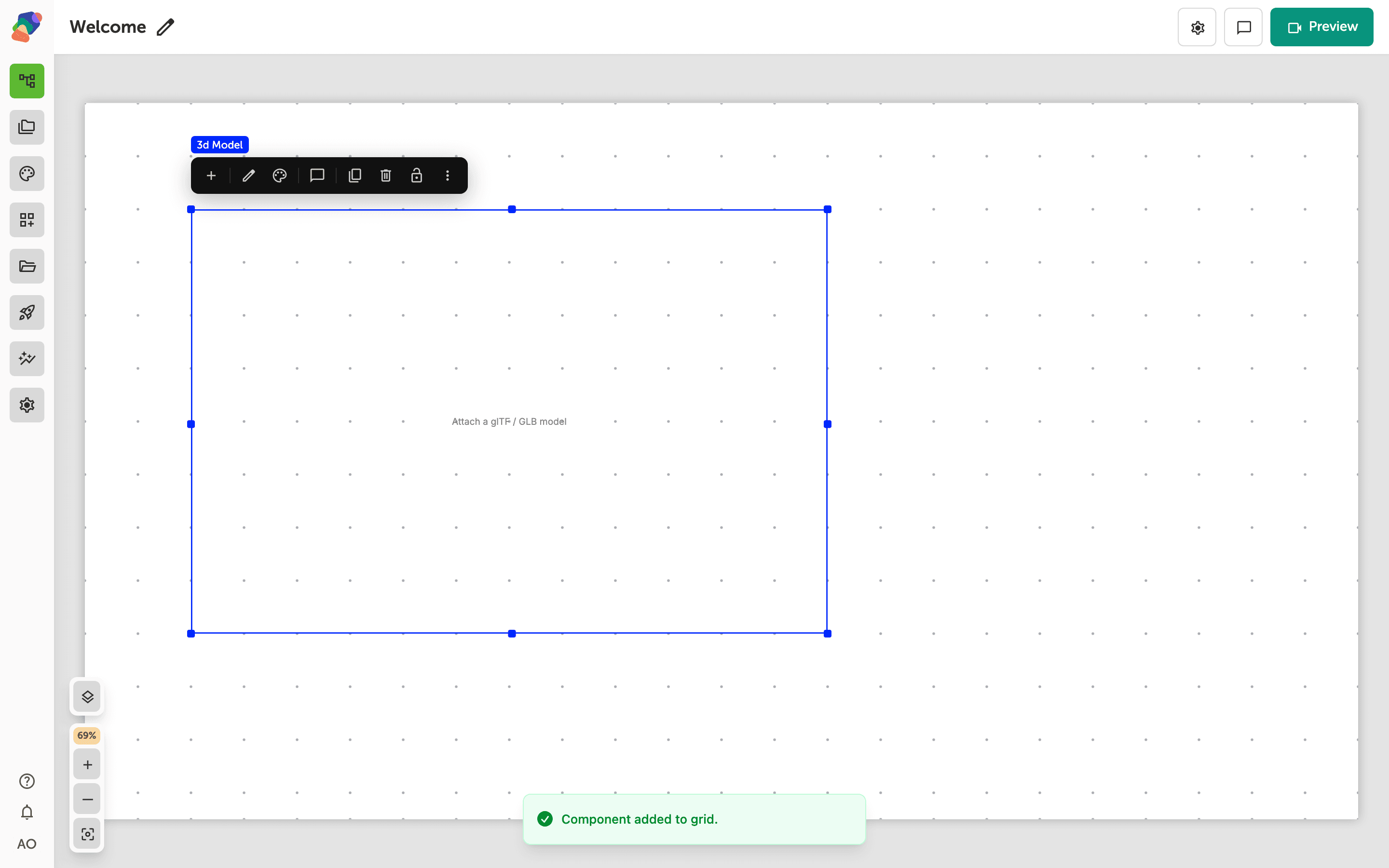
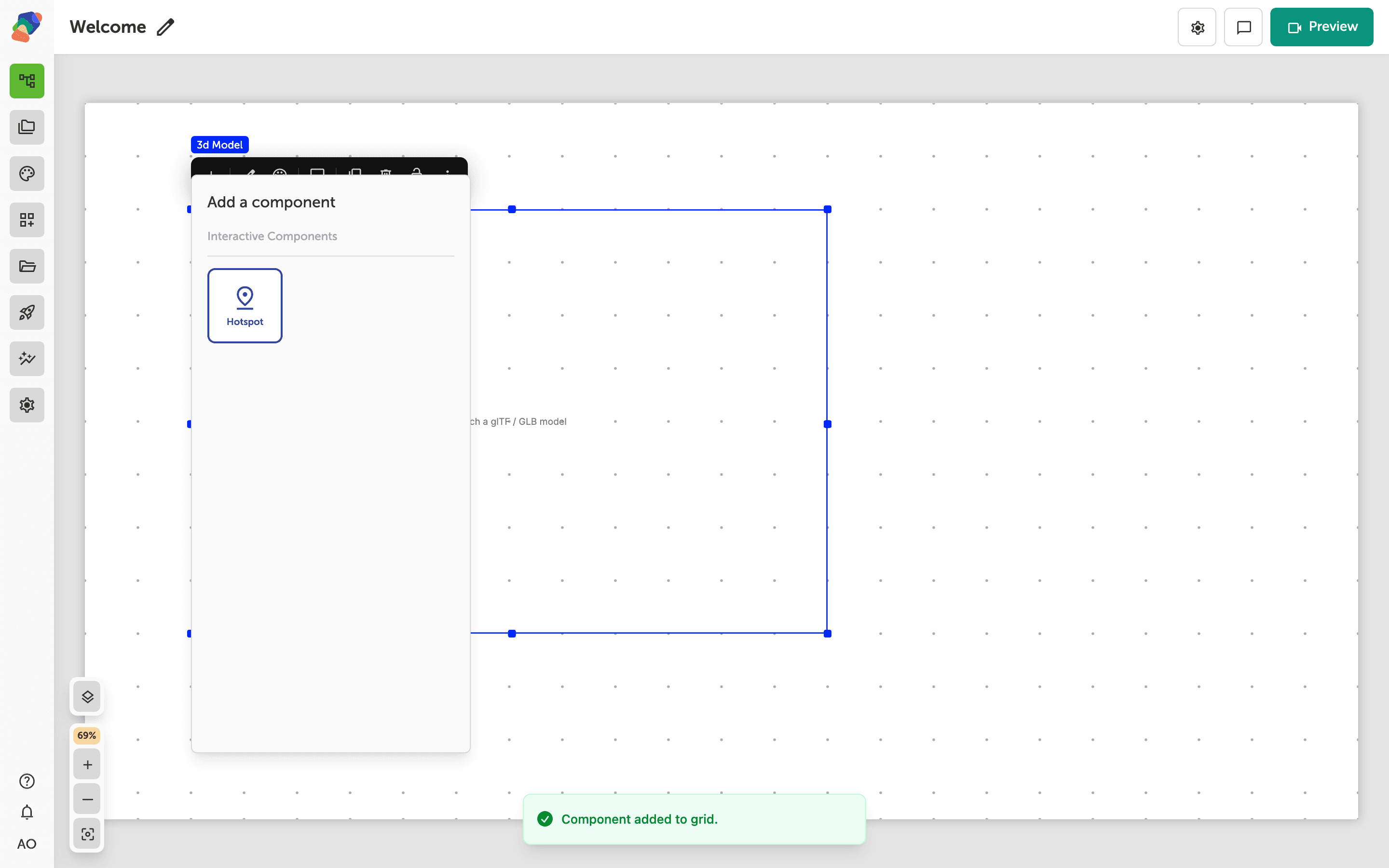
Add a Hotspot on the model
Select the model and click Add child component. Choose Hotspot. Set the marker icon in the hotspot's Details, and give it a title you will recognize, such as Handle. Position the pin on the surface. Because it is a child of the model, orbiting the object keeps the pin on that point.
On the hotspot's events, choose what a tap does. Go to a moment leaves this screen. Showing a Panel or a Bubble keeps the model on screen and opens the note beside it.
Preview the view, orbit the model, and tap the pin. The marker should stay on the same part of the object, and the tap should open the panel or moment you set.
If the model's file is swapped later, check the pins. They were placed on the previous shape.