
Adding a Panel
A Panel holds content that sits over the view — a longer label, a list of credits, a set of controls — without navigating away. Adding a panel also creates the Overlay scrim behind it. You do not add the overlay from the menu yourself. You will add the panel and name it.
Open the view
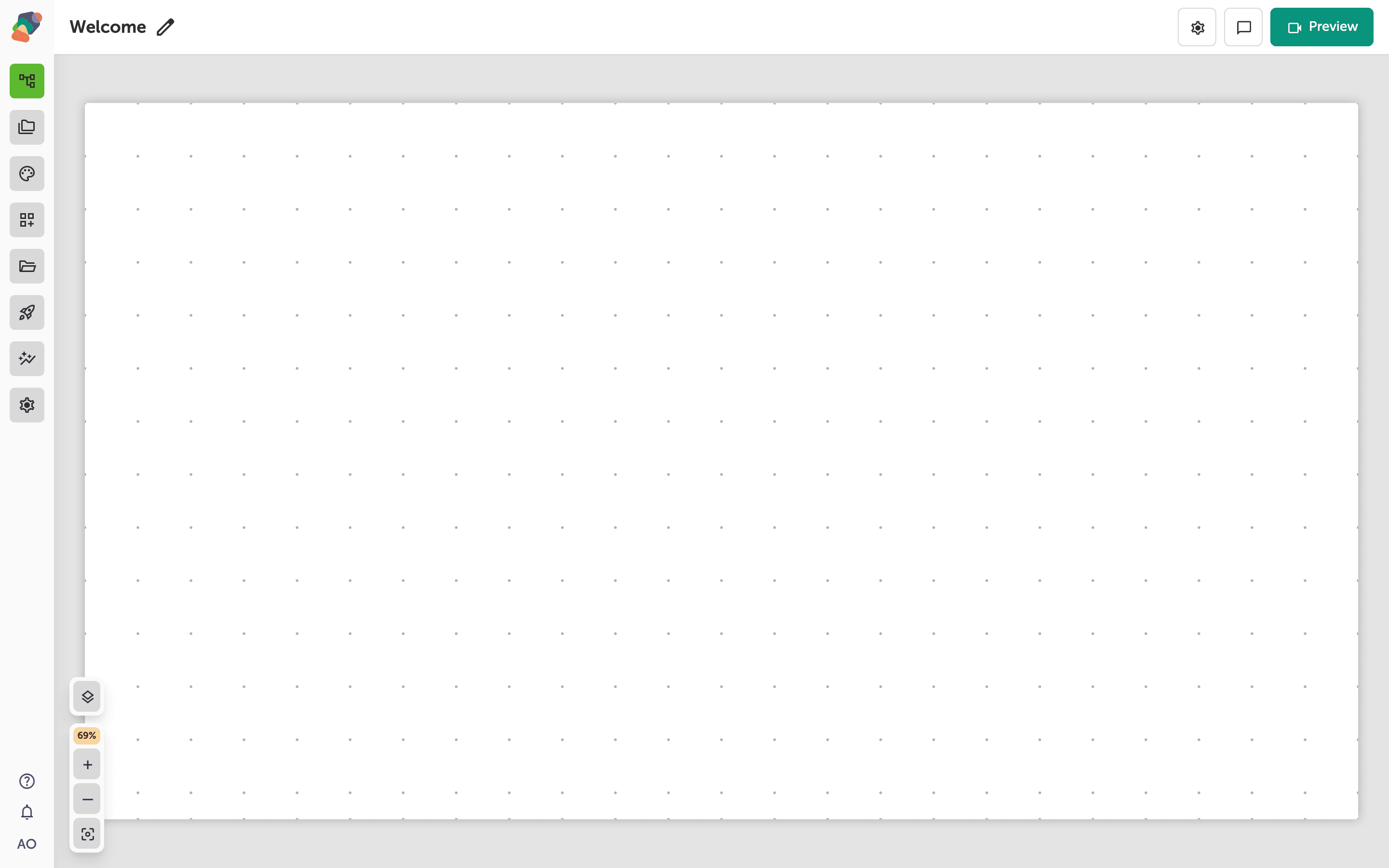
You are in the View Editor. The grid is the screen visitors will see. Click a cell's Add component control to open the menu. Nothing you place is permanent — you can move it, restyle it, or delete it later.
Choose Panel
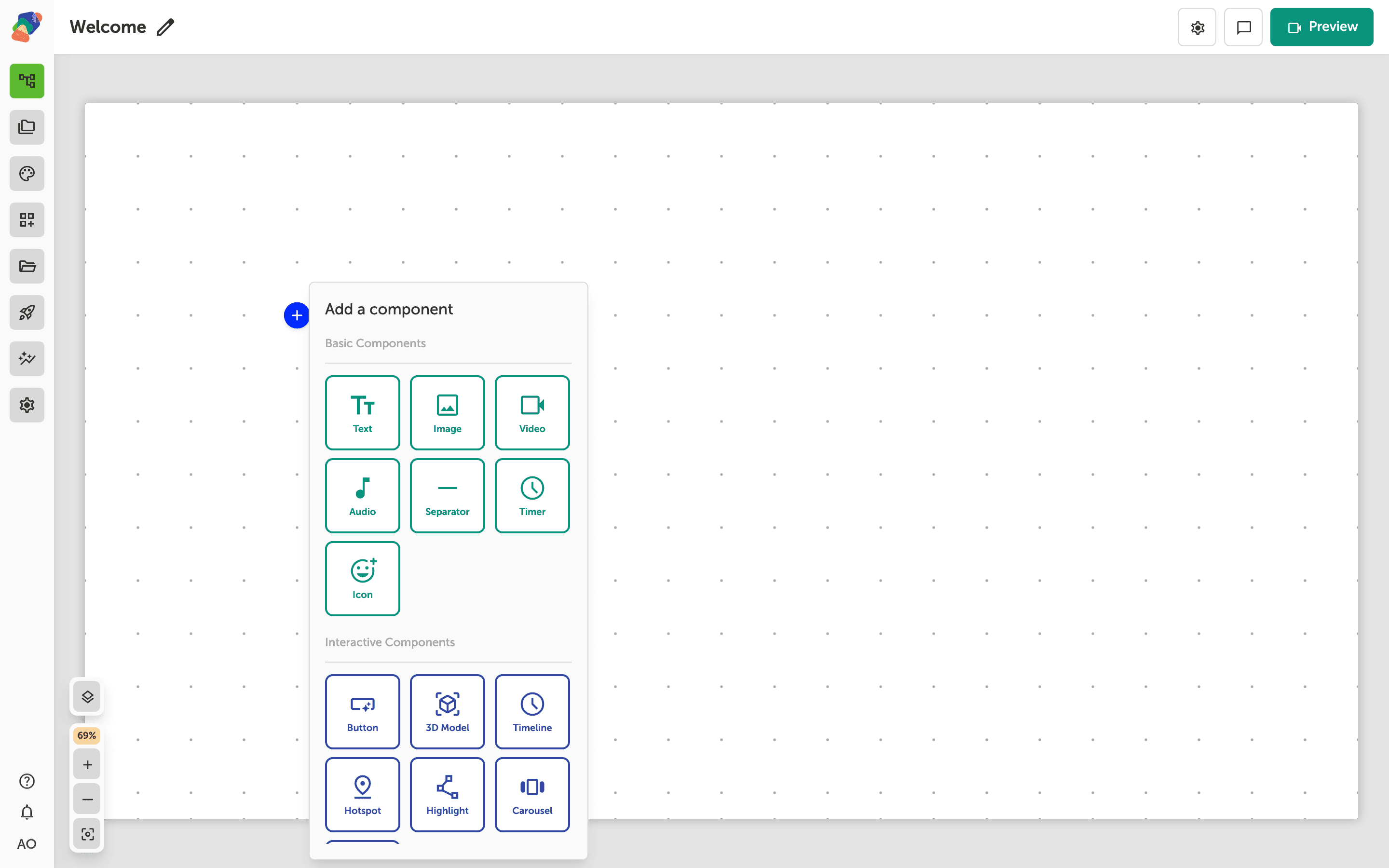
In the add menu, Panel is under Layout Components. Click it to place the component on the cell you opened.
The component is on the grid
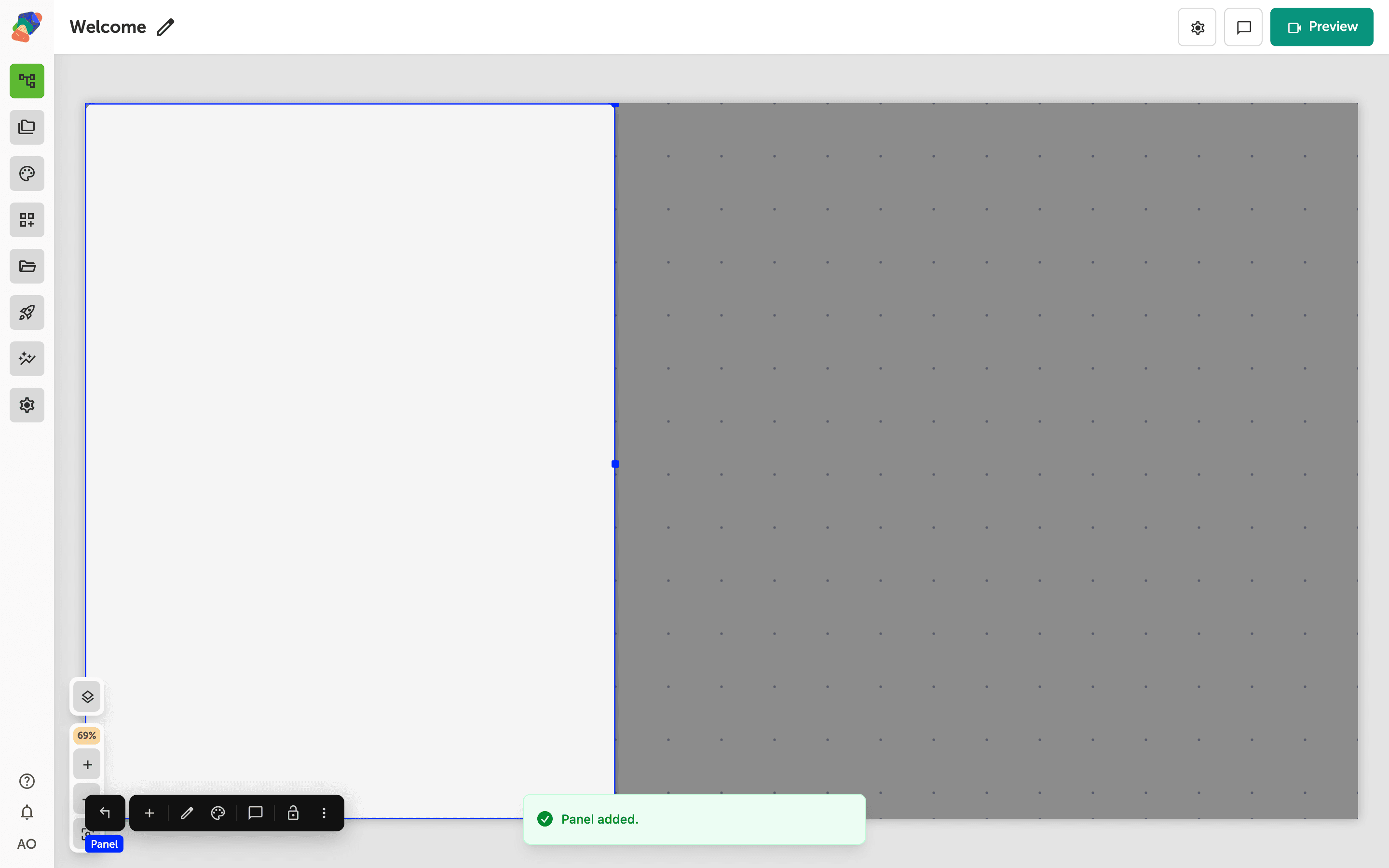
The panel appears as a region you can fill. Select it and use Add child component for the text, images, and buttons inside. Visitors open it from an event on another component, such as a hotspot or a button.
Name the panel
Select the component and open Edit content from the toolbar. In Details, set Component Title so the layers list shows which panel this is. Visible can start off when the panel should appear only after a tap. The overlay behind it is the dimmed scrim; style that scrim on the overlay, and style the sheet on the panel.
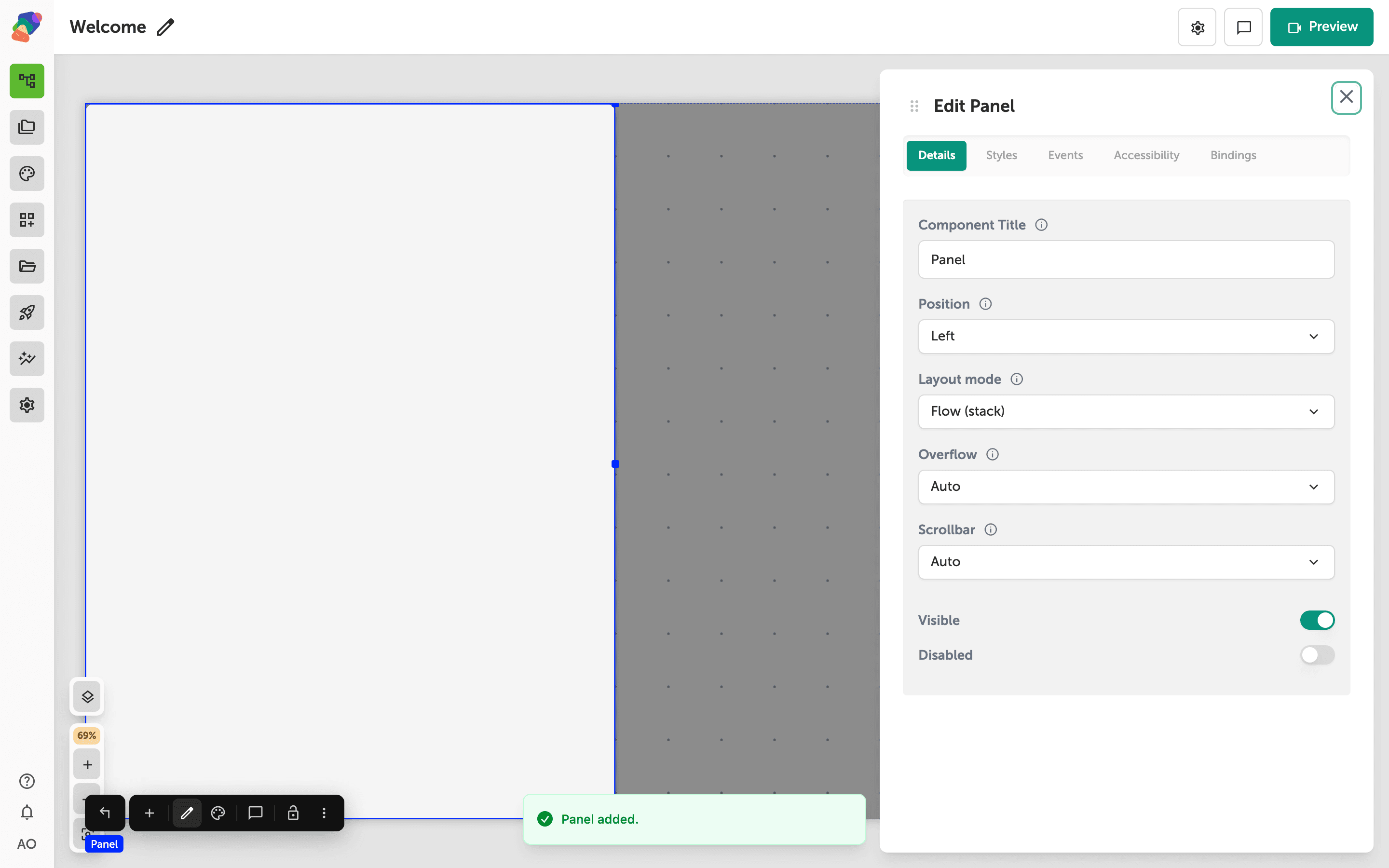
The sheet is ready to fill. A modal is the same family when the content should read as a dialog instead of a side sheet.