
Adding a Modal
A Modal is a dialog over the view — a confirmation, a larger image, a short form. Like a panel, it brings an Overlay scrim with it. You do not insert the overlay separately. You will add the modal and name it.
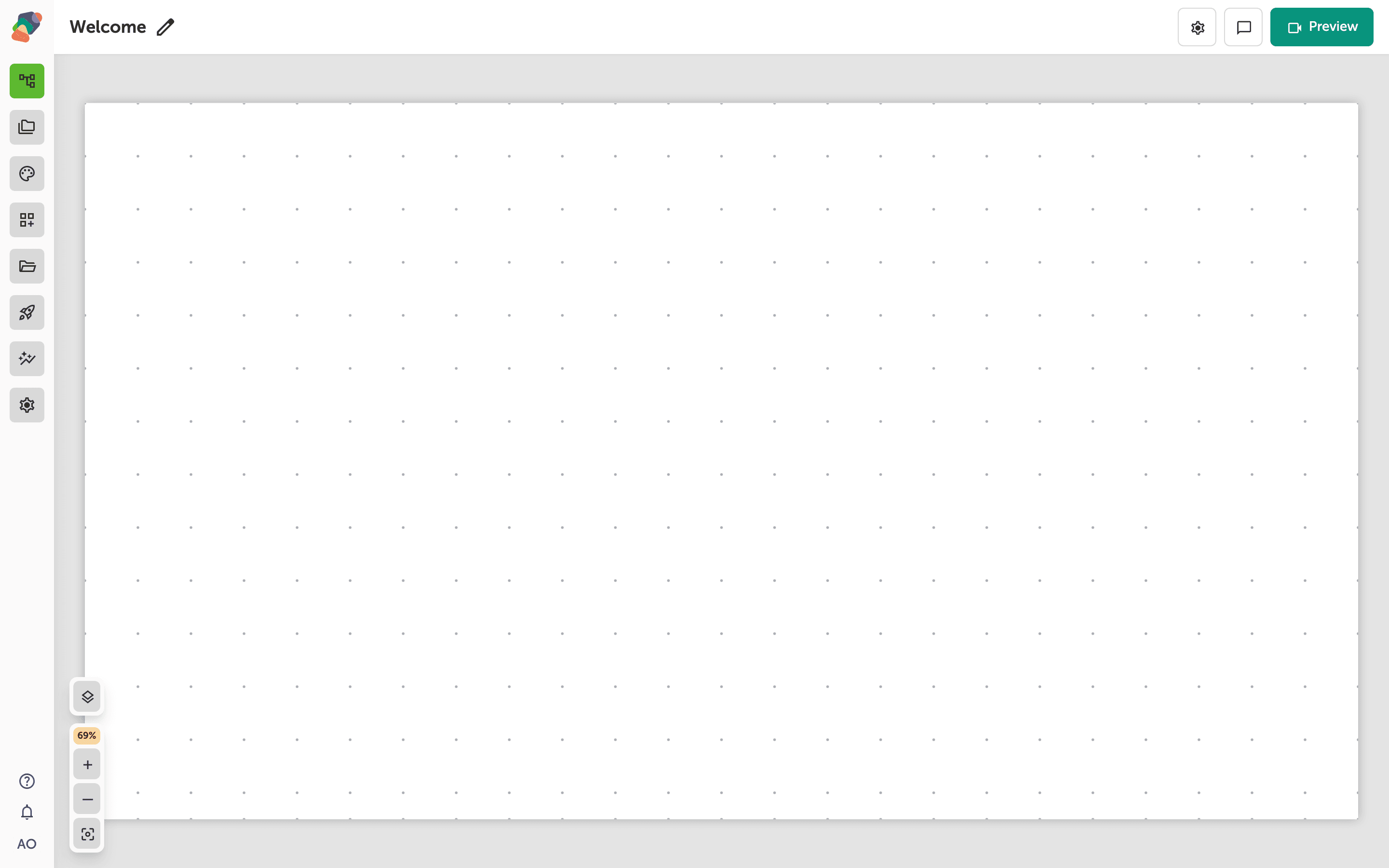
Open the view
You are in the View Editor. The grid is the screen visitors will see. Click a cell's Add component control to open the menu. Nothing you place is permanent — you can move it, restyle it, or delete it later.
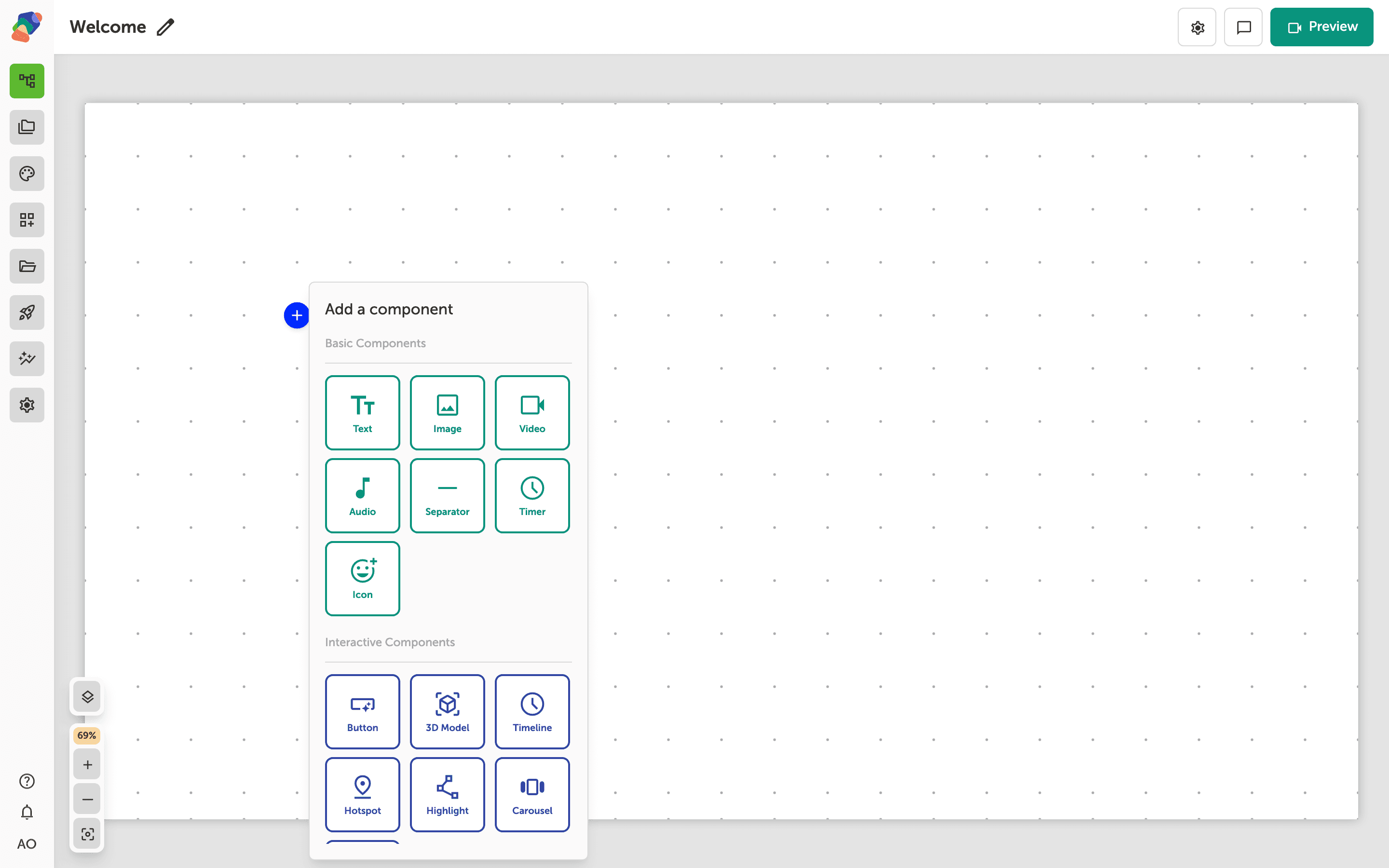
Choose Modal
In the add menu, Modal is under Layout Components. Click it to place the component on the cell you opened.
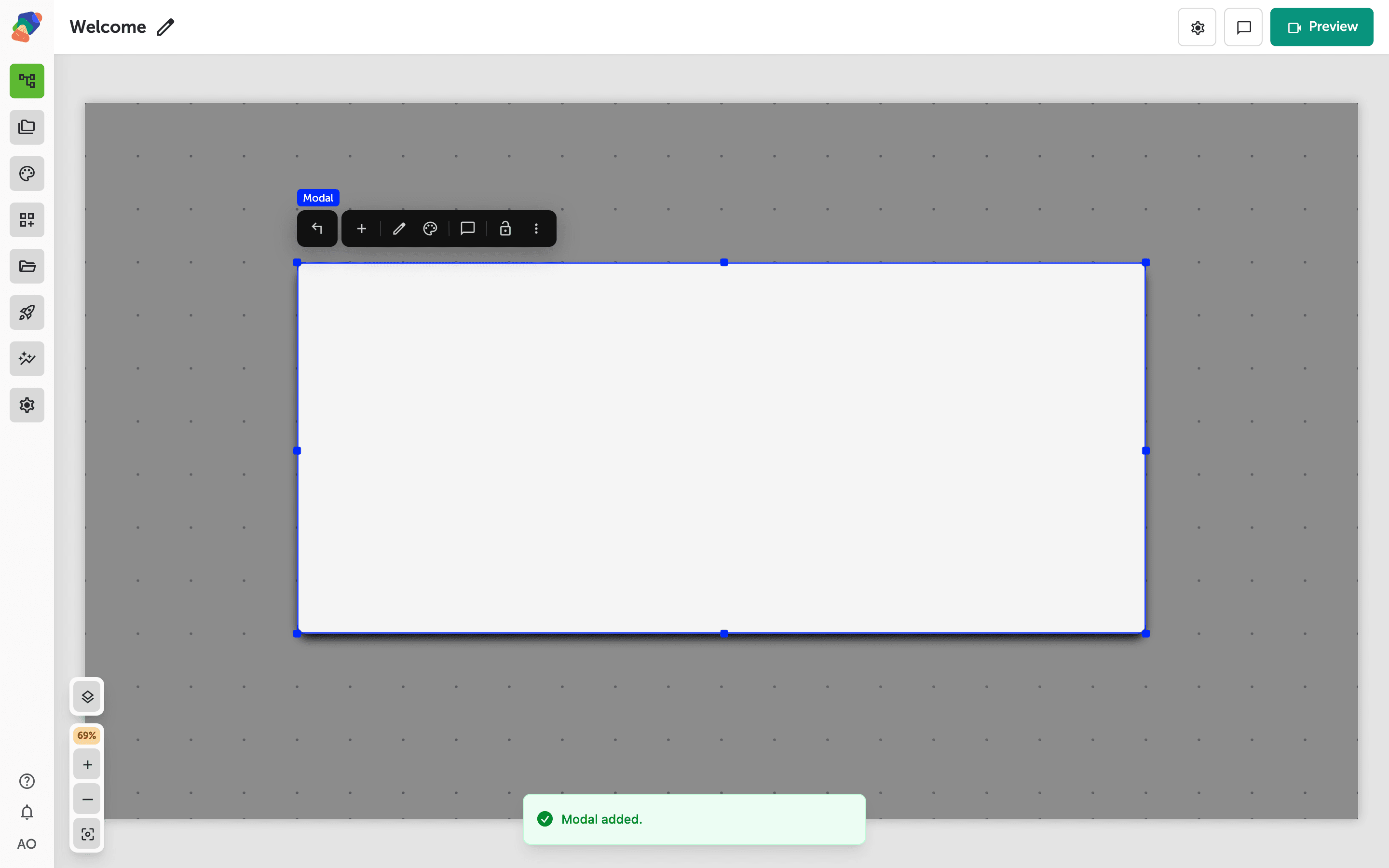
The component is on the grid
The modal frame appears on the grid so you can design its contents. Select it and use Add child component to place text, media, and buttons inside. Visitors open it from an event on a button, image, or hotspot.
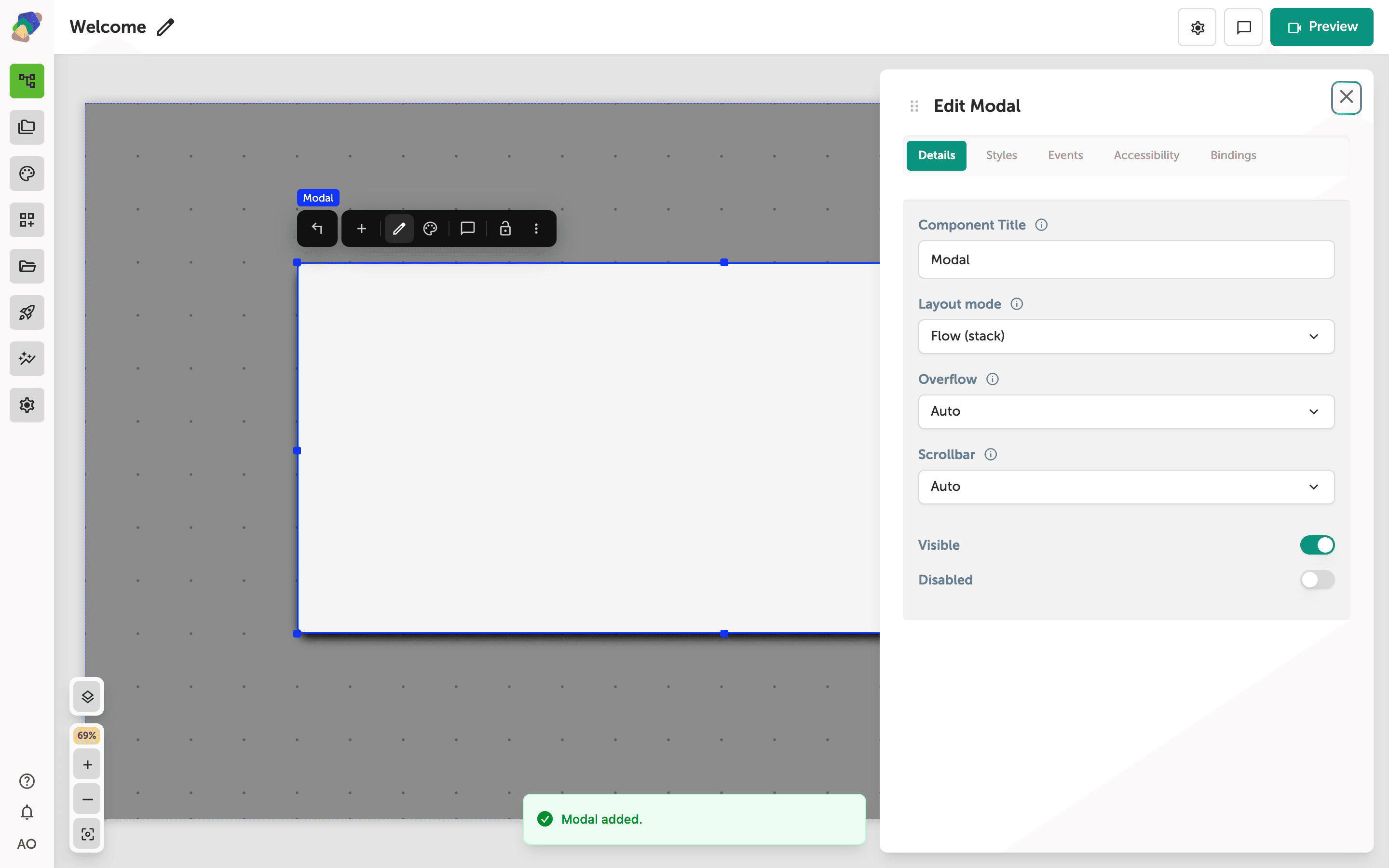
Name the modal
Select the component and open Edit content from the toolbar. In Details, Component Title is how you find this dialog in the layers list. Start Visible off when the dialog should wait for a tap. Put the dismiss control inside the modal as a Button whose event hides it.
The dialog is in place. Open it from a button event, and put a close button inside the modal.