
Adding a Hotspot
A Hotspot is a marker visitors tap — a pin on a photograph, or a point on a model. It does not hold the long text itself. It marks the place, and an event on the hotspot opens a panel, a bubble, or another moment. You will add the marker and set its icon.
Open the view
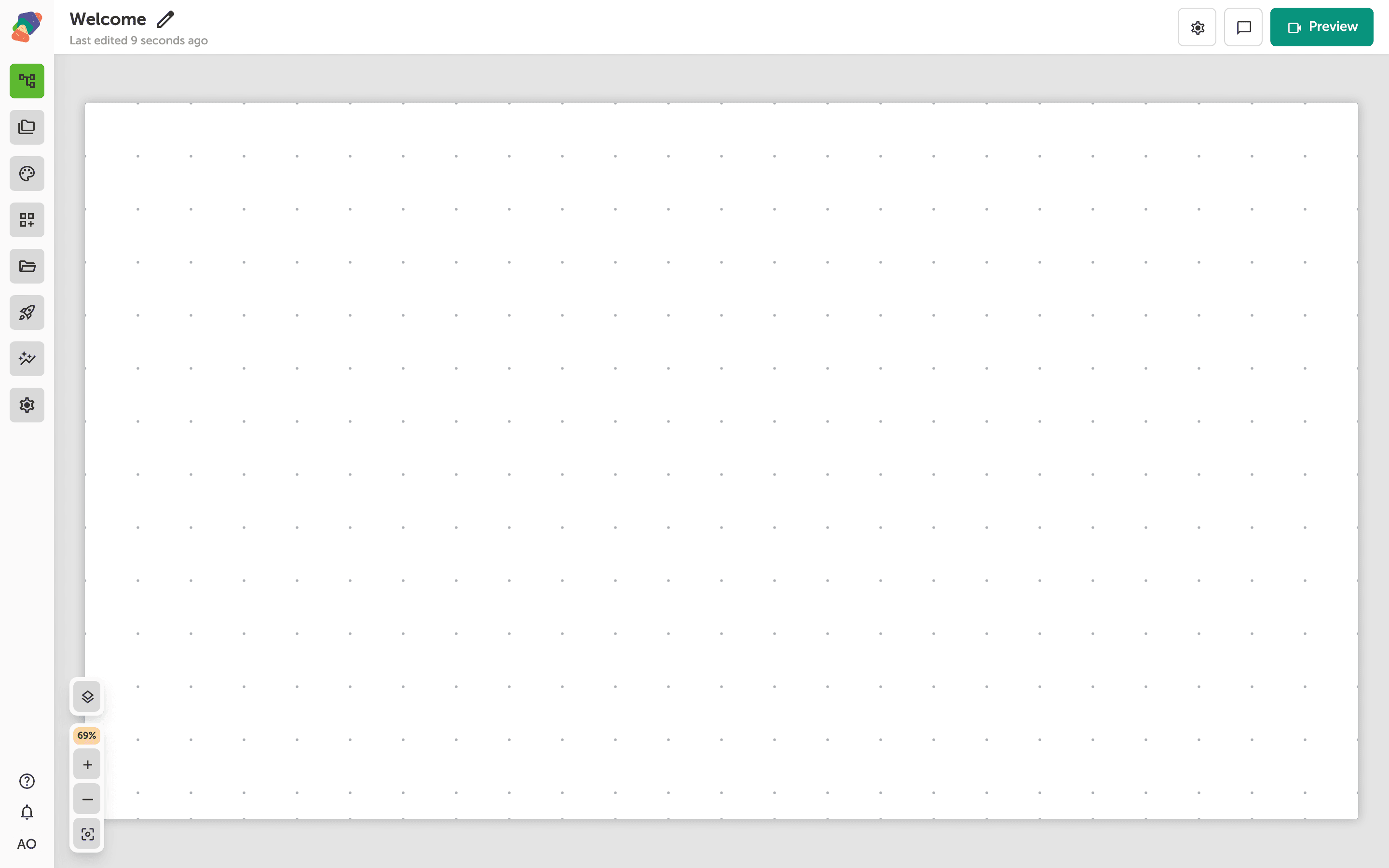
You are in the View Editor. The grid is the screen visitors will see. Click a cell's Add component control to open the menu. Nothing you place is permanent — you can move it, restyle it, or delete it later.
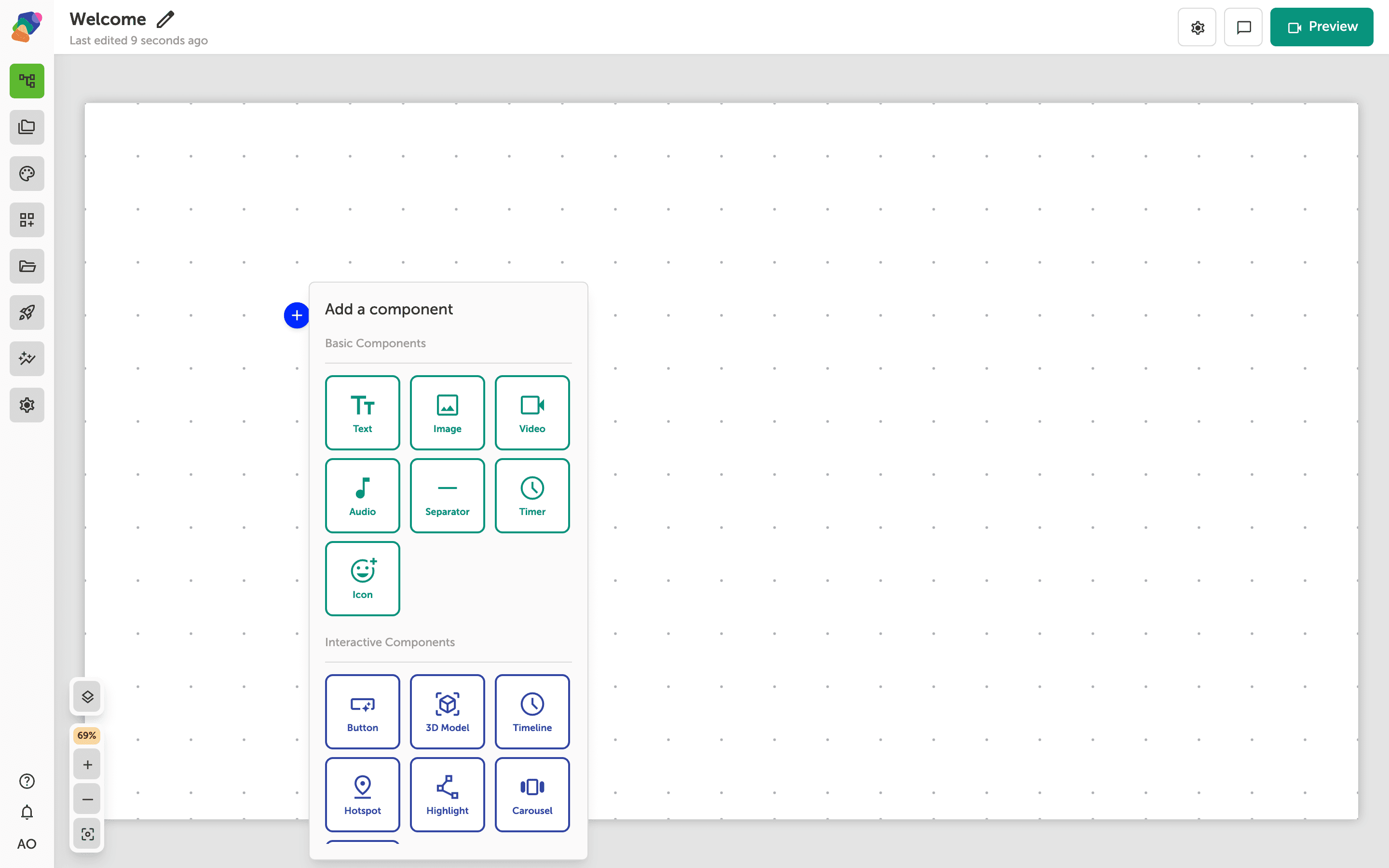
Choose Hotspot
In the add menu, Hotspot is under Interactive Components. Click it to place the component on the cell you opened.
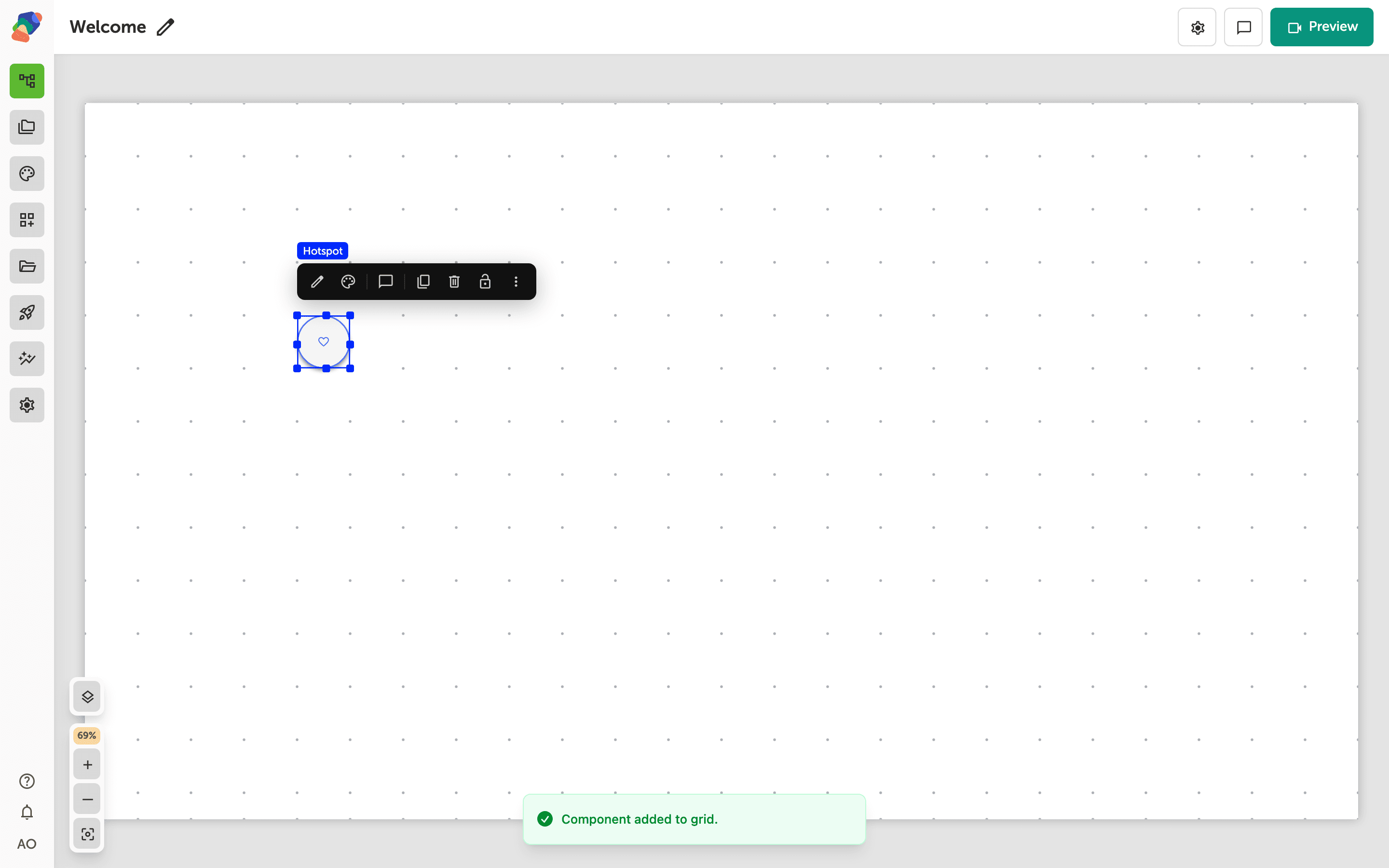
The component is on the grid
The hotspot appears on the grid. Drag it onto the image or model it should mark. On a photograph, position is a point on the picture. On a 3D model, use Add child component on the model so the pin stays on the surface while the camera orbits.
Choose the marker
Select the component and open Edit content from the toolbar. In Details, marker type chooses an icon or a count, and the icon field picks the symbol. Give the hotspot a Component Title you will recognize, such as Vase rim. The tap is configured as an event — Go to a moment, or show a panel — not in the marker fields.
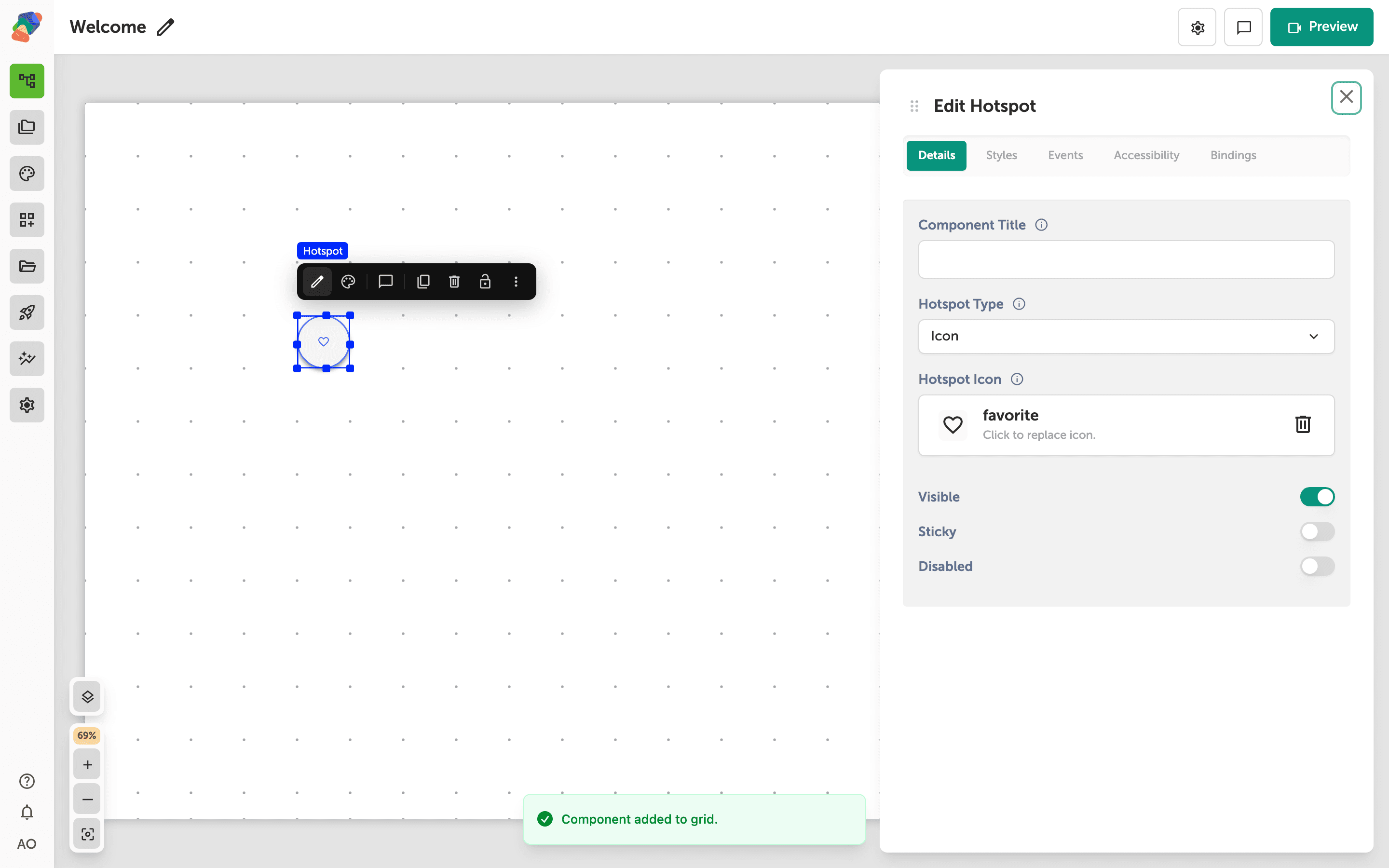
The marker is placed. Pinning one to a model surface, so it stays put while the object turns, is its own article.