
Adding an Image
Photographs, maps, and object stills are often the thing a visitor actually came to see. The Image component holds that picture on the grid, with a title and alt text you control. In this tutorial you will add an image to a view and open its settings so you can swap the placeholder for your own file.
Open the view
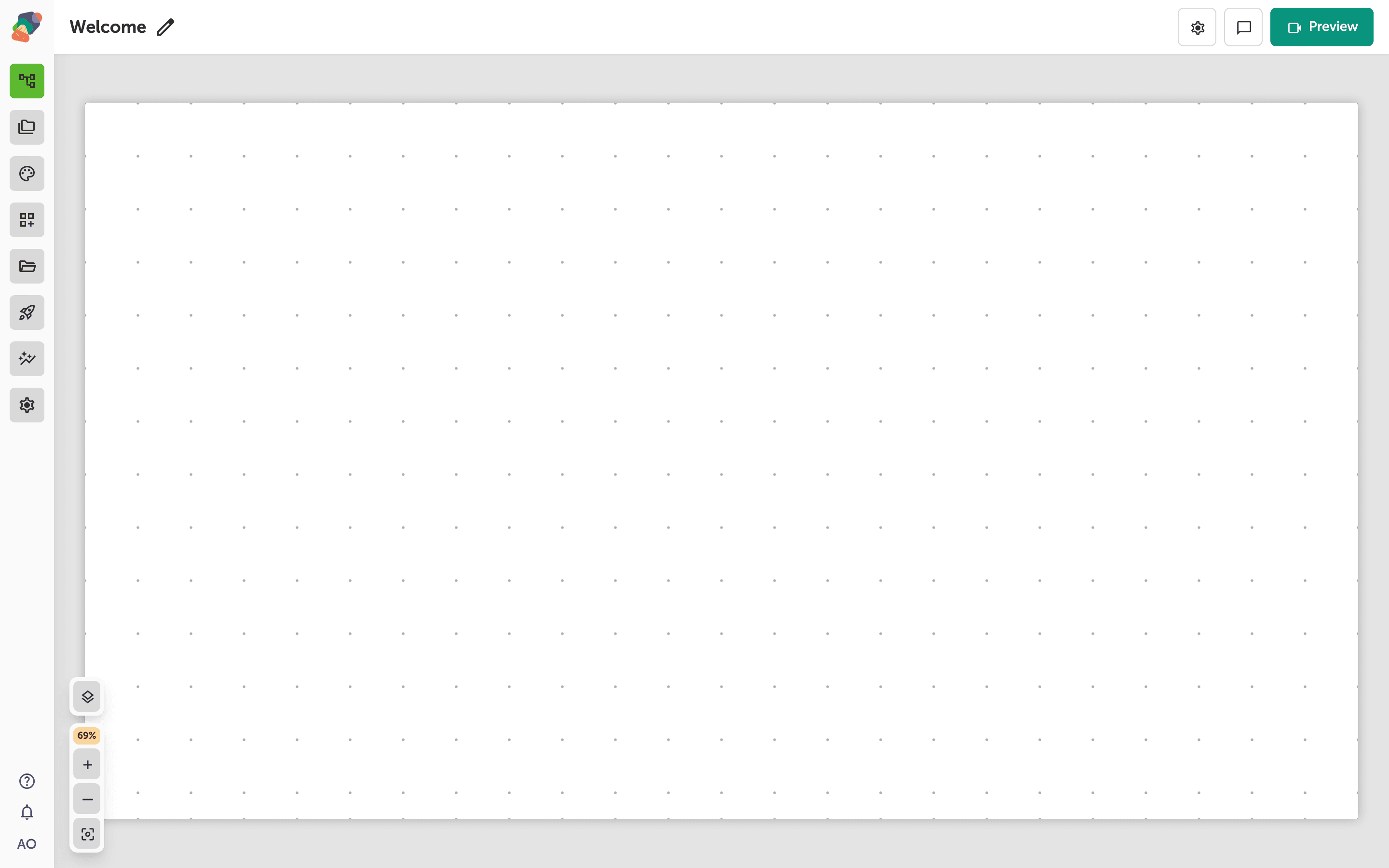
You are in the View Editor. The grid is the screen visitors will see. Click a cell's Add component control to open the menu. Nothing you place is permanent — you can move it, restyle it, or delete it later.
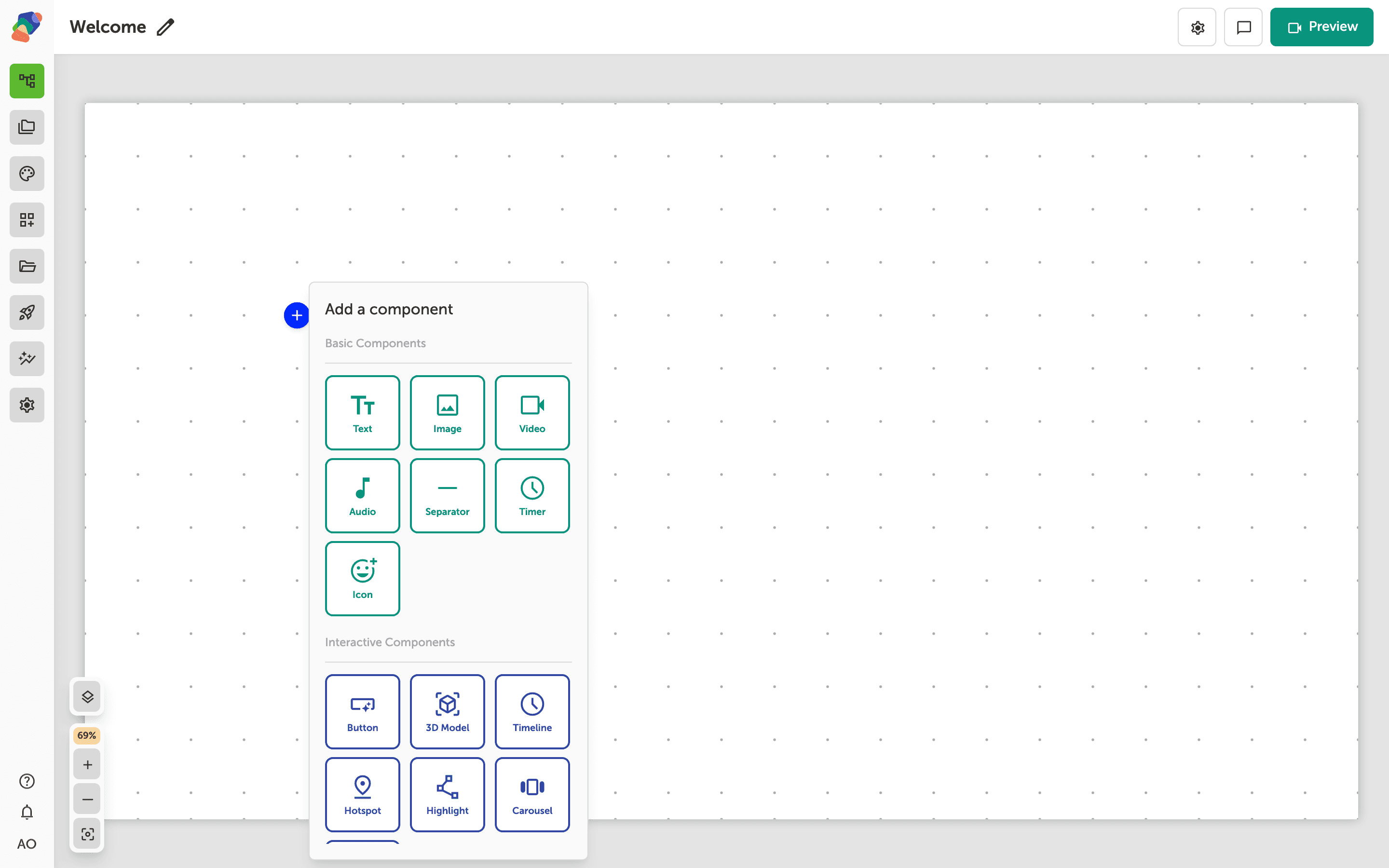
Choose Image
In the add menu, Image is under Basic Components. Click it to place the component on the cell you opened.
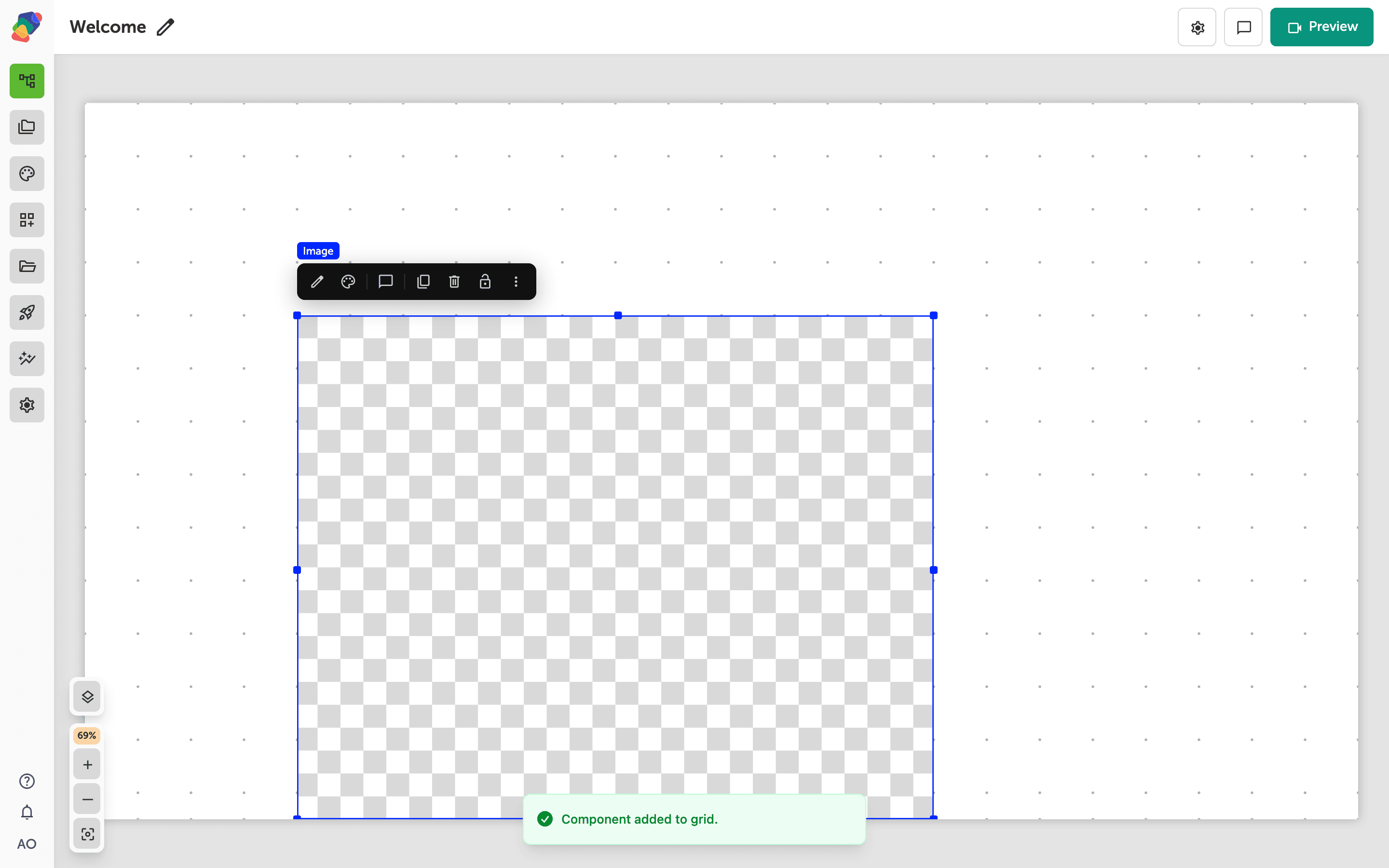
The component is on the grid
The image lands on the grid with a placeholder. Select it when you want to move or resize it. Don't worry about the placeholder art — you replace the file from the inspector, and you can change the crop of the component on the grid at any time.
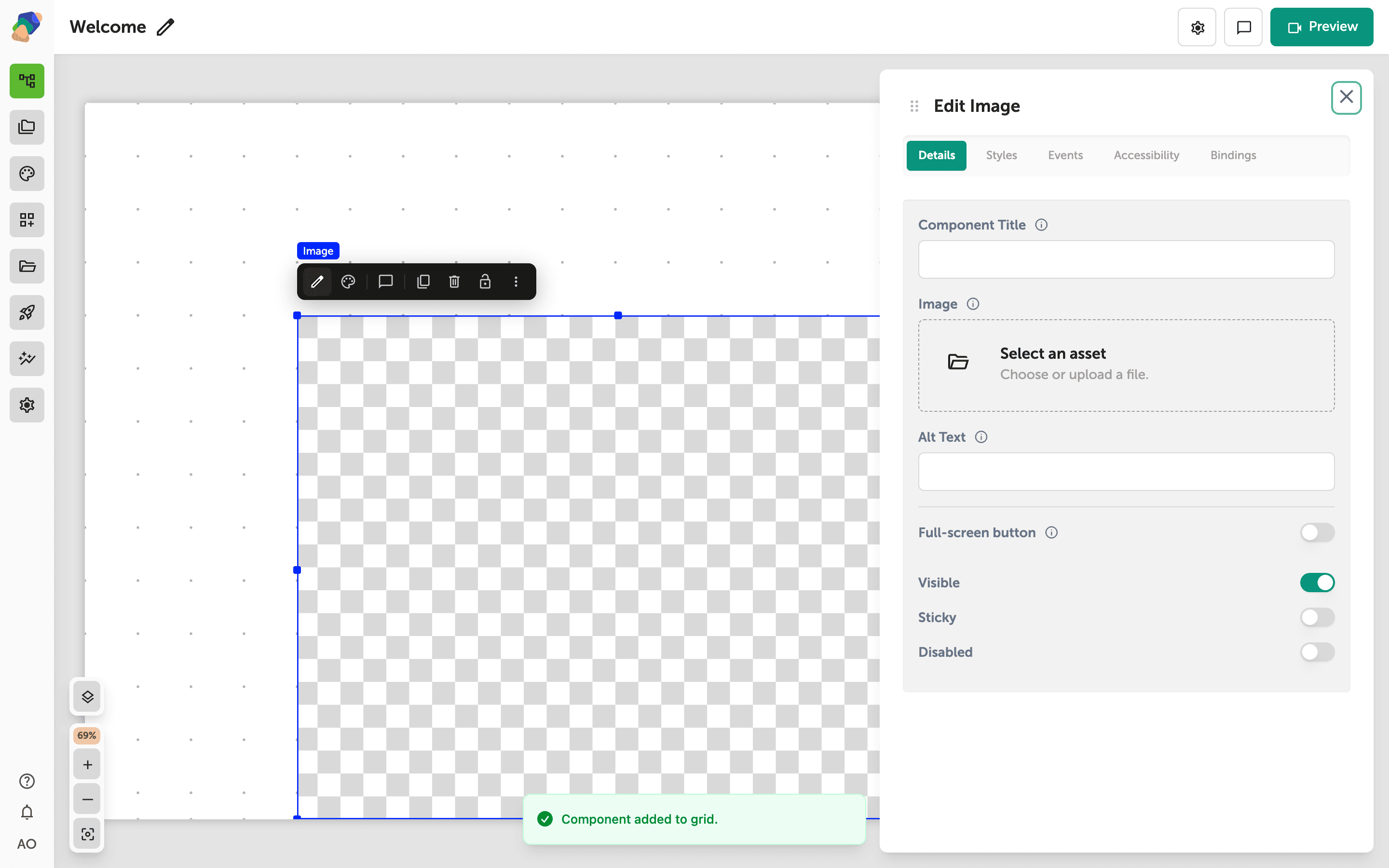
Choose the file and write alt text
Select the component and open Edit content from the toolbar. The Edit panel opens on Details. Use Image to pick a file from your project, then fill Alt Text with a short description of what the picture shows. Alt text is what a screen reader speaks, and it is also what remains if the file cannot load. Component Title is the name you will recognize in the layers list.
The image is on the view. From here you can let visitors look closer, or edit the file itself.