
Components2 min read
Control How Visitors Explore a 3D Model
Who this is for:ProOrganization
Left alone, a 3D Model can be spun, panned off center, and zoomed until the object is gone. The inspector is where you decide the starting camera, the zoom limits, and whether the model turns on its own. You will set a kiosk-friendly version: zoom on, pan off, vertical spin only.
Add the model and attach a GLB first. These settings describe that file. If the file later changes, check the framing again.
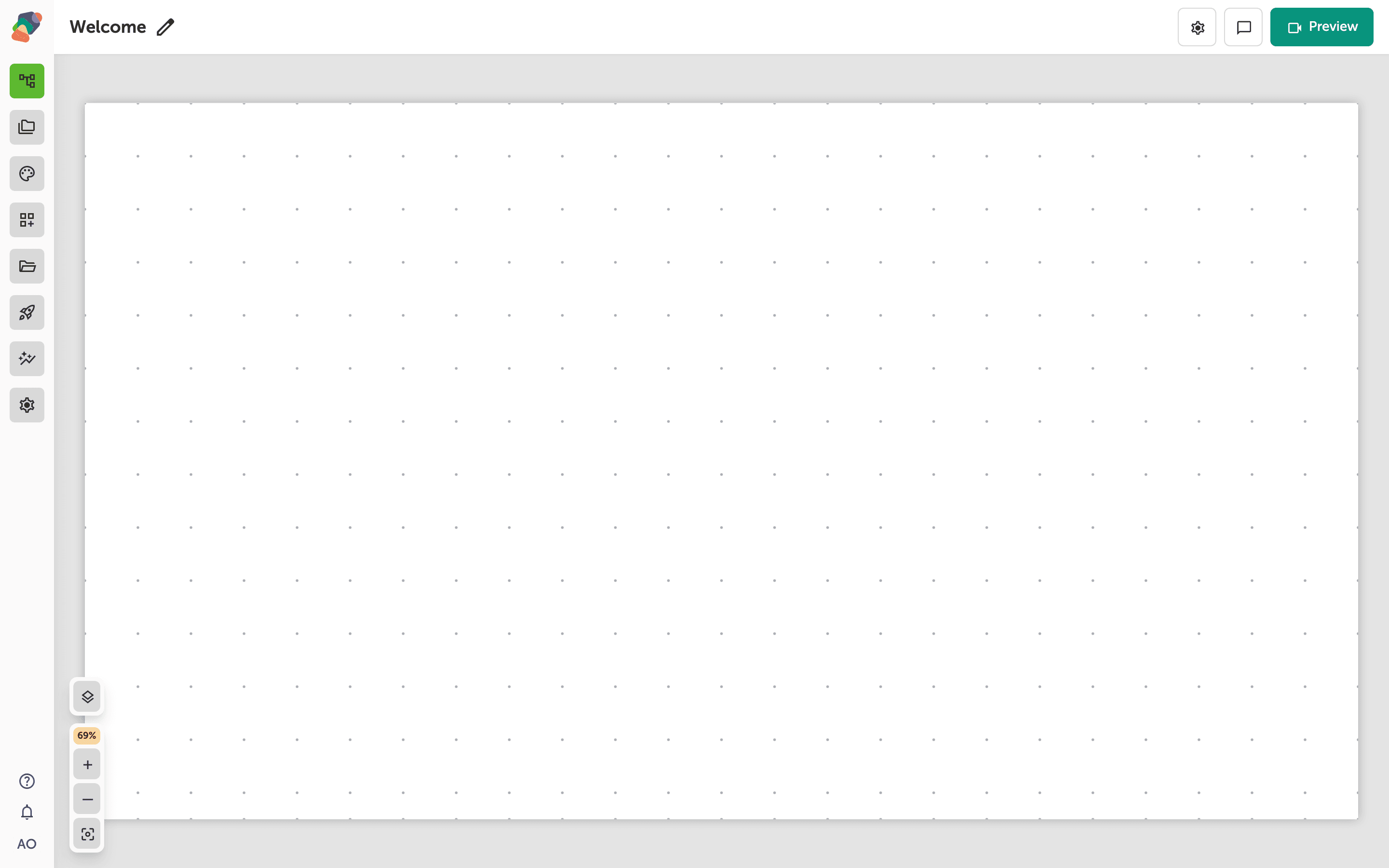
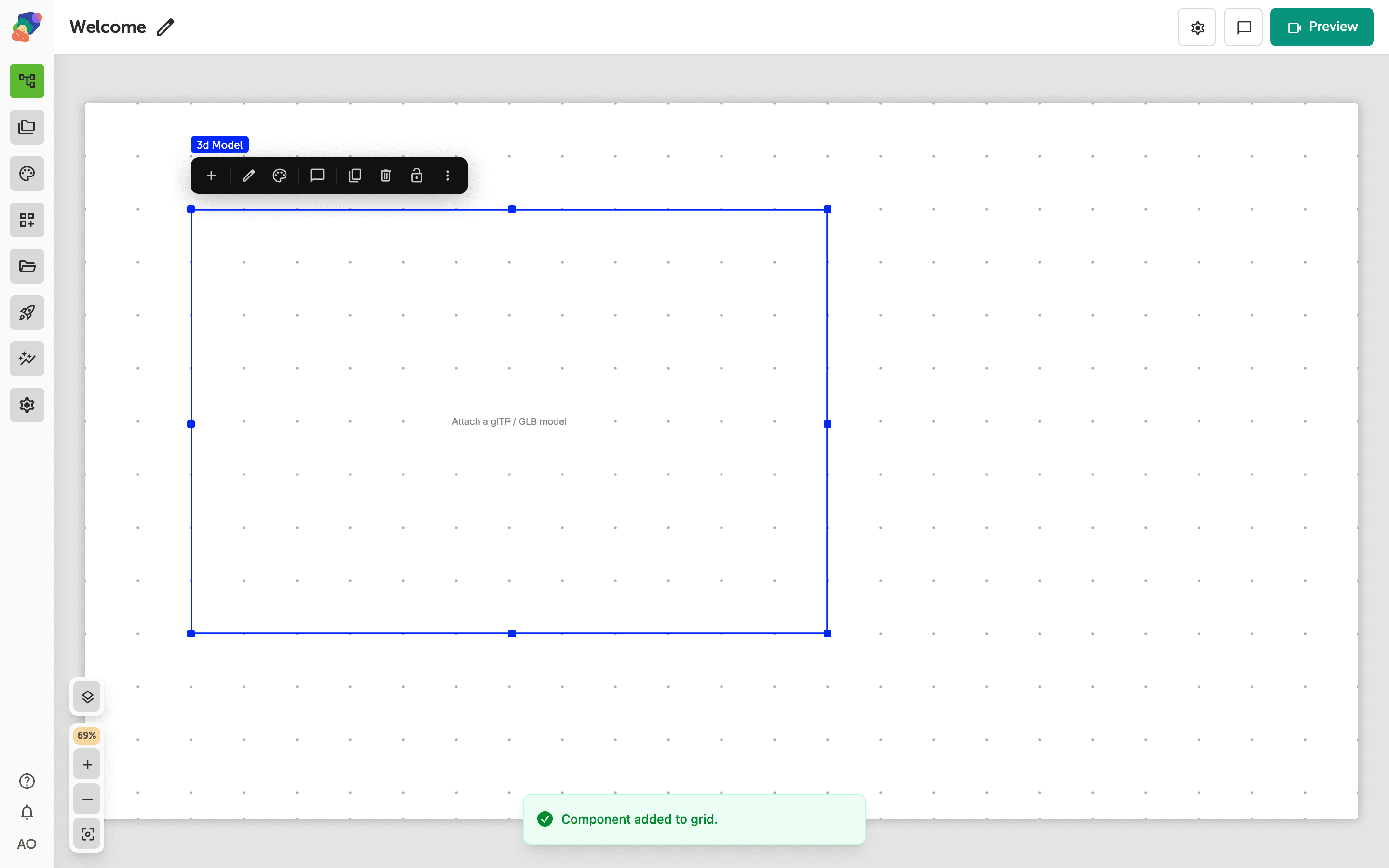
Add the model
Place a 3D Model and choose the GLB in Model.
Set the camera
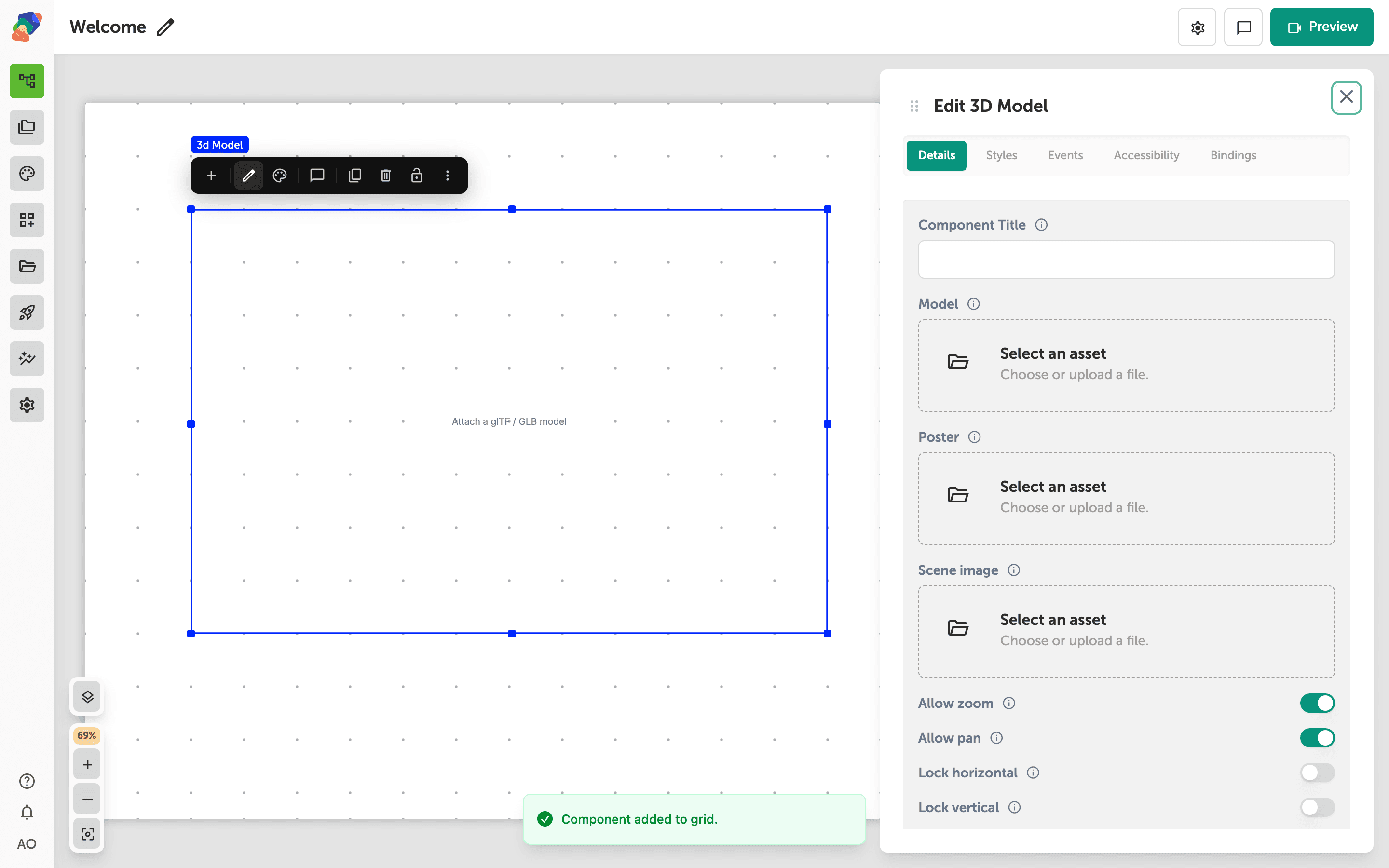
In Details:
- Allow zoom lets visitors use the buttons, scroll, and pinch. Closest zoom and Furthest zoom under Default view are the limits, as a percent of the framed model.
- Allow pan off keeps the model centered. That is what you want when the object should spin in place.
- Lock vertical stops up-and-down rotation so the model only spins on its vertical axis. Lock horizontal stops left-right rotation. Auto-rotate needs the horizontal axis, so locking horizontal also skips the spin.
- Default view sets Yaw, Pitch, and Zoom for the camera when the model loads and when the visitor resets. 100% zoom fits the model. Lower values move closer.
- Scene image is an equirectangular picture used as the sky around the model. A background color from Styles still sits behind that image.
- Auto-rotate turns the model until the visitor touches it. The spin does not resume on its own; it starts again when they come back to the view.
Preview the view. The model should load at the angles you set, spin until you drag it, and refuse to slide off center.