
Adding a Bubble
A Bubble is a small popover — a short note anchored near the thing the visitor tapped. It is the component you use when a full panel would cover too much of the screen. You will add one and name it.
Open the view
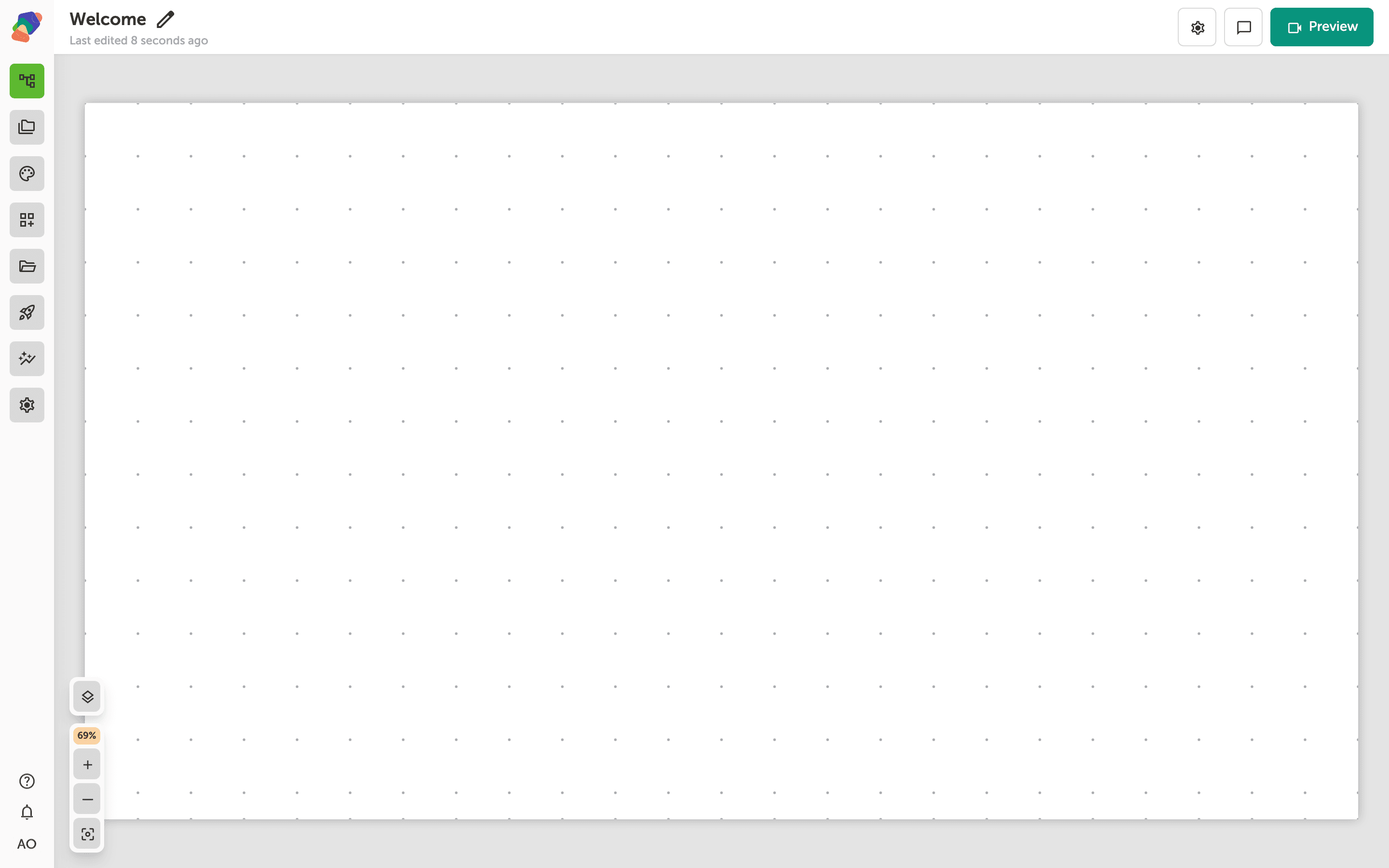
You are in the View Editor. The grid is the screen visitors will see. Click a cell's Add component control to open the menu. Nothing you place is permanent — you can move it, restyle it, or delete it later.
Choose Bubble
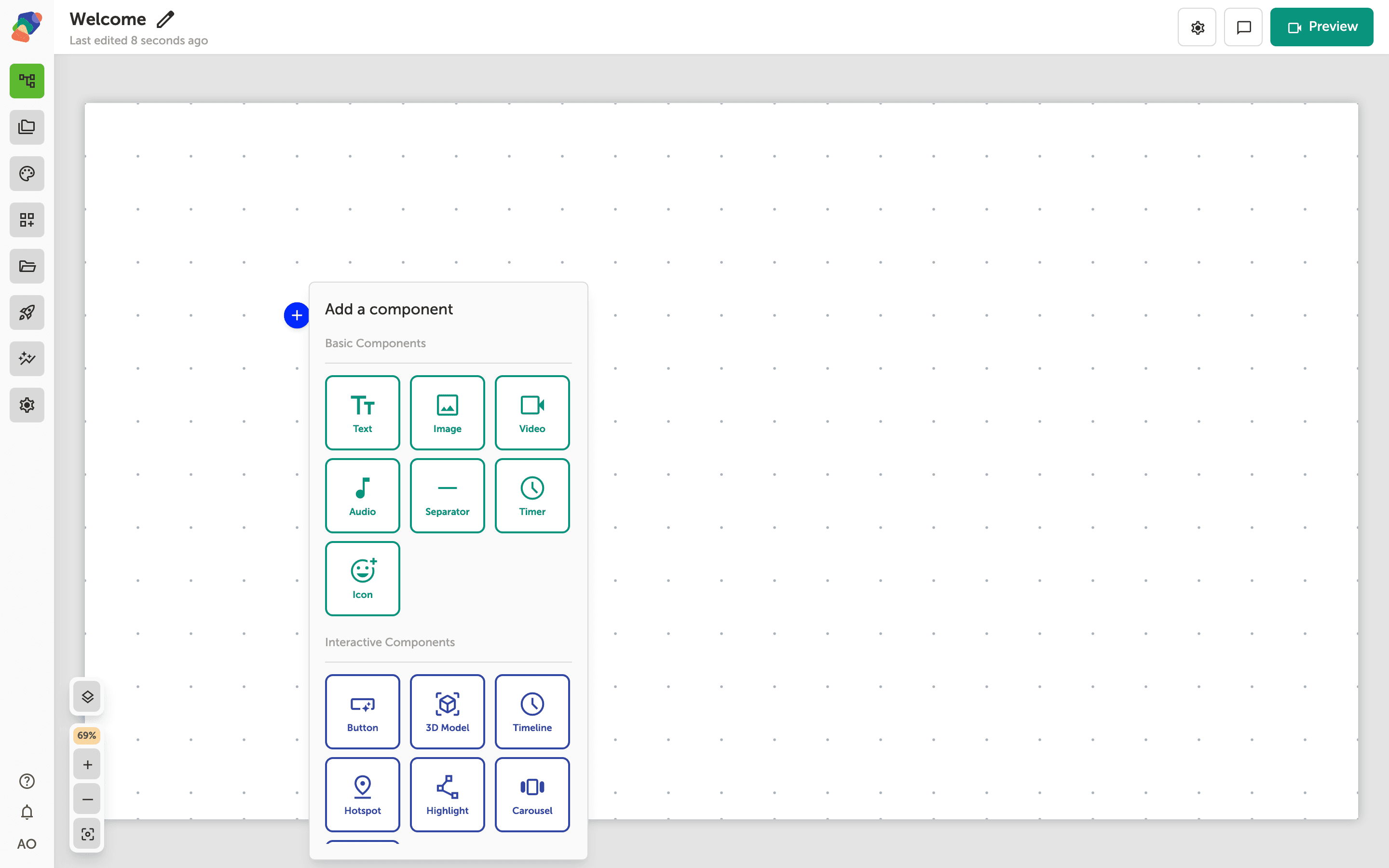
In the add menu, Bubble is under Layout Components. Click it to place the component on the cell you opened.
The component is on the grid
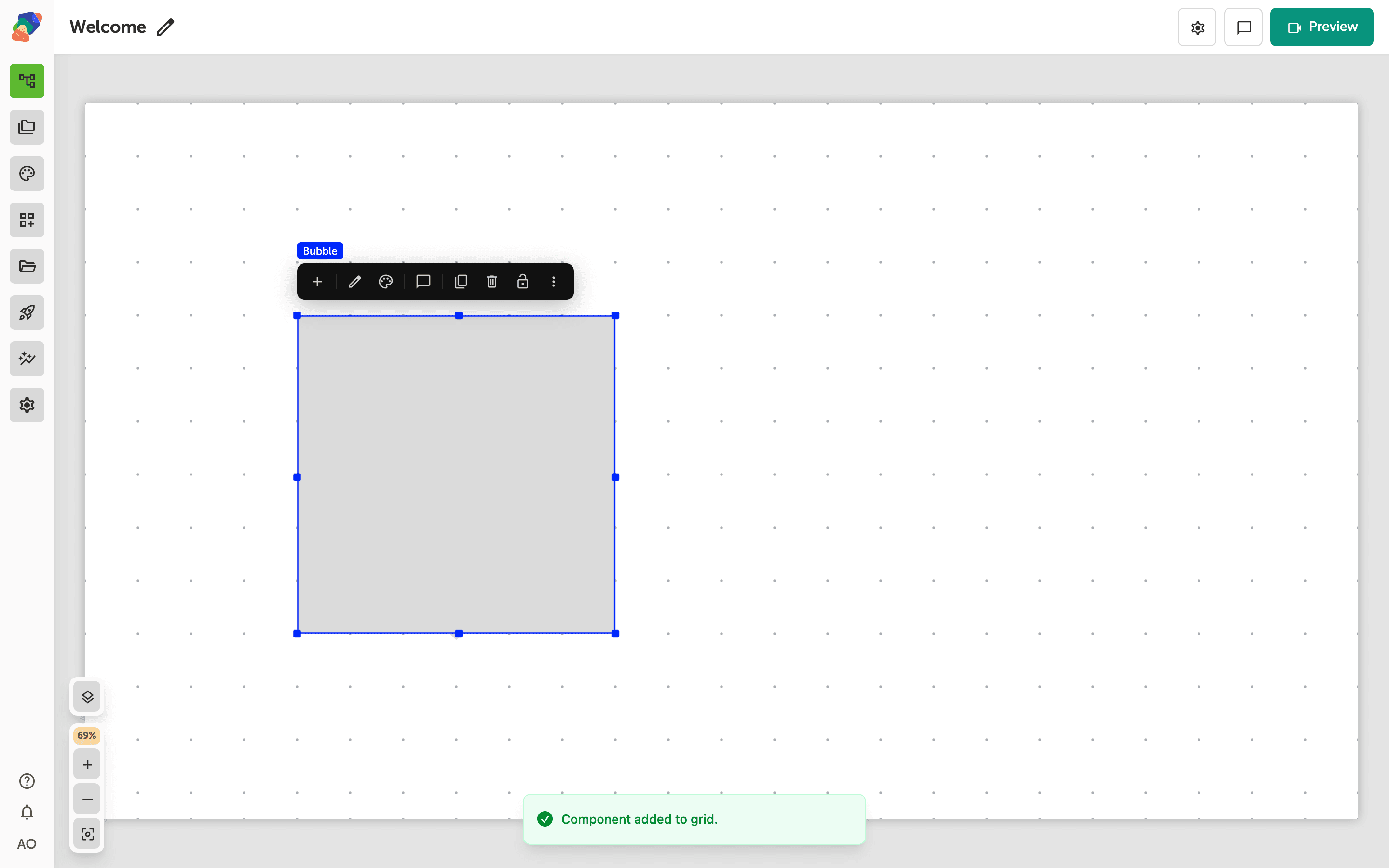
The bubble appears on the grid so you can design what it says. Keep the contents short: a sentence, maybe an image. Select it and use Add child component to fill it. Open it from an event on the hotspot or button it explains.
Name the bubble
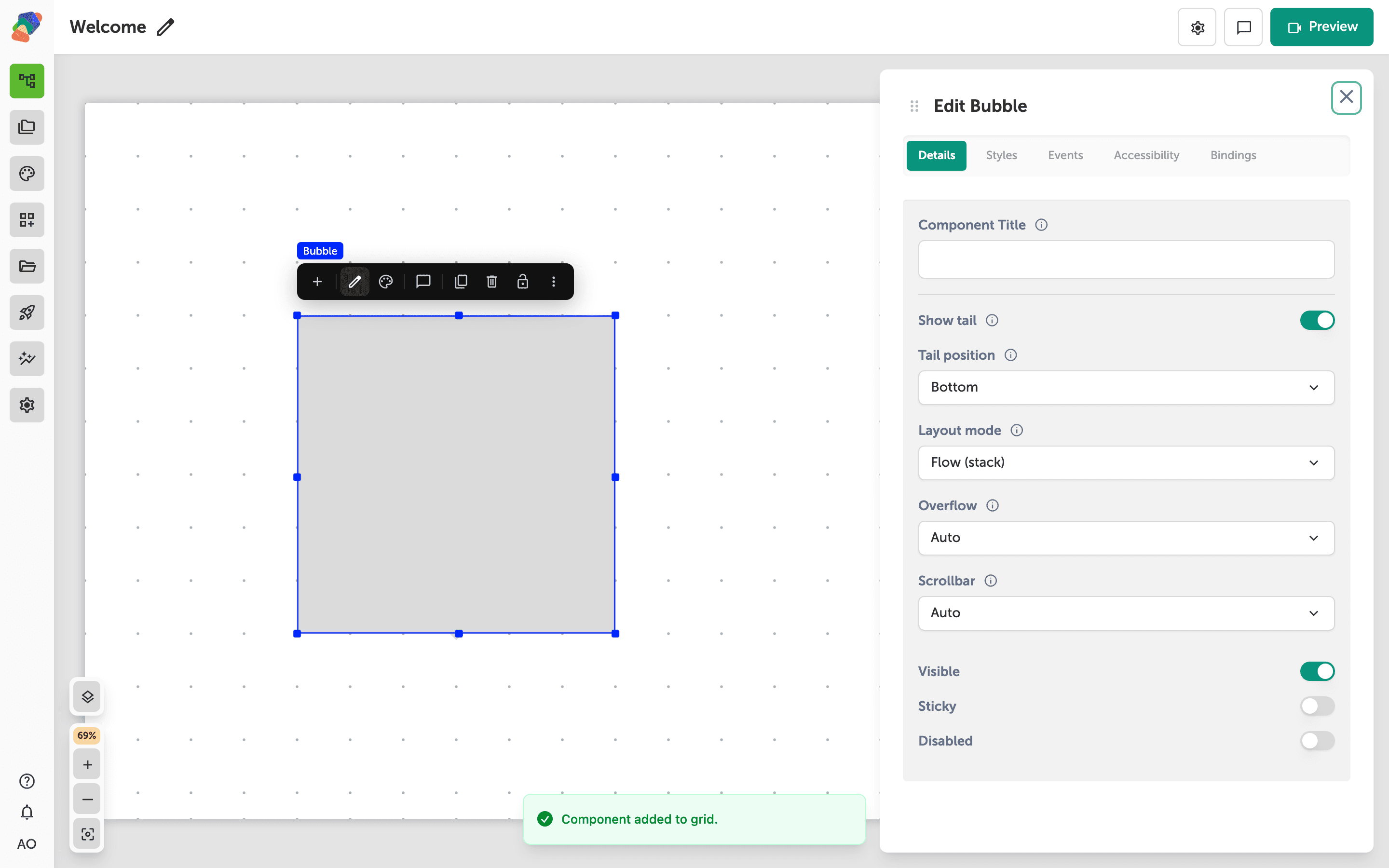
Select the component and open Edit content from the toolbar. In Details, set Component Title to the note's subject. Start Visible off if the bubble should appear only after a tap. The words visitors read are a Text child, not the component title.
The note is ready. A panel is the better container when the text is long.