
Adding a Button
A Button is the control visitors tap — next, listen, open a panel, submit a form. The label is the only instruction many people will read, so it should say what happens. You will add a button and set that label.
Open the view
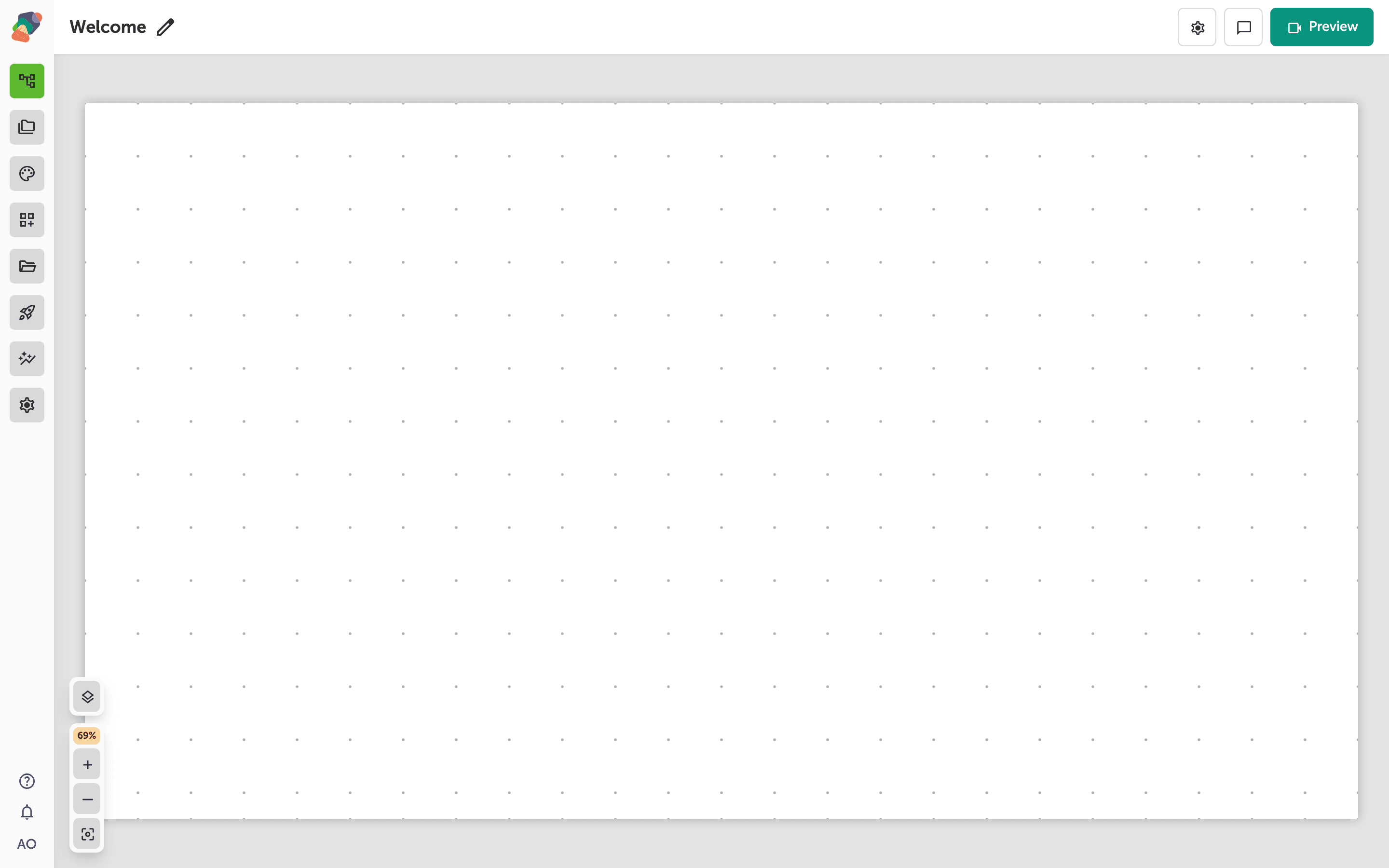
You are in the View Editor. The grid is the screen visitors will see. Click a cell's Add component control to open the menu. Nothing you place is permanent — you can move it, restyle it, or delete it later.
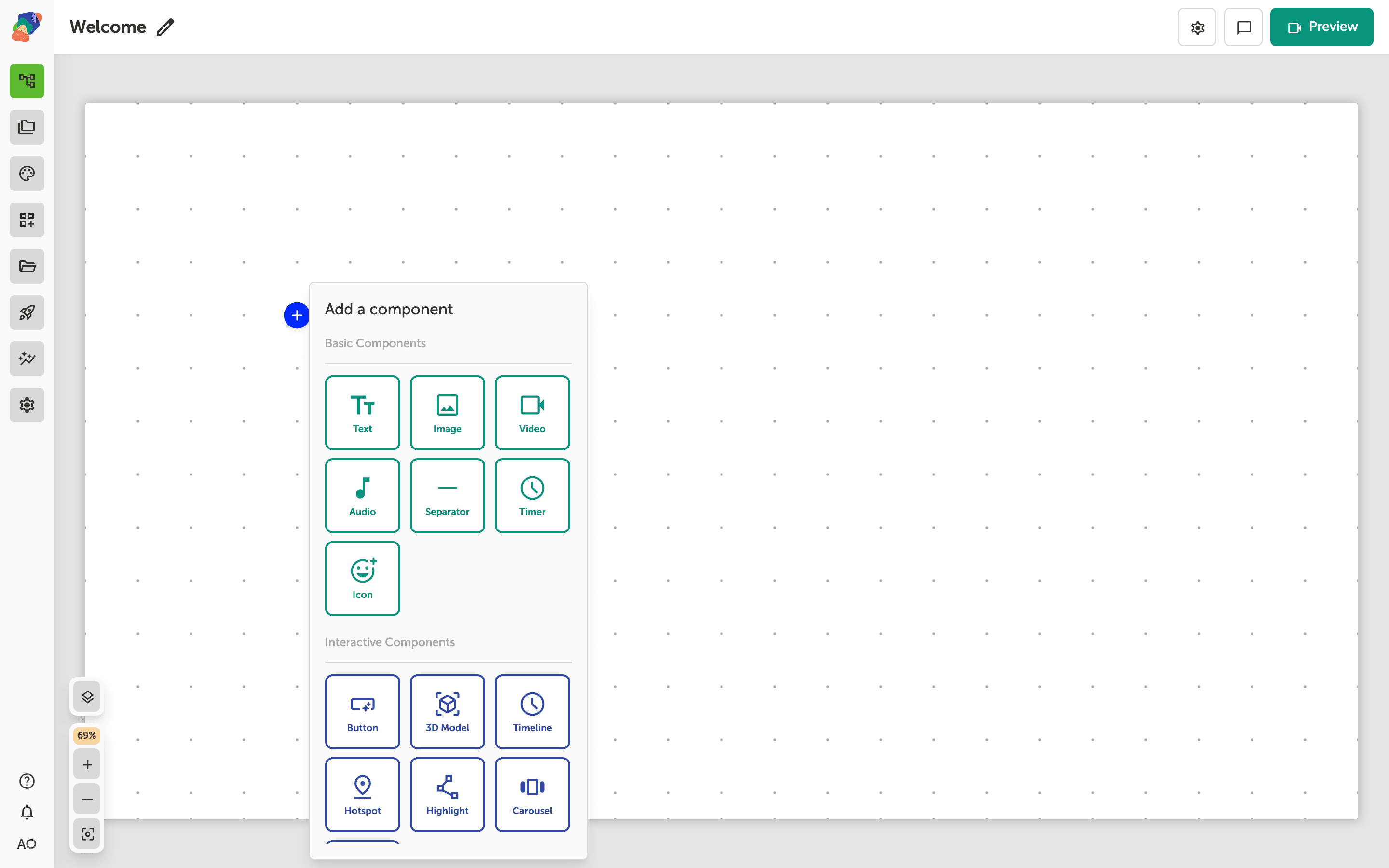
Choose Button
In the add menu, Button is under Interactive Components. Click it to place the component on the cell you opened.
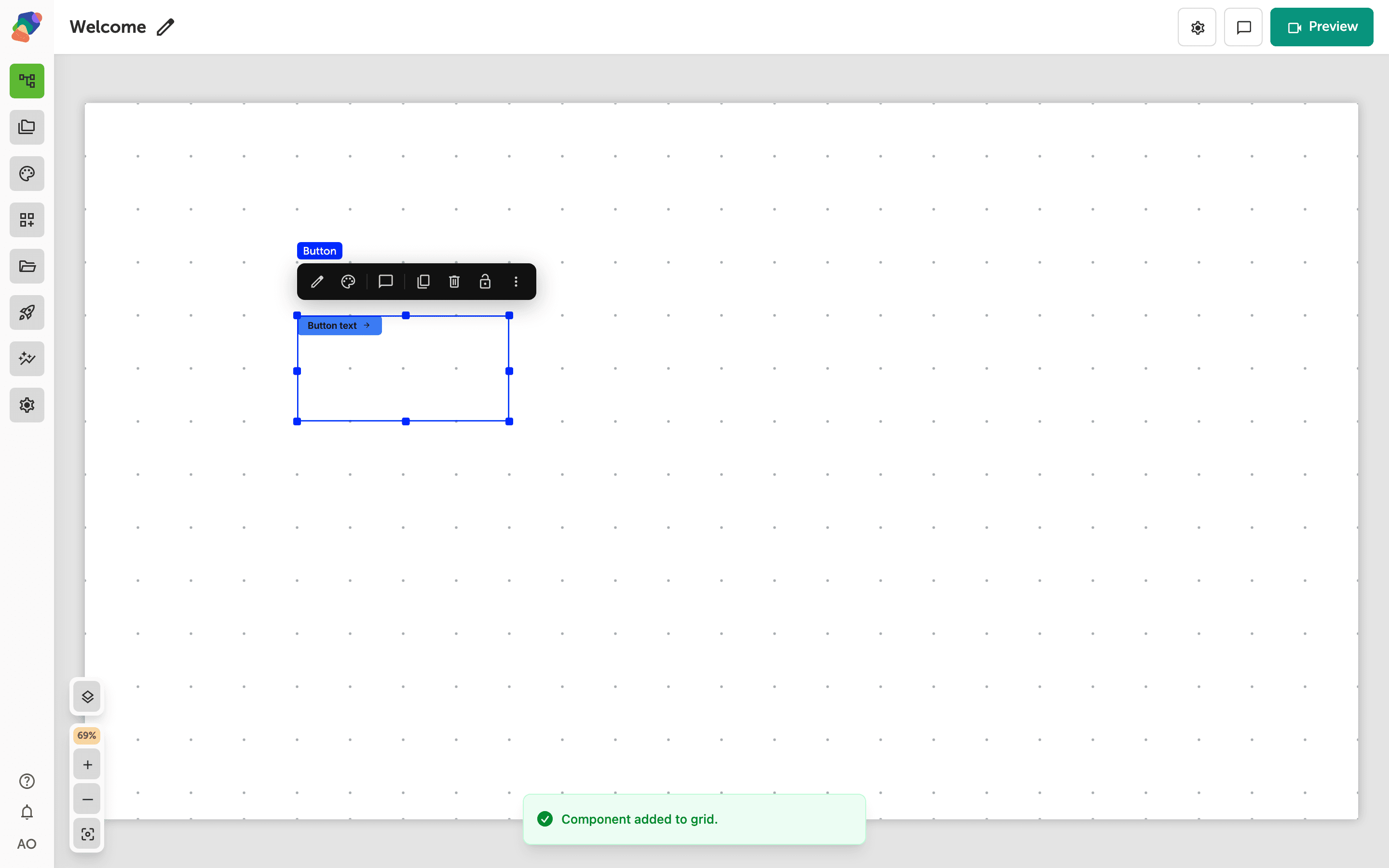
The component is on the grid
The button appears with the default label Button label. Select it to resize the hit area. On a touch kiosk, keep the button large enough to tap without aiming.
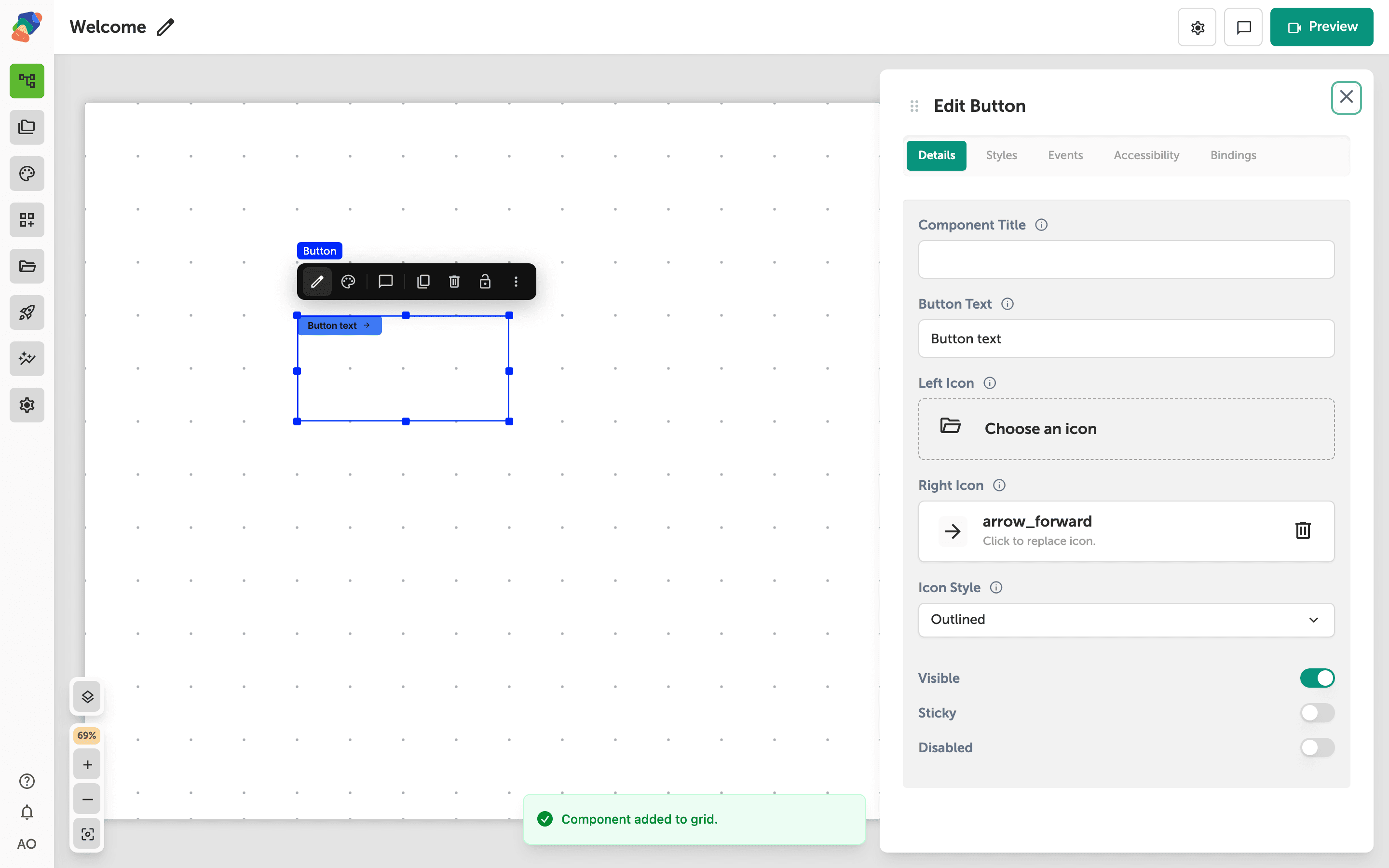
Write the label
Select the component and open Edit content from the toolbar. In Details, replace Button label with the words visitors should read, such as Next or Submit. Optional left and right icons sit beside that label. The click itself is not configured here — that lives on the component's events, where you choose an action such as Go to a moment or Submit form.
The button is labeled. Wire it to a destination, or use it to submit a form.