
Adding a Card
A Card is a themed container — a surface with its own style — for a small composition such as an object teaser. It accepts text, an image, and a button. You will add one and name it.
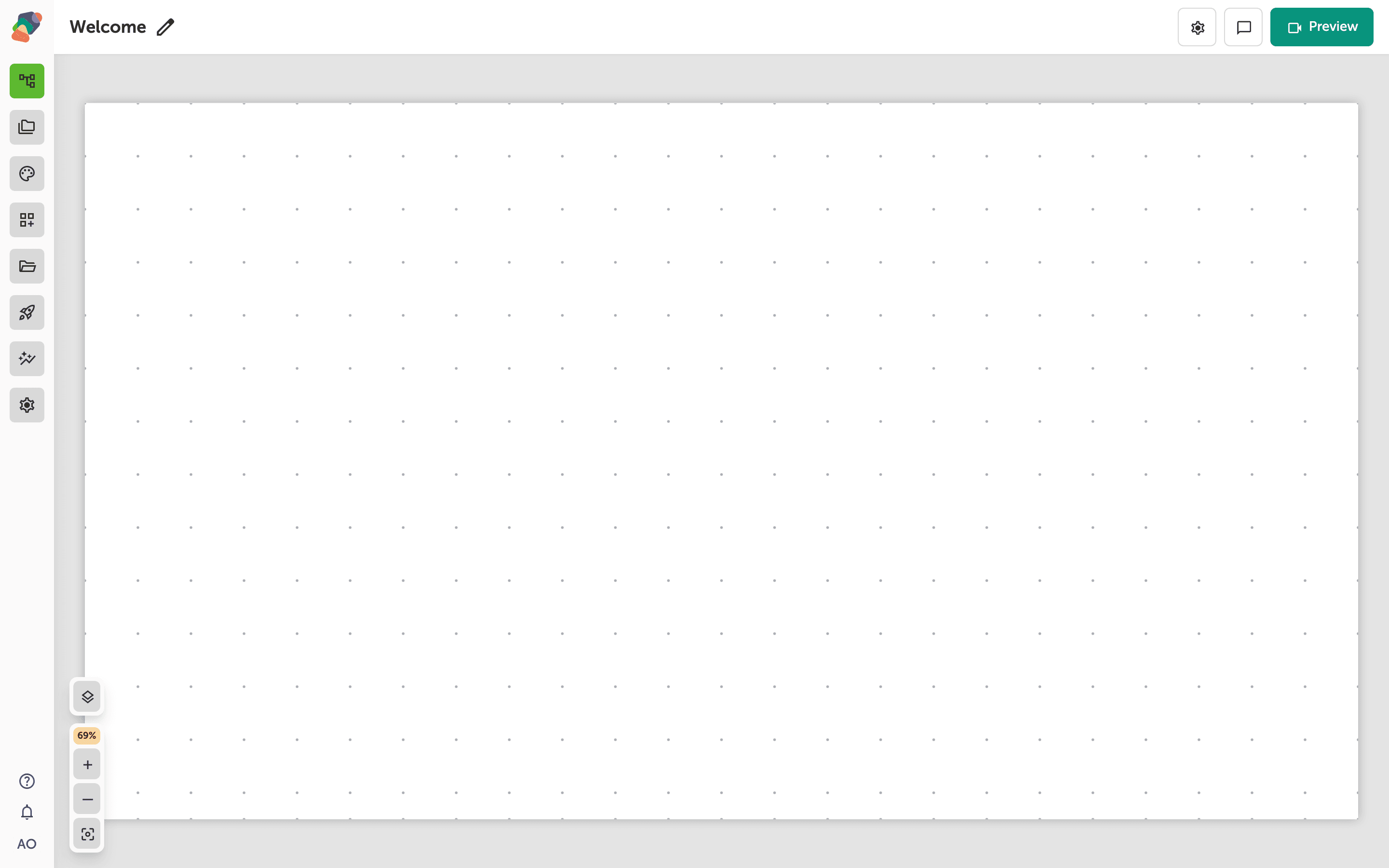
Open the view
You are in the View Editor. The grid is the screen visitors will see. Click a cell's Add component control to open the menu. Nothing you place is permanent — you can move it, restyle it, or delete it later.
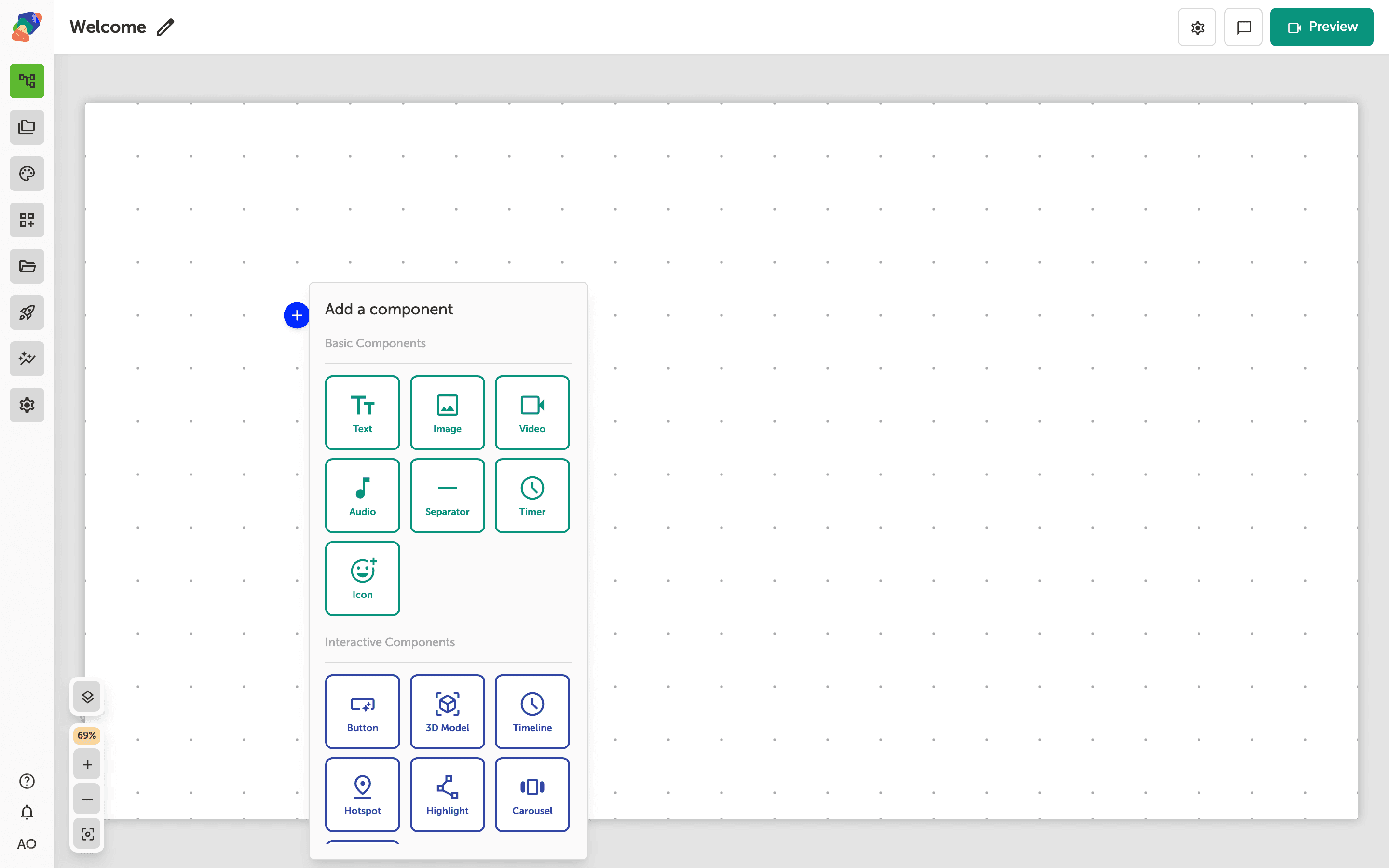
Choose Card
In the add menu, Card is under Layout Components. Click it to place the component on the cell you opened.
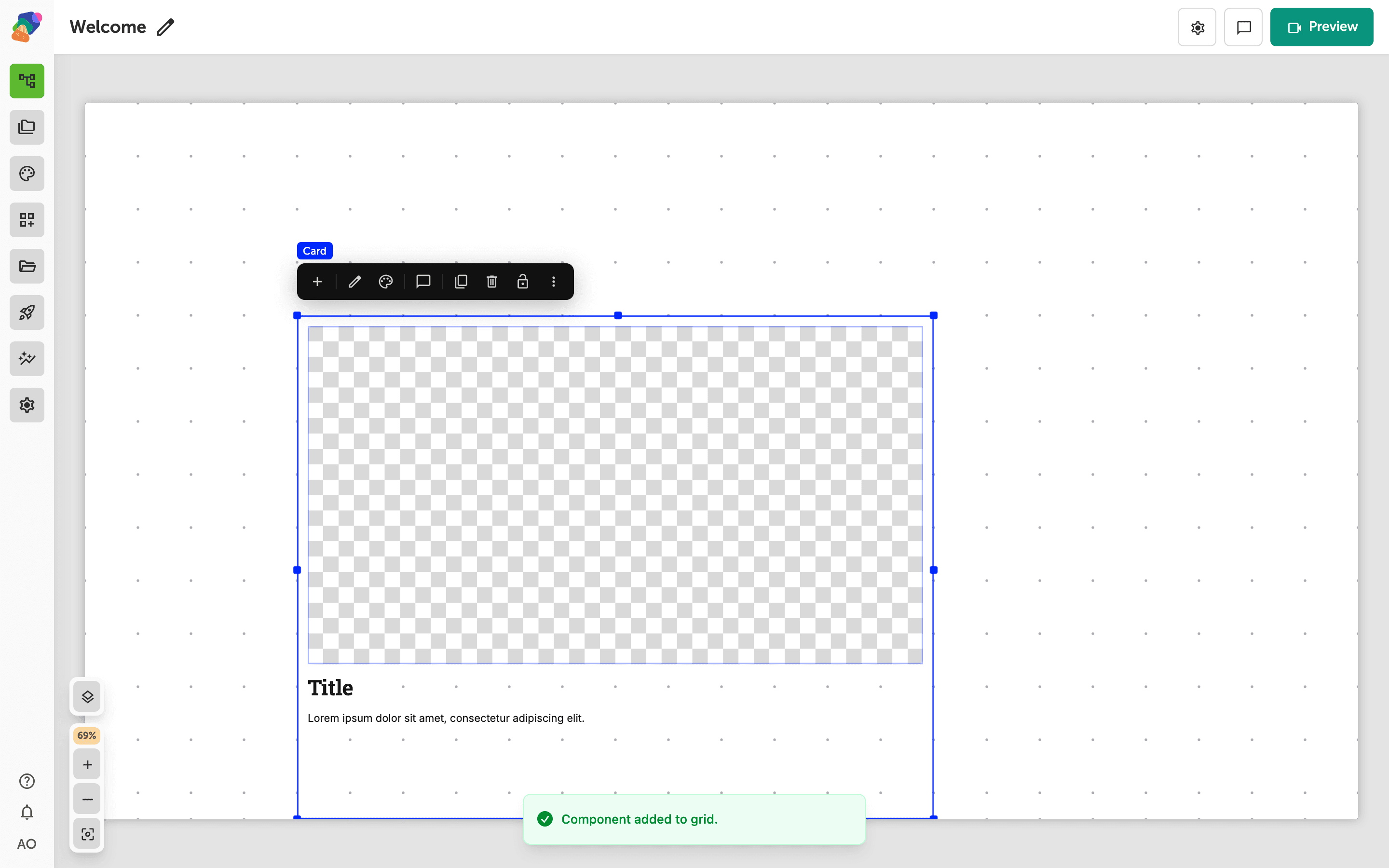
The component is on the grid
The card appears on the grid as a framed region. Select it and use Add child component to put a text block, an image, or a button inside. Keep the contents to what a card is for: one idea, one picture, one action.
Name the card
Select the component and open Edit content from the toolbar. In Details, Component Title is the name in the layers list, not necessarily the words visitors read. The visitor-facing title is a Text child. Style the surface from the card's style settings when it should match the rest of the theme.
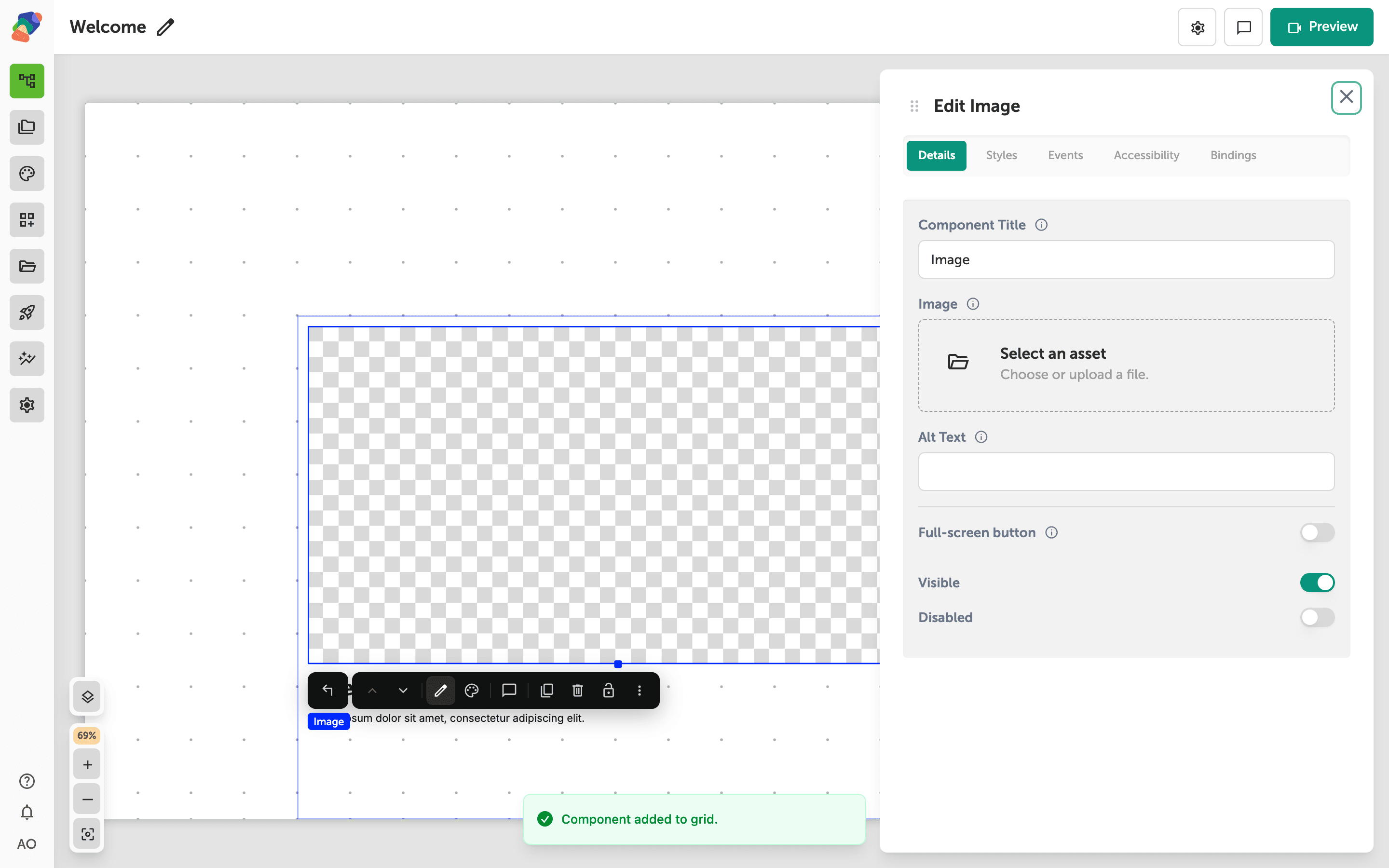
The frame is ready. Fill it from Add child component.