
Adding a Container
A Container groups other components so they move together — a caption under an image, a stack of labels, a card's insides. Children are added from the container, and the container decides whether they stack or sit on their own grid. You will add one and set that layout.
Open the view
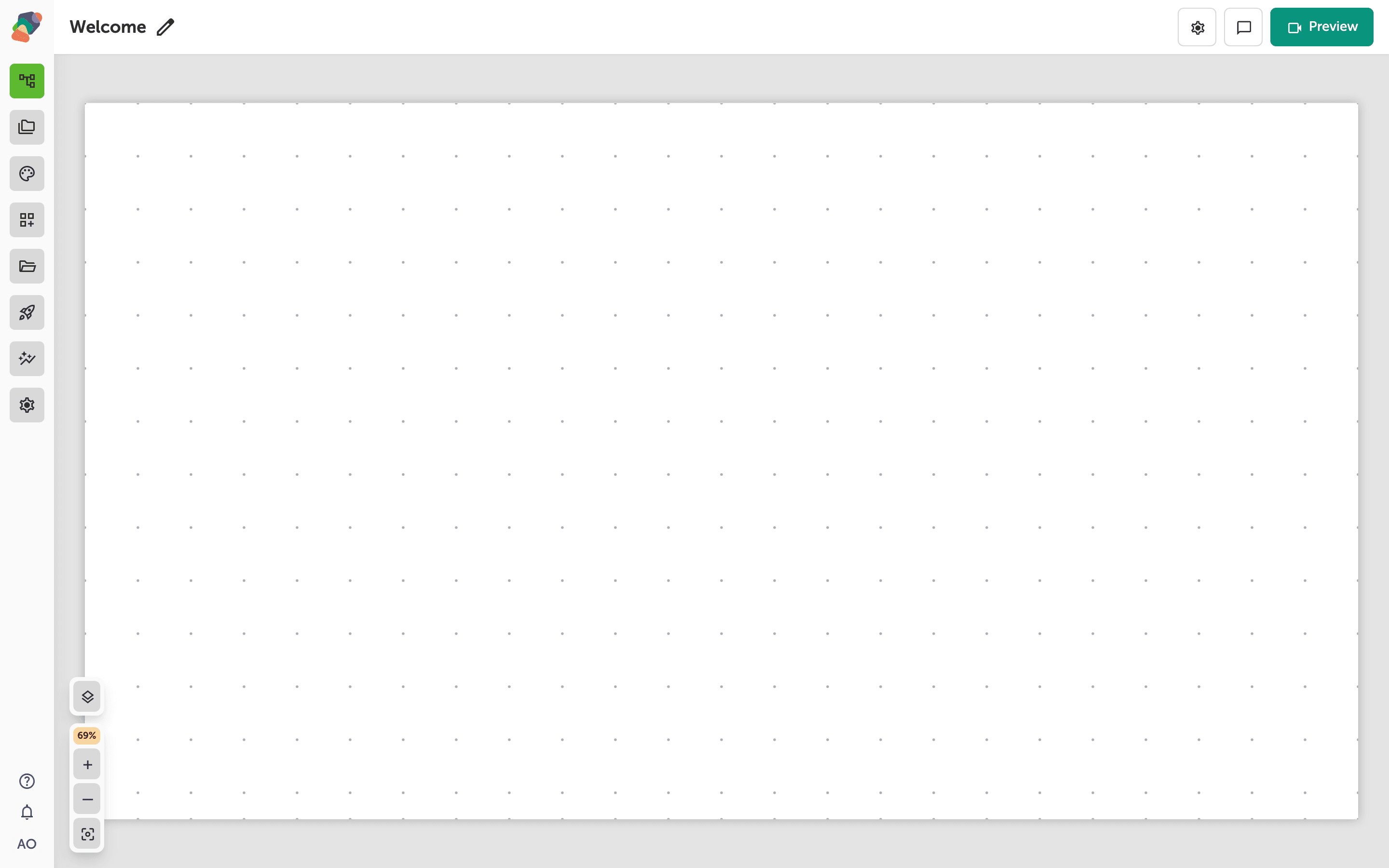
You are in the View Editor. The grid is the screen visitors will see. Click a cell's Add component control to open the menu. Nothing you place is permanent — you can move it, restyle it, or delete it later.
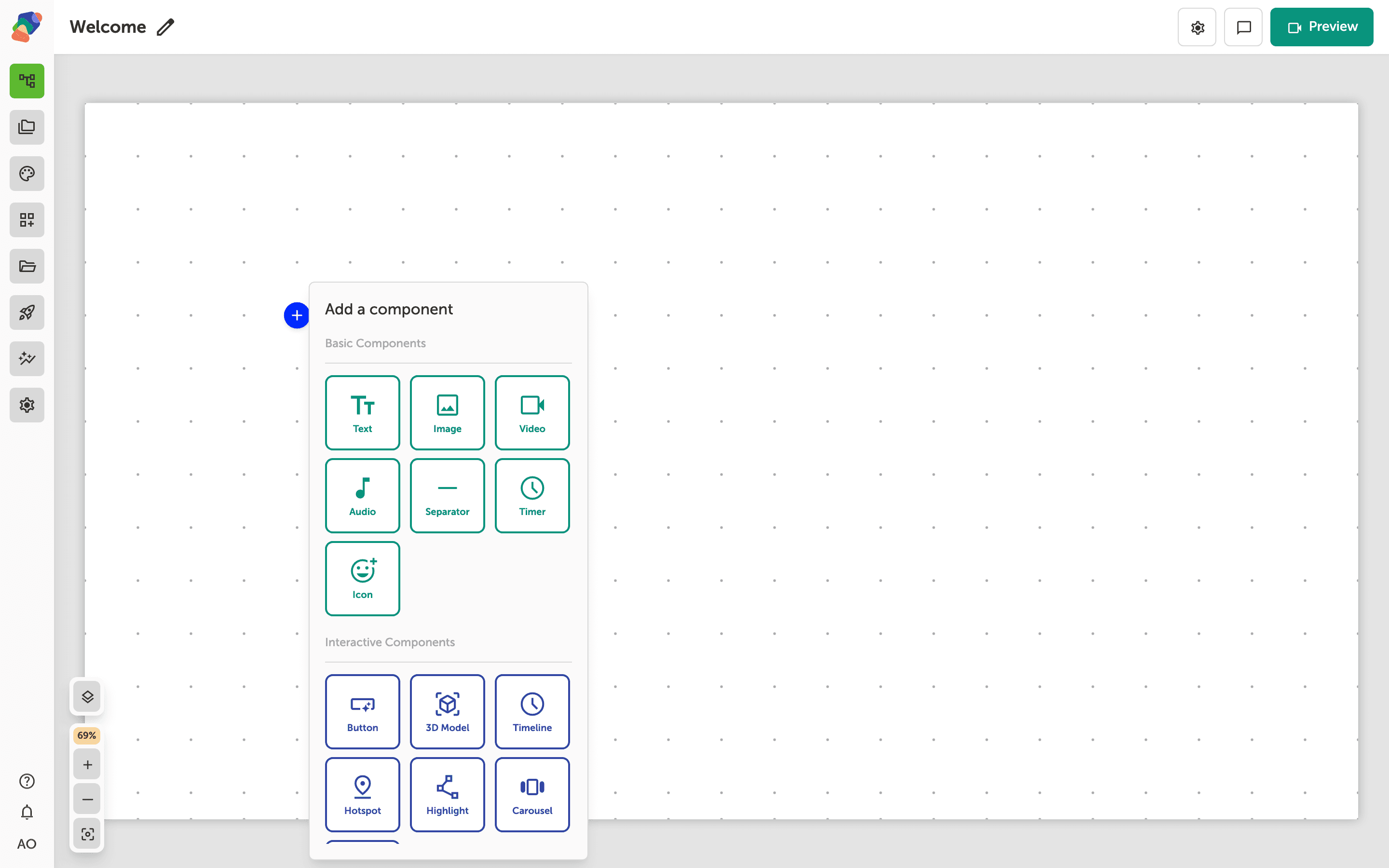
Choose Container
In the add menu, Container is under Layout Components. Click it to place the component on the cell you opened.
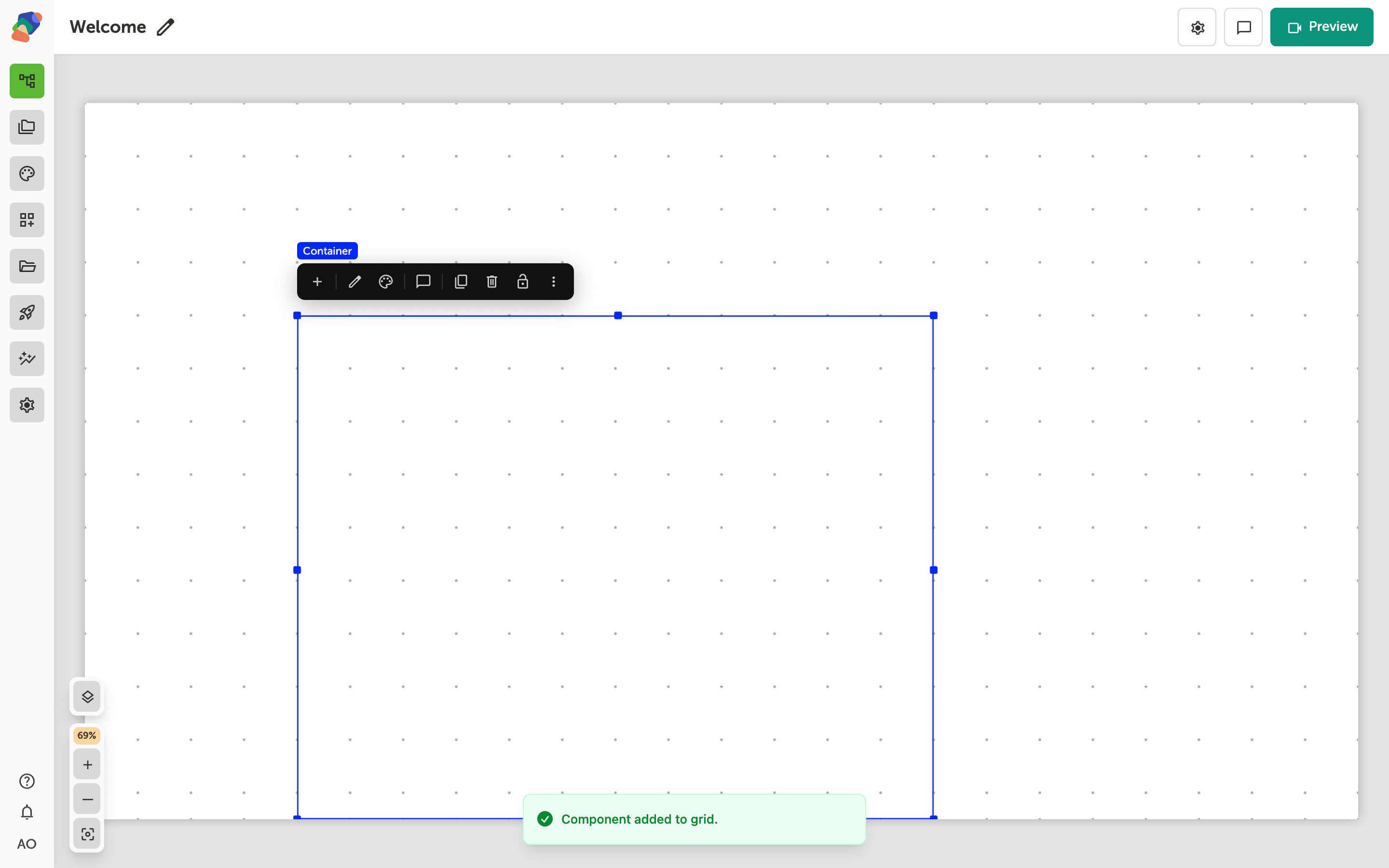
The component is on the grid
The container is an empty region on the grid. Resize it before you fill it. Select it and use Add child component to place text, images, and buttons inside. The menu on a container is Basic, Interactive, and Form components.
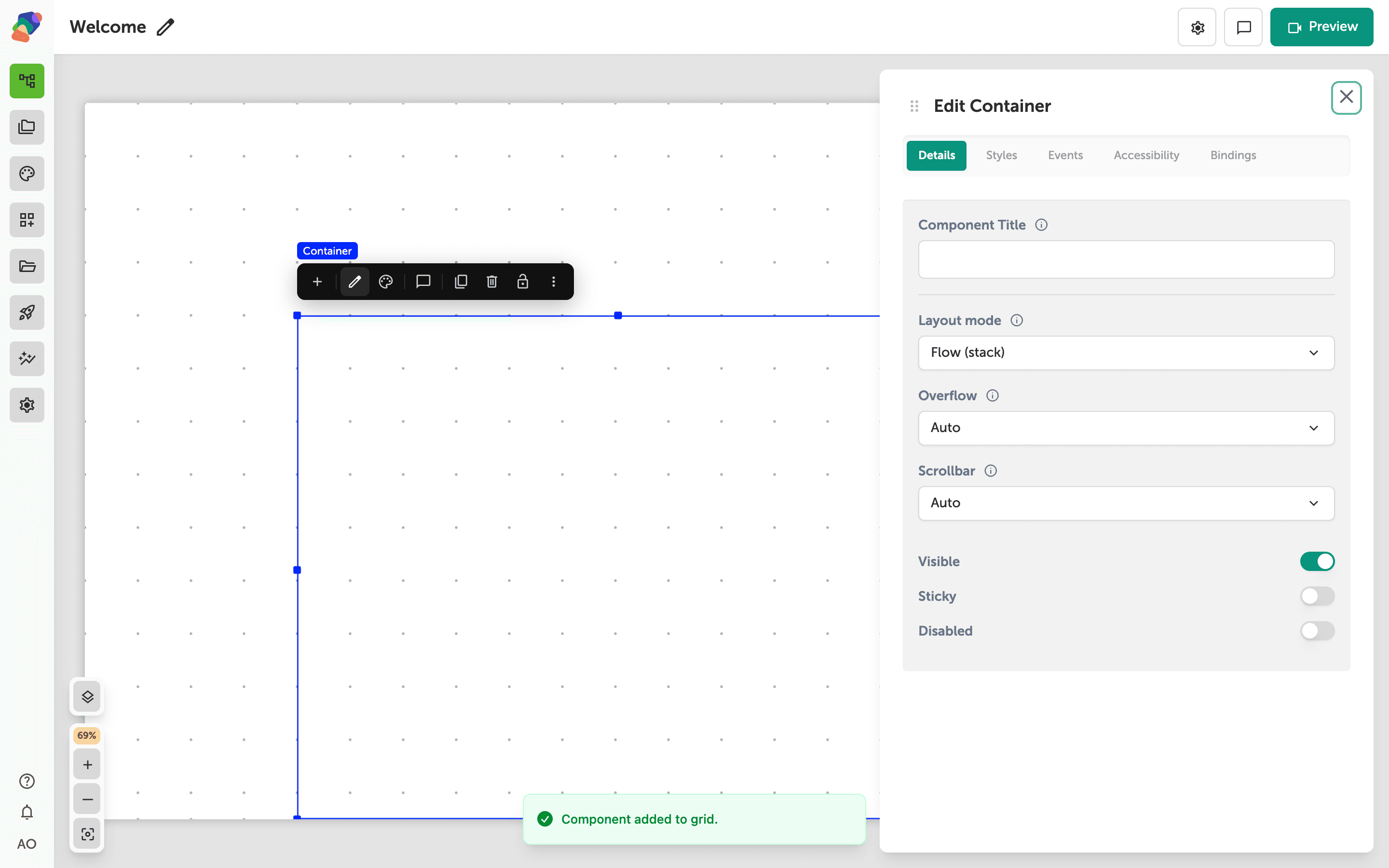
Choose flow or grid
Select the component and open Edit content from the toolbar. In Details, Layout mode is Flow (stack) or Grid (local placement). Flow stacks children in order, which is the right start for a column of text. Grid places each child on a local grid, which you want when the group is a composed layout. Overflow controls what happens when the stack is taller than the box: Auto scrolls, Fixed clips, Scroll keeps a scrollport.
The group is ready to fill. A card is the same idea with a themed surface. A form is the version that collects answers.