
Adding a Carousel
A Carousel is a row of slides — quotes, objects, steps — that visitors move through with arrows or dots. Each slide is a container the carousel creates for you. You will add the carousel and make a slide.
Open the view
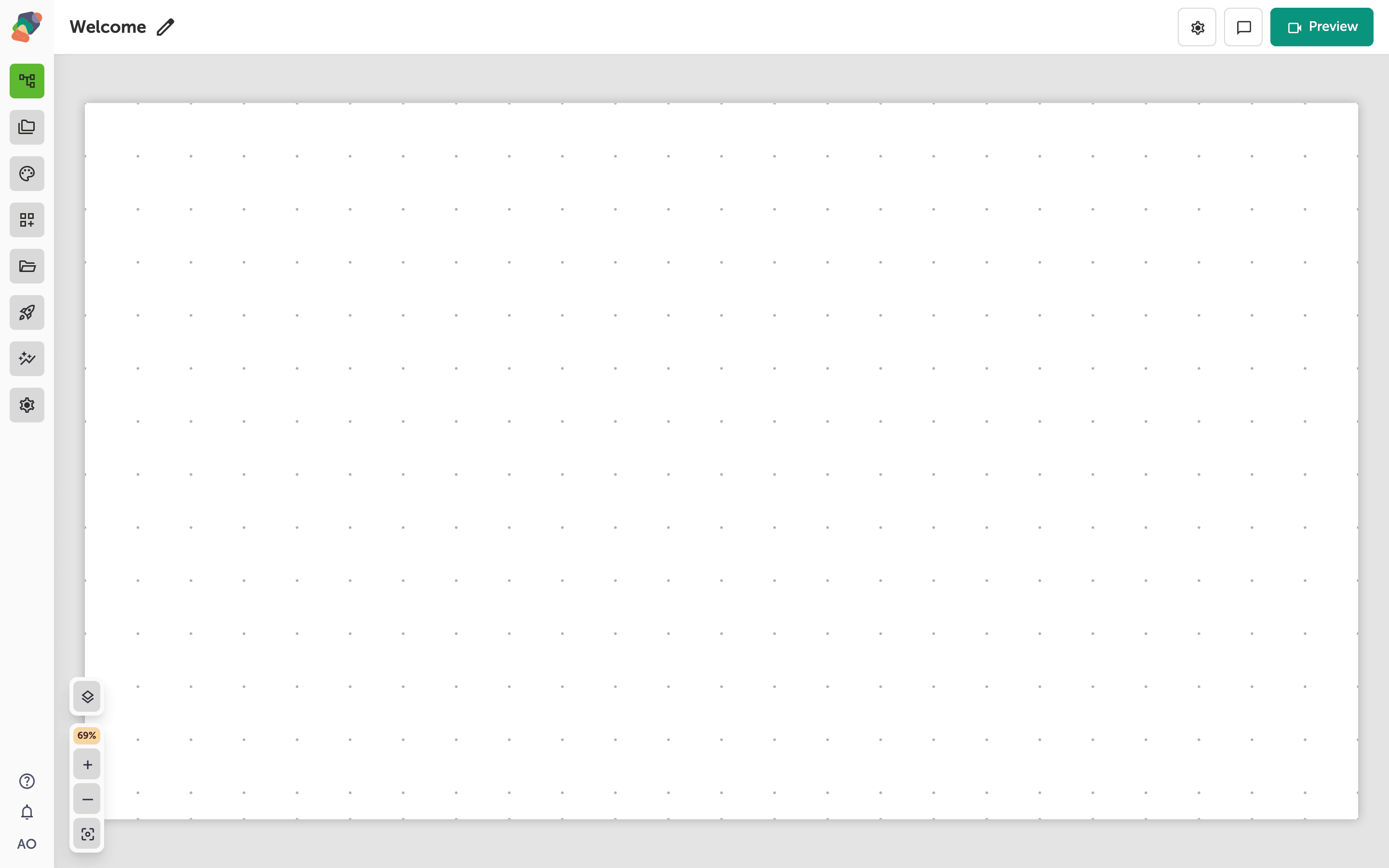
You are in the View Editor. The grid is the screen visitors will see. Click a cell's Add component control to open the menu. Nothing you place is permanent — you can move it, restyle it, or delete it later.
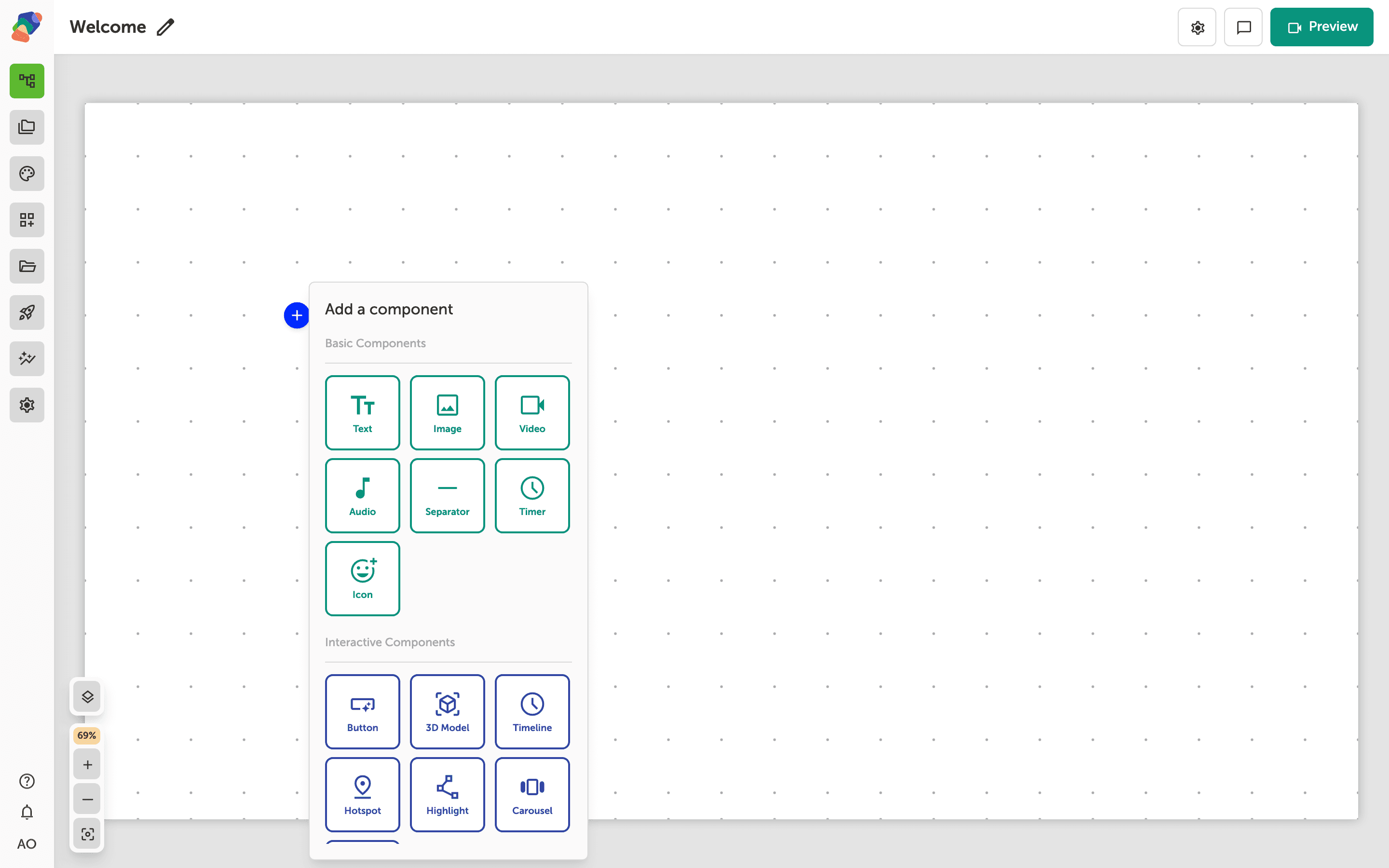
Choose Carousel
In the add menu, Carousel is under Interactive Components. Click it to place the component on the cell you opened.
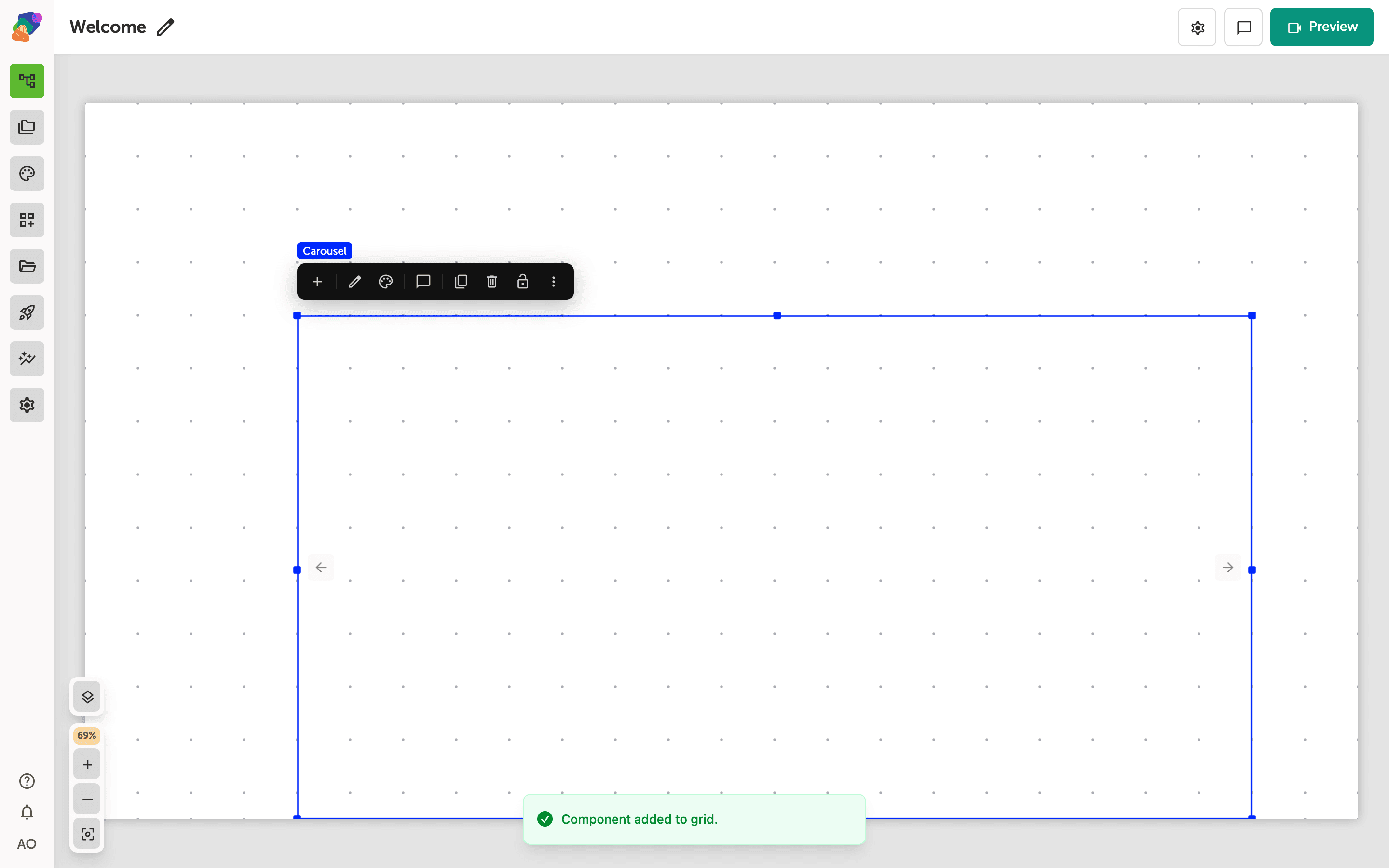
The component is on the grid
The carousel lands on the grid with its controls. Give it a wide, short cell if the slides are banners, or a taller cell if each slide is a card. Arrows and dots are toggles, not separate components.
Turn on arrows and dots, then add a slide
Select the component and open Edit content from the toolbar. In Details, Show controls is the arrows and Show indicators is the dots. Autoplay is a delay in seconds; leave it at 0 when visitors should advance the slides themselves. Select the carousel and click Add child component. That adds a slide immediately — there is no second menu. Put text and images inside the slide the same way you fill a container.
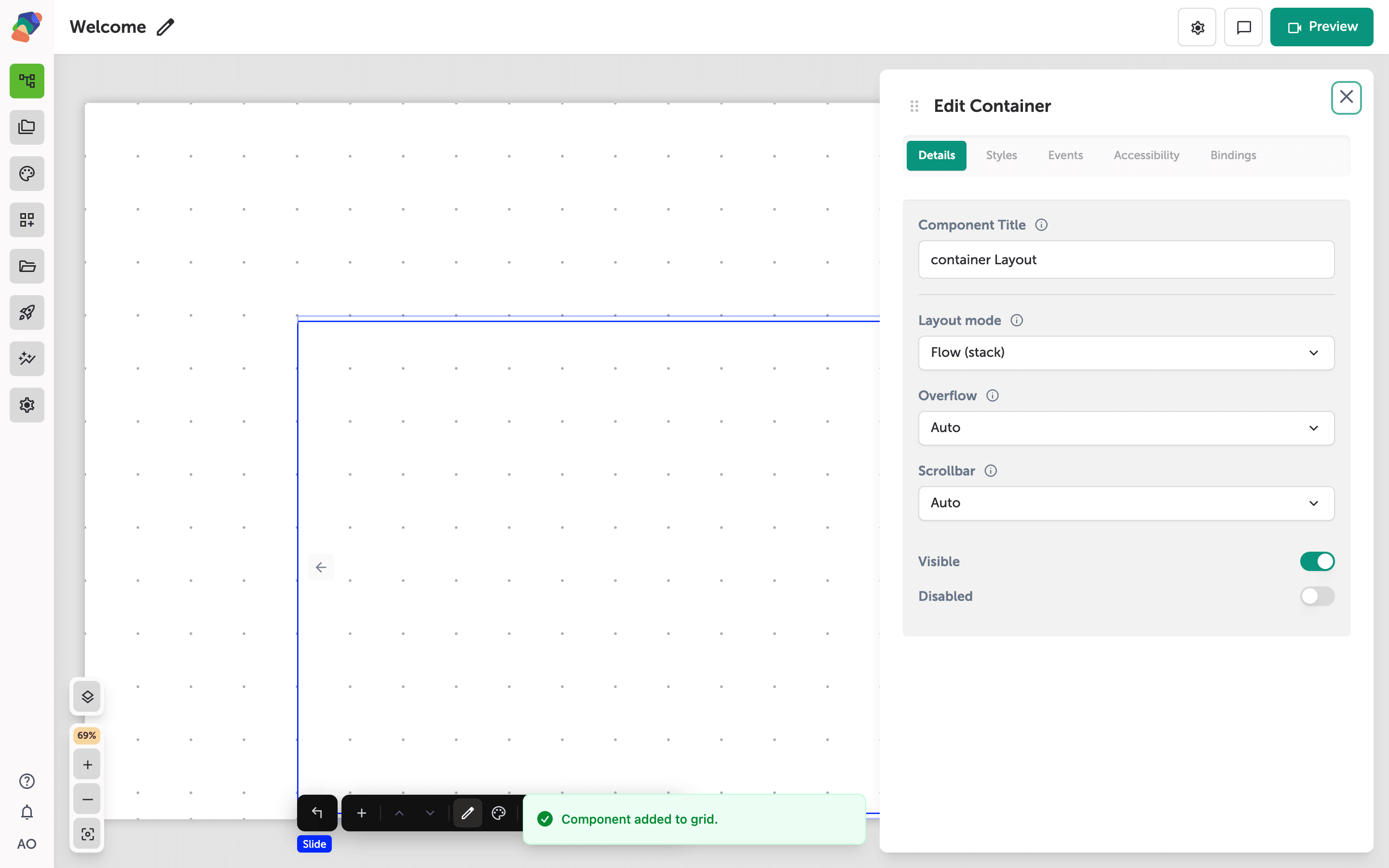
Each new slide is another click of Add child component. A book is the better component when the motion should be a page turn.