
Create a Page-Flip Book
A Book is a set of pages visitors flip by dragging a page or tapping a corner. Each page is filled like a container: text, images, and other components sit on that page. You will add a book, add a page, and choose whether visitors see one page or a spread.
Open the view
Open the view that should hold the book. Give it a large region of the grid — a page turn needs room.
Add a Book
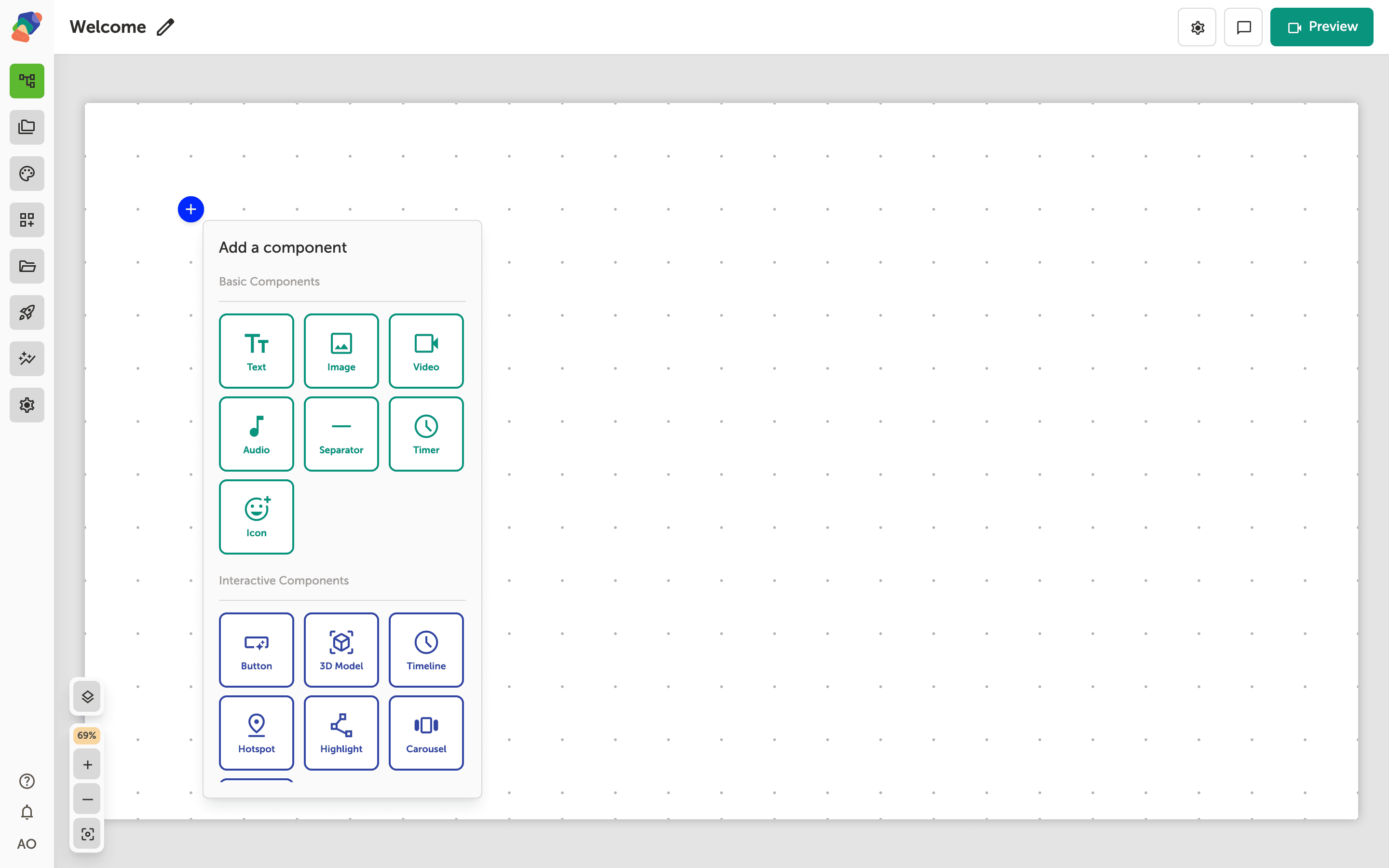
Under Interactive Components, click Book.
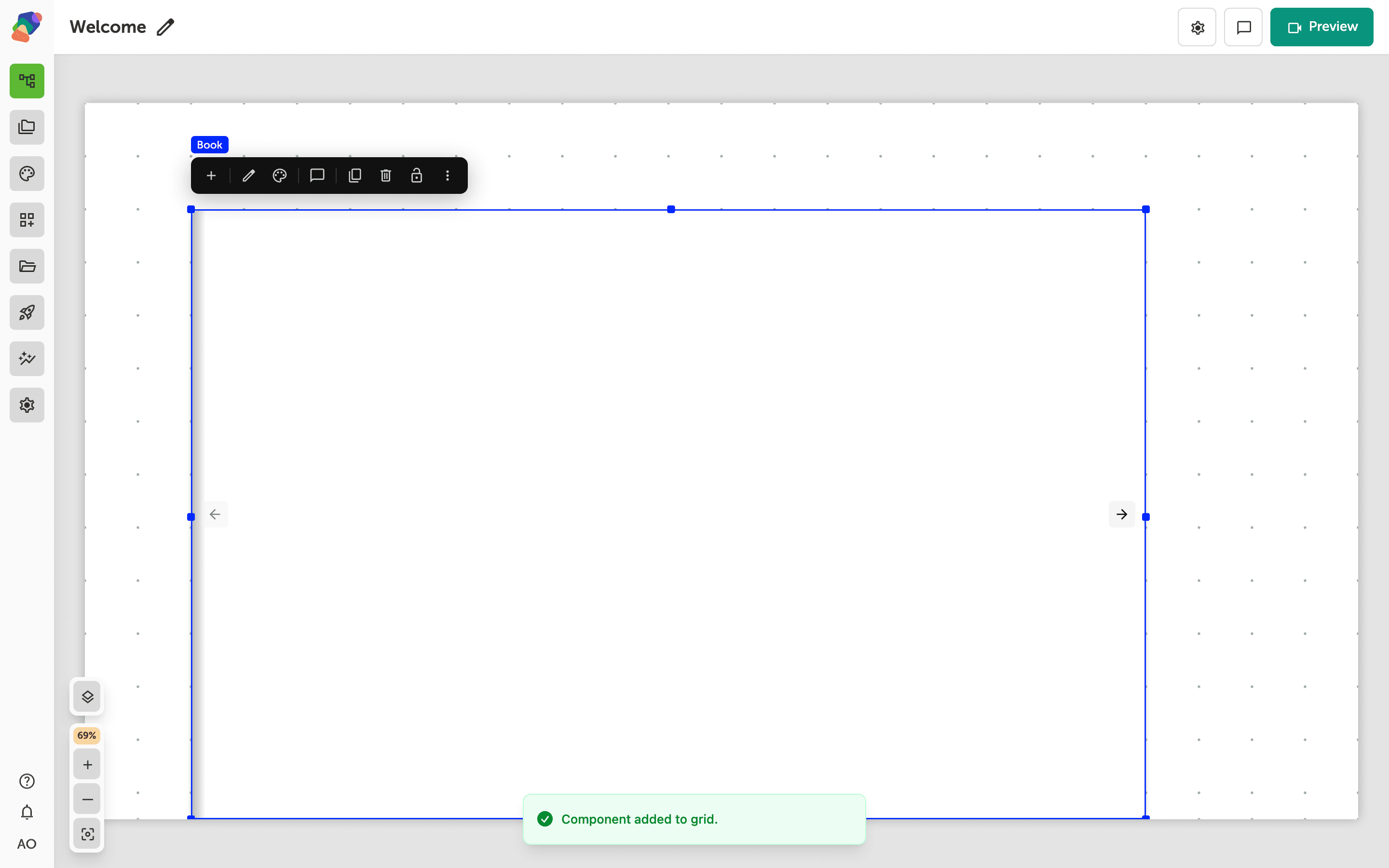
The book is on the grid
The book appears with its first pages. Select a page and use Add child component on that page to place text and images. A page stacks children in flow, or you can switch that page's Layout mode to grid when the page is a composed layout rather than a column of text.
Choose a single page or a spread
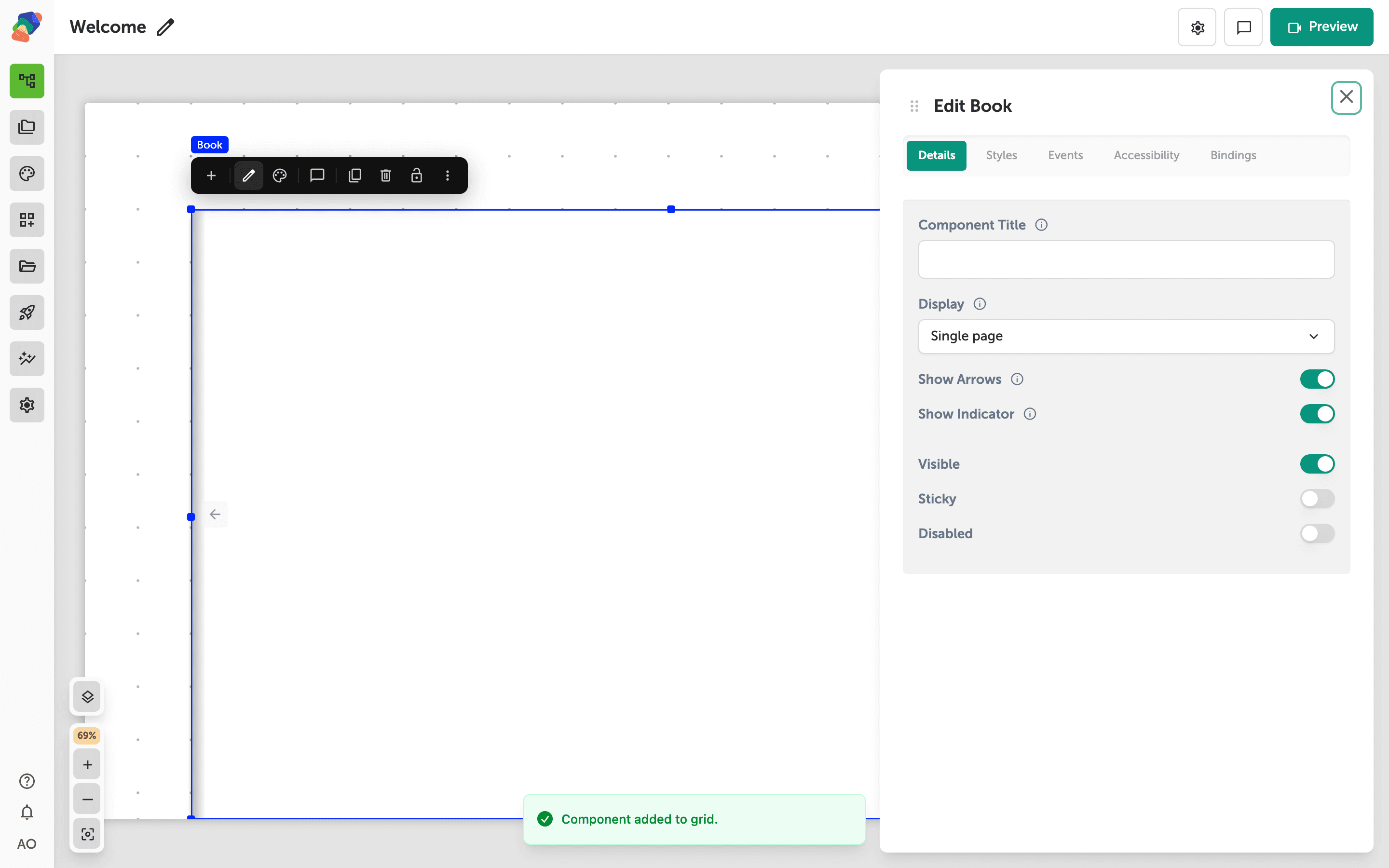
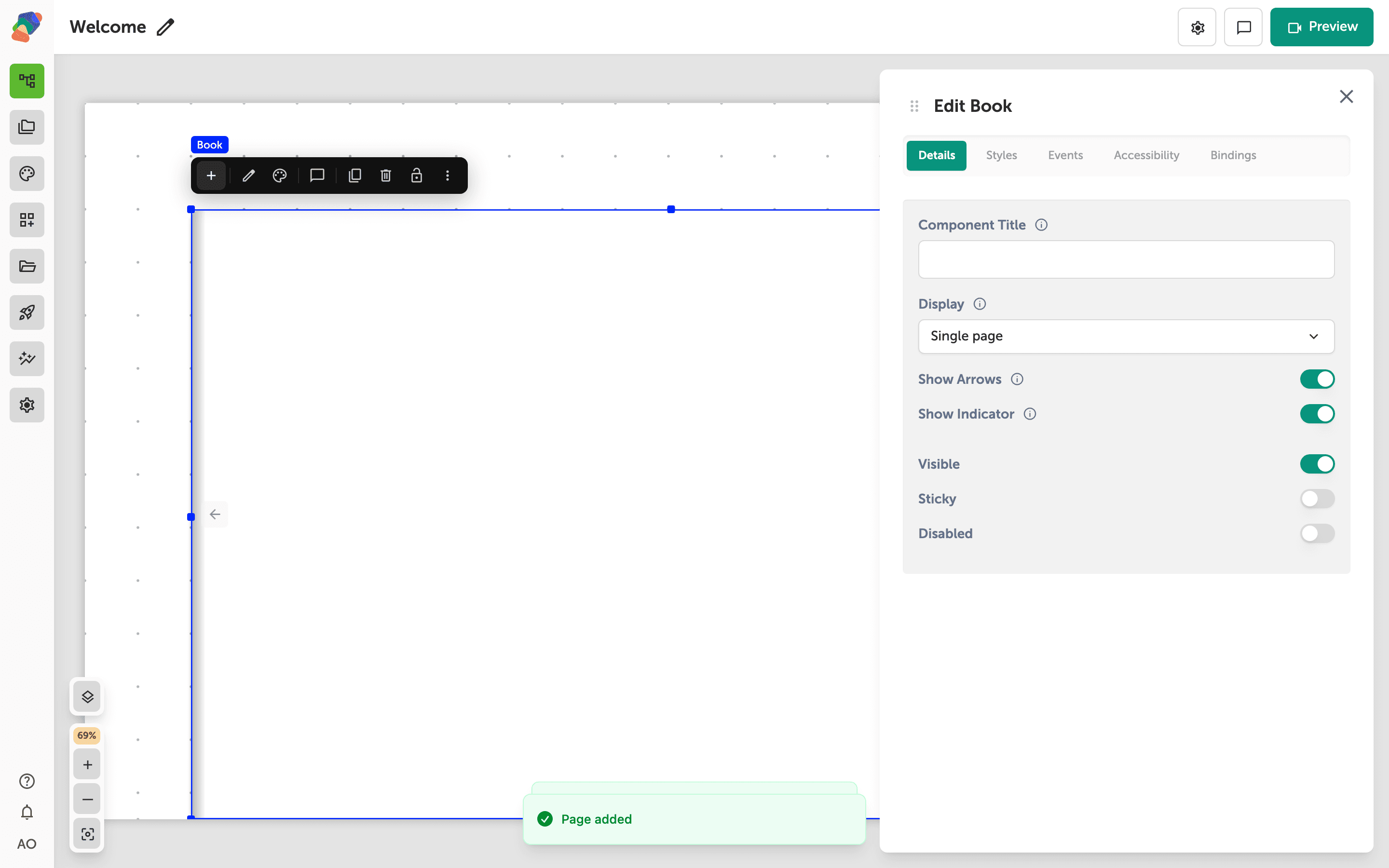
Select the book and open Details.
- Display — Single page turns one leaf. Two-page spread opens with the first page alone, as a cover, and then shows two pages.
- Show Arrows turns the previous and next arrows on or off.
- Show Indicator turns the page dots on or off.
Visitors can still drag a page corner when the arrows are hidden.
Add another page
Select the book and click Add child component. A book adds the next page immediately. There is no second menu. Reorder pages from the layers list if the sequence is wrong. Don't worry about finishing every page before you preview — an empty page still turns.
Preview the view and flip with a drag and with a corner tap. The indicator, if you left it on, shows which page is open.