
Adding a Choice
A Choice is how visitors pick from a list — one answer, several answers, or a dropdown. It is a form field, separate from a free-text Input. You will add one, set the kind of control, and edit the options.
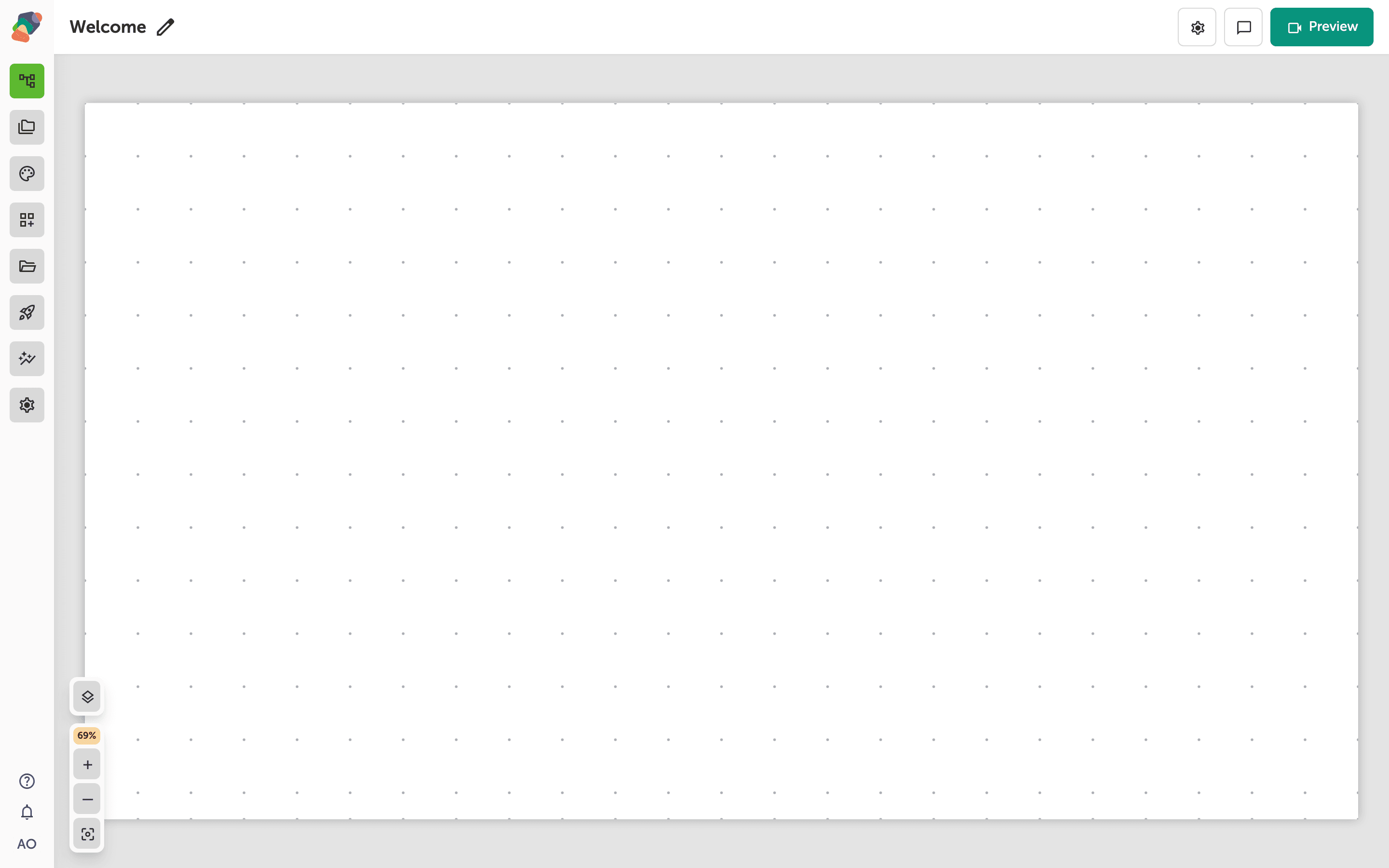
Open the view
You are in the View Editor. The grid is the screen visitors will see. Click a cell's Add component control to open the menu. Nothing you place is permanent — you can move it, restyle it, or delete it later.
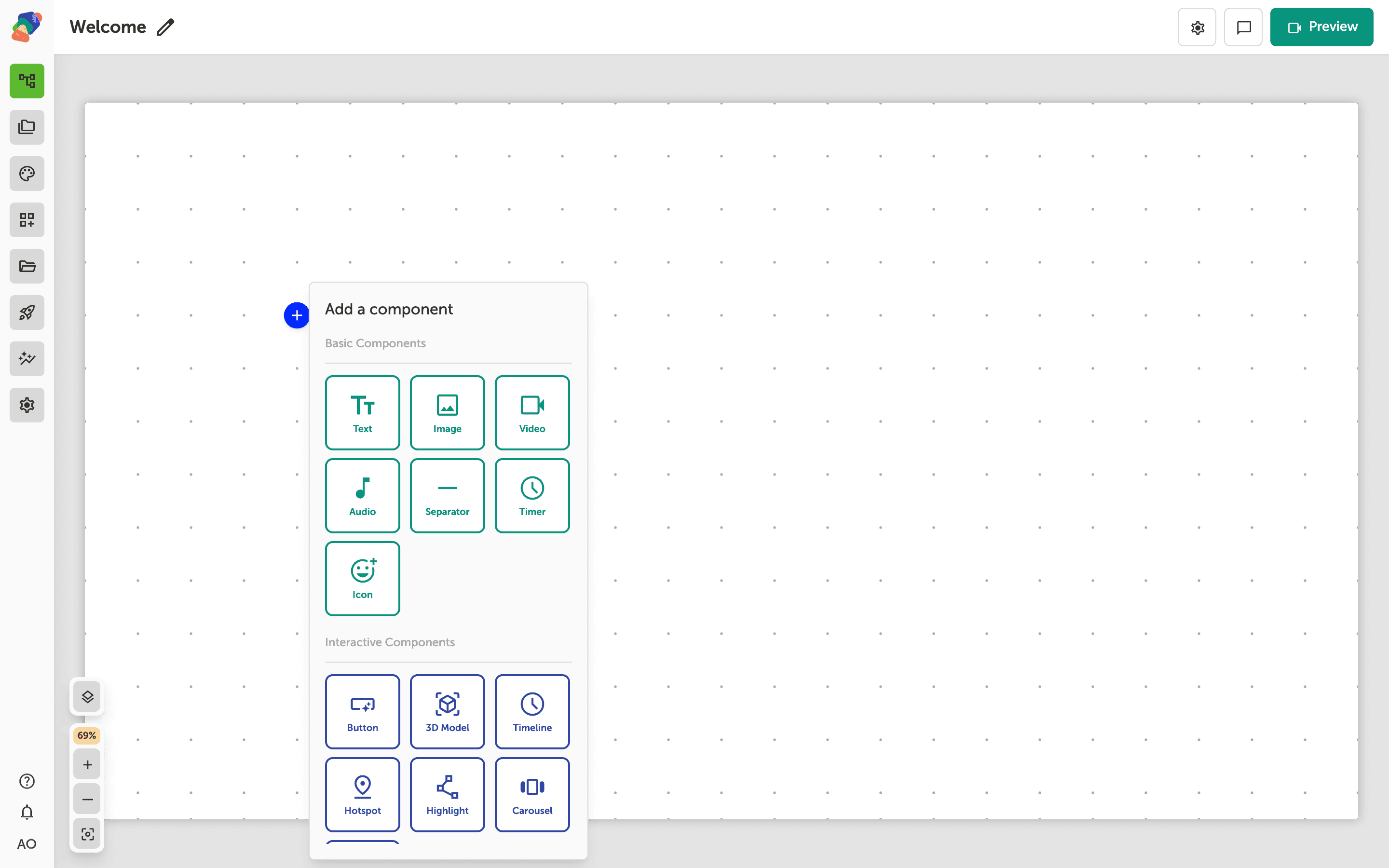
Choose Choice
In the add menu, Choice is under Form Components. Click it to place the component on the cell you opened.
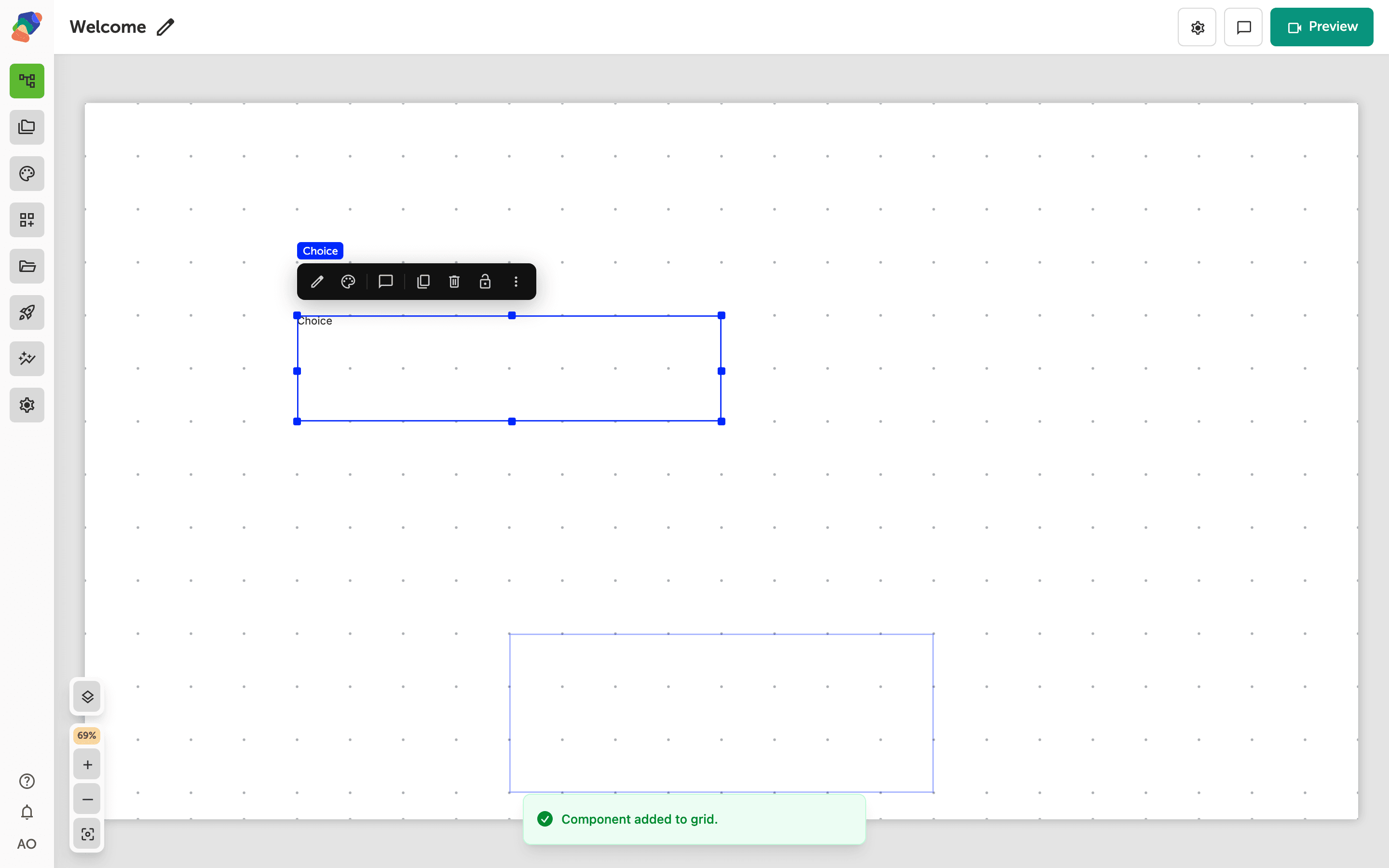
The component is on the grid
The choice lands with two options, Option A and Option B. Place it inside a Form when the answer should be stored with the rest of a submission. On its own, it still shows the control, but a form is what groups it with a submit button.
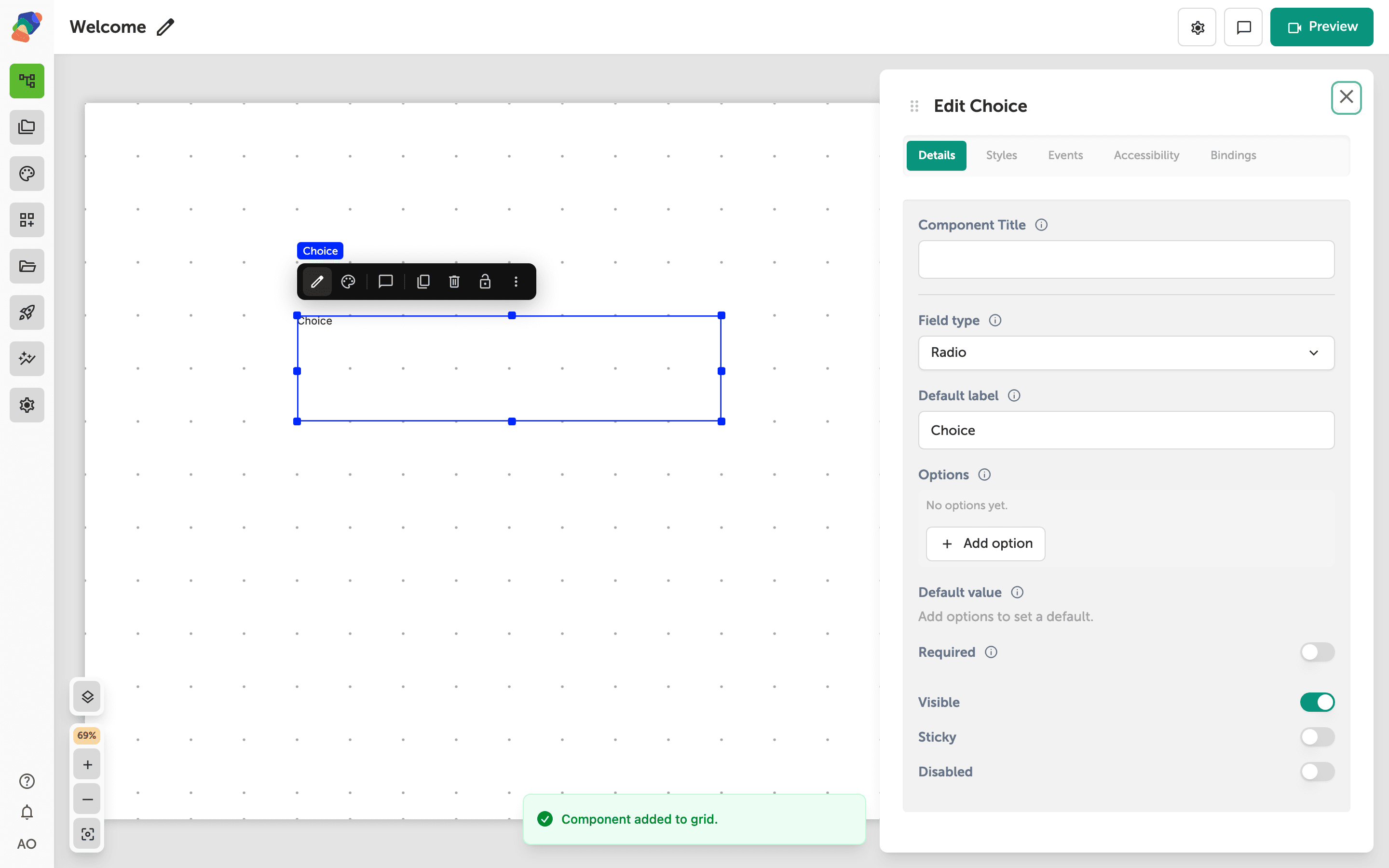
Set the field type and the options
Select the component and open Edit content from the toolbar. In Details, Field type is Radio (one answer), Checkbox (several), or Select (a dropdown). Default label is the question visitors read. Options is the list of choices — change the labels, and keep the stored value stable if you have already collected answers. Turn Required on when the question cannot be skipped.
The question is on the view. Put it in a form when the answer should be saved to a collection.