
Adding a Header
A Header is the bar that stays at the top of a view — a title, a logo, a way home. Buttons inside it are added from the header, not from the main grid menu. You will place the header and see where those buttons go.
Open the view
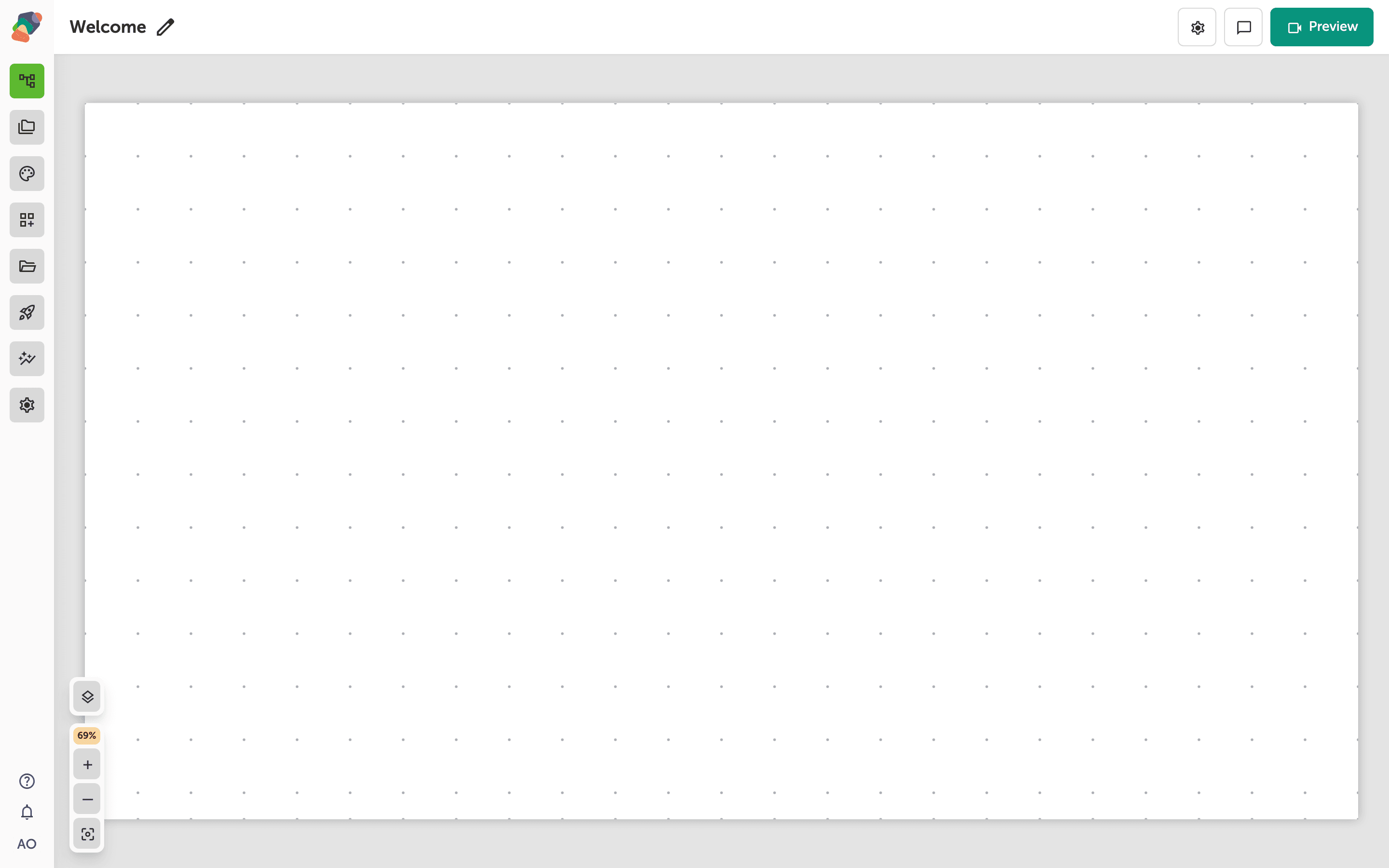
You are in the View Editor. The grid is the screen visitors will see. Click a cell's Add component control to open the menu. Nothing you place is permanent — you can move it, restyle it, or delete it later.
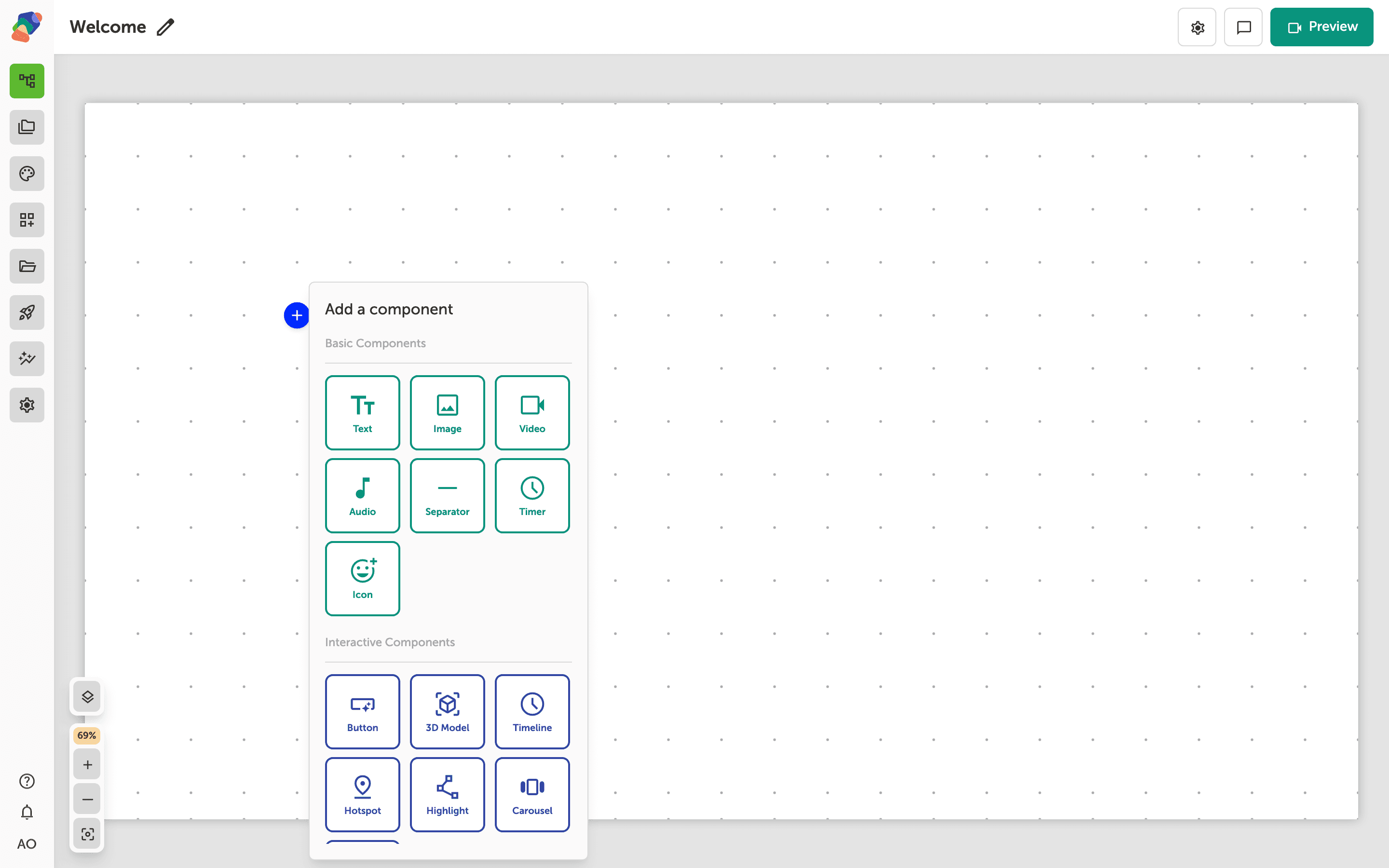
Choose Header
In the add menu, Header is under Layout Components. Click it to place the component on the cell you opened.
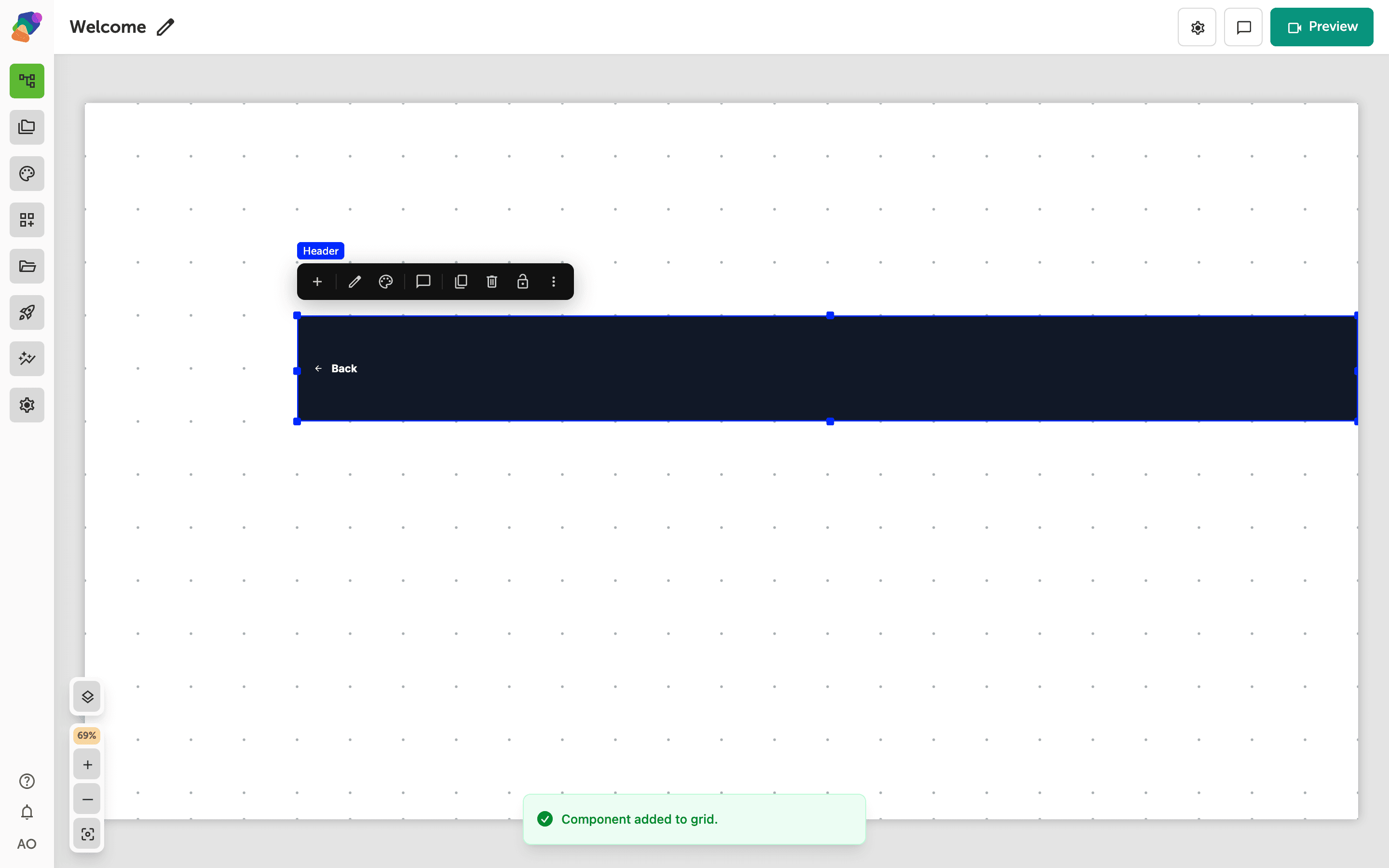
The component is on the grid
The header spans a row of the grid. Keep it short so the content under it still has room. Select it when you want to drop a button into the bar.
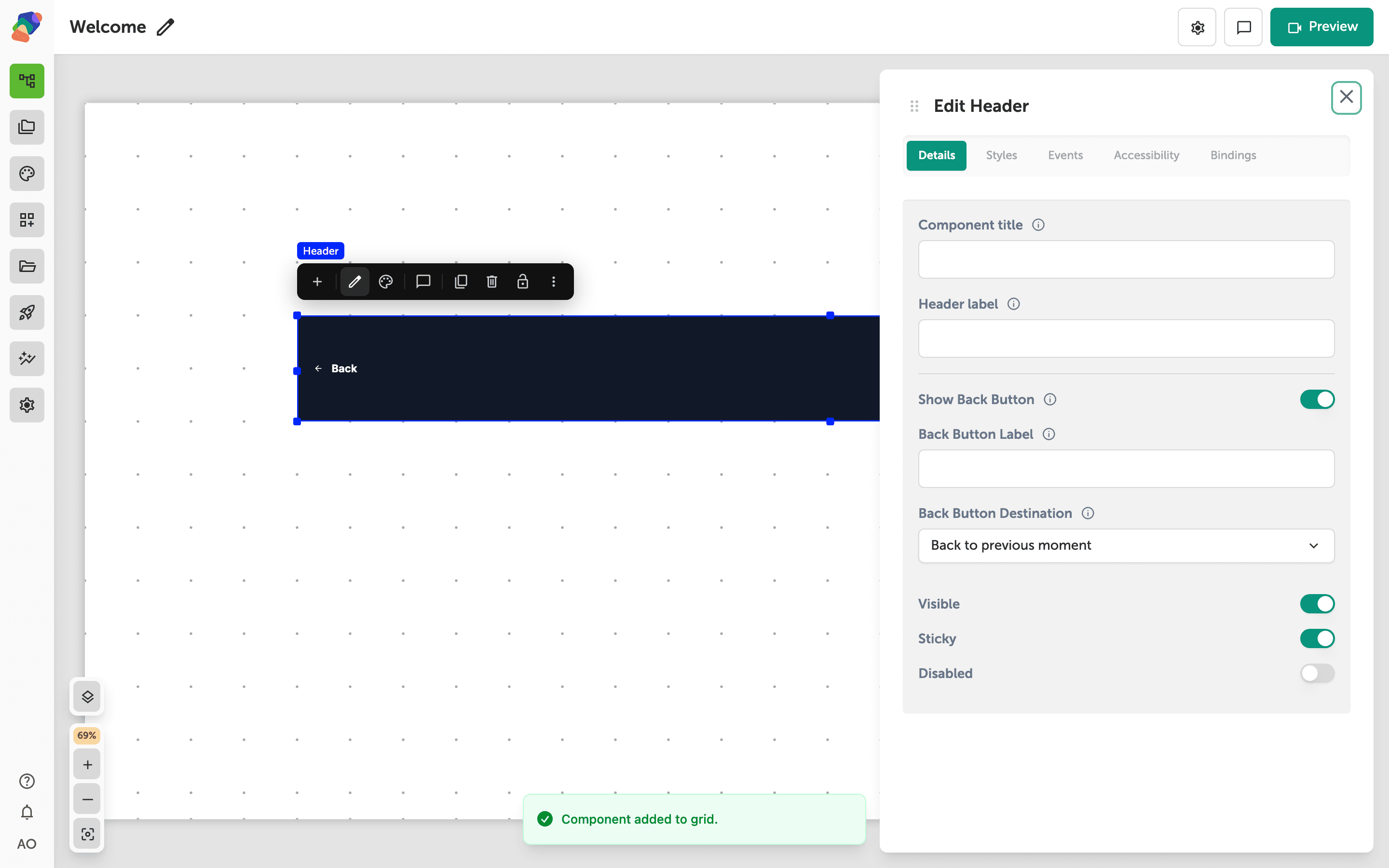
Title the header
Select the component and open Edit content from the toolbar. In Details, set Title to the words in the bar. To add a control, select the header and click Add child component. That menu offers Button only. The button's label and its Go to a moment event work the same as a button on the grid.
The bar is in place. The button you add inside it is how visitors leave this screen.