
Adding a Highlight
A Highlight draws attention to a region of an image — the signature on a document, the clasp on a brooch — without making that region a button. You will add one and position it over the picture.
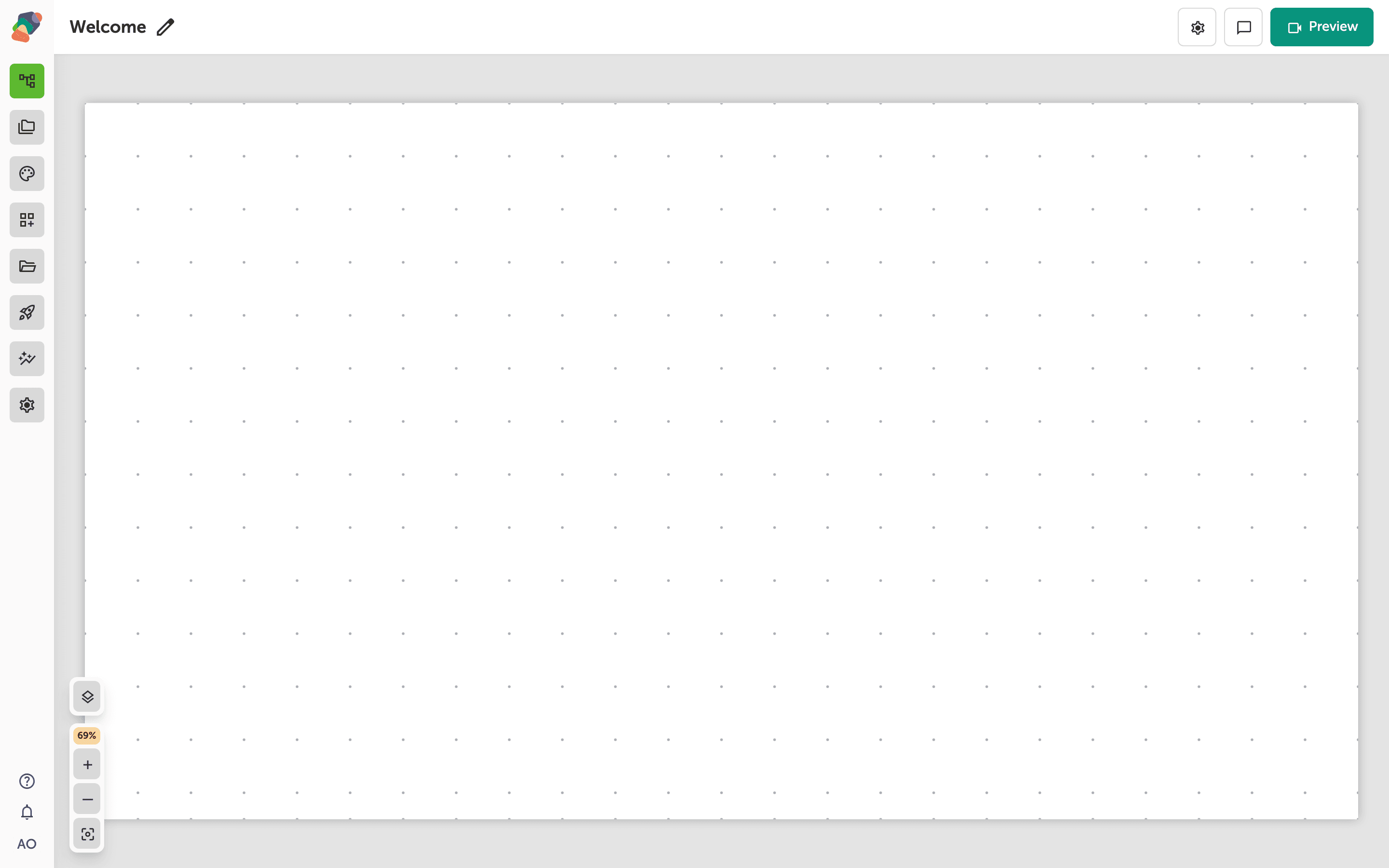
Open the view
You are in the View Editor. The grid is the screen visitors will see. Click a cell's Add component control to open the menu. Nothing you place is permanent — you can move it, restyle it, or delete it later.
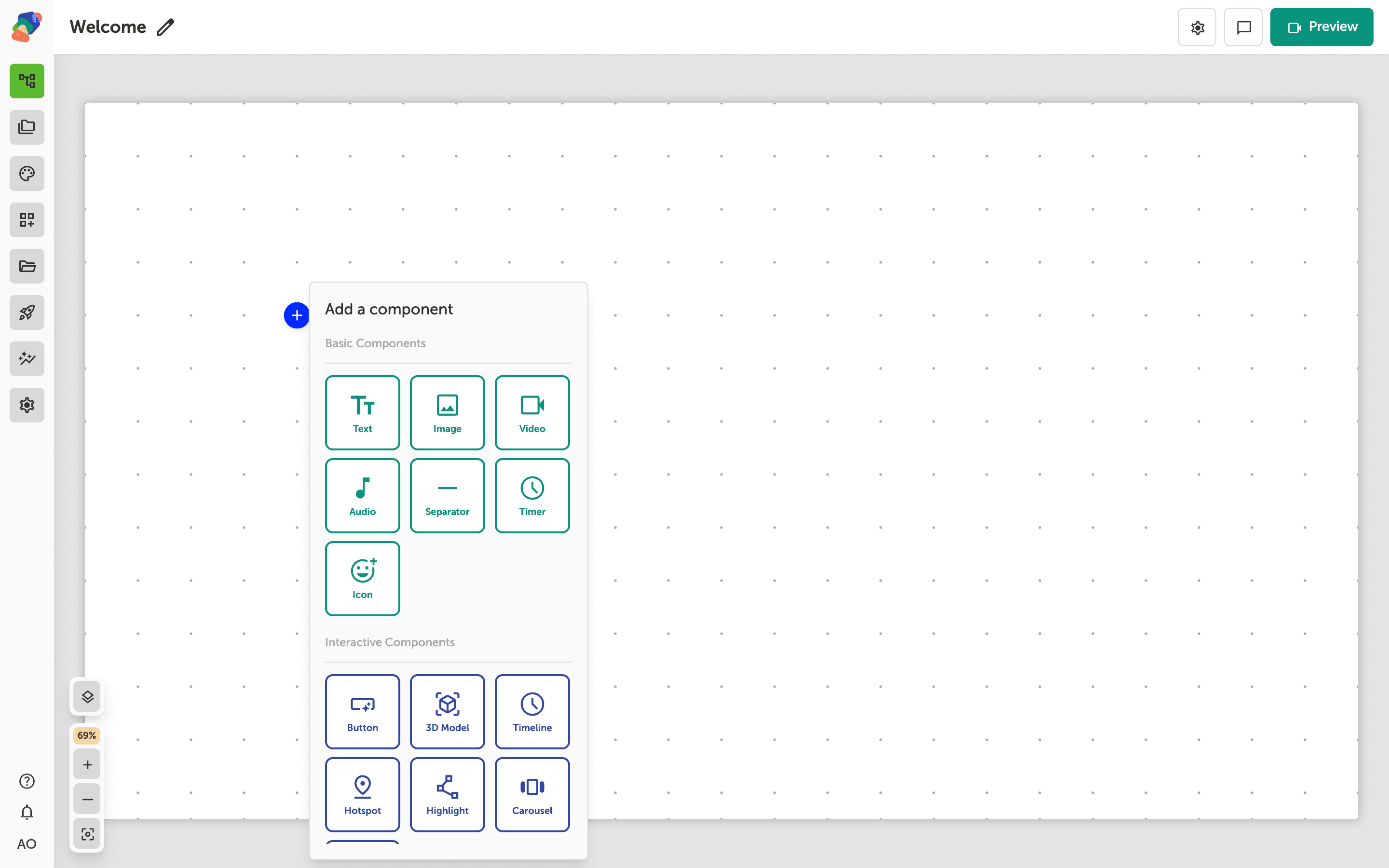
Choose Highlight
In the add menu, Highlight is under Interactive Components. Click it to place the component on the cell you opened.
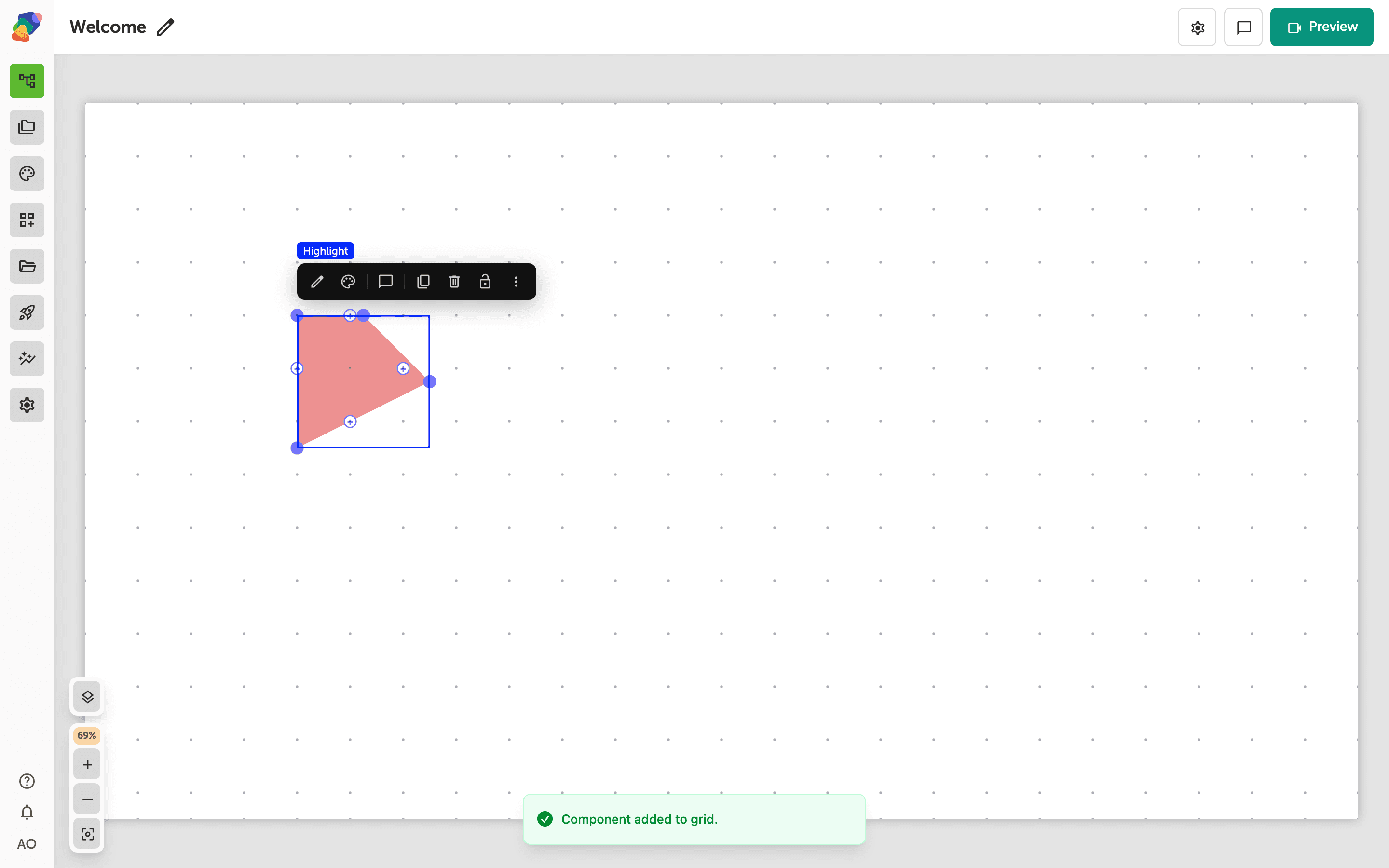
The component is on the grid
The highlight lands on the grid as a shape you can move and resize. Place it over the image it belongs to. It is a sibling you align by eye on a flat image, not a pin that orbits with a 3D model.
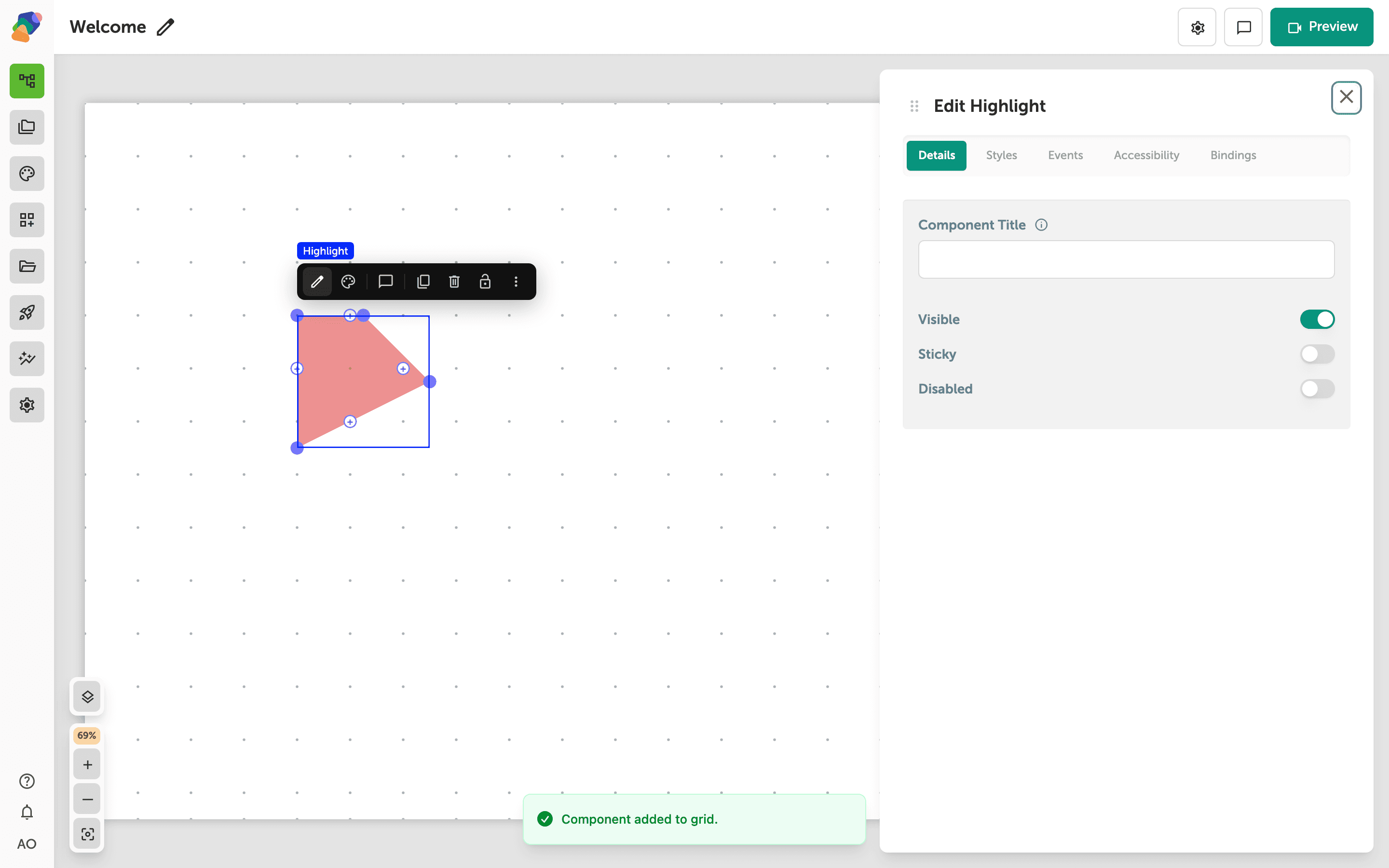
Name the region
Select the component and open Edit content from the toolbar. In Details, set Component Title to the part of the picture you marked. Position fields record where the shape sits. If the region should also be tappable, add an event the same way you would on a button.
The region is marked. A hotspot is the better tool when the mark should be a single tappable point.