
Adding a Rating
A Rating is a score — stars, steps, a simple scale — rather than a sentence. Use it for “how was this stop” on a tour, or a preference inside a form. You will add one and set the scale.
Open the view
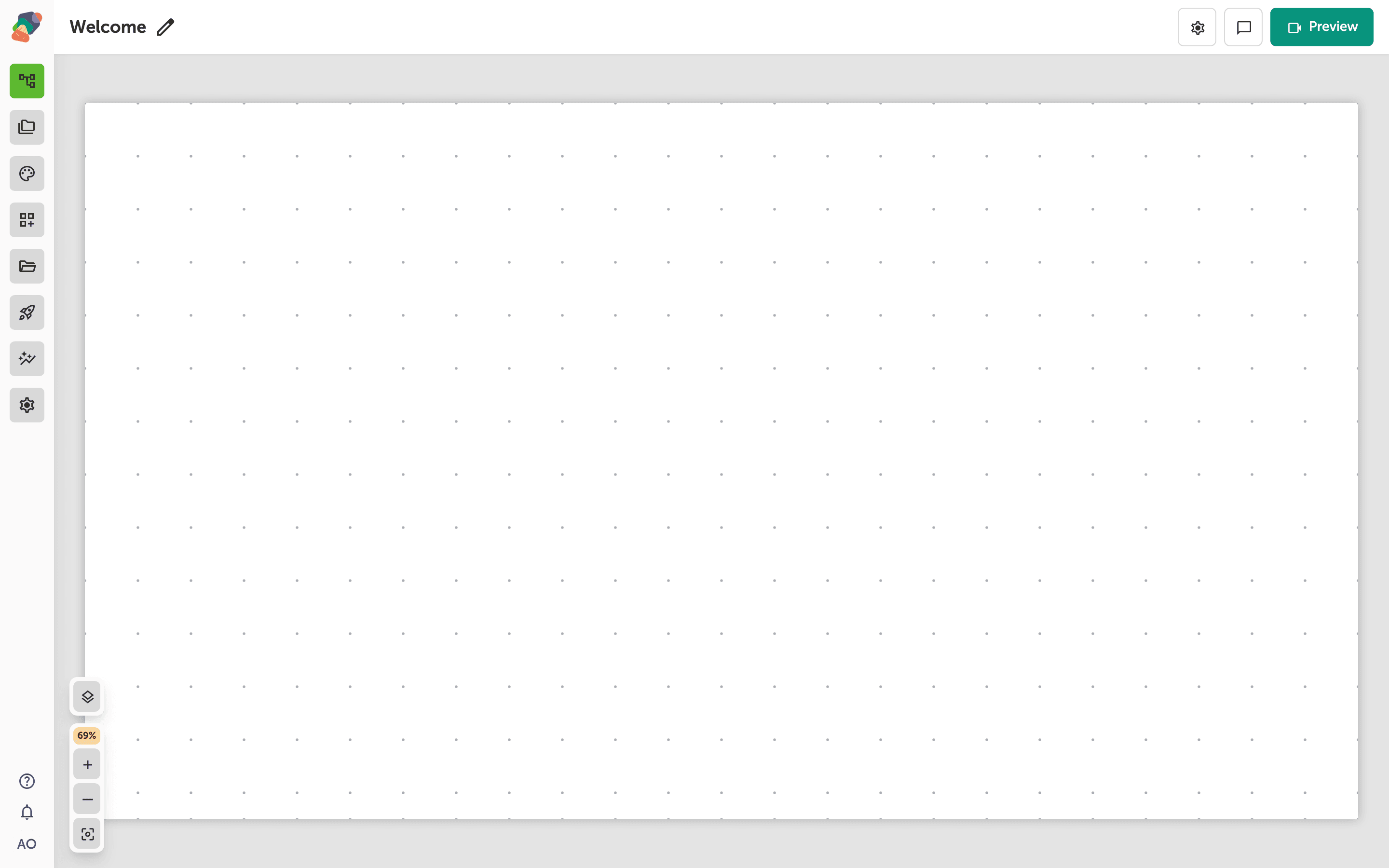
You are in the View Editor. The grid is the screen visitors will see. Click a cell's Add component control to open the menu. Nothing you place is permanent — you can move it, restyle it, or delete it later.
Choose Rating
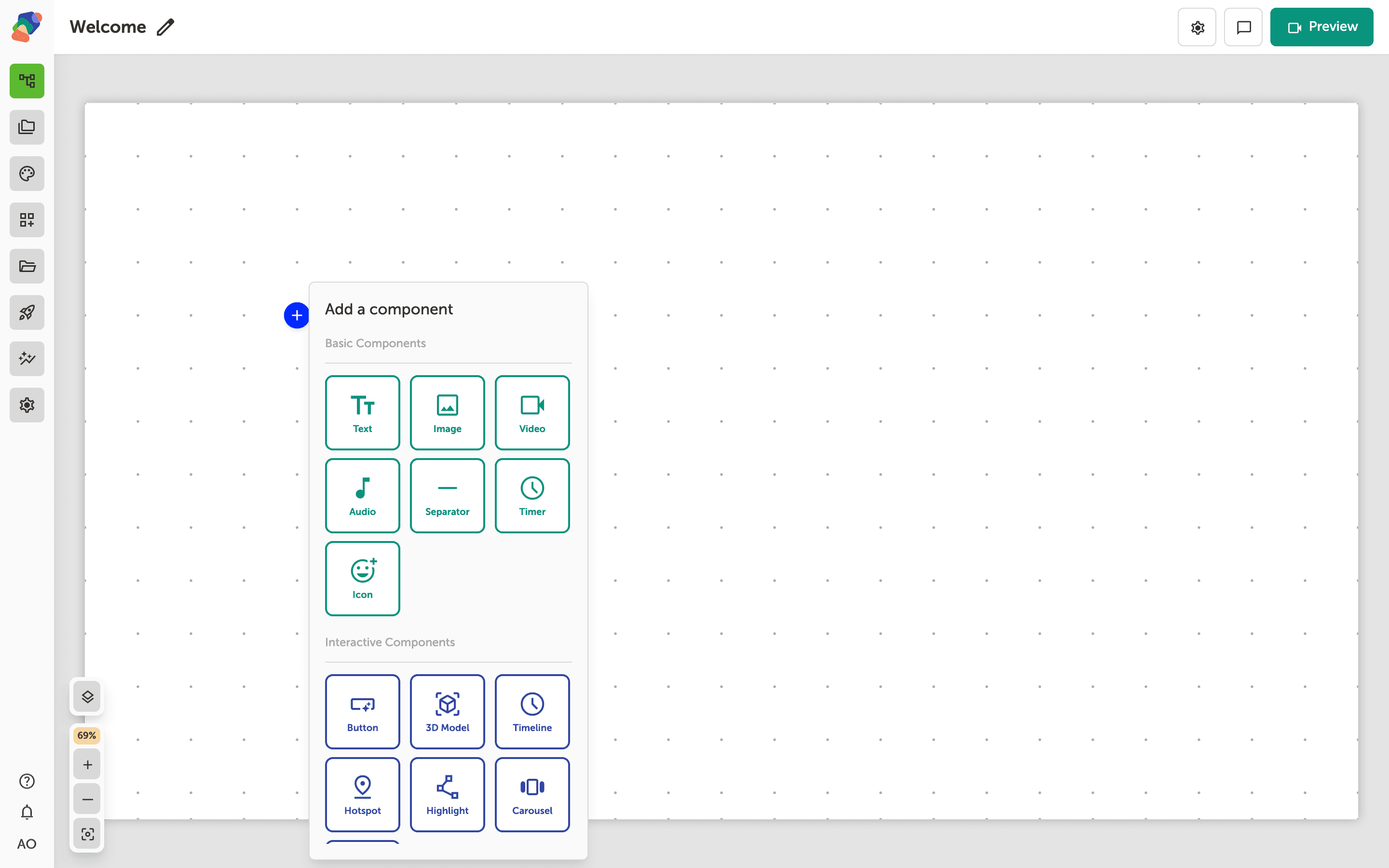
In the add menu, Rating is under Form Components. Click it to place the component on the cell you opened.
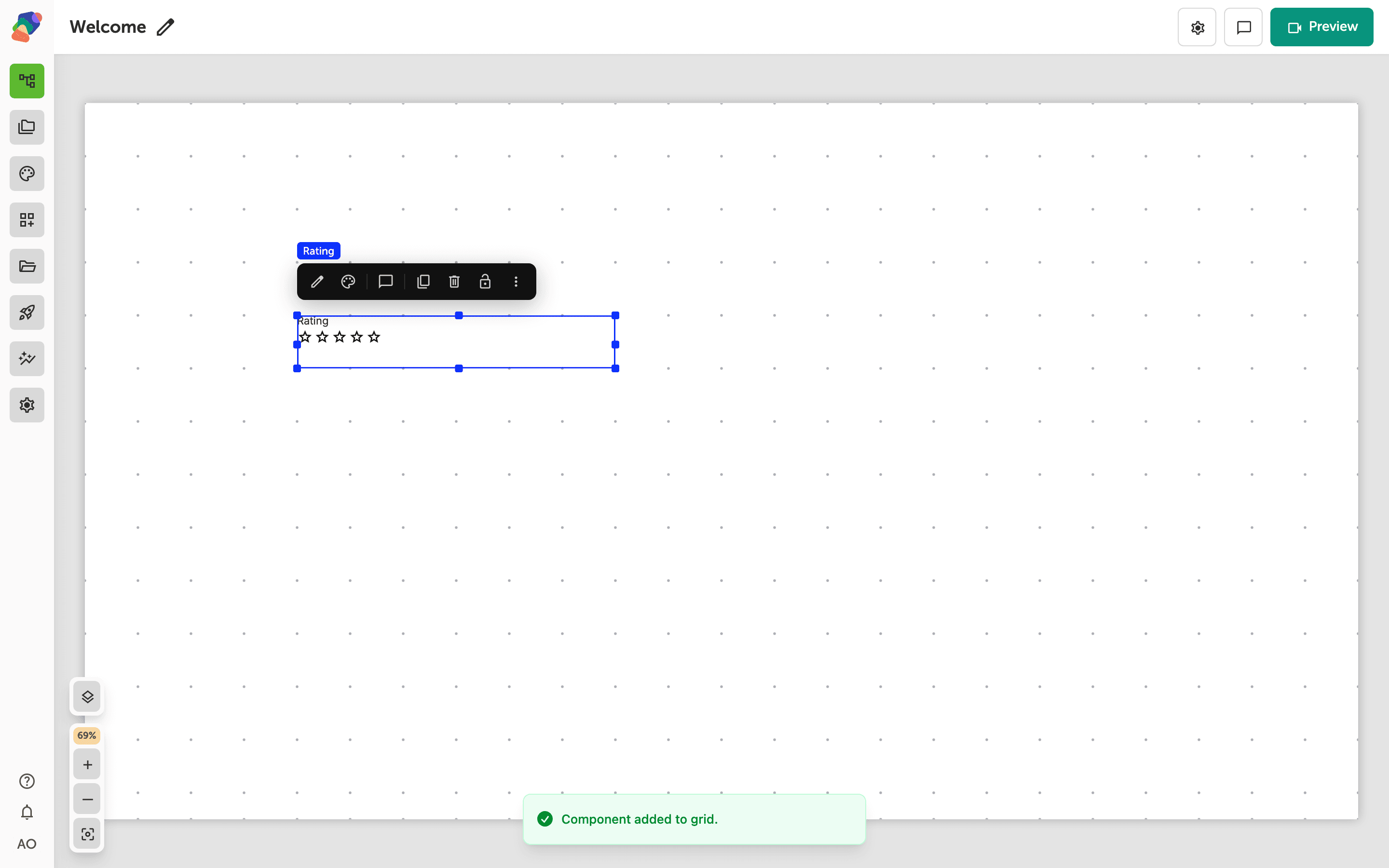
The component is on the grid
The rating appears with a default of five. Place it under the thing being scored, inside a Form if the score should be stored with other answers.
Set the label and the scale
Select the component and open Edit content from the toolbar. In Details, Default label is the question, such as Rate this object. The maximum is the number of steps on the scale, five unless you change it. Turn Required on when a visitor must leave a score before the form submits.
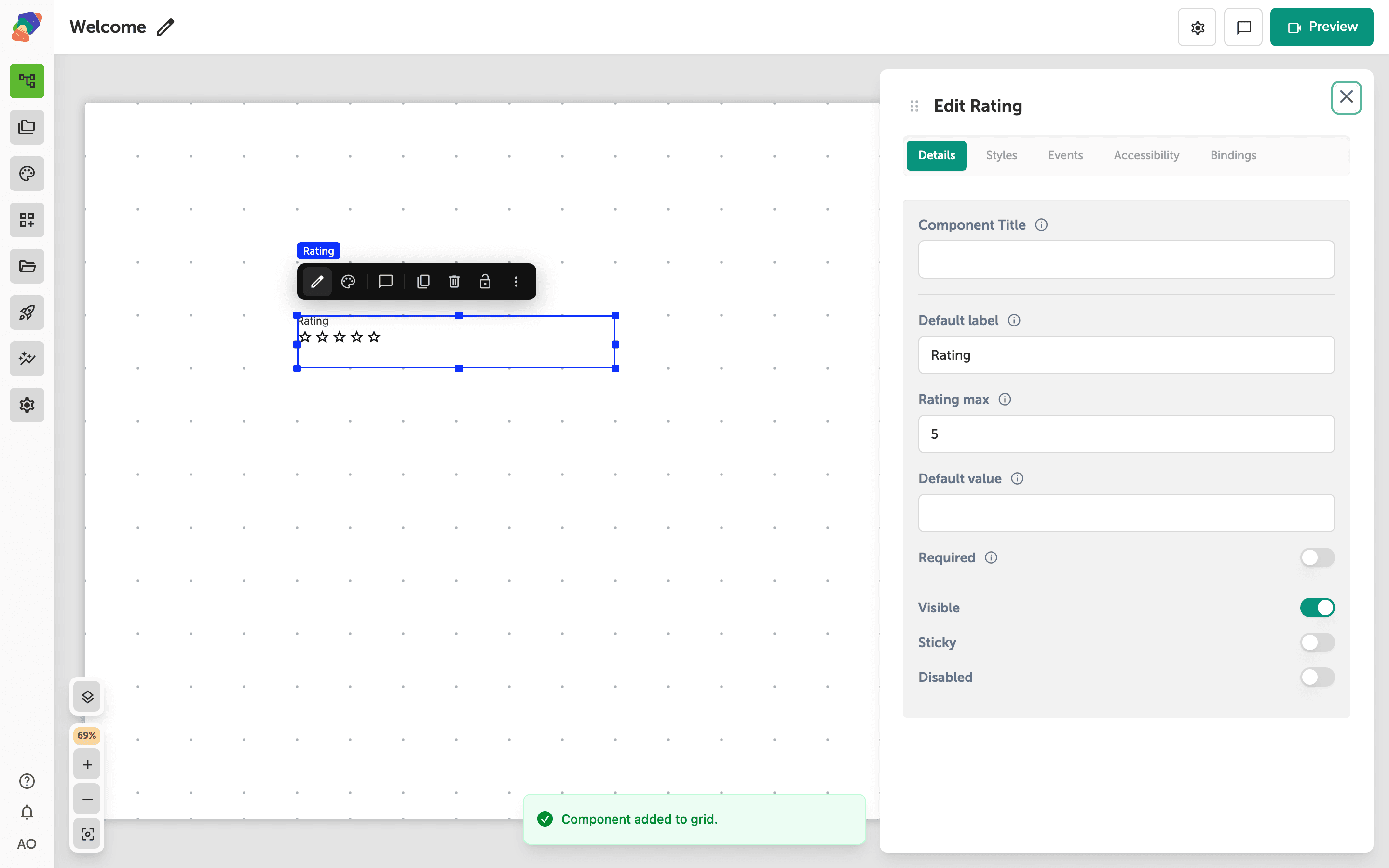
The scale is ready. Store it with the rest of a submission by placing it in a form.