
Adding a Timeline
A Timeline is the spine of a dated story. The events on it are not a separate item in the main add menu — each Timeline Event is added from the timeline itself. You will place the timeline, then add an event.
Open the view
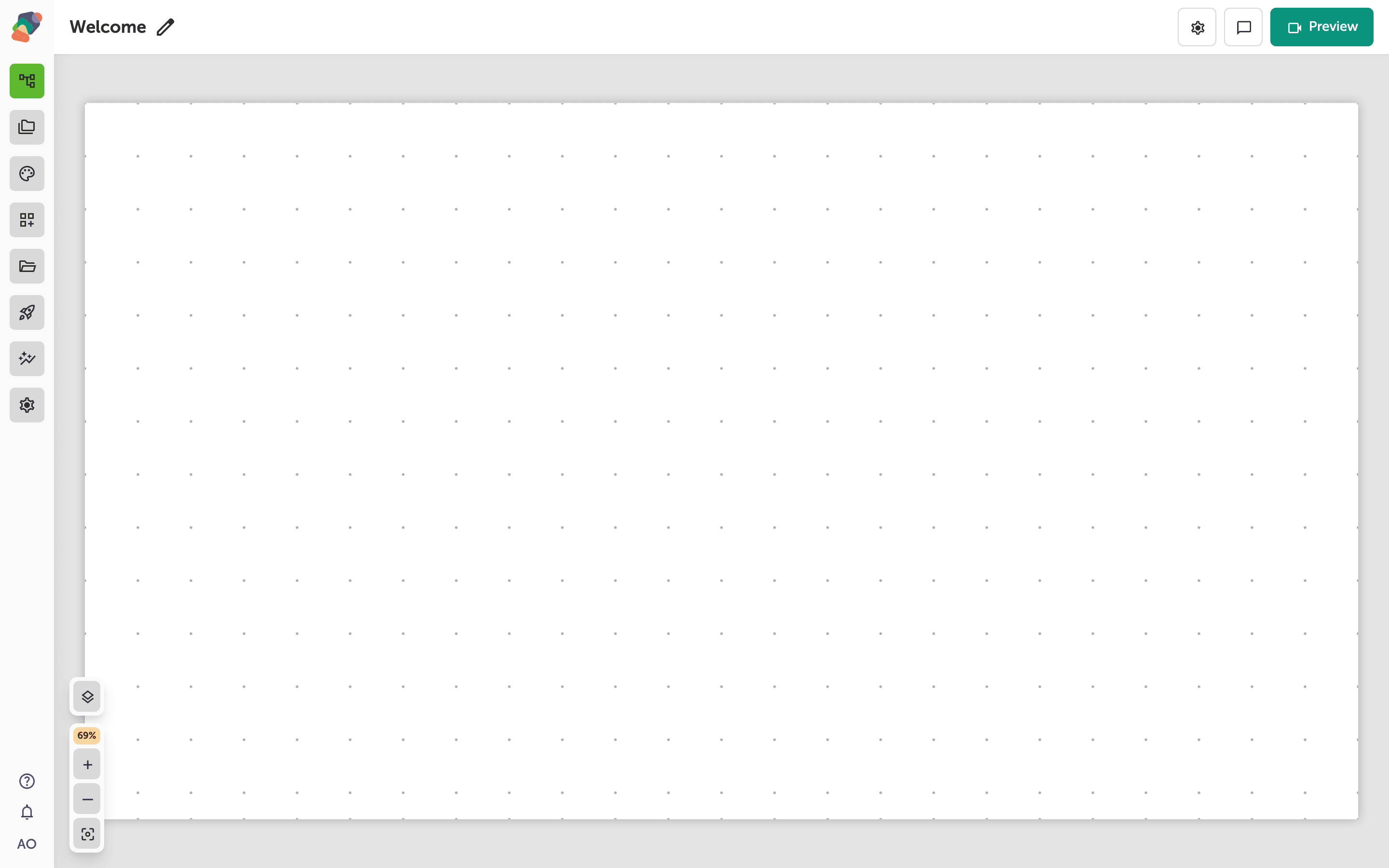
You are in the View Editor. The grid is the screen visitors will see. Click a cell's Add component control to open the menu. Nothing you place is permanent — you can move it, restyle it, or delete it later.
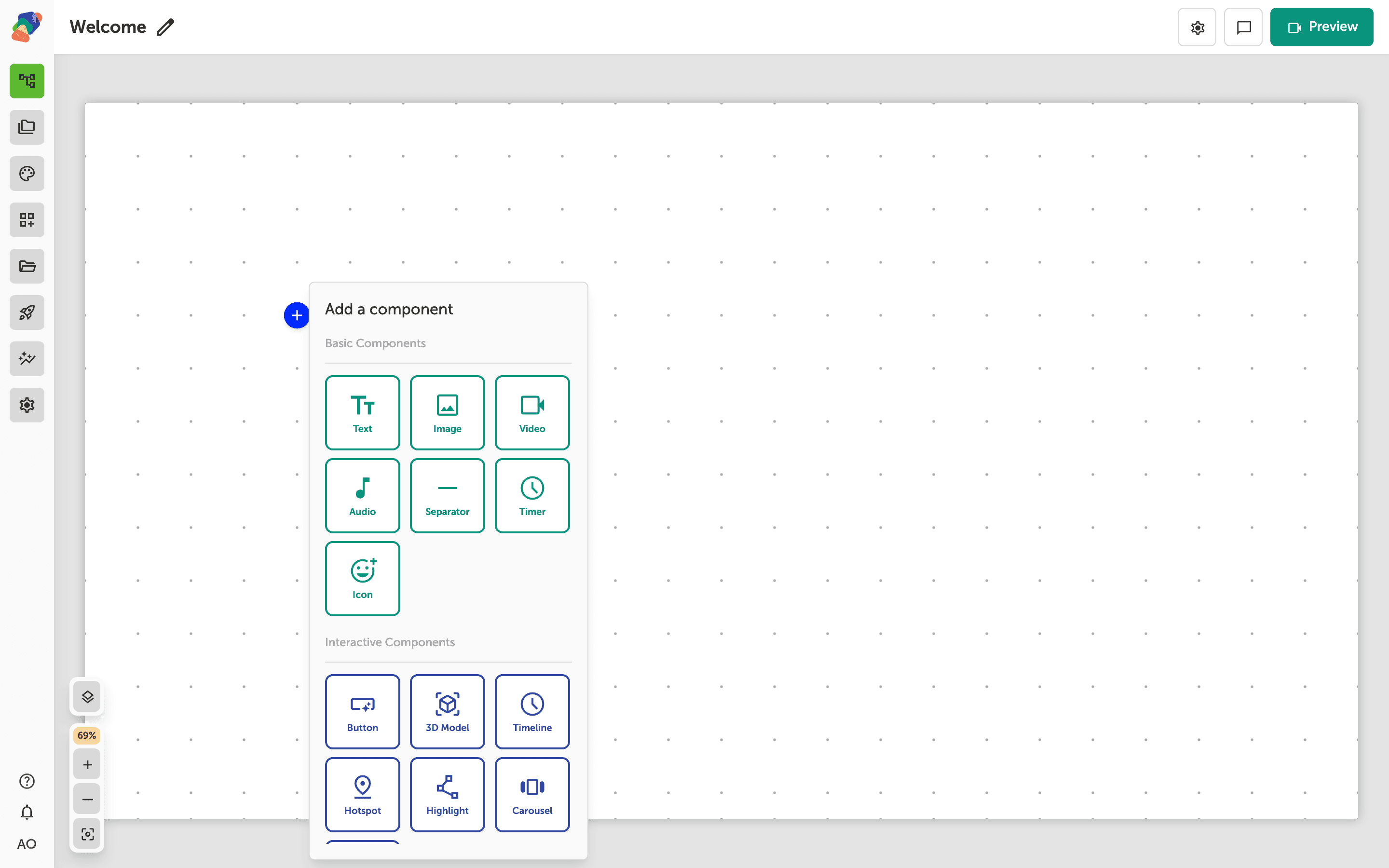
Choose Timeline
In the add menu, Timeline is under Interactive Components. Click it to place the component on the cell you opened.
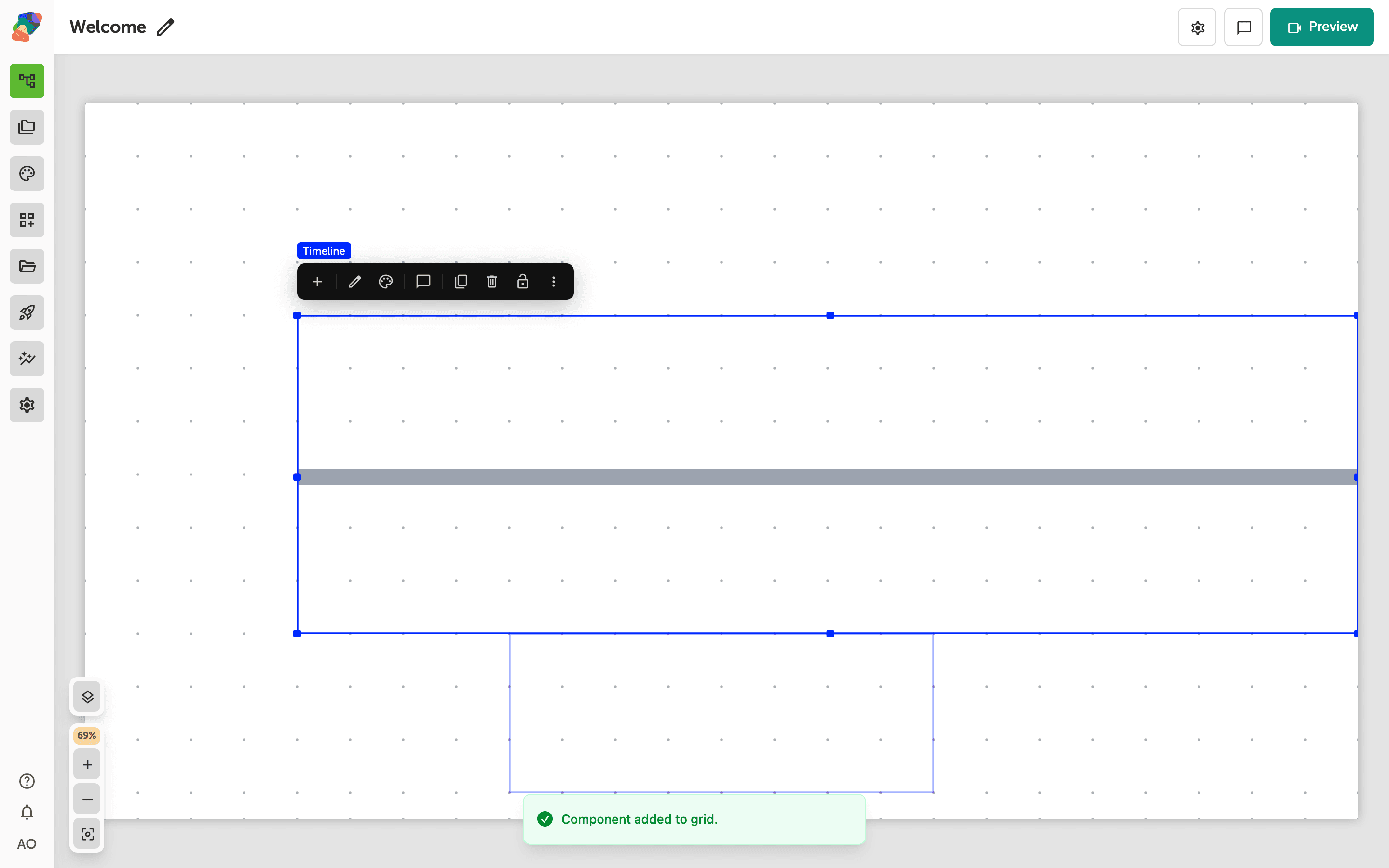
The component is on the grid
The timeline lands on the grid. Give it a wide cell so the events have room. The component is empty of events until you add them.
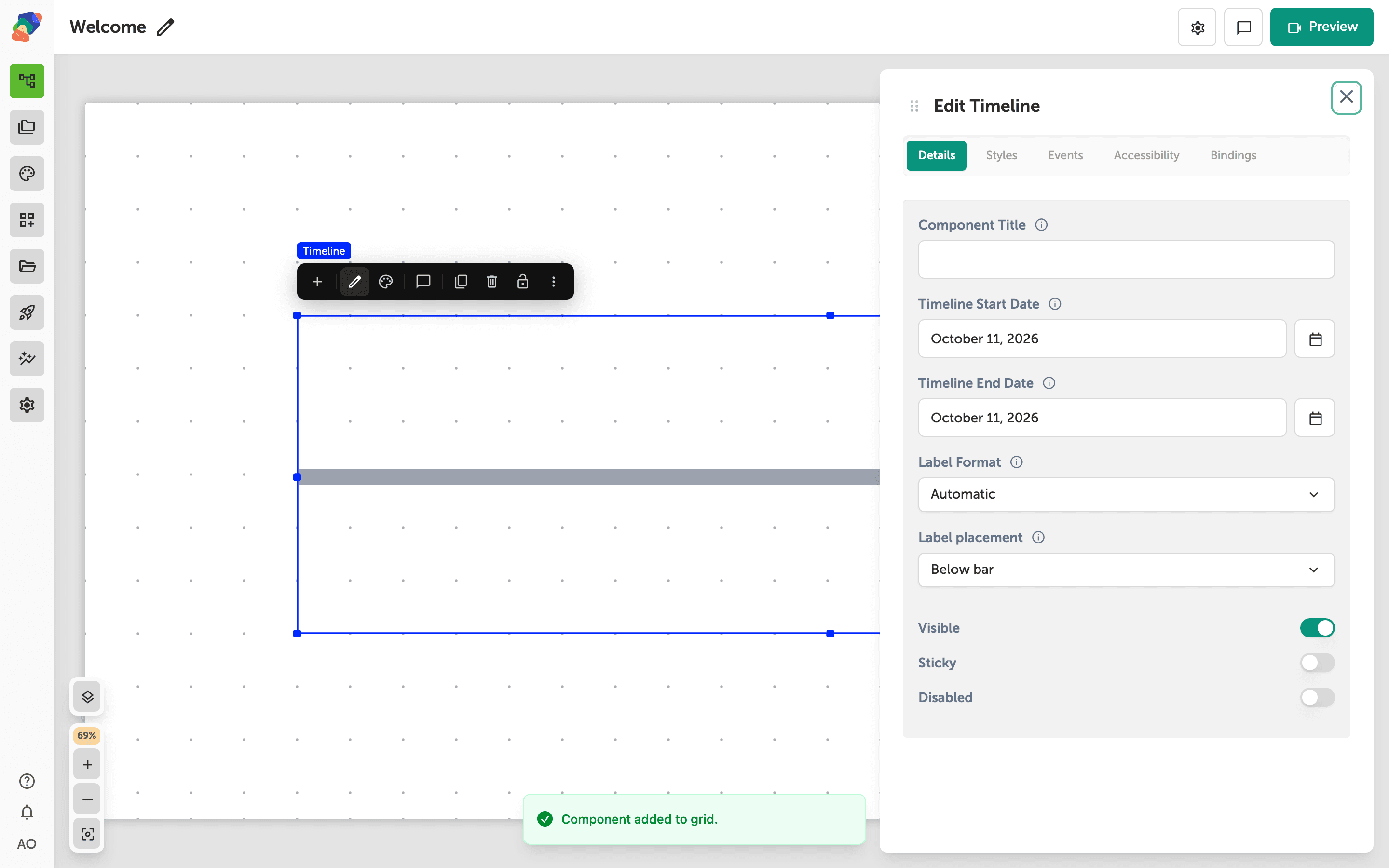
Set the range, then add an event
Select the component and open Edit content from the toolbar. In Details, set the start and end that the timeline spans. Then select the timeline on the canvas and click Add child component. The menu offers Timeline Event only. Add one event, select it, and set its date and label. Repeat for each stop on the story. Events stay children of this timeline, so they move with it.
The timeline can hold as many events as the story needs. Each event is its own component, with its own label.