
Adding a Video
A short clip can carry an artist interview, a how-to, or a loop behind a label. The Video component plays that file on the view, with its own poster and full-screen control. You will add one and open its settings.
Open the view
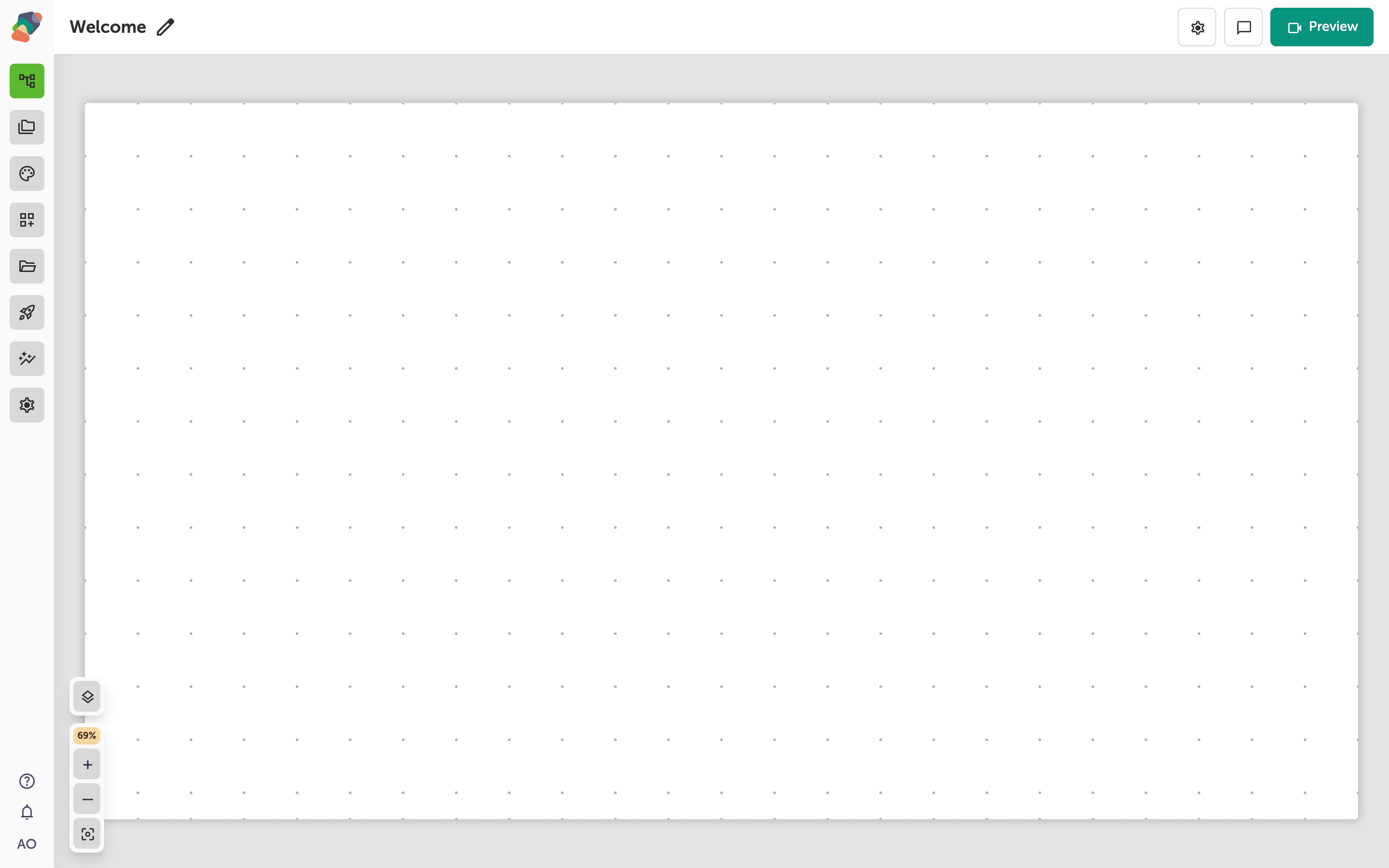
You are in the View Editor. The grid is the screen visitors will see. Click a cell's Add component control to open the menu. Nothing you place is permanent — you can move it, restyle it, or delete it later.
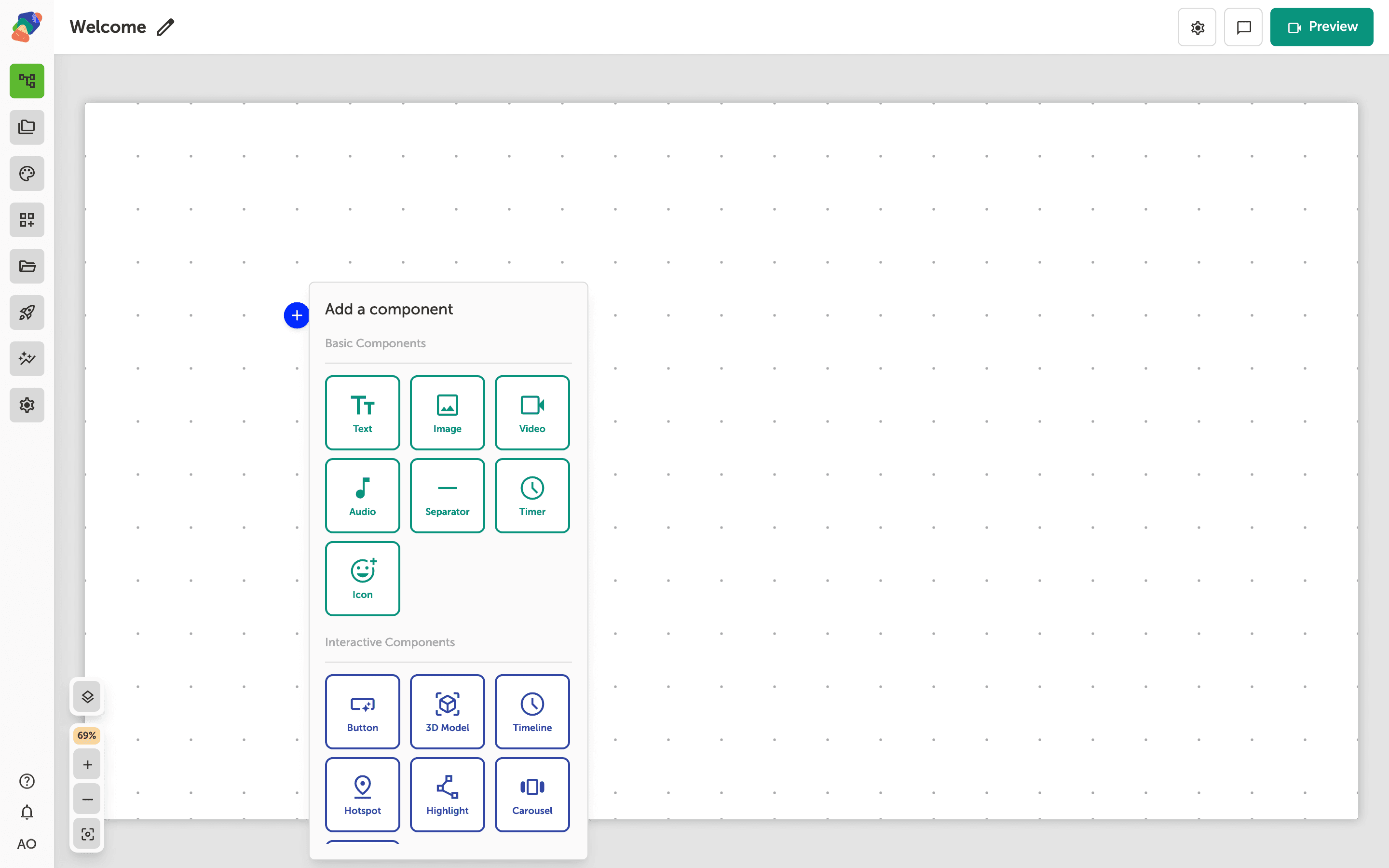
Choose Video
In the add menu, Video is under Basic Components. Click it to place the component on the cell you opened.
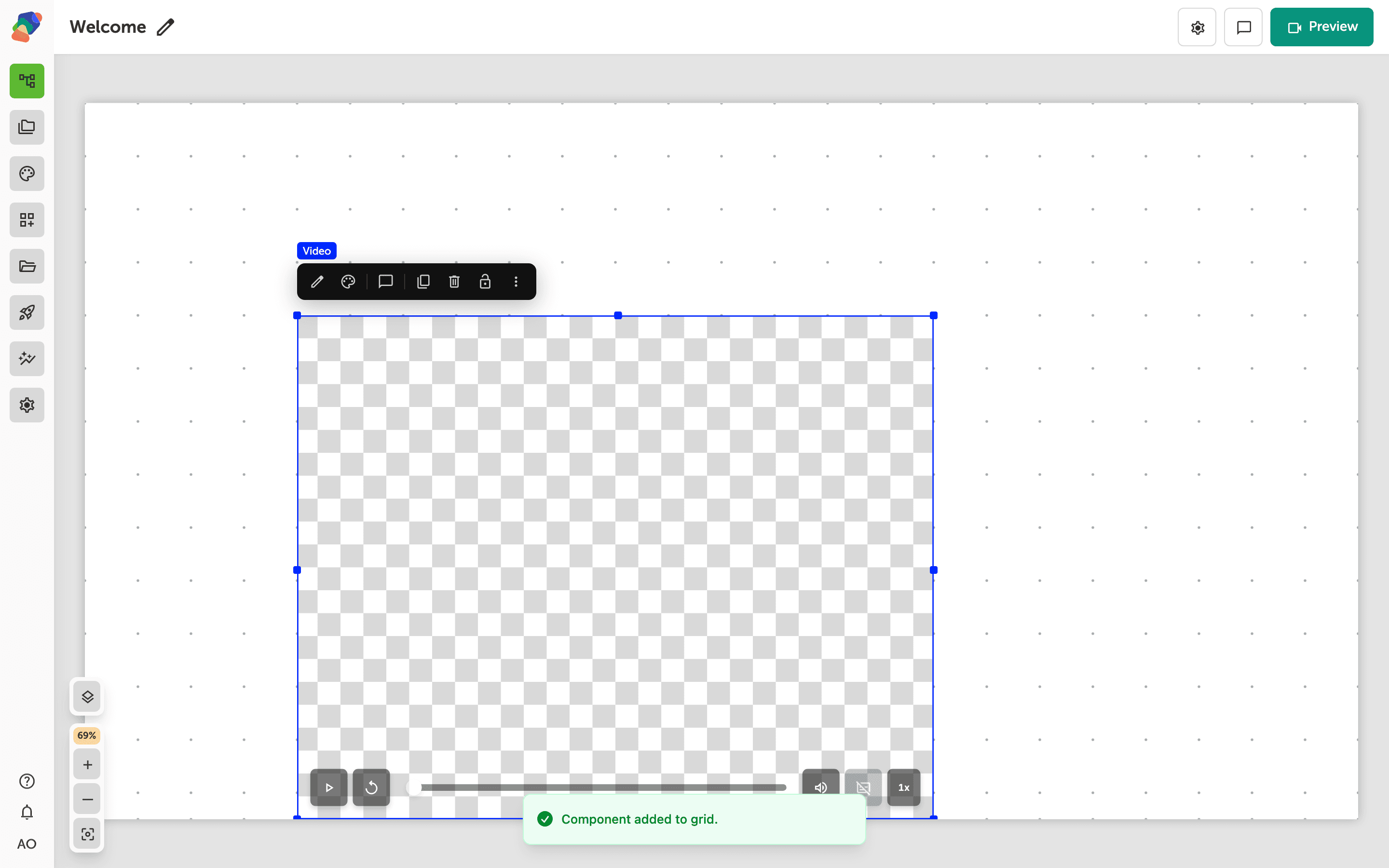
The component is on the grid
The video frame appears on the grid. Resize it to the shape of the screen you are designing for. Playback controls stay with the component, so you do not have to build a player out of buttons.
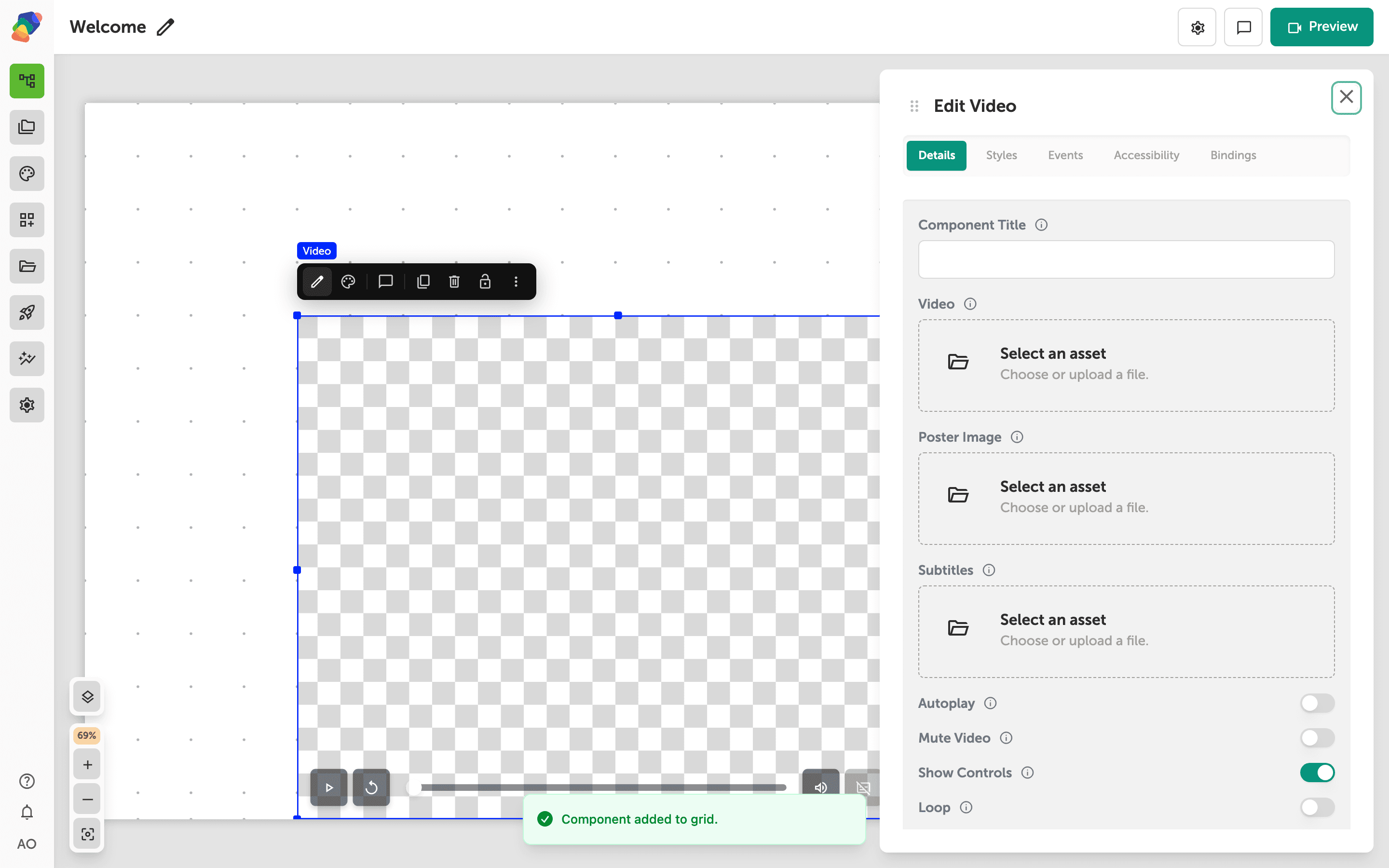
Attach the video and a poster
Select the component and open Edit content from the toolbar. In Details, choose the video file and, if you have one, a Poster image that shows before playback starts. Leave Show full screen button on when visitors should be able to expand the clip. You can turn the component Visible off while you are still arranging the layout.
The clip is placed. Pair it with a label or a button when the video should start a longer path through the project.