
Adding an Icon
An Icon is a single symbol — an arrow, a headphone, a star — without the weight of an image file. Use it for wayfinding marks and for status next to a label. You will add one and choose the symbol.
Open the view
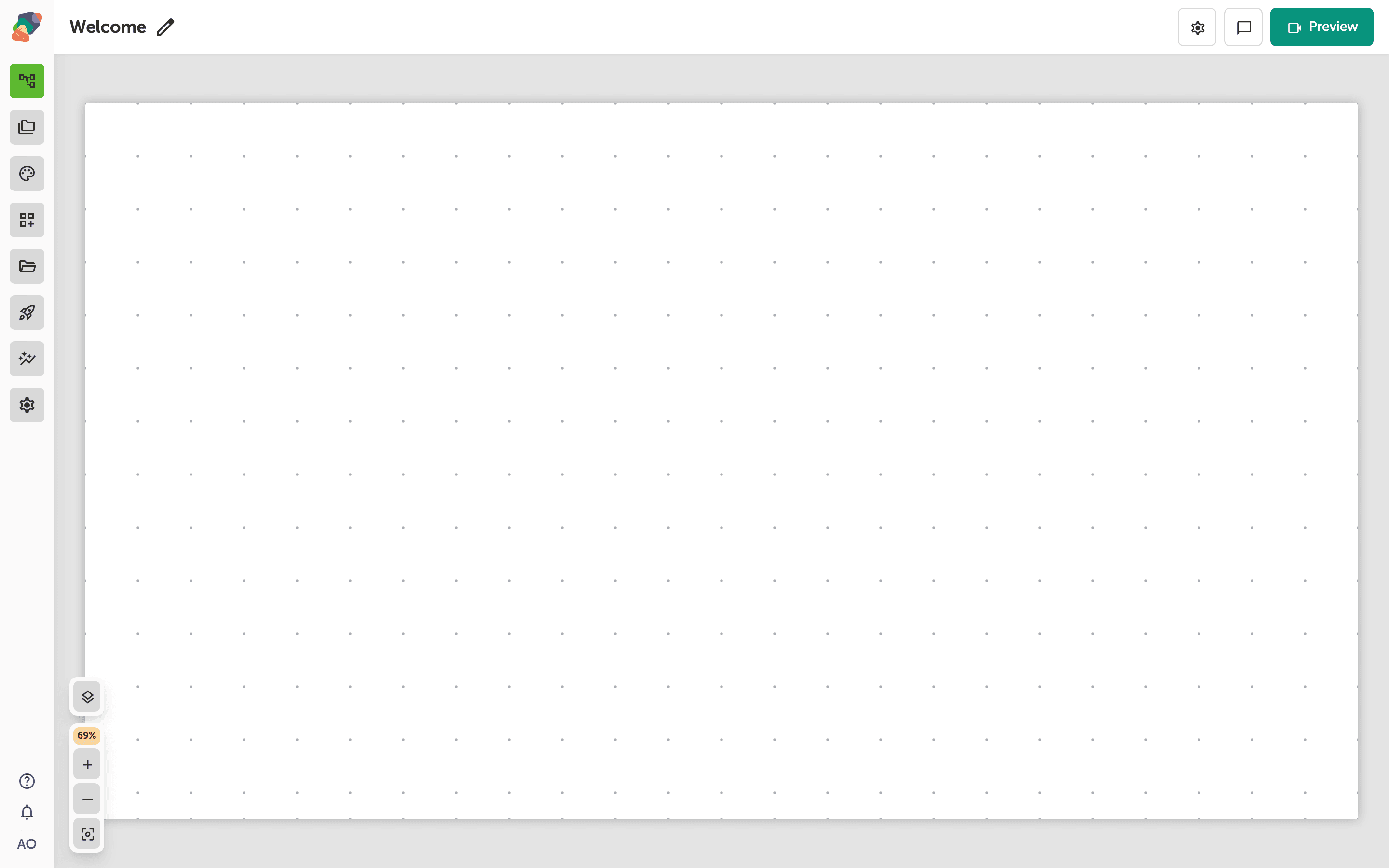
You are in the View Editor. The grid is the screen visitors will see. Click a cell's Add component control to open the menu. Nothing you place is permanent — you can move it, restyle it, or delete it later.
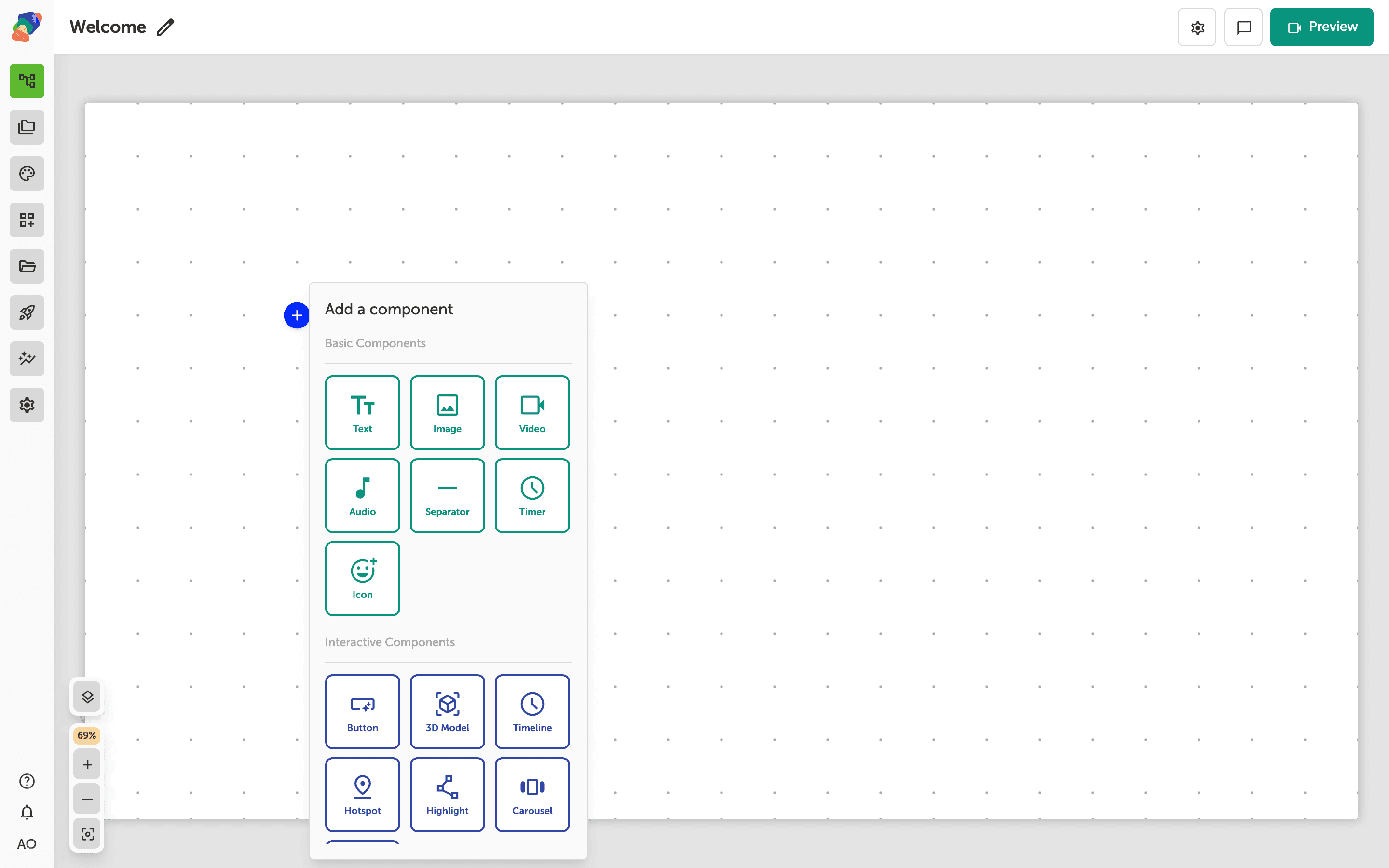
Choose Icon
In the add menu, Icon is under Basic Components. Click it to place the component on the cell you opened.
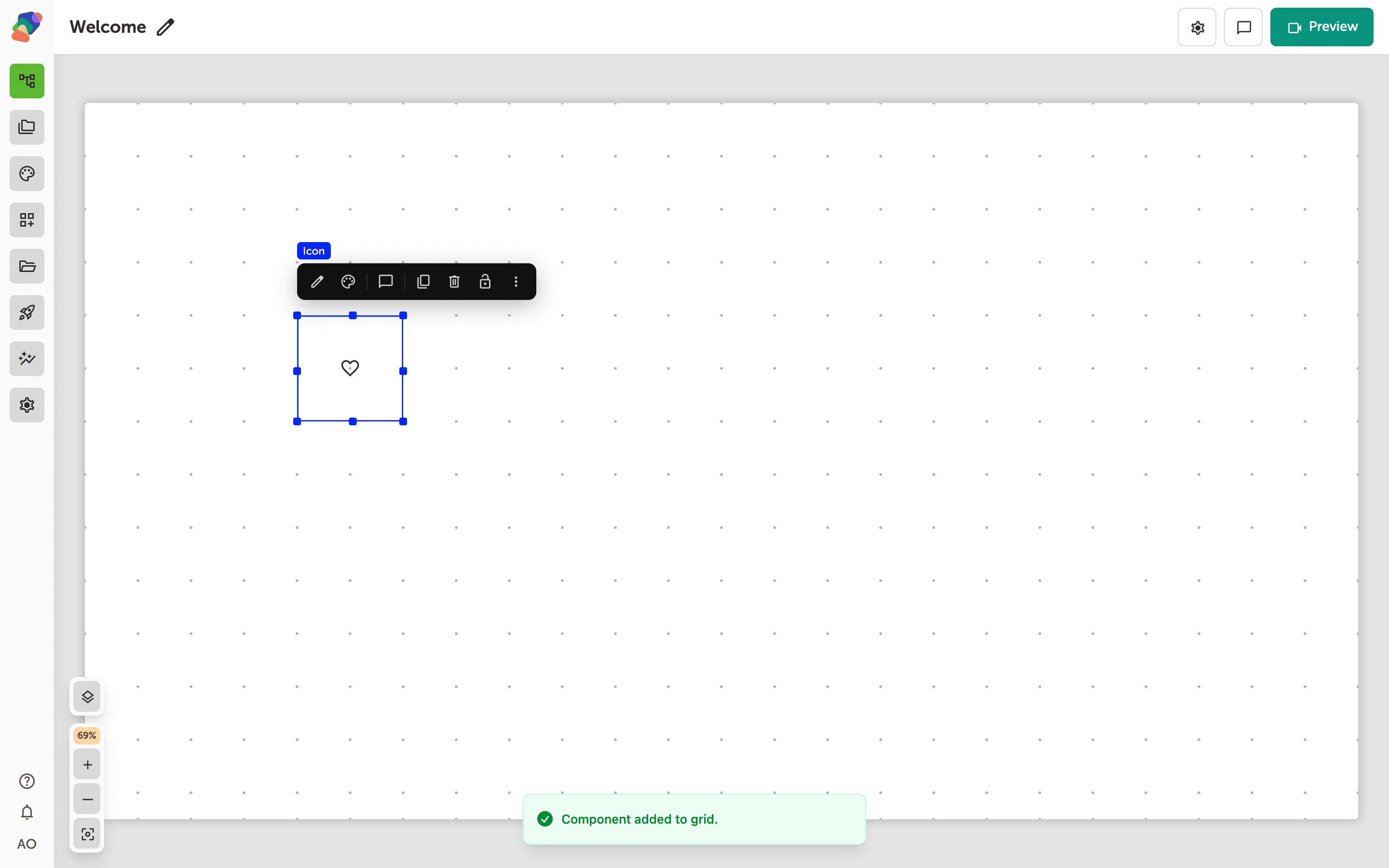
The component is on the grid
The icon appears on the grid at a small size. Resize the cell if the symbol should read from across a gallery. Color and size also come from the component's style.
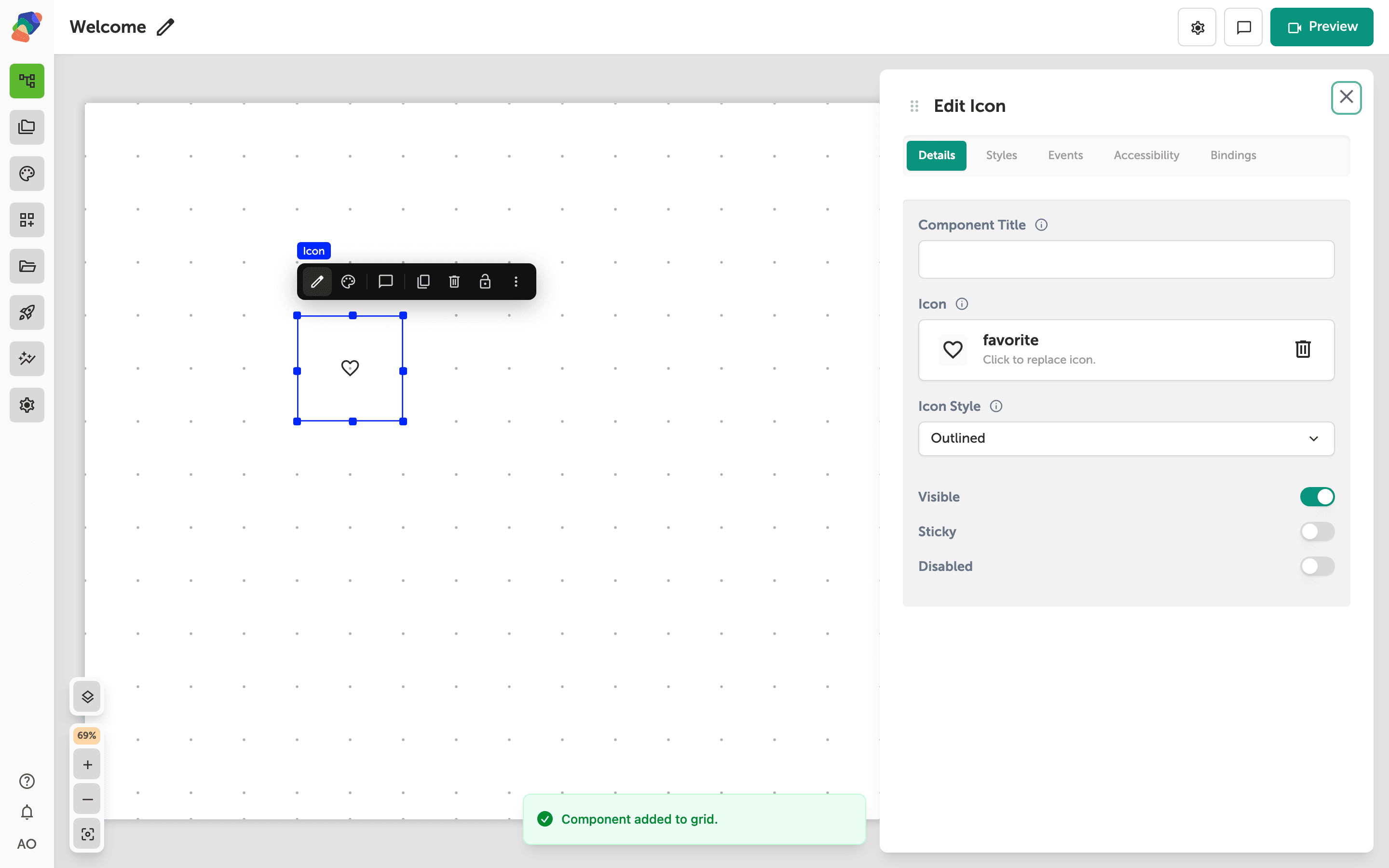
Pick the symbol
Select the component and open Edit content from the toolbar. In Details, choose the icon value. The default is a heart, which you will almost always replace. Icon style switches the weight of the symbol, such as outlined. Name the component if you will have several icons on the same view.
The symbol is on the view. For a tappable control with words, use a button instead.