
Adding Audio
Some stories are better heard than read — a curator narration, a language sample, a piece of music. The Audio component puts playback on the view without taking over the whole screen. You will add one and point it at a file.
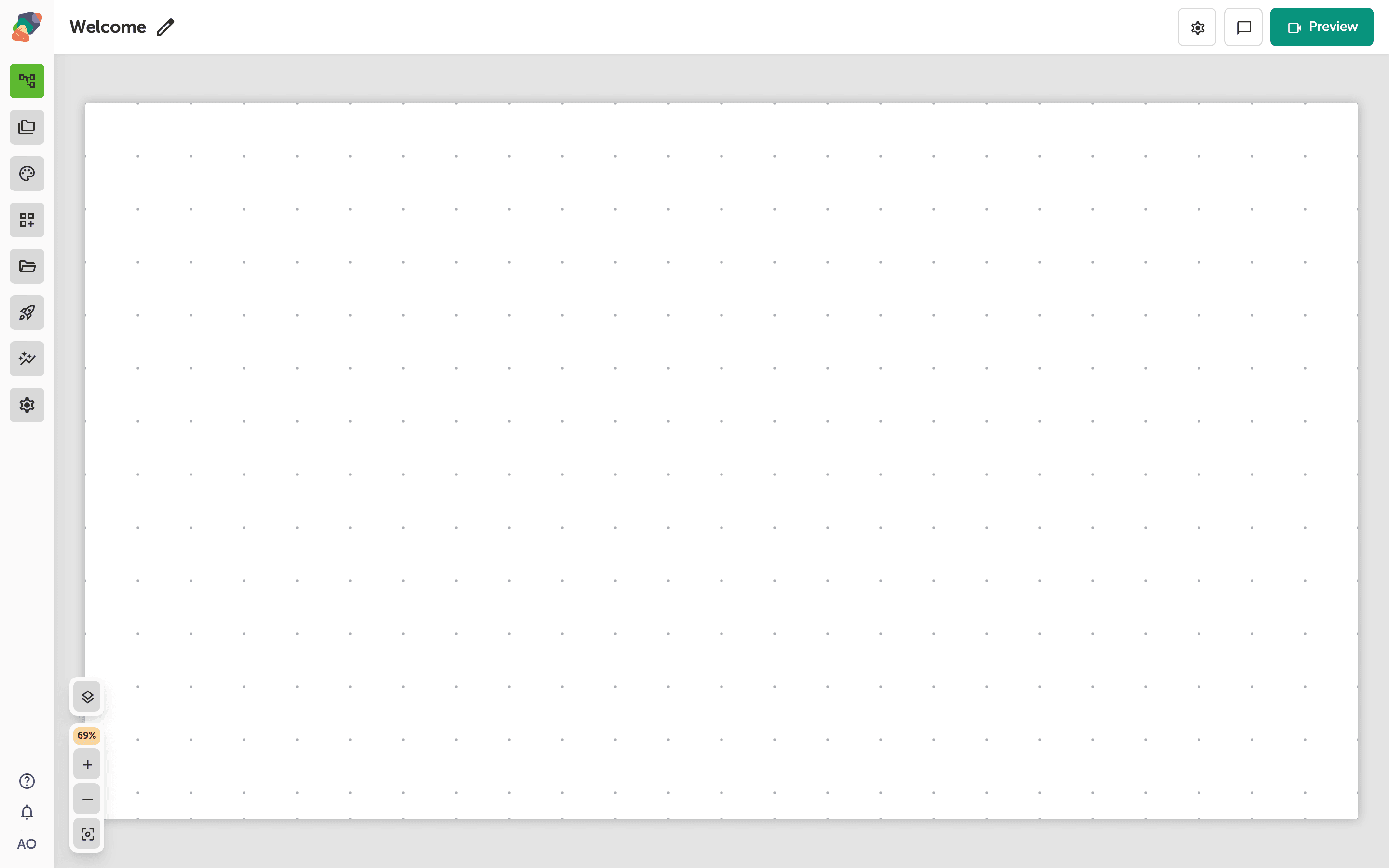
Open the view
You are in the View Editor. The grid is the screen visitors will see. Click a cell's Add component control to open the menu. Nothing you place is permanent — you can move it, restyle it, or delete it later.
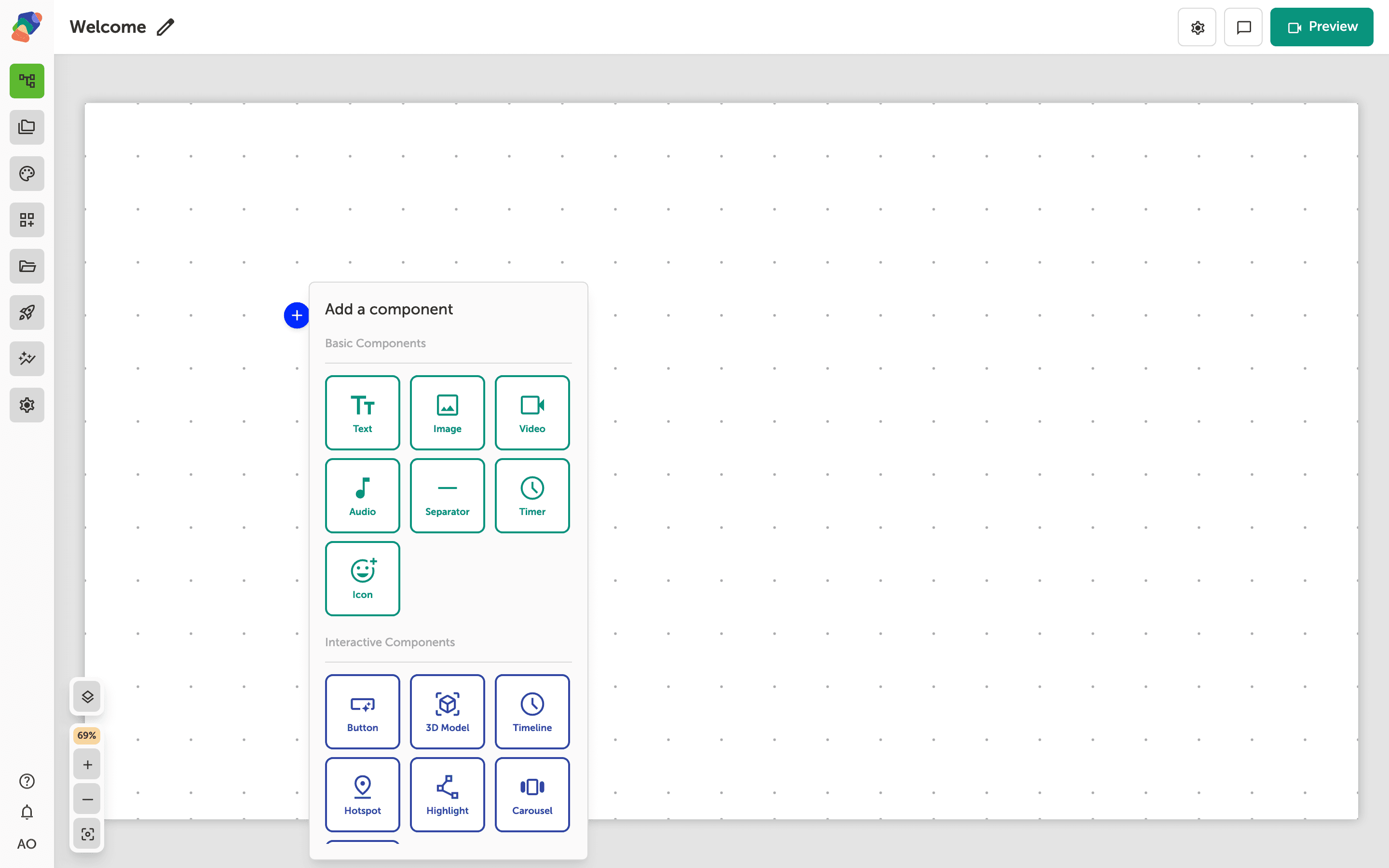
Choose Audio
In the add menu, Audio is under Basic Components. Click it to place the component on the cell you opened.
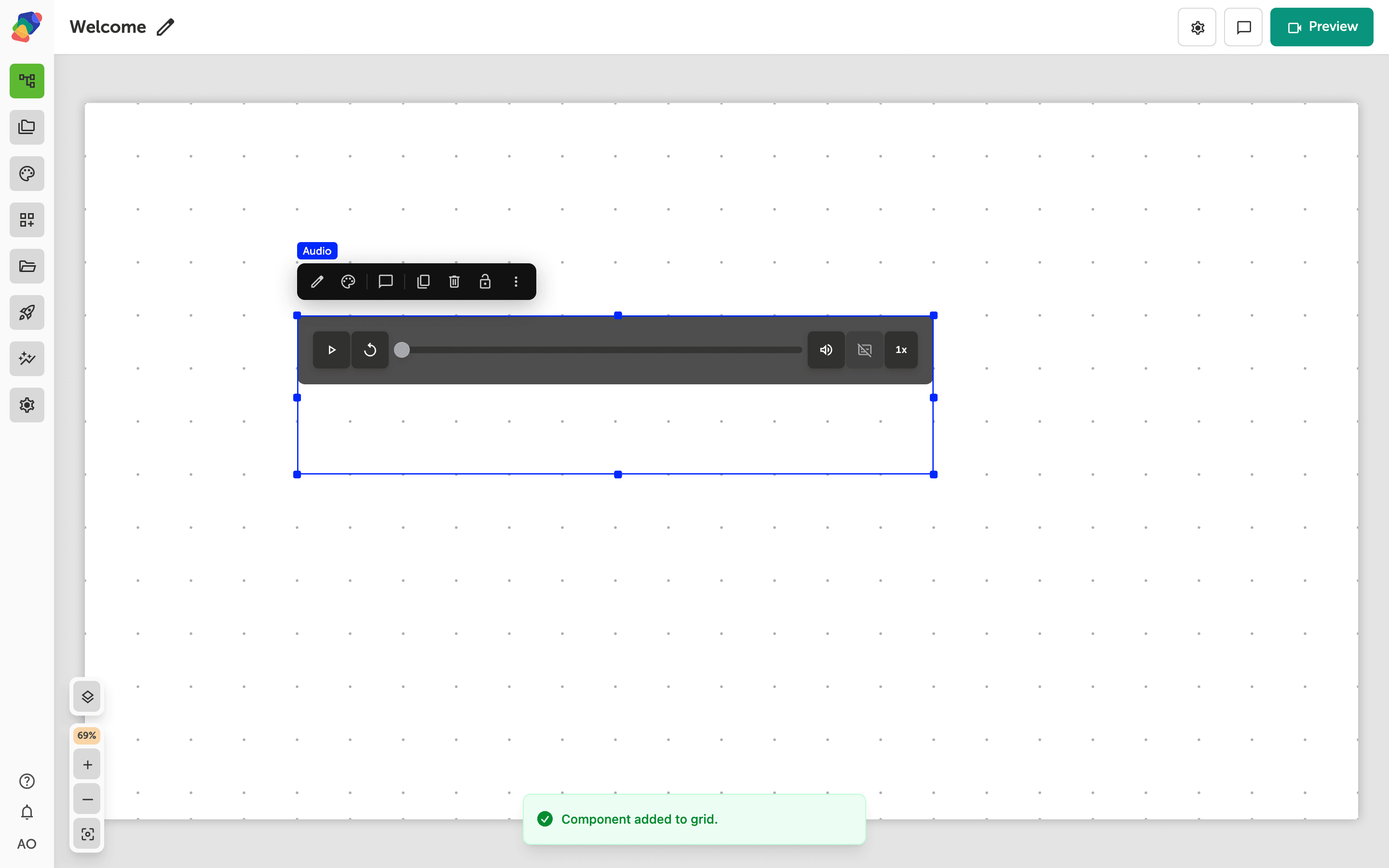
The component is on the grid
The audio player sits on the grid like any other component. Give it enough width that the controls are easy to tap on a touch screen. You can place a Text label beside it so visitors know what they are about to hear.
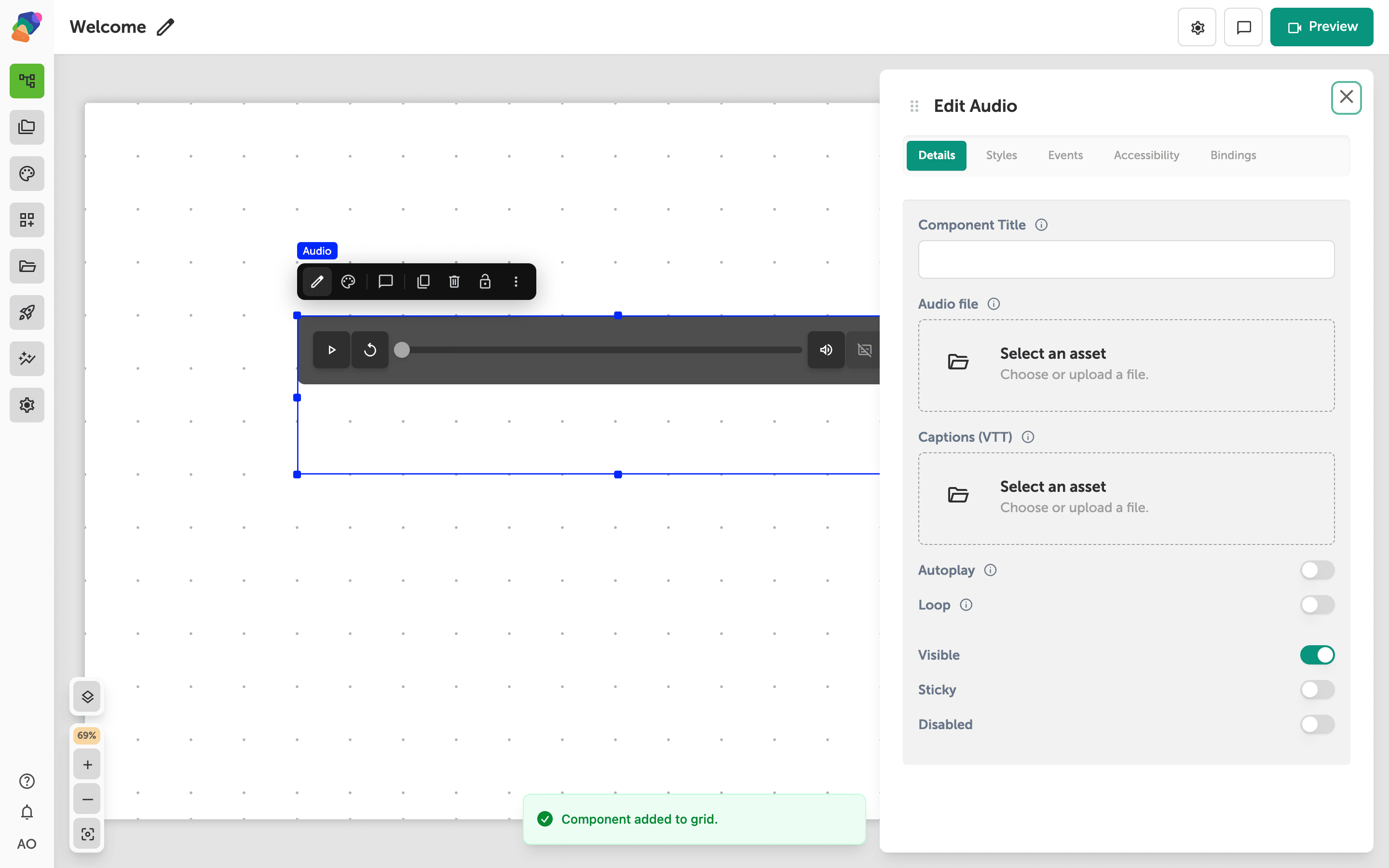
Choose the audio file
Select the component and open Edit content from the toolbar. Open Details and select the audio file from the project. Until a file is chosen, the player has nothing to start. Name the component in Component Title so you can find it later in the layers list.
The player is on the view. A short text label next to it tells visitors what they will hear.