
Apply Texture Effects to a Component
Textures are effects in the style set: Noise, Grit, and Halftone. You create the effect once, tune how strong it is, then choose it on a component the same way you choose a shadow. The picture on the player uses the same effect as the editor preview.
Open Effects and Shadows
Open the project's Styles editor. Effects & Shadows is where shadows and these textures live.
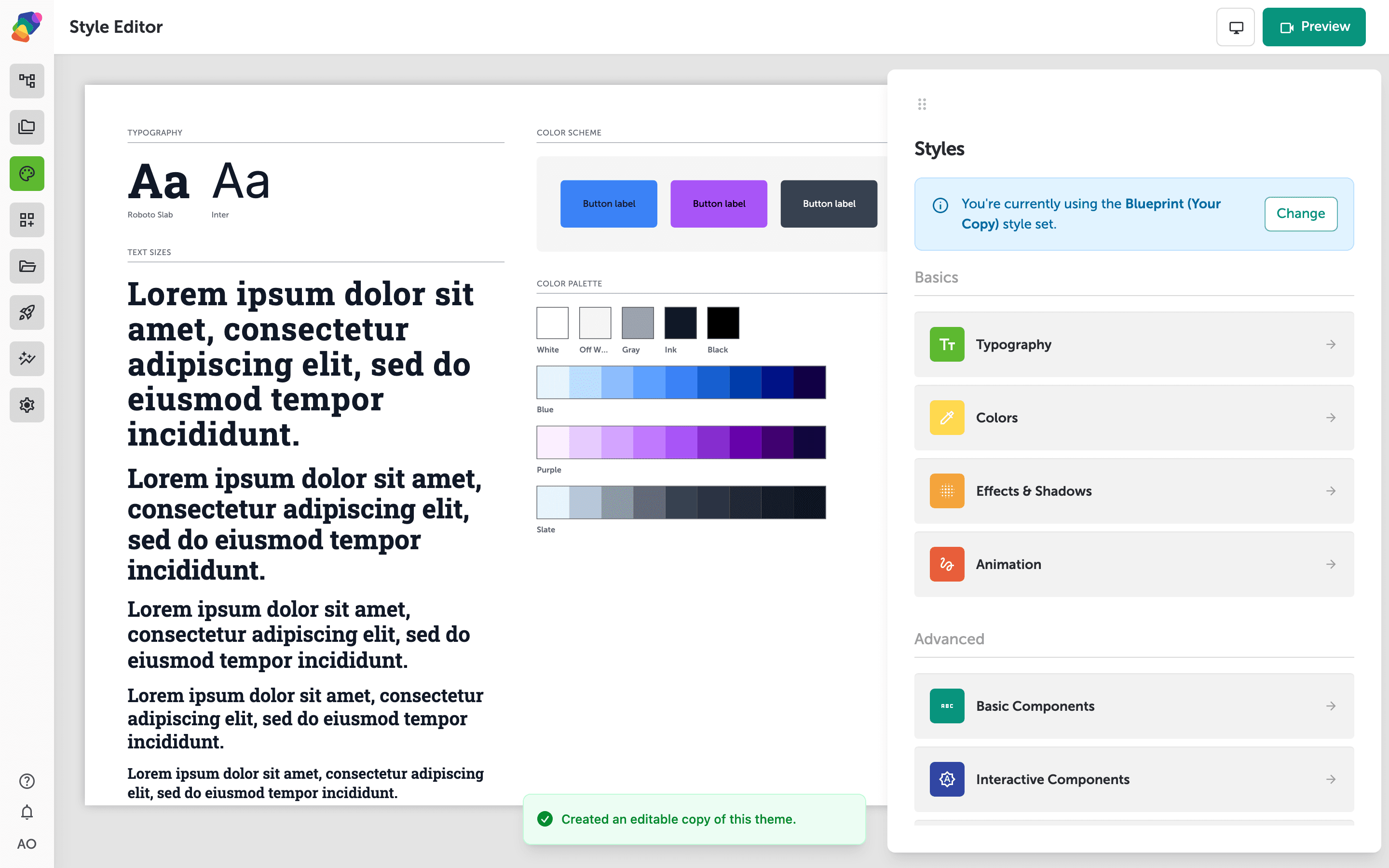
Add a texture
Click Add new effect and choose a texture from the textures group — Noise is the usual starting point. The amount or size slider controls how visible the grain is. Name the effect so you can find it on a component later, then save it. A little grain reads as paper. A lot of grain reads as a filter. Start low.
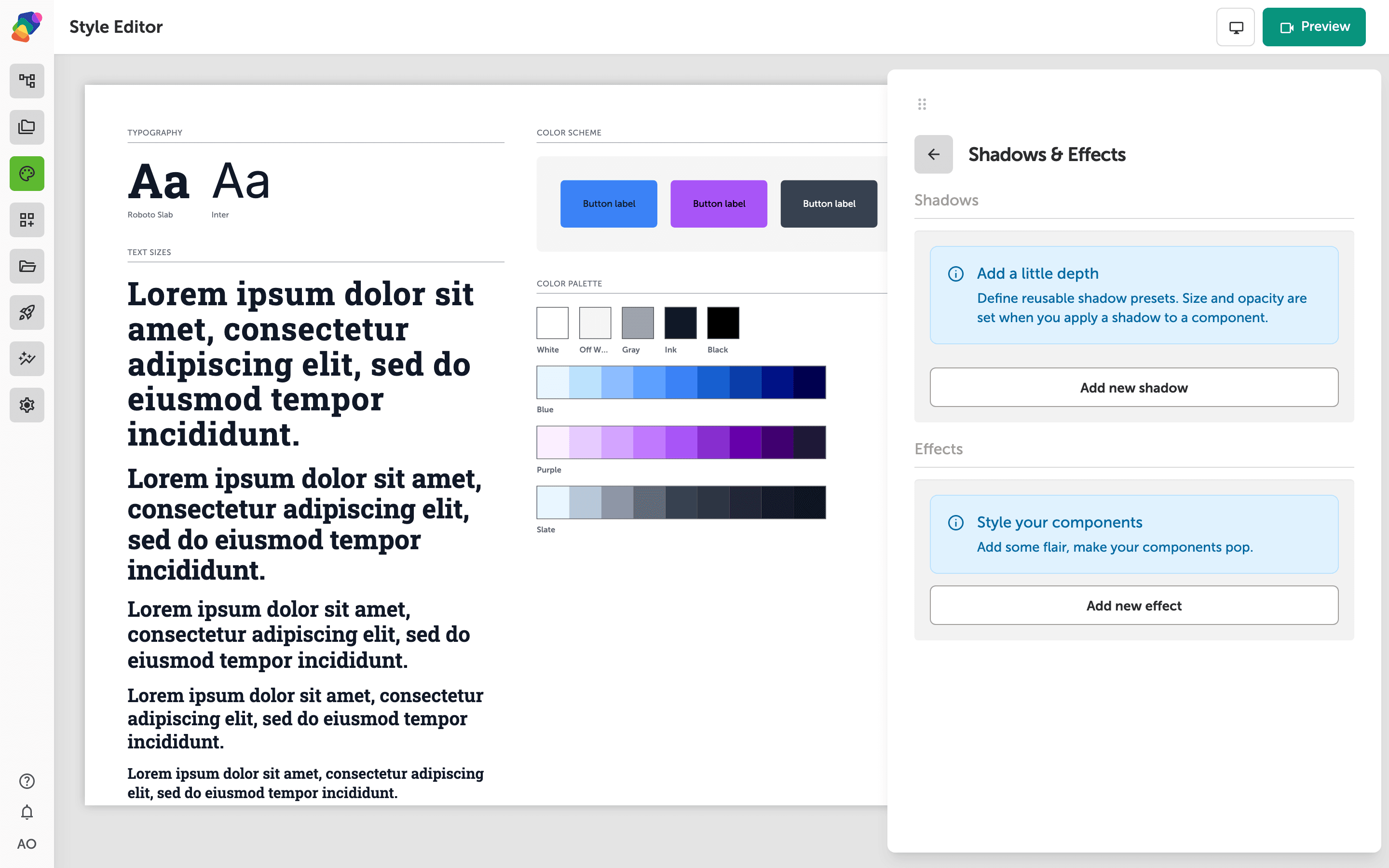
Apply it to a component
Open a view, select an image or a container, and open its style settings. Choose the texture effect you saved. The preview on the canvas should show the grain. If it does not, confirm the effect is selected on that component and not only saved in the style set.
Shadows and textures can stack. If the component looks muddy, lower the texture amount before you remove the shadow.