
Choosing a Template for Your Screen
A starting kit is a layout designed for a particular kind of screen. Applying it onto a different shape does not stretch the components. Zibit scales the layout evenly, centers it, and keeps a margin so nothing is cropped at the edge. A wide kit on a tall screen leaves empty bands. That is the point: the type stays the shape you designed.
You will open the picker, read a kit against your display, and select it.
Open Add new view
On the moments graph, a moment that still needs a layout shows Add new view. Click it.
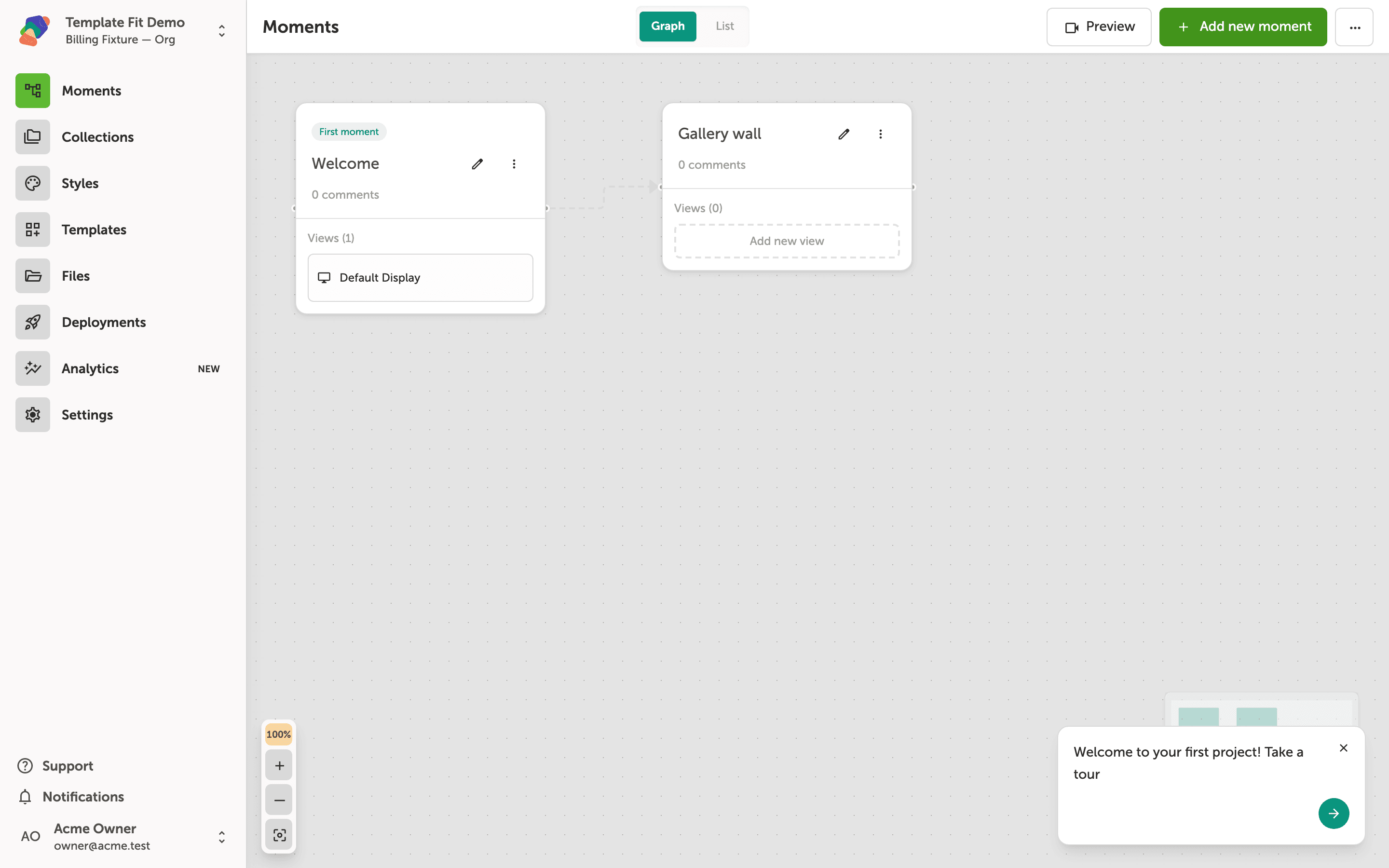
Read the kits
The dialog is Add new view. Start from scratch is a blank grid. Each other card is a starting kit: its title and description say what the layout is for. On the project creation wizard, a kit that matches the display you chose is marked Designed for that orientation and screen setup, such as portrait or a single screen. Prefer a kit whose screen matches yours. If none does, pick the closest and expect empty bands rather than a stretched layout.
Use the search field if the list is long.
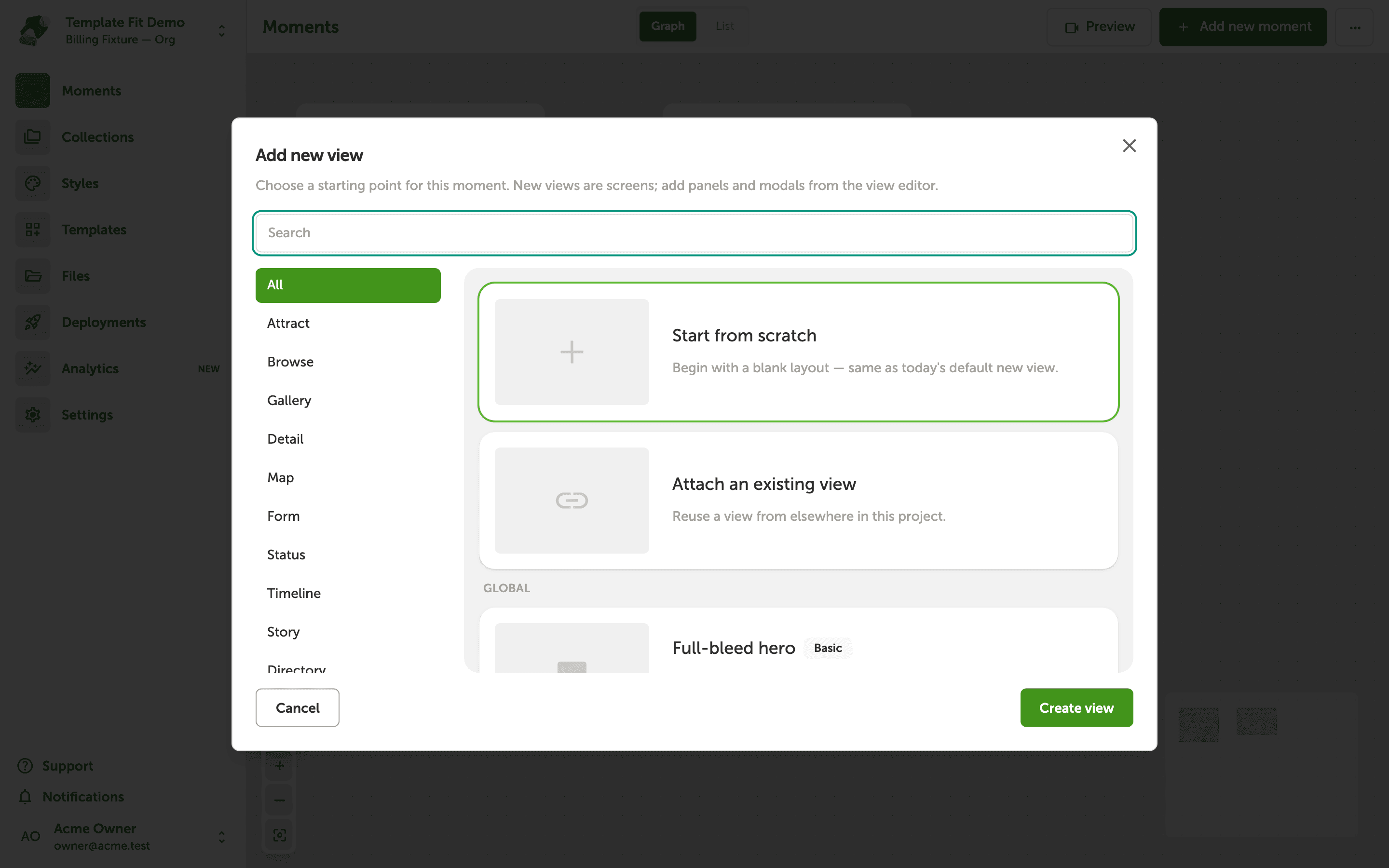
Select a kit
Click the kit. The card shows it is selected. Continue to create the view. On the grid, components keep their proportions. You can still move and resize them; nudging one does not resize the others.
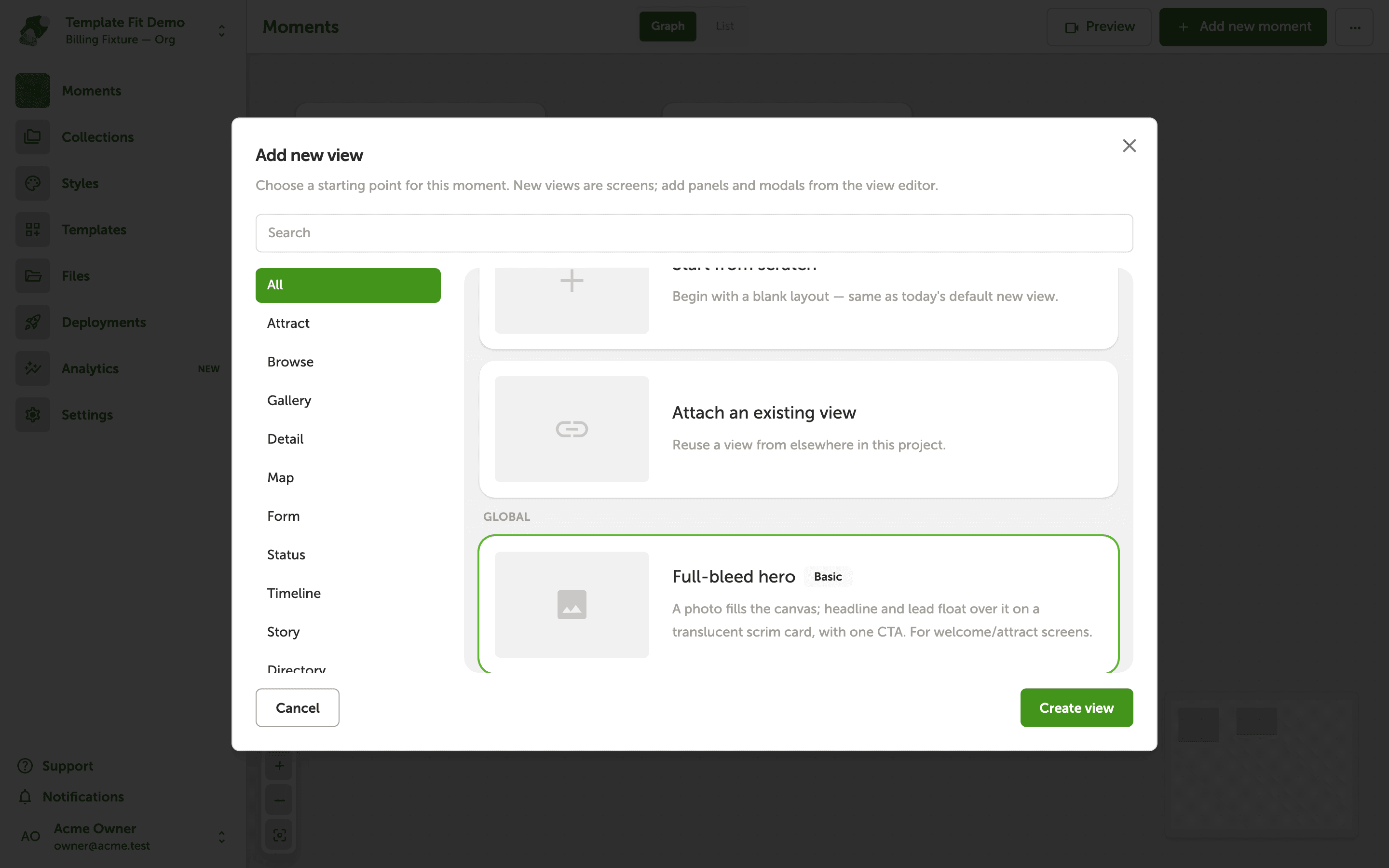
If the result has large empty bands, the kit was drawn for a different shape. Swap orientation on the display, or choose another kit, rather than stretching components by hand to fill the gaps.