
Rotate Text on a View
Rotation turns a text block in 45-degree steps, from -180° to 180°. The box on the grid keeps its original footprint, so a wide line rotated to 90° sticks out of that box instead of reflowing into a vertical column. You will rotate one heading and see that the cell did not change shape.
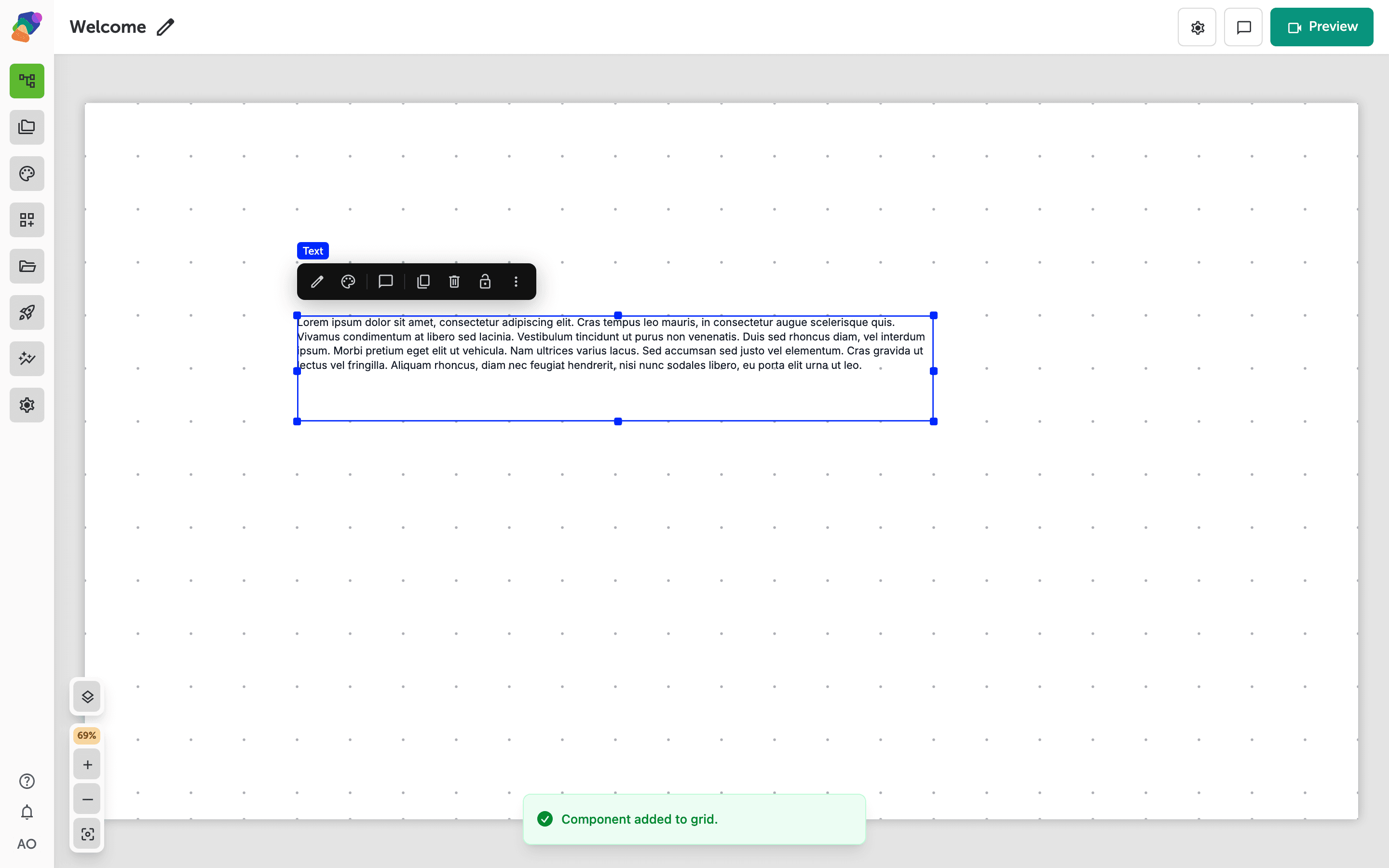
Add a text block
Place a Text component and write a short line. A long paragraph at 90° will overlap its neighbors, which is the trade for keeping the layout box stable.
Set Rotation
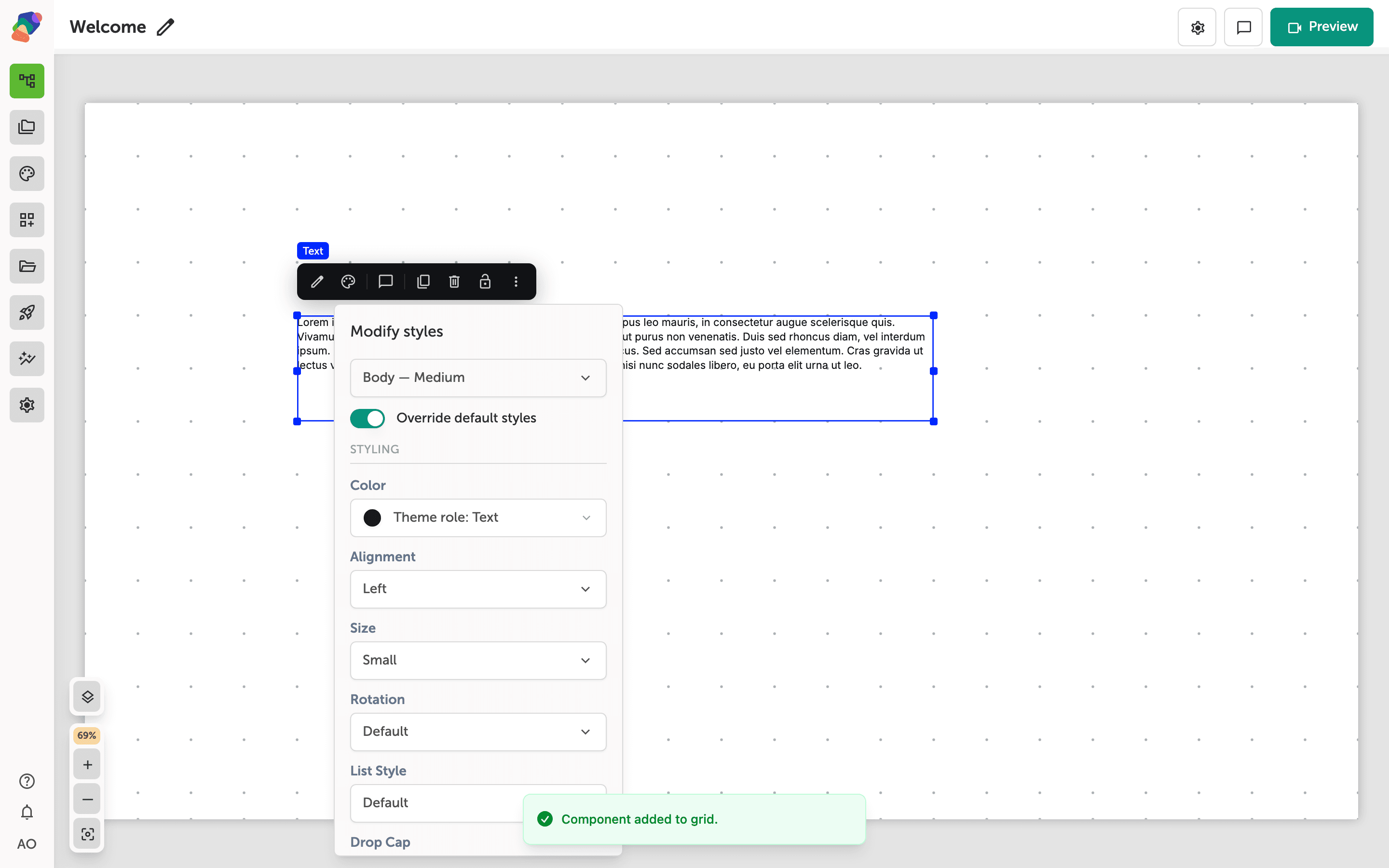
Select the text and open its style settings. Under Typography, Rotation is a dropdown. Choose 45°. The letters turn. The grid cell stays the size it was.
Choose 90° when the line should read vertically. Choose 0° to put it back. Rotation is separate from hover motion, so a scale effect on the same text still works.
Neighbors
At 90° and 270° a wide line extends past its cell. Leave space around the component, or keep the line short.
Duplicate the component if you want a second angle on the same view. The copy keeps the rotation you set.