Add Hover Motion Effects
Hover motion is a small animation on a control: a Sweep to right, a Ripple out, an Underline from center, a Float shadow. It plays when a visitor hovers or focuses the component, so the same motion works with a mouse and with a keyboard. You will save one preset and attach it to a button.
Open Animation
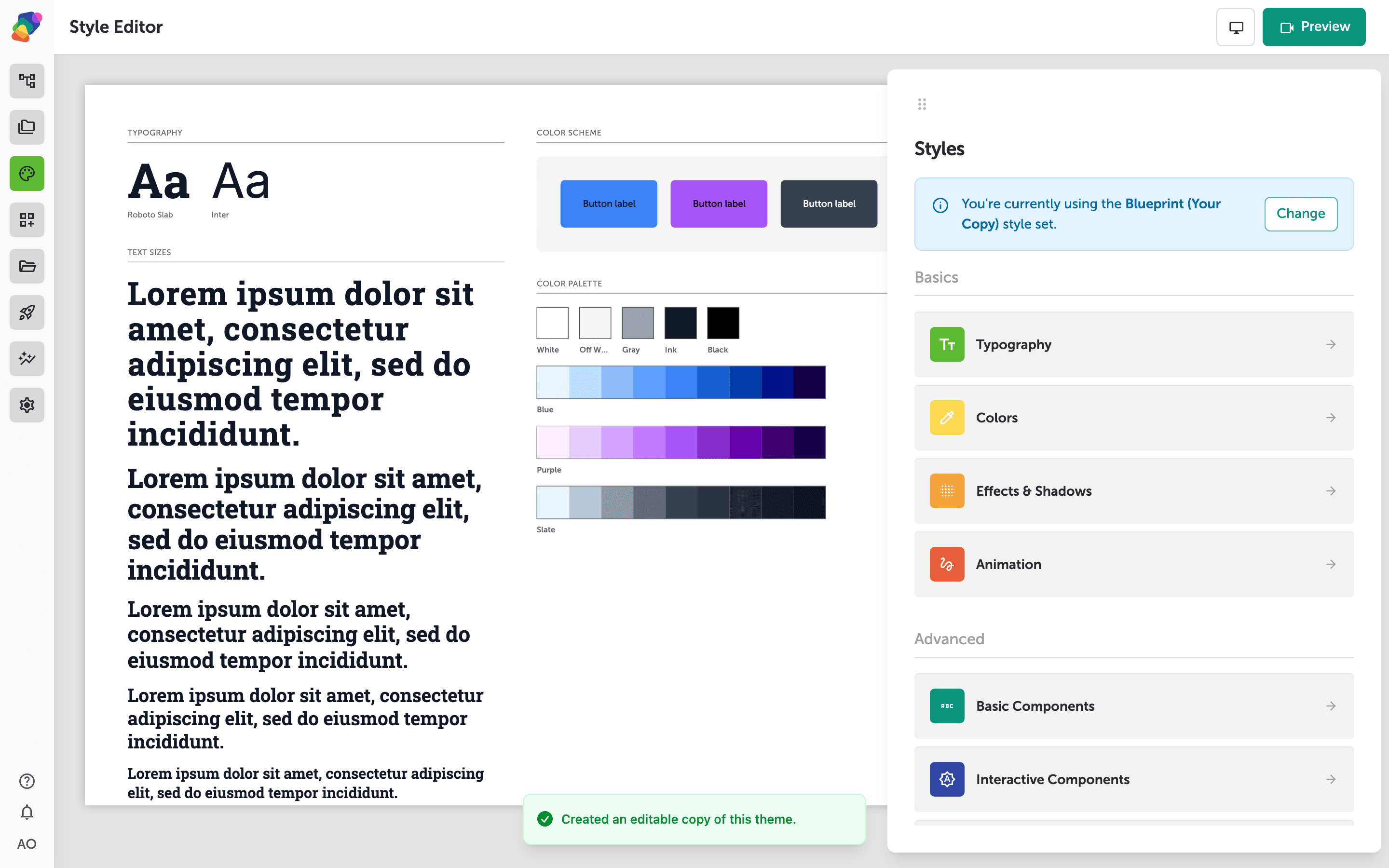
In Styles, open Animation.
Pick an interaction preset
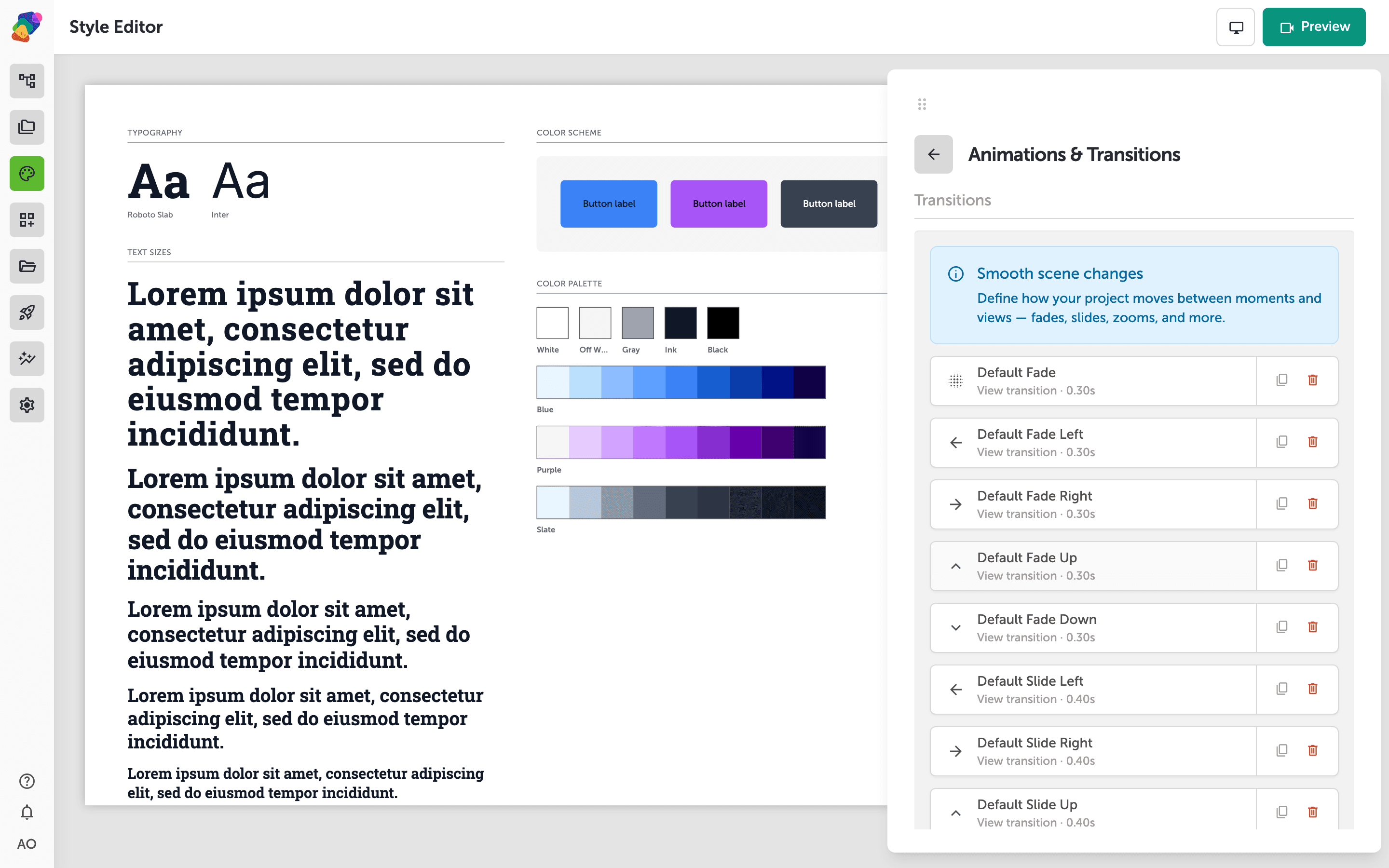
Add an animation and choose one from the interaction group. Sweep to right fills the button with color. Underline from center draws a line under the label. Ripple out and Float shadow are the other common choices. Set the color if the preset asks for one. Name it, and save.
Play it on hover or focus
On the view, select a Button. Add an event whose trigger is hover or focus, and whose action triggers the animation you saved. Preview the view and hover the button. Tab to it as well: focus should play the same motion, so the effect is not mouse-only.
A hover effect is a hint, not the action. The button still needs its Go to a moment or Submit form event if a click should do something.