
Managing Templates
Zibit's Templates page is your central hub for every reusable building block in your account—from individual component layouts to full project scaffolds and style themes. Instead of recreating the same structures from scratch each time, you can browse, search, and manage your saved templates in one place. Whether you're running a single museum kiosk or coordinating digital experiences across multiple venues, keeping your templates organized saves time and keeps your content consistent.
Open the Templates page
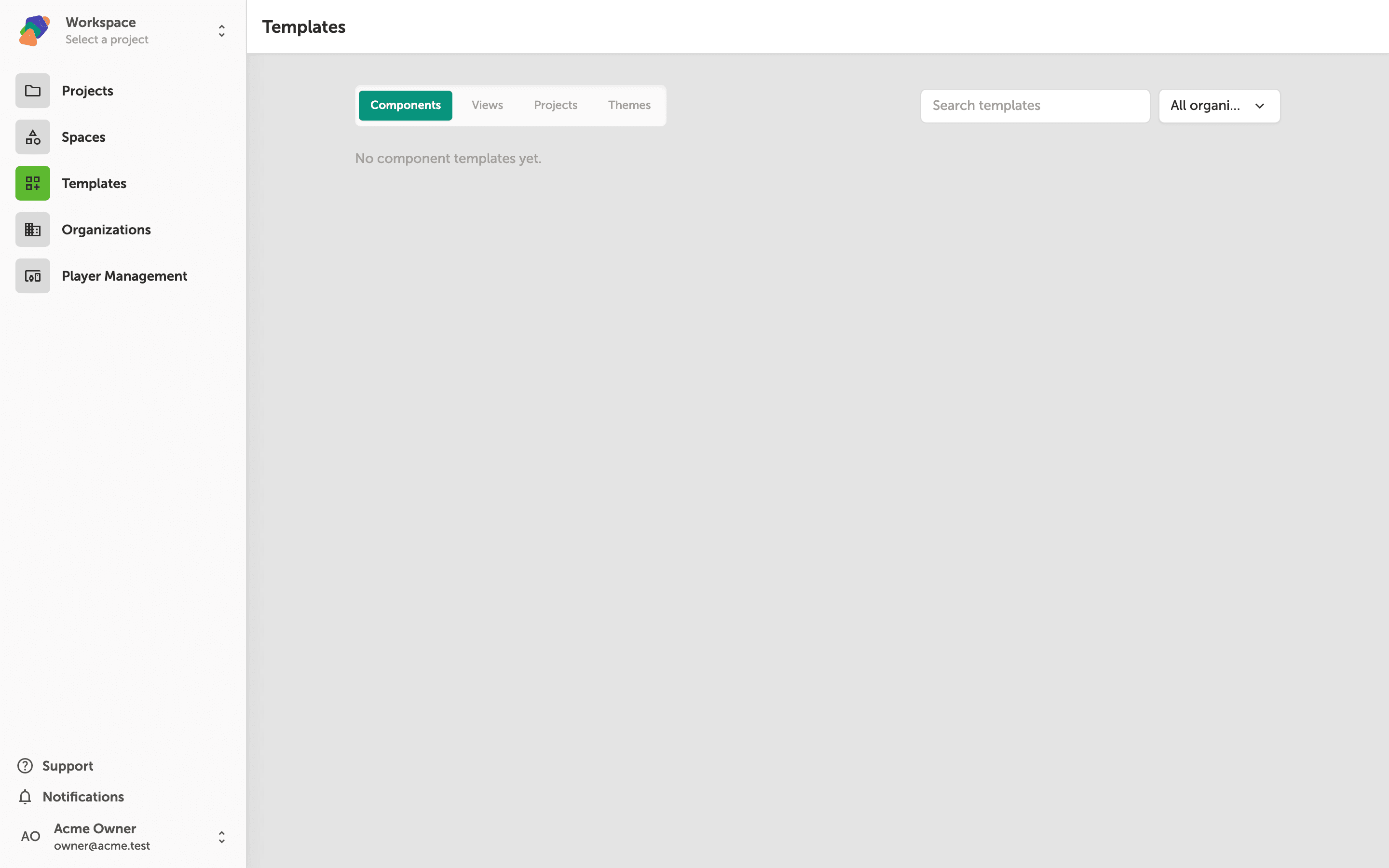
To get started, click "Templates" in the main navigation sidebar. The Templates page opens with four tabs across the top: "Components", "Views", "Projects", and "Themes". By default you'll land on the Components tab, which shows all of your saved component templates as cards. Each card displays a preview, the template name, and when it was last updated.
You can use the search bar at the top to quickly find a template by name, or scroll through the grid to browse what's available. If your team has been saving templates over time, this is the fastest way to see everything at a glance.
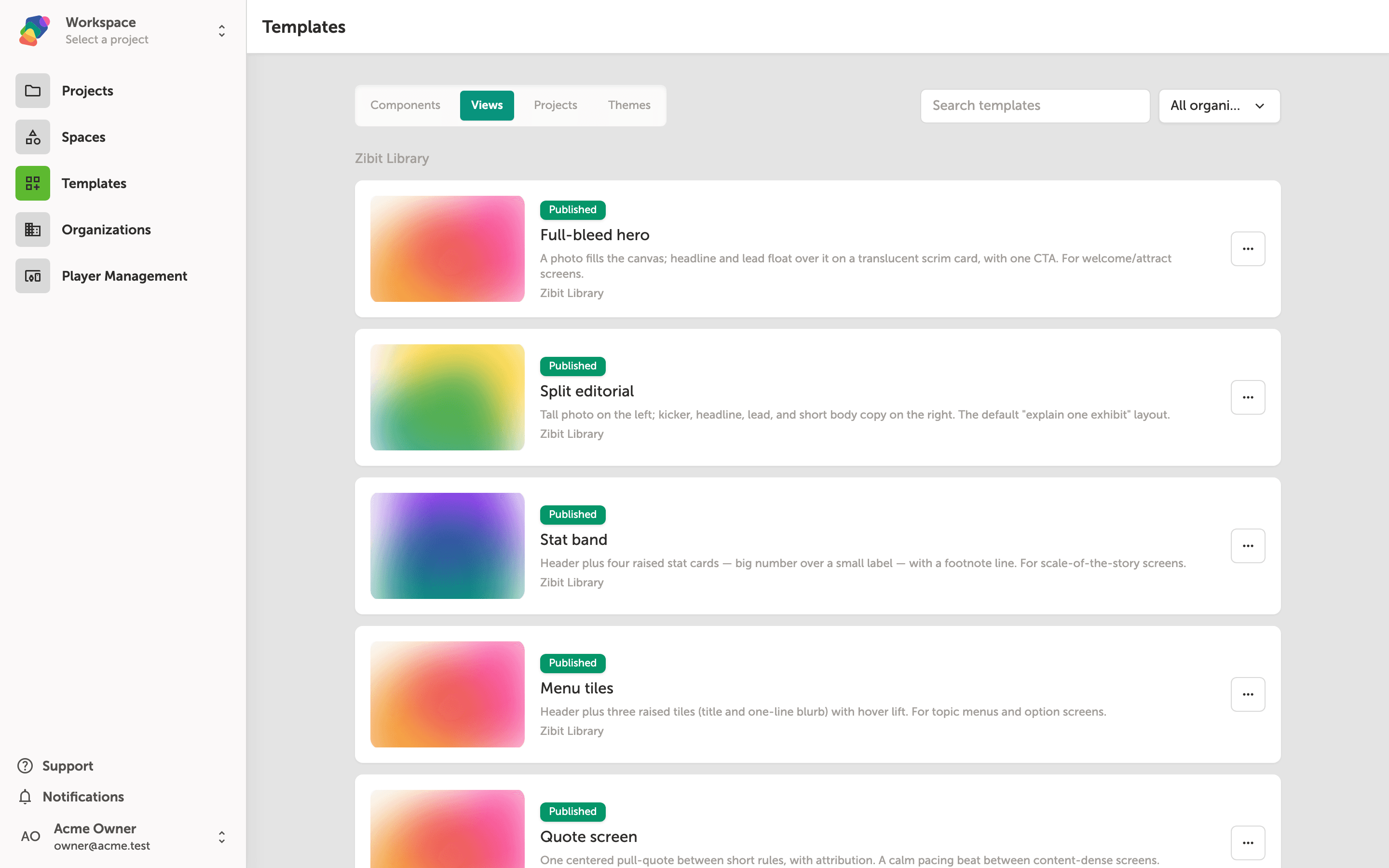
Browse view templates
Click the "Views" tab to see your saved view templates. Each card represents a full view layout—complete with placeholder components and grid positioning—that you or your team saved for reuse. View templates are especially useful when you have a go-to layout for welcome screens, informational moments, or wayfinding displays that you want to apply across multiple projects.
From here you can click any template card to preview its layout, or use the search bar to filter by name. If a template is no longer needed, you can delete it from this tab as well.
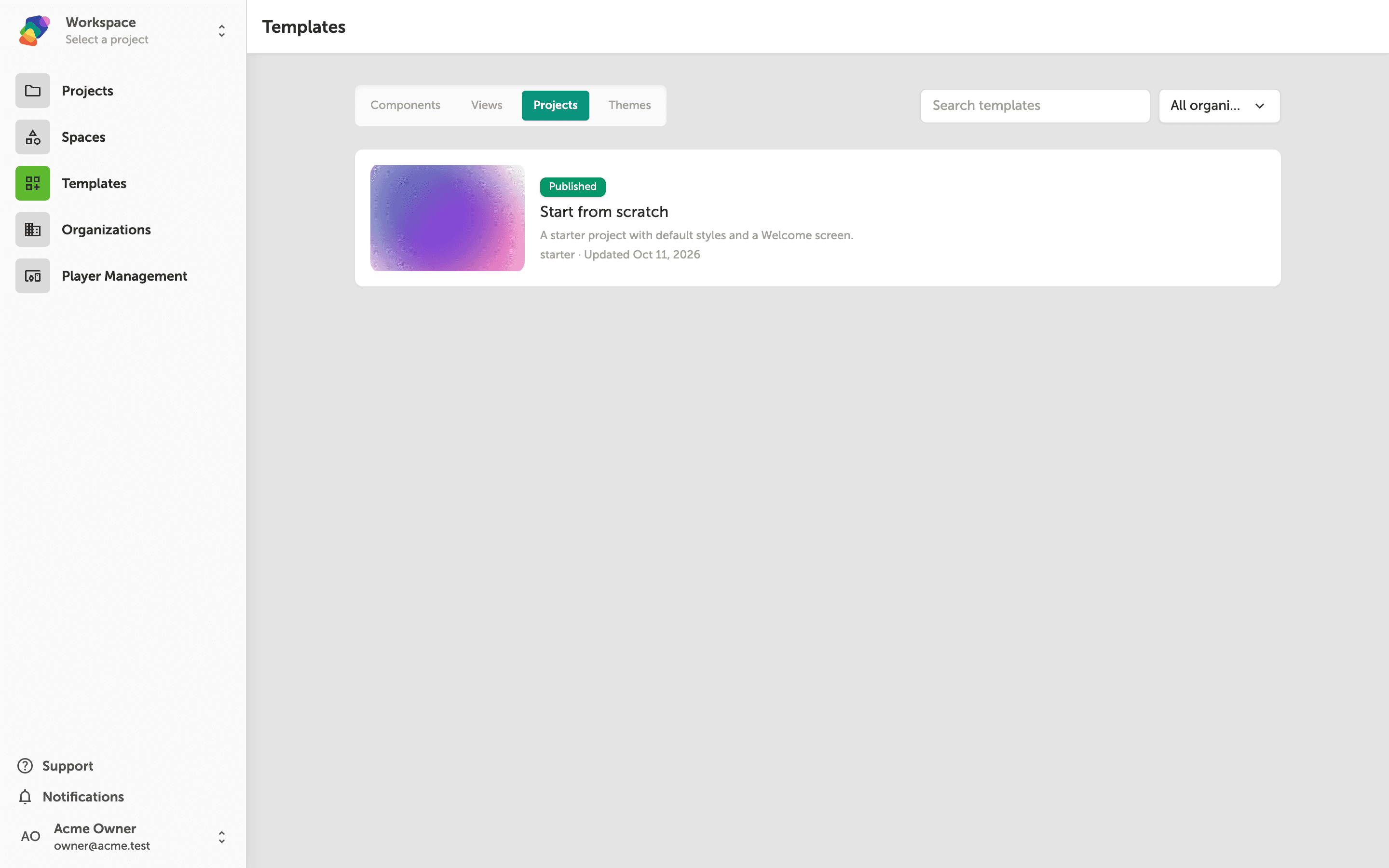
Browse project templates
Switch to the "Projects" tab to manage your project templates. A project template captures an entire project's structure—its moments, views, flows, and settings—so your team can spin up a new project that's ready to customize right away. This is particularly helpful for organizations that run similar exhibits or events on a regular basis.
Each project template card shows the template name, a brief description, and the scope (personal or organization-wide). Click a card to see more details, or delete templates that are outdated.
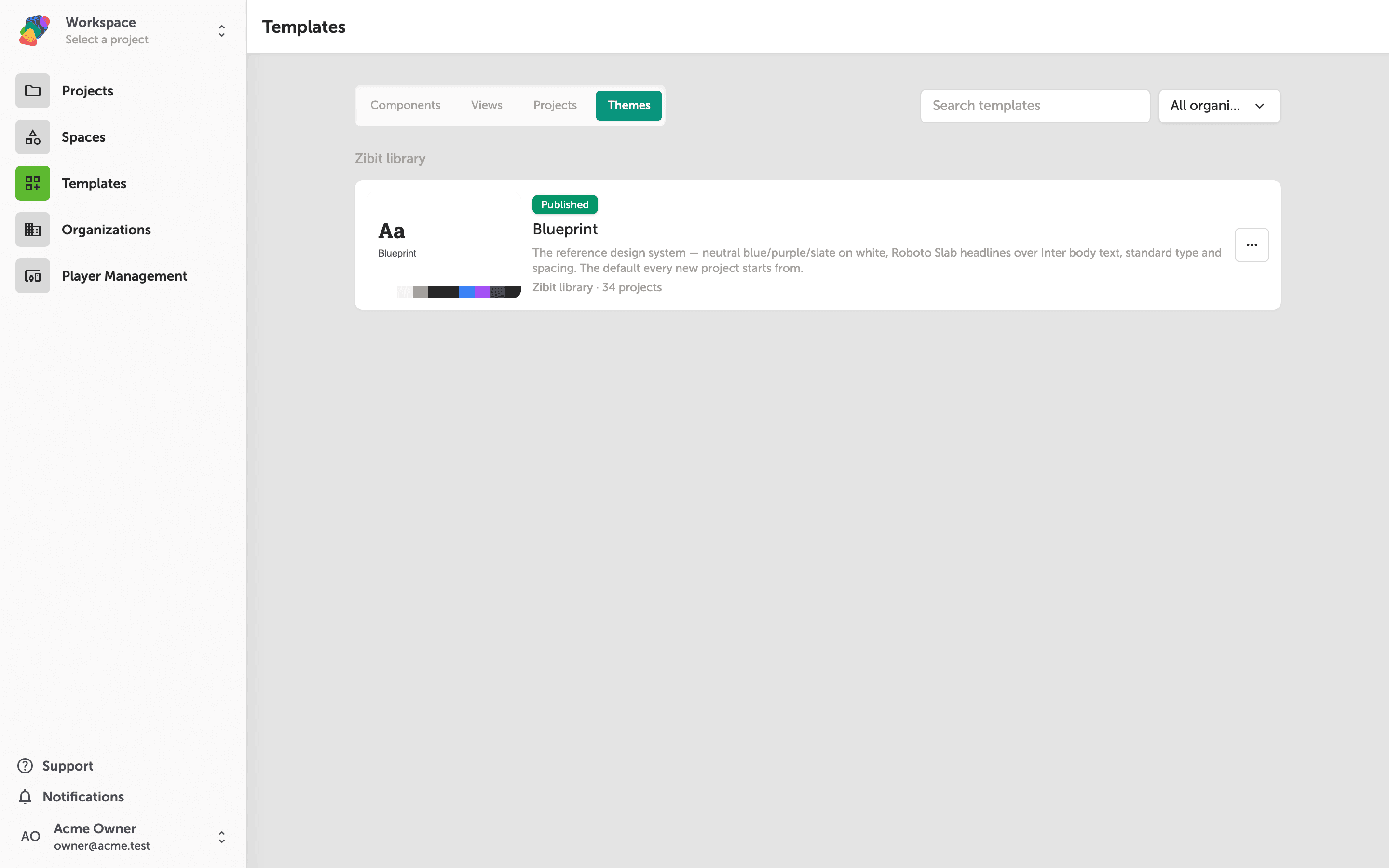
Browse theme templates
Finally, click the "Themes" tab to see your saved style themes. A theme defines a coordinated set of typography, color, and shadow tokens that you can apply across any project to keep your visual identity consistent. If your organization maintains a brand guide, saving it as a theme template means every new project can start with the right look and feel.
Browse the available themes by scrolling through the grid, or search by name to find the one you need.
You now know how to navigate the Templates page and find any template in your account. From here you can put your templates to work or start creating new ones:
- Create a view template—Save a view layout you've designed so it can be reused across projects. See Creating a view template for a step-by-step walkthrough.
- Create a project template—Capture an entire project's structure as a reusable starting point. See Creating a project template for details.
- Create a view from a template—Apply one of your saved view templates when adding a new view to a moment. See Creating a view from a template to learn how.
- Organize with tags—Add descriptive tags to your templates so they're easier to find as your library grows.