August 13, 2026·4 min read
Building Multi-Screen Experiences with Zibit


Art by Maggie Christiansen. Find Maggie's work on Instagram.
Key Takeaways
- Multi-screen support is built into Zibit’s design system—not an add-on or a custom build.
- Connect as many screens as the experience needs, and configure each one independently: orientation, resolution, and role.
- Assign real-world physical dimensions and preview every screen side-by-side in the browser, so you can see actual size and layout before install day; the player app deploys the right content to the right display.
Zibit is great at helping you build a polished experience on a single screen. But the coolest digital experiences out there aren’t limited to one display. They’re spread across two, three, or even 10 displays working together—and that’s exactly where Zibit really shines.
Multi-screen support is baked into Zibit’s design system, and it’s one of the things that sets us apart from a lot of the other tools out there. So let’s walk through how it actually works, and where you might use it.
Connect as many screens as you need
Start simple. In the editor, you can connect as many screens as your experience calls for, and configure each one independently: orientation, resolution, whatever format fits. Doesn’t matter if you’re building something with two screens or 20. Each screen gets set up for exactly what it needs to do, whether that’s a big passive display just showing content or an interactive screen someone’s actually touching and tapping through.
Display
In Zibit, a display is a target screen in your project—with its own resolution, orientation, and layout. Adding a display gives every moment a view sized for that screen, so a touchscreen kiosk and a nearby video wall can show different content as part of the same experience.
That flexibility matters because most real-world multi-screen setups aren’t uniform. You’ll often have a mix of screens with different purposes: some screens driving the experience and others just along for the ride, displaying something that complements it.
Simulate real-world size, right in the editor
If you’ve ever designed something on a laptop screen only to find out it looks totally different blown up on a 55-inch display in a lobby, you know why testing on real hardware matters.
With Zibit, you can assign actual physical dimensions—inches, centimeters, whatever you’re working with—to each screen in your setup. That means you can see how big things will actually look in the real world, without needing the physical hardware in front of you. Being able to simulate real-world scale ahead of time means fewer surprises on install day.
Preview everything, side-by-side
Once your screens are set up, you can preview the whole experience right in the browser. Every screen is laid out side-by-side, so you can see how they all work together before anything touches physical hardware.
And when you are ready to go physical, our player app takes care of the rest. It automatically detects each screen and deploys the right content to the right display. No manual wiring content to displays one at a time, no guesswork about which screen is supposed to show what.
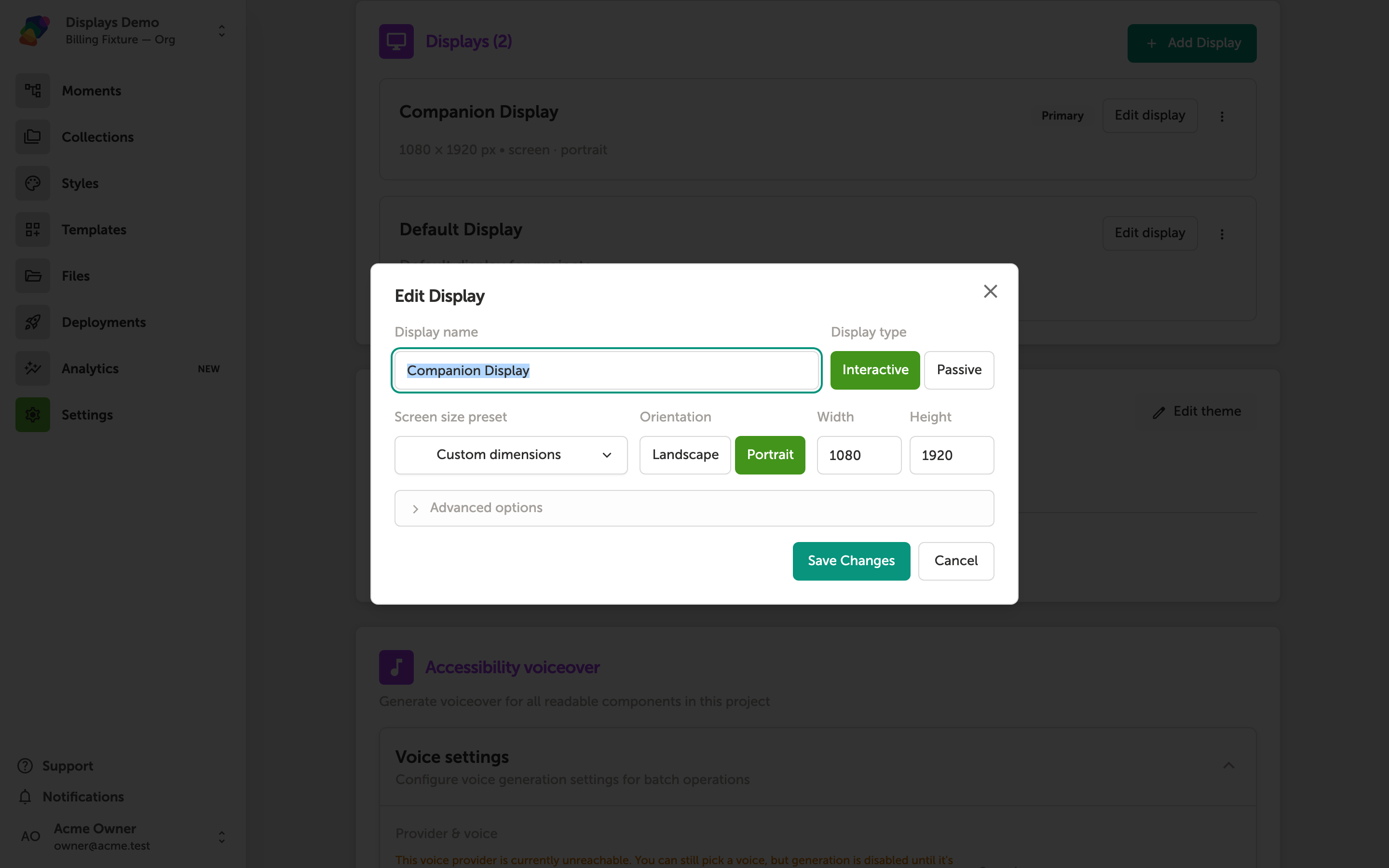
Two displays in one project—configure each screen, then preview them together before install day.
Multi-screen installations in the wild
This kind of multi-screen setup opens the door to a lot of experiences that just aren’t possible with a single-screen tool:
- Digital menu and product boards: coordinated, eye-catching layouts spread across multiple connected displays, instead of one screen doing all the work.
- Multi-station interactive games: several stations sharing a live, synced leaderboard, so everyone’s progress updates in real time across every screen.
- Interactive storytelling: one person interacts on a touchscreen while others follow along on a larger-format screen or projector nearby. It’s a great way to turn a solo interaction into a shared moment for a whole group.
We’ve seen how these immersive multi-screen experiences transform a space: a visitor drives the story on a touchscreen while the rest of their group watches it unfold on a larger display.
“It’s a simple idea, but it changes how the experience feels—instead of one person having an experience, the whole group gets pulled in.”
It’s a simple idea, but it changes how the experience feels—instead of one person having an experience, the whole group gets pulled in.
The takeaway
Multi-screen isn’t an edge case for us: it’s core to what Zibit can do. If you’re dreaming up something that spans more than one display, you don’t need a different tool or a custom solution.
Got a multi-screen idea you’re not sure how to pull off? That’s exactly the kind of thing we love talking through—reach out and let’s figure it out together.
Quick answers
Does Zibit support more than one screen in a single project?
Yes. Multi-screen support is built into Zibit's design system—you can connect as many screens as the experience needs, from two displays to 20.
Can each screen in a Zibit project have a different size or orientation?
Yes. Each display is configured independently for orientation, resolution, and physical size, so a touchscreen kiosk and a nearby video wall can show different content as part of the same experience.
Can I preview a multi-screen exhibit before installing hardware?
Yes. Zibit lays out every screen side-by-side in the browser, using real-world physical dimensions, so you can see actual size and layout before install day.
Where are teams using multi-screen Zibit experiences?
Teams use multi-screen setups for digital menu boards, multi-station games with a synced leaderboard, and interactive storytelling—where a visitor drives the story on a touchscreen while others follow along on a larger display.