
October 22, 2026·2 min read
Interactive Book Component
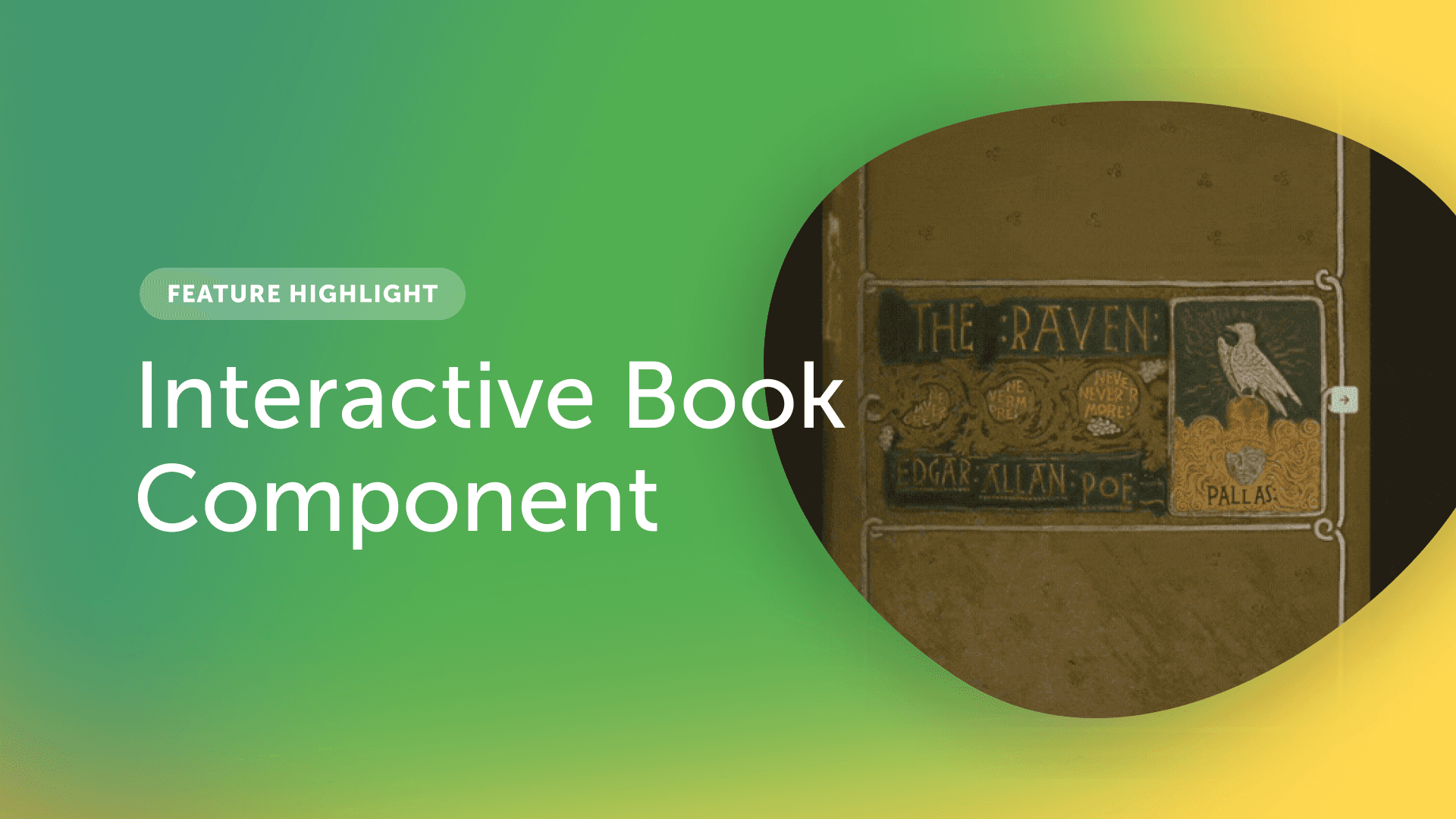
At its core, Zibit’s book component is rooted in the familiar and powerful experience of flipping through pages of a book. The real magic happens when you build upon that foundation and add layers of digital interaction.
Fast facts
- Type of interaction: page flipper
- Pages can contain uploaded images of existing documents
- Pages can be designed by adding components
- Any component can be added to a book page
Pairs well with:
Tips for creating a great page-flipping book
Most successful use cases of page flippers are as part of interpretive media, not a 1-1 object replacement. Give people the feeling of exploring the source of information while guiding them to important information. Work with the native format while bolstering interpretive content without breaking that format.
Do’s and don’ts
-
Don’t recreate a whole book: People do not have time to read every page. Do use hotspots or pop-ups to call out specific passages for viewers to explore.
-
Don’t limit your project by using the book component as a static image page-flipper. Do layer in other components and media to give passages context or expand upon ideas.
-
Don’t let the form be a gimmick. Do consider what print media does well. Consider the delight a page turn can reveal, or how a spread can tell a complex, visually interesting story.
Inspiration
Here are three quick ideas for ways you can use the book component.
An image opens a pop-up with a carousel of more images
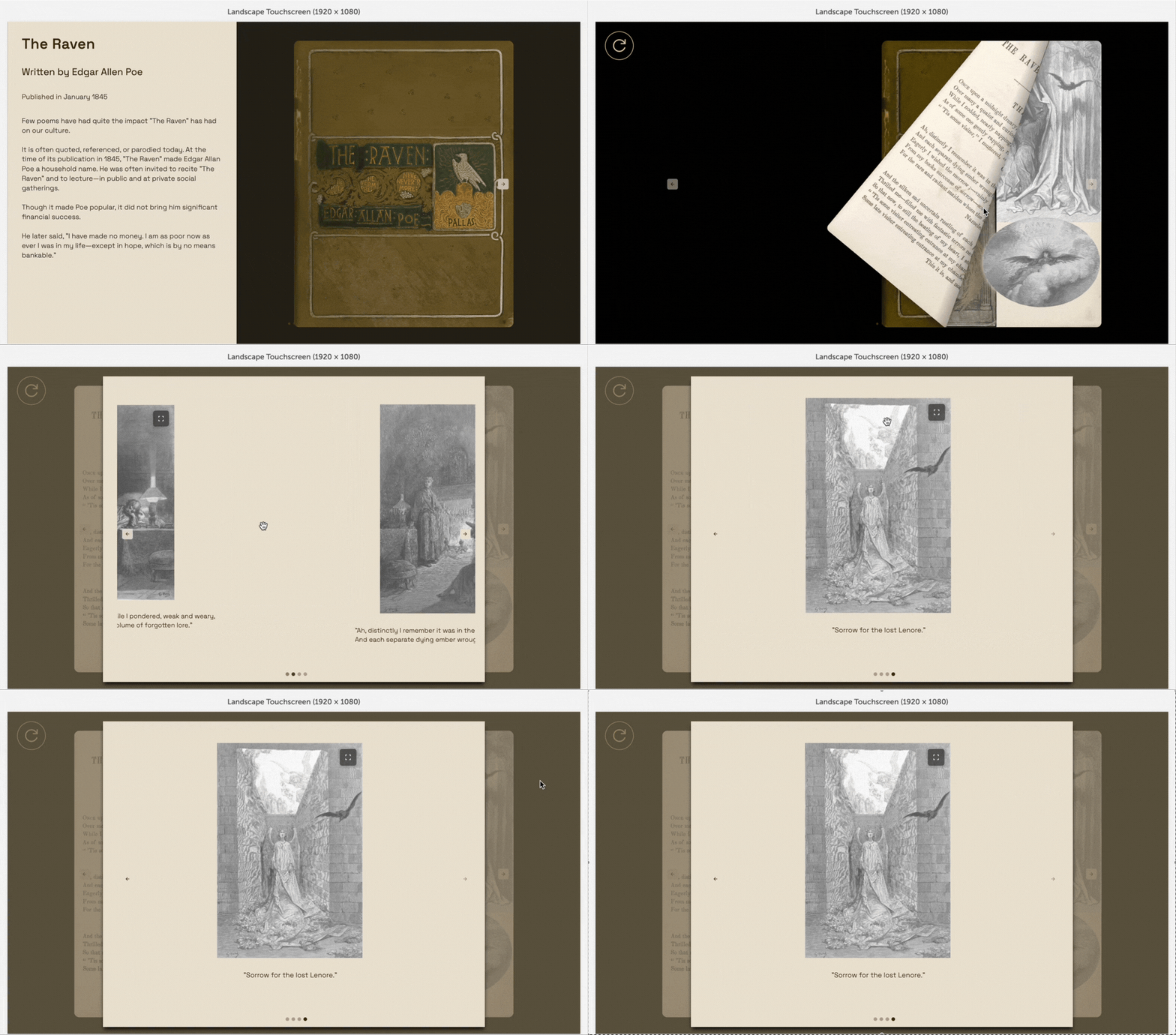
Offer rich content without cluttering the page. Adding an event to an image that triggers a pop-up or a modal allows users to dig deeper into the story without adding more and more book pages.
Hidden audio component
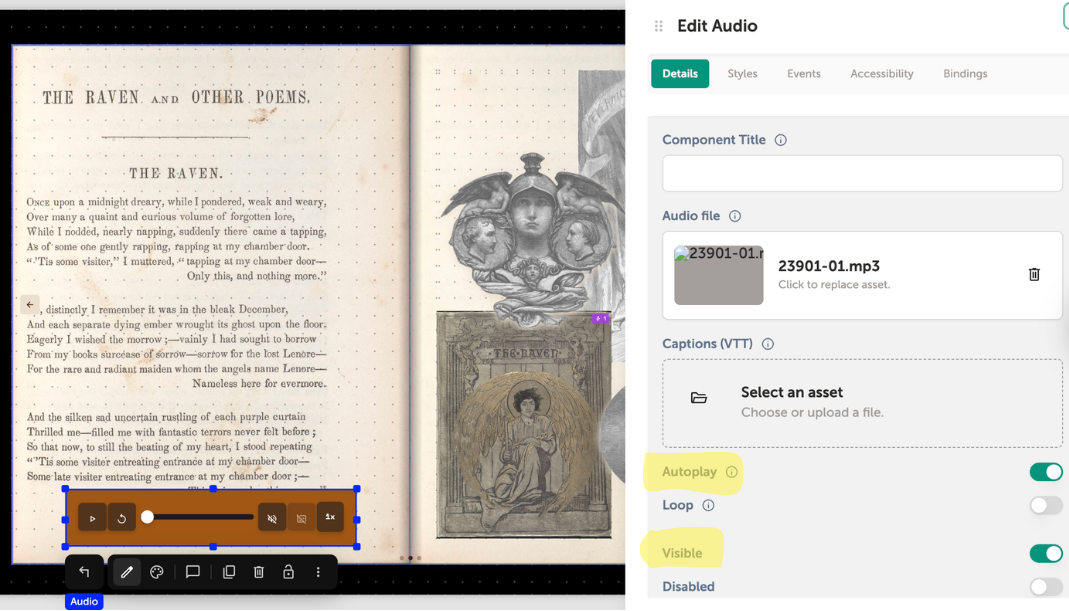
By making an audio component invisible and toggling it to play automatically upon arrival to a page, people can listen to a recording of “The Raven” while exploring other interactive media in this page spread.
Two-page spread
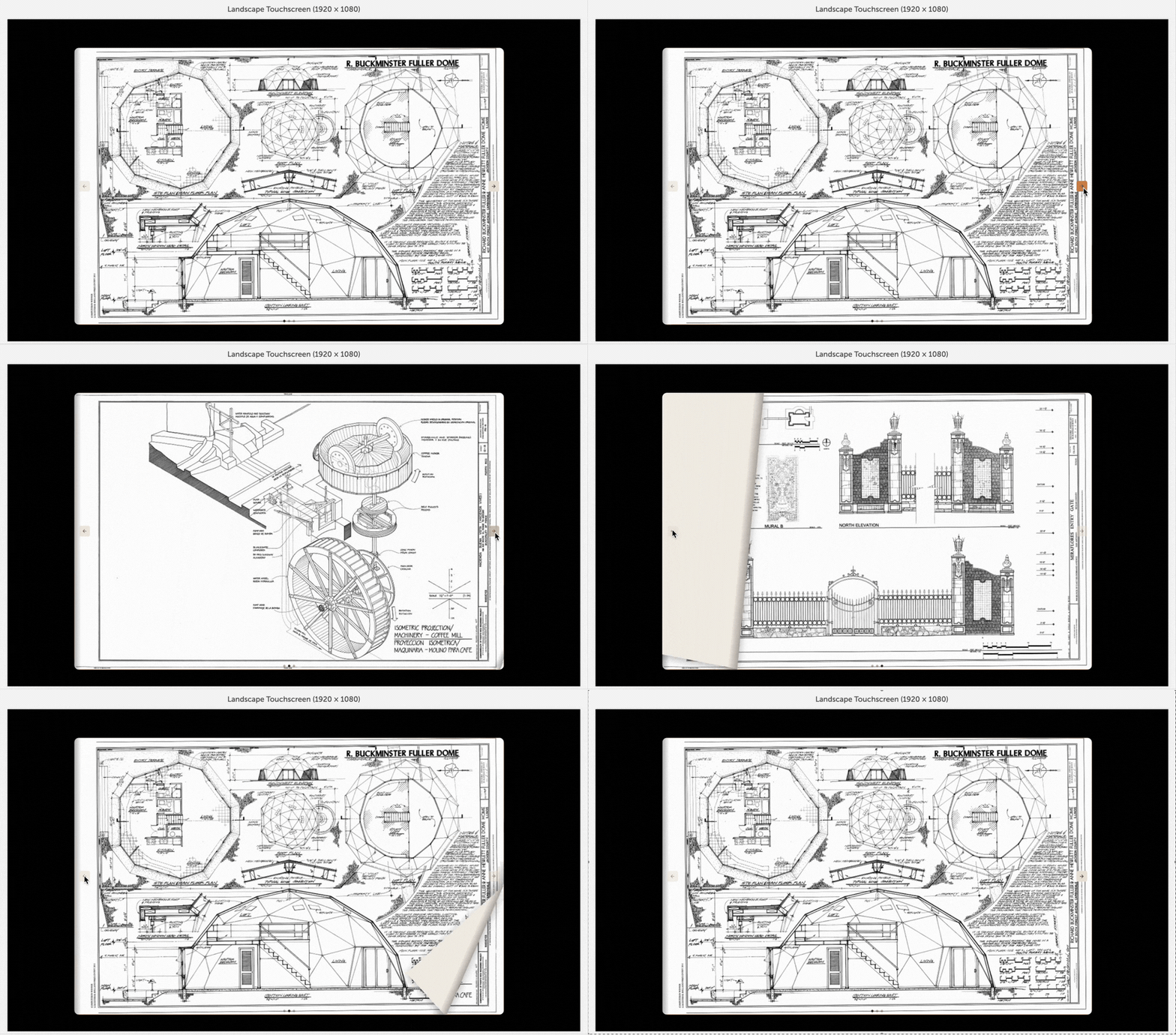
Changing the display from a one-page spread to a two-page spread shifts the axis from the spine to the left-hand side. Users can now flip through a binder of blueprints or other large images.
Want to create your own page-flip book? Follow the tutorial to get started.